
Quick Import Wizard
The Quick Import Wizard is the fastest way to import data. It walks you through 5 simple steps.
Page URL: /wp-admin/admin.php?page=wkaie-import
Page title at the top: "Quick Import"
Subtitle: "Import millions of products, orders, customers, and more at extreme speed."
When to use the wizard
Use the wizard for one-time imports — uploading a supplier's price list, importing products from a migration file, and so on. For repeat imports on a schedule, save the job instead. See Jobs.
Step Indicator
At the top of the page, you see 5 numbered circles connected by lines. The active step highlights in blue. As you advance, completed steps stay colored.
| Step | Name | What You Do |
|---|---|---|
| 1 | Upload & Configure | Pick entity, mode, format, source, upload file |
| 2 | Column Mapping | Connect file columns to WooCommerce fields |
| 3 | Preview / Dry Run | See what will happen before importing |
| 4 | Import Progress | Watch the live progress bar |
| 5 | Results | See what happened and download logs |
Step 1 — Upload & Configure
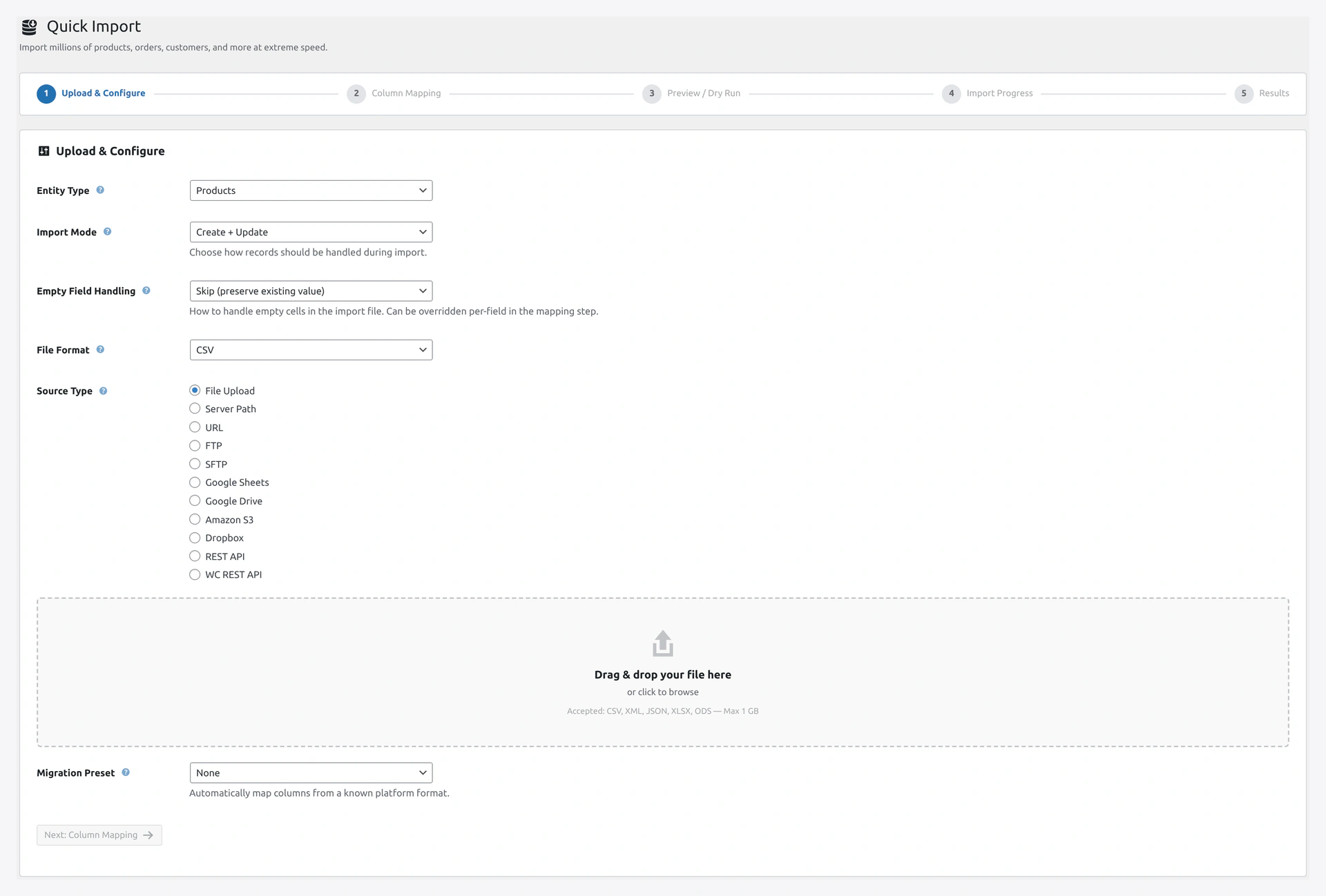 Step 1 — pick entity, mode, format, source, and upload your file.
Heading shown: "Upload & Configure" (with a gear icon).
Field 1 — Entity Type
Dropdown label: "Entity Type"
Pick what kind of data you are importing.
| Option | When to Pick |
|---|---|
| Products | Most common — any product type |
| Orders | Historical orders from another platform |
| Customers | Customer list with addresses |
| Categories | Only product categories (no products) |
| Tags | Only product tags |
| Attributes | Color, Size, Material attributes |
| Coupons | Discount codes |
| Reviews | Product reviews |
| Posts | WordPress blog posts |
| Pages | WordPress pages |
| Users | Any WordPress user |
| Subscriptions | Only shown if WooCommerce Subscriptions is active |
| Bookings | Only shown if WooCommerce Bookings is active |
| Memberships | Only shown if WooCommerce Memberships is active |
Tooltip message (hover the ? icon): "The type of WooCommerce data in your file. Products uses the high-performance 4-phase bulk pipeline. Other entity types use a single-pass processor."
Field 2 — Import Mode
Dropdown label: "Import Mode"
How the plugin handles each row.
| Option | What It Does |
|---|---|
| Create Only | Add new records, skip existing |
| Update Only | Update existing, skip new |
| Create + Update | Add new AND update existing (most common) |
| Delete | Remove records in the file |
| Replace | Wipe everything, then import |
Helper text below: "Choose how records should be handled during import."
Field 3 — Empty Field Handling
Dropdown label: "Empty Field Handling"
What happens when a cell in your file is empty.
| Option | What It Does |
|---|---|
| Skip (preserve existing value) | Leaves the existing value unchanged |
| Clear (remove/empty the field) | Clears the field in WooCommerce |
Helper text below: "How to handle empty cells in the import file. Can be overridden per-field in the mapping step."
Field 4 — File Format
Dropdown label: "File Format"
| Option | Notes |
|---|---|
| Auto-Detect (default) | Plugin figures it out from the file |
| CSV | Fastest for bulk imports |
| XML | With XSLT support |
| JSON | Flat or nested |
| XLSX | Excel 2007+ |
| ODS | LibreOffice / OpenOffice |
Field 5 — Source Type
Heading: "Source Type" (radio buttons in a vertical list)
Where is your file coming from? Pick one of these 11 options:
| Option | When to Pick |
|---|---|
| File Upload (default) | Pick a file from your computer |
| Server Path | File already on your server |
| URL | Download from any link |
| FTP | Old-style FTP server |
| SFTP | Secure FTP (recommended over FTP) |
| Google Sheets | Paste the sheet URL |
| Google Drive | File in Google Drive |
| Amazon S3 | AWS S3 bucket |
| Dropbox | Dropbox shared link |
| REST API | Custom JSON API endpoint |
| WC REST API | Another WooCommerce store |
When you pick a source, a panel appears below with the specific fields for that source.
Source Panels — What You See For Each
File Upload Panel
- Drag-and-drop dropzone saying "Drag & drop your file here"
- Or "click to browse"
- Subtext: "Accepted: CSV, XML, JSON, XLSX, ODS — Max [your server limit]"
- After upload, a file info box shows the filename, size, and a remove button
FTP Panel
| Field | Example |
|---|---|
| FTP Host | ftp.example.com |
| Port | 21 (default) |
| Username | your FTP user |
| Password | your FTP password |
| Remote Path | /imports/products.csv |
Button at the bottom: Test Connection (with a networking icon)
SFTP Panel
Same as FTP but:
- Default port is 22
- You can use SSH key instead of password (set up in Settings first)
Google Sheets Panel
Single field:
- Google Sheets URL — paste full URL like
https://docs.google.com/spreadsheets/d/1ABC.../edit
Help text: "Sheet must be publicly accessible or shared with the service account."
Google Drive Panel
Single field:
- Google Drive File ID — paste the share link or just the file ID
Help text: "Paste the Google Drive share link or file ID. Public files work without credentials."
Amazon S3 Panel
| Field | Example |
|---|---|
| S3 Bucket | my-import-bucket |
| File Path | imports/products.csv |
| Region | us-east-1 (default) |
| Access Key | AKIAIOSFODNN7EXAMPLE |
| Secret Key | (password, hidden) |
Access Key and Secret Key can be left blank if you saved defaults in Settings → Cloud Storage & API.
Dropbox Panel
Single field:
- Dropbox Shared Link — paste the link like
https://www.dropbox.com/scl/fi/...
Help text: "Paste the Dropbox share link. Public files work without API credentials."
REST API Panel
Single field:
- API Endpoint URL — e.g.,
https://api.example.com/products
WC REST API Panel
| Field | Example |
|---|---|
| WooCommerce Store URL | https://store.example.com (without /wp-json) |
| Consumer Key | ck_abc123... |
| Consumer Secret | cs_xyz789... |
Generate keys on the source store at WooCommerce → Settings → Advanced → REST API.
Click Next
After filling everything, click the Next button at the bottom.
The plugin validates:
- Entity type is picked
- File is uploaded (or credentials provided for remote sources)
- Connection works (test runs automatically for FTP/SFTP/APIs)
If something is missing, an inline error appears. Fix it and click Next again.
Step 2 — Column Mapping
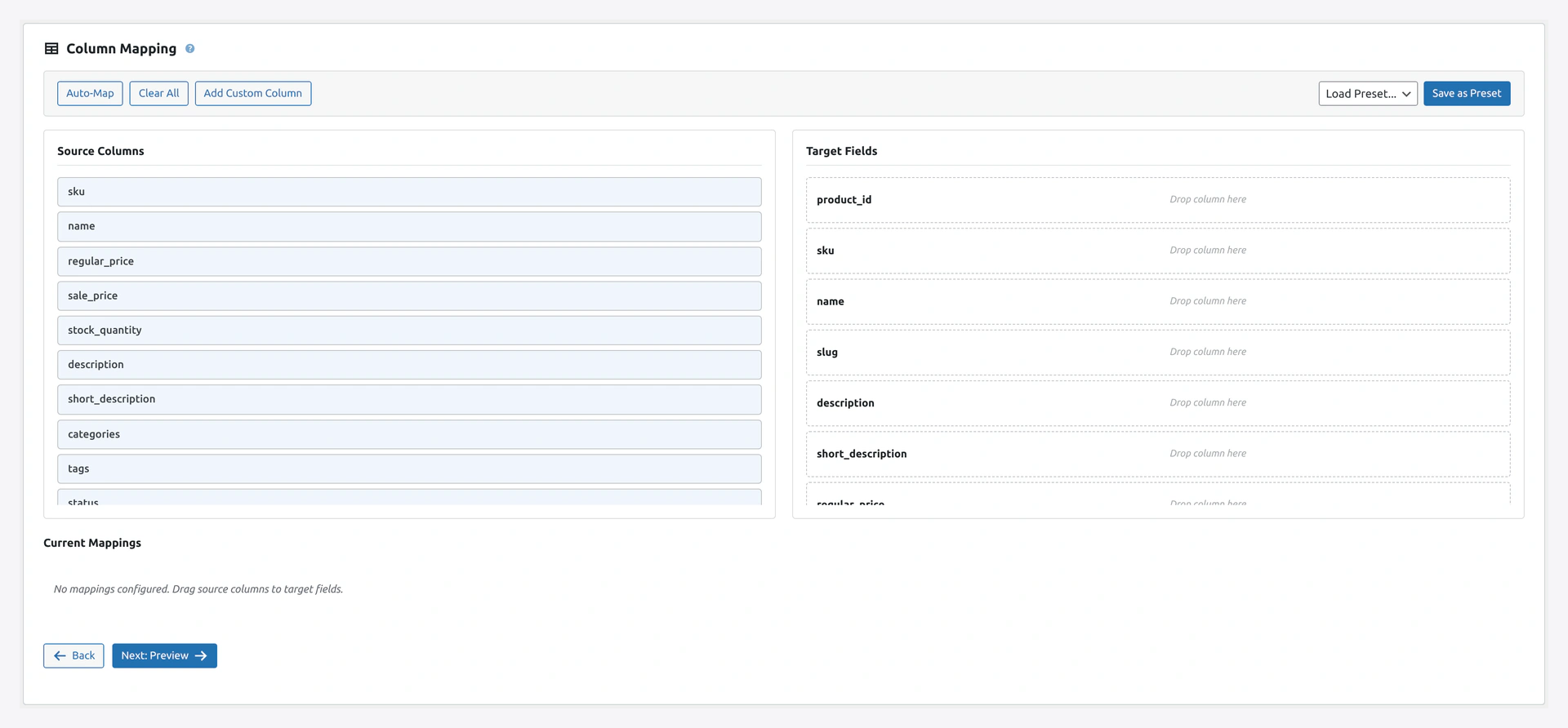 Step 2 — drag columns from your file (left) to WooCommerce fields (right).
This step connects your file's columns to WooCommerce fields.
What You See
Heading: "Column Mapping"
Description: "Map source file columns to WooCommerce fields. Drag columns from the left to target fields on the right."
Left side — columns from your file, with the first-row values as examples
Right side — WooCommerce fields for the entity you picked
Auto-Match
When the page loads, the plugin auto-matches columns whose names are similar. Standard files need almost no manual work.
Manual Mapping
- Click the column on the left
- Drag it to the field on the right
- Release when the field turns green
Save as Preset
Click Save Mapping at the top to save this setup. Next time you import a file with the same columns, load the preset instead of re-mapping.
See Column Mapping for deeper details.
Click Next
When the mapping looks right, click Next.
Step 3 — Preview / Dry Run
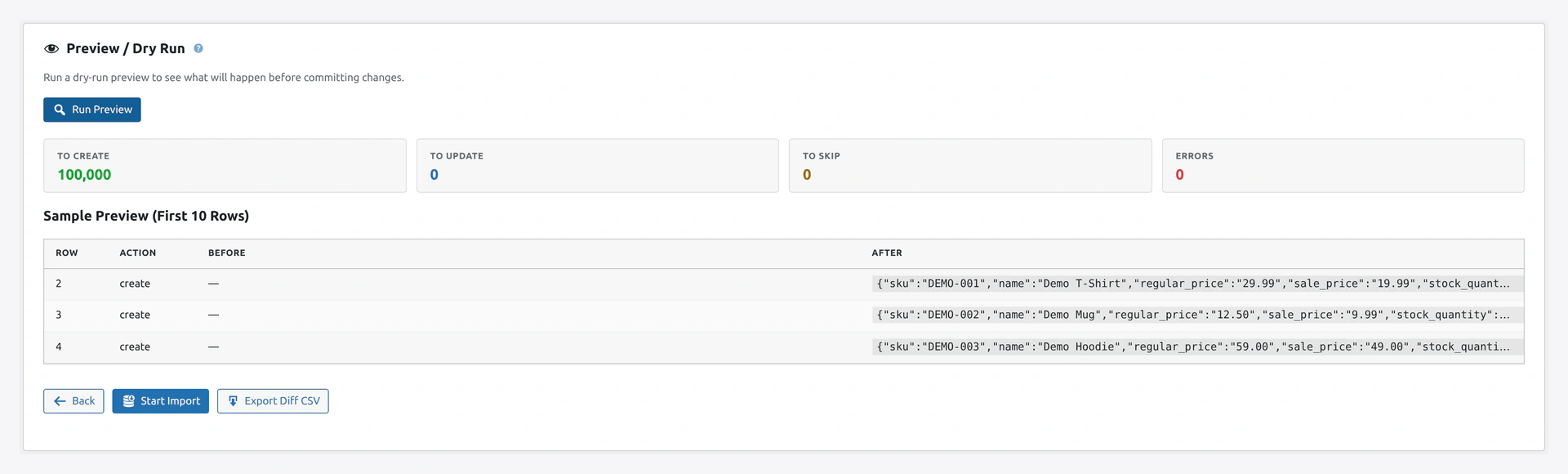 Screenshot: Wizard step 3 — preview with sample rows, create counts, and validation errors.
Step 3 shows what will happen before any data touches the database.
What You See
- Sample of the first few rows, as they will be imported
- Counts: how many records will be Created, Updated, Skipped, or have Errors
- Any validation errors found
- Any warnings (missing columns, invalid values)
Review Buttons
- Run Preview — re-run the preview (useful after changing settings)
- Back — go to Step 2 and fix the mapping
- Start Import — commit the import for real
Read the preview carefully
This is your chance to catch mistakes. If counts look wrong (e.g., 10 rows but "0 will be created"), something is off. Go back.
Step 4 — Import Progress
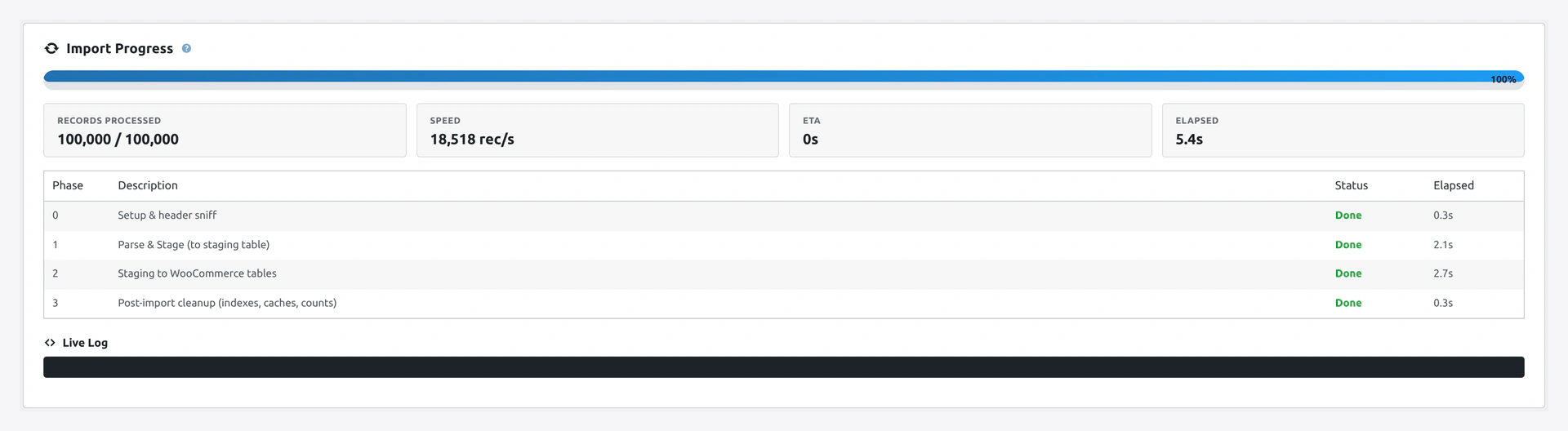 Step 4 — live progress with phase status, records processed, and speed.
This page shows the import as it runs.
What You See
- Progress bar with percentage
- Current phase (Phase 0, 1, 2, or 3)
- Records processed counter (e.g., "5,000 / 10,000")
- Speed in records per second
- ETA — time left
- Live log — recent messages
The 4 Phases
| Phase | Name | What Happens |
|---|---|---|
| 0 | Setup & header sniff | Read file, count rows, create staging table |
| 1 | Parse & Stage | Parse the file, write to staging |
| 2 | Staging to WC tables | Move data to WooCommerce tables |
| 3 | Post-import cleanup | Rebuild indexes, flush caches |
Can I Close the Tab?
Yes. The import keeps running on the server. Come back to the wizard URL and you will see the current status or the final result.
Cancel Button
Click Cancel Import to stop. The plugin stops cleanly. Rows already imported stay. You can roll back if you want.
Step 5 — Results
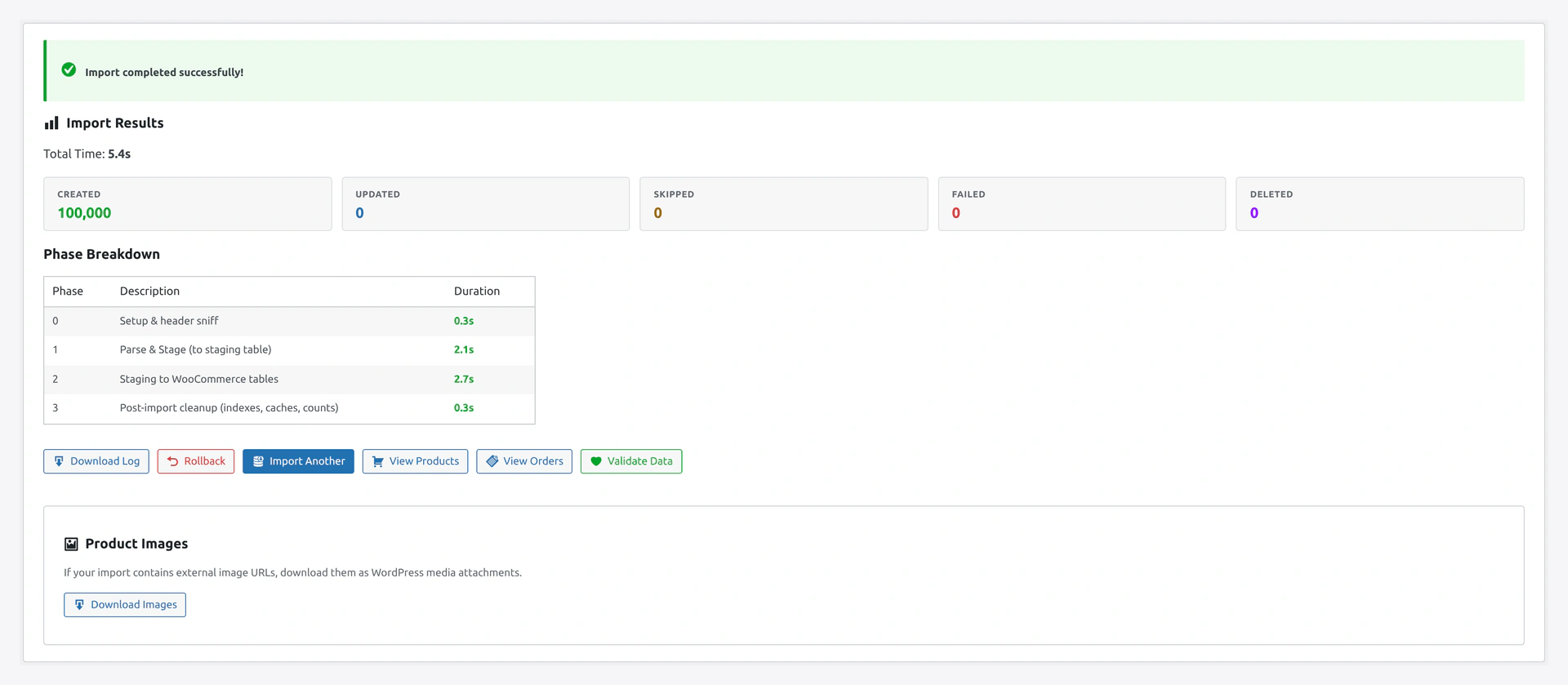 Step 5 — final counts, download log, rollback button, next steps.
The last page shows what happened.
What You See
- Success or Failure banner
- Total time taken
- Speed (records per second)
- Four counters: Created / Updated / Skipped / Failed
- Phase breakdown table (time per phase)
- Image download status (if you imported images)
Buttons
| Button | What It Does |
|---|---|
| Download Log | Get the full log file (good for support tickets) |
| Rollback | Undo this import (restore previous state) |
| Import Another | Go back to Step 1 for a new import |
If the Import Failed
See the red banner. Click Download Log to see details.
Most common causes:
- Missing required columns (no SKU on a product row)
- Invalid data (price is "abc" instead of a number)
- Image URL returned 404
- File ran out of time on shared hosting
See Troubleshooting.
Troubleshooting the Wizard
| Problem | Fix |
|---|---|
| "File could not be uploaded" | Check PHP upload_max_filesize. See PHP Configuration |
| Step 2 shows no columns | File may be empty or wrong format. Try a different file |
| Auto-match missed obvious columns | Column names might have typos or extra spaces. Map them manually |
| "Column count mismatch" error | Some rows have more or fewer columns than the header. Fix in your spreadsheet |
| Import stops at 50% | Server ran out of memory or time. Lower the batch size in Settings |
| Everything says "Skipped" | Check your mode. Maybe every SKU already exists and you are in "Create Only" |
| Connection test fails | Check credentials. For FTP, try SFTP instead |
Related Pages
- Import Sources — Set up each source in detail
- Import Modes — When to use each mode
- Column Mapping — Save and reuse mapping presets
- Transformations — Change values during import
- Migration Presets — Shopify, Magento, BigCommerce
- Rollback — Undo an import
- History — See every wizard run
- Troubleshooting — Common problems and fixes