
Orders Import
Import historical orders from another platform, or bulk-update order statuses.
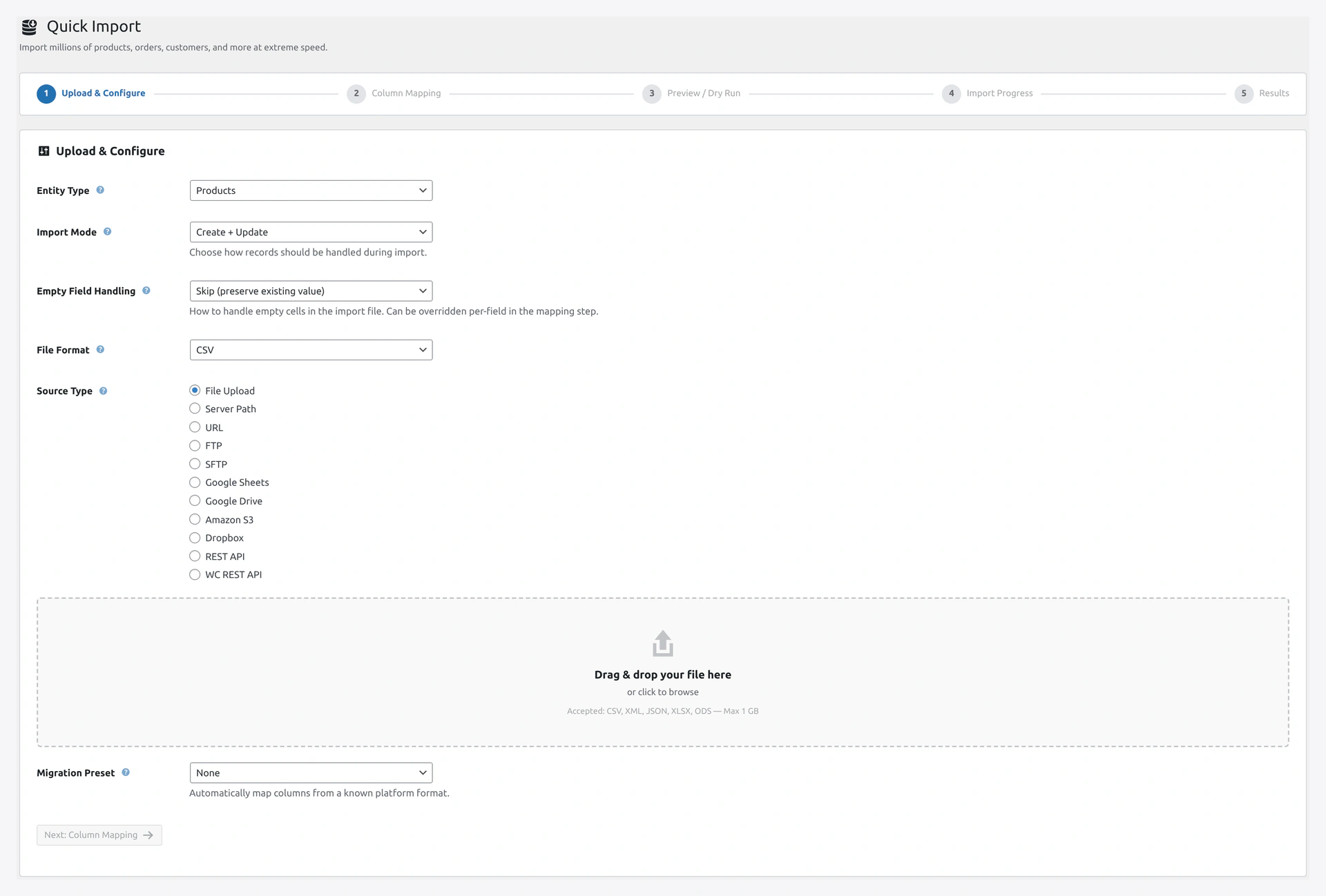 Step 1 of the Quick Import wizard: pick Orders as the entity, upload your export, and set the match key.
When to Use
- Migrating from Shopify, Magento, BigCommerce (to keep order history)
- Restoring orders from a backup
- Bulk changing order status (e.g., mark 100 orders as shipped)
- Adding tracking codes to many orders at once
Complete Column List
Basic Fields
| Column | Required | Example |
|---|---|---|
Order Number | Yes | 12345 |
Order ID | No | 100 (WooCommerce internal ID) |
Order Status | Yes | processing, completed, cancelled, refunded, pending, on-hold, failed |
Date Created | Yes | 2026-04-14 10:30:00 |
Date Completed | No | 2026-04-14 12:00:00 |
Currency | No (defaults to USD) | USD, EUR, GBP |
Total | Yes | 59.98 |
Subtotal | No | 49.99 |
Shipping Total | No | 9.99 |
Tax Total | No | 5.00 |
Discount Total | No | 0.00 |
Customer
| Column | Example |
|---|---|
Customer Email | [email protected] |
Customer ID | 42 (WordPress user ID) |
Customer Username | johndoe |
The plugin will look up the customer by email first. If no customer exists, you can auto-create one.
Billing Address
| Column | Example |
|---|---|
Billing First Name | John |
Billing Last Name | Doe |
Billing Company | Acme Corp |
Billing Address 1 | 123 Main St |
Billing Address 2 | Apt 4 |
Billing City | Boston |
Billing State | MA |
Billing Postcode | 02101 |
Billing Country | US (2-letter code) |
Billing Phone | 555-1234 |
Billing Email | [email protected] |
Shipping Address
Same columns as billing, but prefixed with Shipping:
Shipping First NameShipping Last NameShipping Address 1Shipping CityShipping StateShipping PostcodeShipping Country
Payment
| Column | Example |
|---|---|
Payment Method | stripe, paypal, bacs, cod, cheque |
Payment Method Title | Credit Card (Stripe) |
Transaction ID | ch_1abc2def3ghi |
Paid Date | 2026-04-14 10:35:00 |
Shipping
| Column | Example |
|---|---|
Shipping Method | flat_rate, free_shipping, local_pickup |
Shipping Method Title | Standard Shipping |
Line Items
Orders have multiple products. Use one of two formats:
Format 1 — JSON in a Single Column
Order Number,Line Items
12345,"[{""sku"":""WK-001"",""qty"":2,""price"":29.99},{""sku"":""WK-002"",""qty"":1,""price"":18.50}]"
Format 2 — Multiple Rows per Order (Pivoted)
Order Number,Line Item SKU,Line Item Qty,Line Item Price
12345,WK-001,2,29.99
12345,WK-002,1,18.50
Plugin groups rows by Order Number automatically.
Format 3 — Pipe-Separated
Order Number,Line Item SKUs,Line Item Qtys,Line Item Prices
12345,"WK-001|WK-002","2|1","29.99|18.50"
Handling Line Items
What the Plugin Does
- Looks up the product by SKU
- If found, links the line item to that product
- If not found, creates a line item with the name/SKU but no product link
- Sets the quantity and line total
Missing Products
If a product SKU in the order does not exist, the plugin has three options:
- Link by name only (default) — line item shows name but has no product connection
- Create placeholder product — creates a draft product for the SKU
- Skip the line — drop the line item from the order
Order Status Updates Only
If you just want to change order status (not import new orders), use Update Only mode with just these columns:
Order Number,Order Status
12345,completed
12346,completed
12347,cancelled
This is super fast — no line items to re-create.
Order Notes
Add Notes to Existing Orders
Order Number,Order Note,Note Type
12345,Customer called to confirm shipping,private
12346,Order shipped via FedEx tracking 1Z...,public
Note types:
private— internal admin notepublic— customer-facing (sends email)
Tracking Numbers
Order Number,Tracking Number,Tracking Carrier,Tracking URL
12345,1Z999AA1234567890,UPS,https://ups.com/track?tracknum=1Z999AA1234567890
12346,9400111899223190000000,USPS,https://tools.usps.com/go/TrackConfirmAction?tLabels=9400111...
This is where you mark orders as shipped with tracking.
Refunds
Refunds are tracked separately. Columns:
| Column | Example |
|---|---|
Refund Amount | 29.99 |
Refund Reason | Customer requested |
Refund Date | 2026-04-20 10:00:00 |
Date Formats
The plugin accepts many date formats:
2026-04-142026-04-14 10:30:0004/14/202614/04/20262026-04-14T10:30:00Z(ISO 8601)- Unix timestamps (
1744588800)
Set the format in Step 2 → Transformations → Date Format.
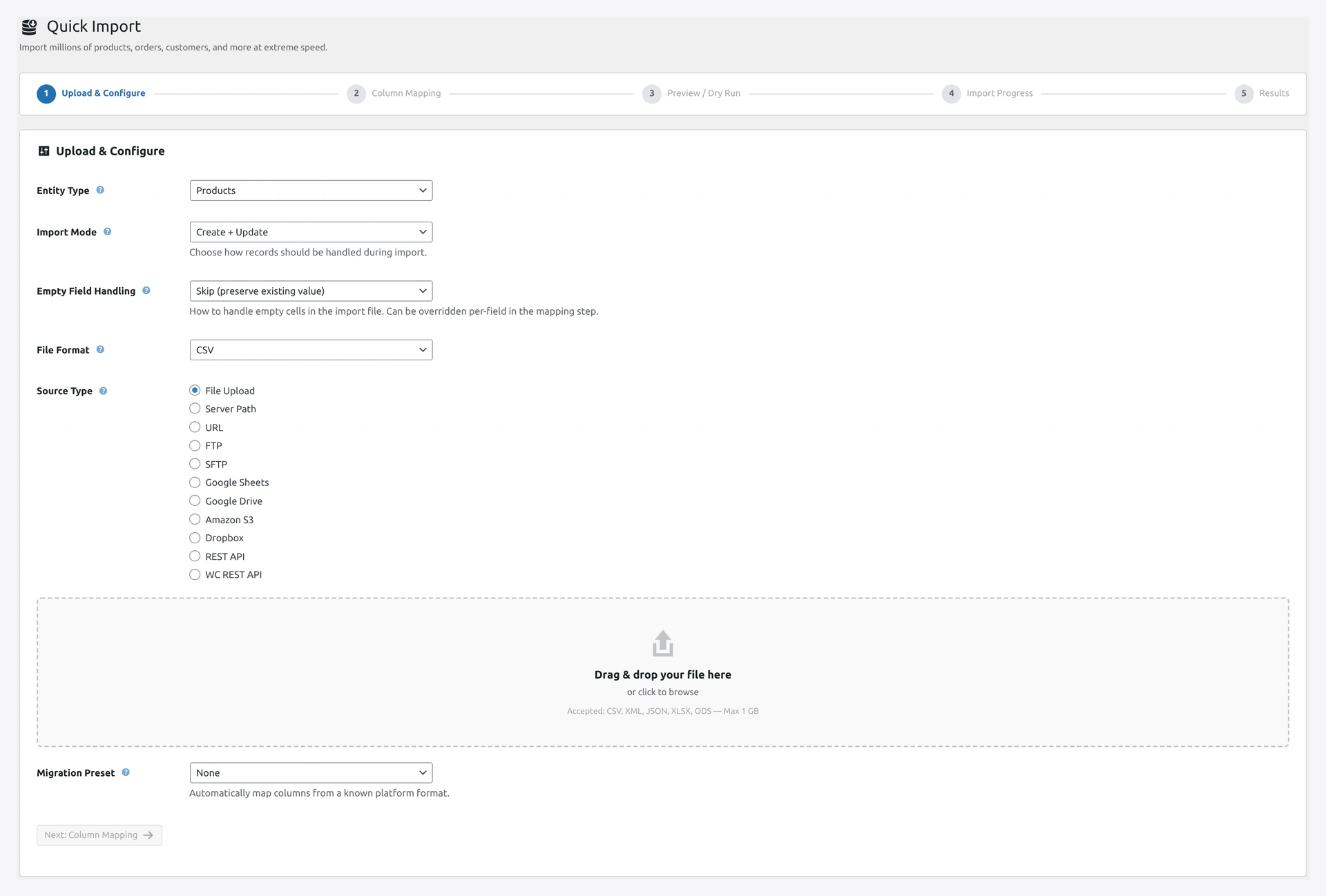 Upload the export file directly from your computer — CSV, XML, JSON, XLSX, and ODS are all supported for order files.
Migrating Orders From Other Platforms
From Shopify
Shopify exports orders with these key fields:
Order Number→Order NumberFinancial Status→Order Status(needs mapping:paid→completed)Fulfillment Status→ custom fieldCurrency→CurrencyTotal→Total- Billing and shipping address fields map directly
Use the Shopify migration preset in Step 1.
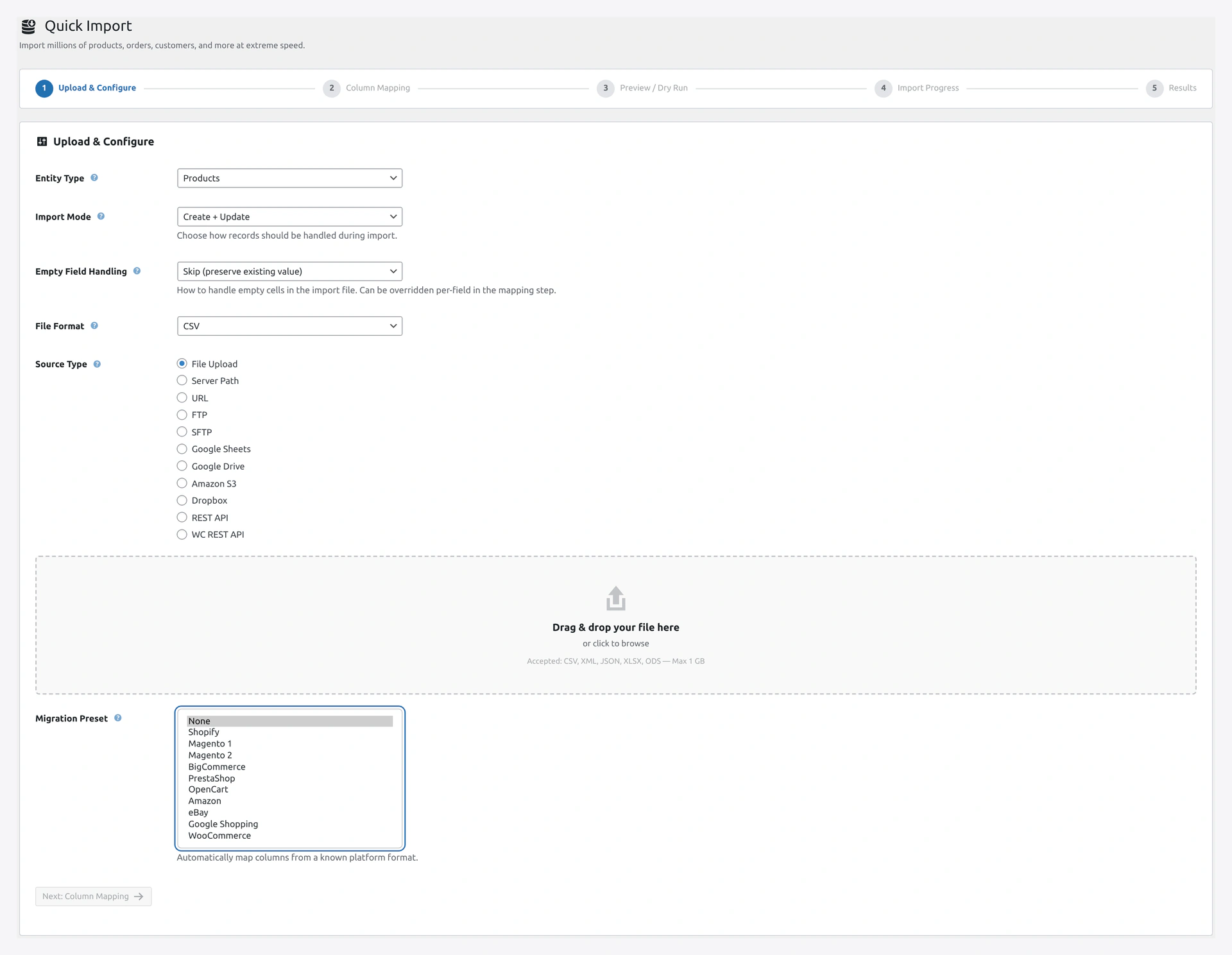 Pick a migration preset to auto-map common source columns from Shopify, Magento, BigCommerce, and other platforms.
From Magento
Magento uses 4 related files: orders, items, addresses, payments. Export each, then import each separately.
From WooCommerce Itself
Exporting from one WooCommerce store to another is the easiest. Just use our Quick Export → Orders, then Quick Import → Orders on the target store.
Troubleshooting
| Problem | Fix |
|---|---|
| Customer is not linked | Email in file does not match any customer. Auto-create in Step 3 |
| Line items missing product | SKUs in line items do not exist. Import products first |
| Totals do not add up | Your Total, Subtotal, Tax, Shipping should balance. Double-check the math |
| Date shows 1970 | Date format could not be parsed. Check with a sample date |
| Order shows as "failed" | Status might be wrong. Check allowed values |
| Payment method shows "Unknown" | Payment method is not registered in this WooCommerce. Add the plugin first |
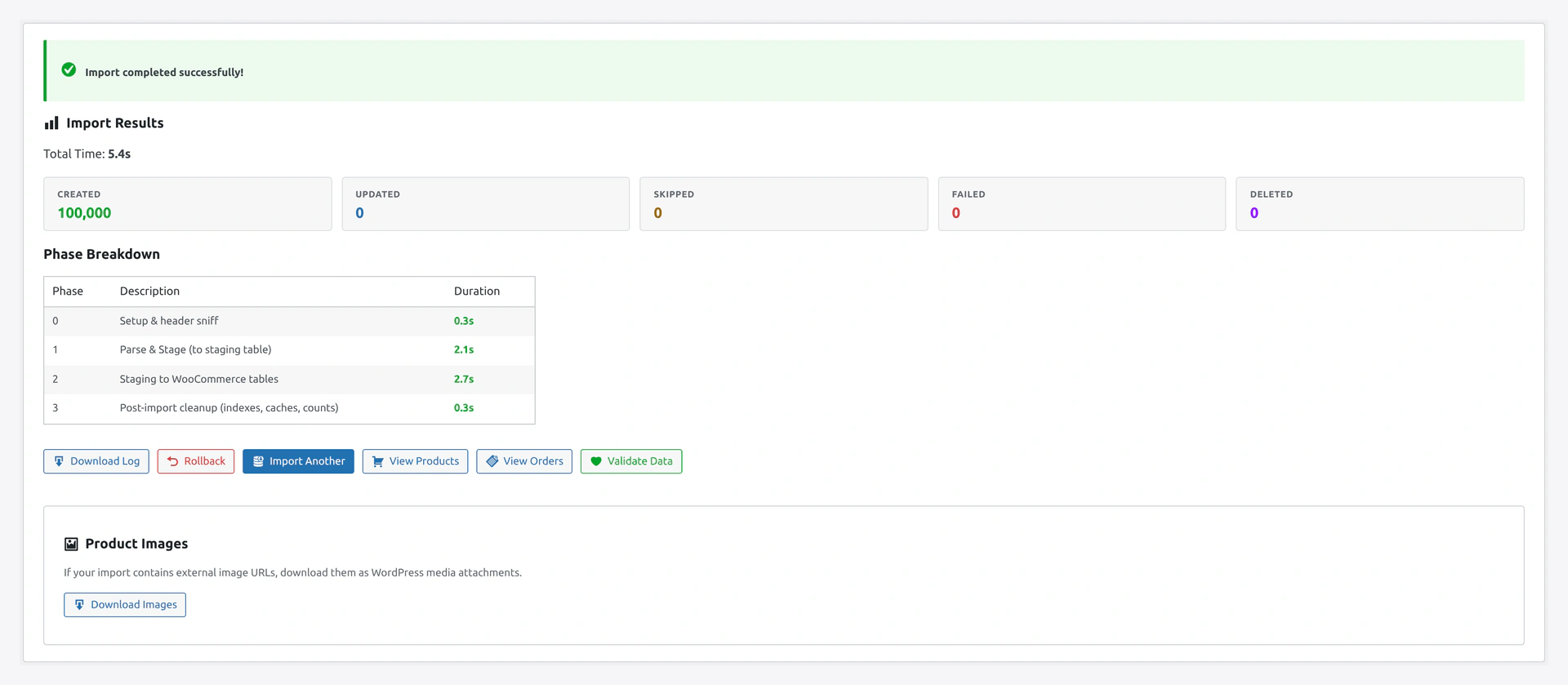 Order import results: created vs updated orders, line-item counts, and any rows that were skipped because a SKU or customer could not be resolved.
Related Pages
- Customers Import — Import customers before orders
- Import Modes — Create vs Update for orders
- Migration Presets — Shopify, Magento order migration