
Tutorial — Multi-Store Sync
In this tutorial, you will keep two WooCommerce stores in sync. Products added on Store A automatically appear on Store B.
Scenario
You run:
- Store A (master) — your main store where products are created
- Store B (secondary) — mirror store (maybe a wholesale version, a different region, a staging site)
You want:
- New products on A → auto-appear on B
- Price changes on A → auto-update on B
- Stock changes on A → auto-update on B
Time Required
About 30 minutes.
Prerequisites
- Both stores have WordPress + WooCommerce
- Both stores have this plugin installed
- Both stores have admin access
- Basic REST API knowledge
Part 1 — Generate REST API Keys on Store A
Store A will be the data source. Store B will pull from it.
Step 1
On Store A: WooCommerce → Settings → Advanced → REST API → Add key.
Step 2
Fill in:
| Field | Value |
|---|---|
| Description | Store B Sync |
| User | Admin account |
| Permissions | Read (read-only is enough for pulling) |
Click Generate API key.
Step 3
Copy both keys immediately:
- Consumer key — like
ck_abc123... - Consumer secret — like
cs_xyz789...
Store B will use these to connect.
Part 2 — Set Up Pull Job on Store B
Store B will pull products from Store A every hour.
Step 1
On Store B: Webkul WC Addons → Jobs → Add New.
Step 2 — Tab 1: Source / Destination
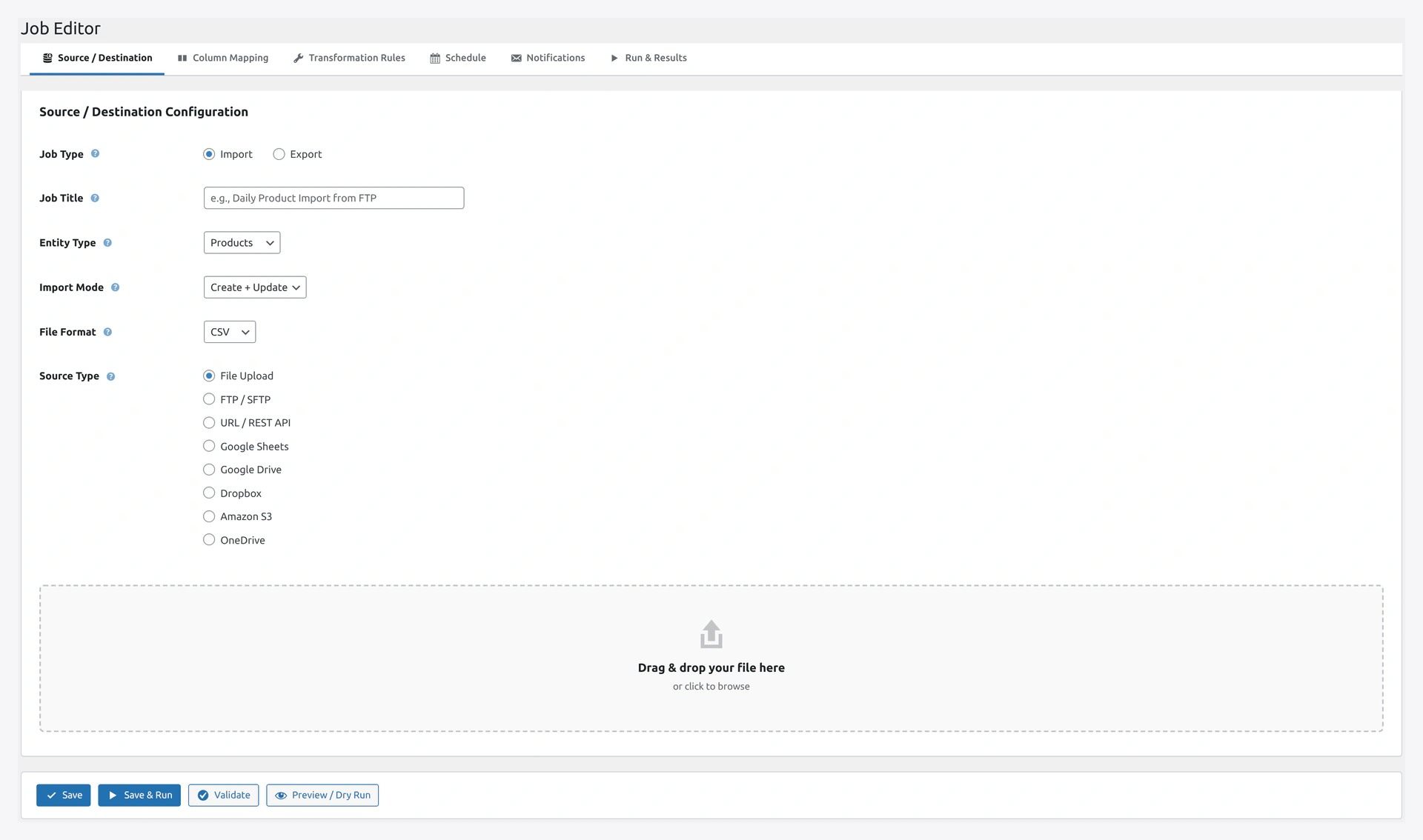 The Job Editor's 6 tabs hold the full sync configuration — Source, Mapping, Transformations, Schedule, Notifications, Run & Results.
Fill in:
| Field | Value |
|---|---|
| Job Type | Import |
| Job Title | Pull from Store A |
| Entity Type | Products |
| Import Mode | Create + Update |
| File Format | JSON |
| Source Type | WooCommerce REST API |
In the WC REST API panel:
| Field | Value |
|---|---|
| Remote Store URL | https://store-a.com (Store A's URL) |
| Consumer Key | paste from Part 1 |
| Consumer Secret | paste from Part 1 |
Click Test Connection to verify.
Step 3 — Tab 2: Column Mapping
Should auto-map. Verify:
| Source (WC API) | Target (Store B) |
|---|---|
| sku | SKU |
| name | Name |
| regular_price | Regular price |
| sale_price | Sale price |
| stock_quantity | Stock |
| categories | Categories |
| images | Images |
Step 4 — Tab 3: Transformations
Optional. Common tweaks:
- Add 20% markup if Store B has higher prices
- Translate values if Store B is in a different language
Step 5 — Tab 4: Schedule
| Field | Value |
|---|---|
| Schedule | Hourly |
| Delta Import | Yes (only process changed items) |
Step 6 — Tab 5: Notifications
- Send on Failure: Yes
- Recipients: [email protected]
Step 7 — Save
Click Save.
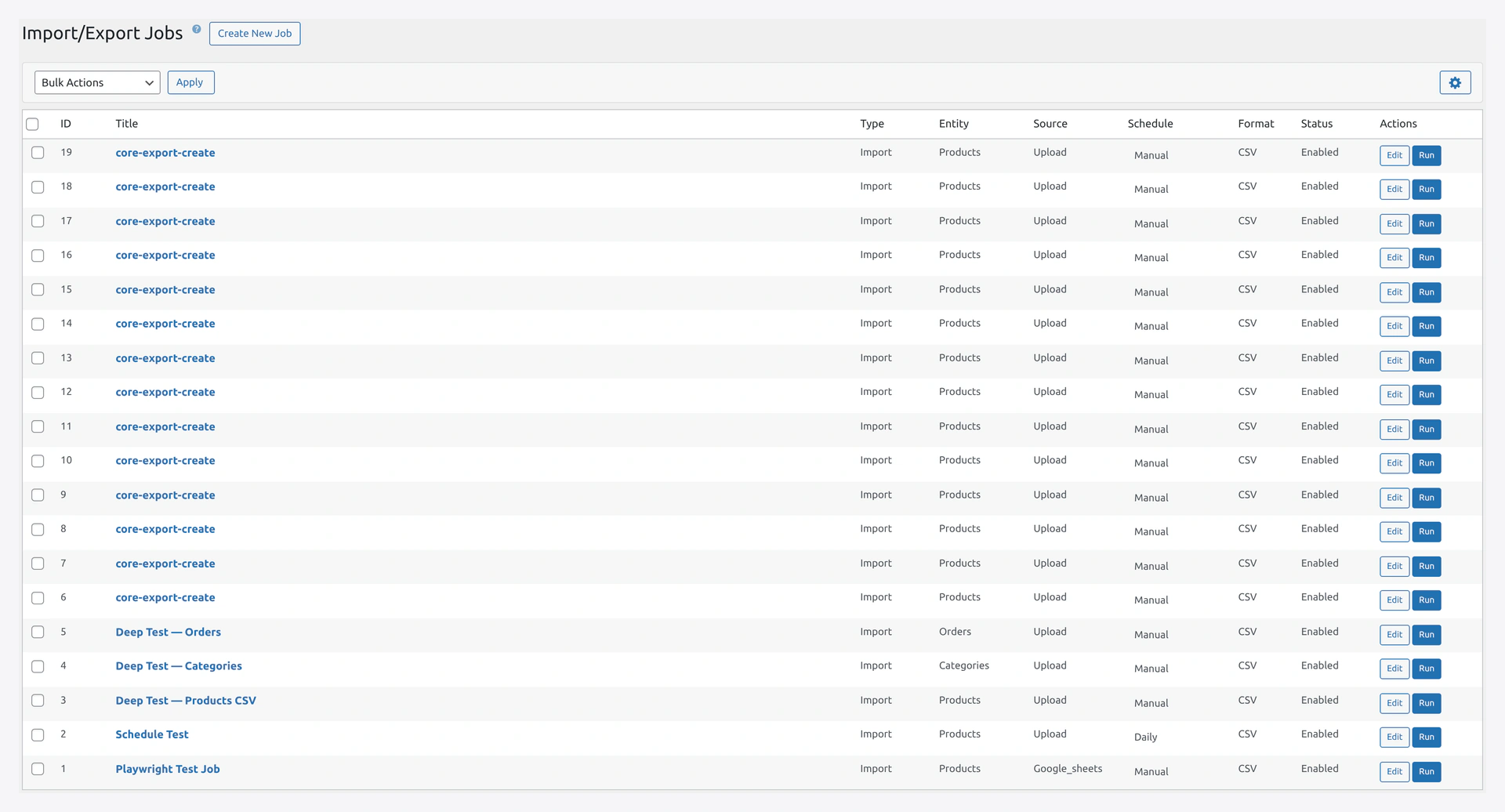 Your saved sync job appears in the Jobs grid — enable the schedule, or hit Run Now to test immediately.
Part 3 — Test the Sync
Step 1 — Run Manually
Jobs page → Pull from Store A → Run Now.
Watch the progress. Takes a while on the first run (no delta yet).
Step 2 — Verify on Store B
WooCommerce → Products on Store B. You should see all products from Store A.
Step 3 — Test a Change
- On Store A: edit a product, change the price
- Wait up to 1 hour for cron, or click Run Now on Store B
- On Store B: verify the price updated
Part 4 — Set Up Server Cron on Store B
WordPress cron is unreliable. See Server Cron Setup.
Quick version:
*/5 * * * * curl -s https://store-b.com/wp-cron.php > /dev/null 2>&1
Part 5 — One-Way vs Two-Way Sync
One-Way (What We Built)
Store A → Store B. Changes on B are overwritten by A.
- Simpler
- A is the source of truth
- Best for 99% of use cases
Two-Way Sync
Both stores sync to each other. Changes on B also go back to A.
- Complex (easy to create loops or conflicts)
- Useful for: multi-region stores where inventory updates can happen anywhere
- Requires careful setup
To build two-way:
- On Store A: set up "Pull from Store B" job with Store B's REST API credentials
- On Store B: set up "Pull from Store A" (already done)
- Both jobs run hourly on different schedules (avoid running at the same time)
- Use Delta Import on both to avoid looping
Two-way sync risks
If Store A and Store B disagree on a product, which wins? "Last update wins" can cause data loss. Consider designating one store as "pricing master" and the other as "inventory master" so they never overwrite each other.
Part 6 — Syncing Orders
To sync orders from Store A to Store B:
- On Store A: WooCommerce → Settings → REST API → create a second key with Read/Write
- On Store B: create a new Job
- Same as Part 2 but pick Entity: Orders
- Run hourly
Why Read/Write for Orders?
When B pulls an order from A, then B might update a status (shipped, refunded). If Two-way sync is set up, the status change syncs back to A.
Part 7 — Partial Sync
Not everything needs to sync. Filter to only what matters.
Example — Only Sync Published Products
In Job Editor → Tab 3 (Transformations):
Add a filter condition:
Status equals "publish"
Store B only gets published products. Drafts stay on A.
Example — Only Sync Certain Categories
Categories contains "Wholesale"
Only products in the "Wholesale" category go to Store B (useful for a wholesale-only store).
Part 8 — Monitoring
Dashboard
Check both stores' dashboards daily.
- "Failed (Last 24h)" should be 0
- "Total Records Imported" grows over time
Email Alerts
You set these up in Part 2 Step 6. You'll hear about failures.
Spot Checks
Weekly, verify:
- Random product on A matches B
- Stock counts make sense
- Prices match (or have the expected markup)
Advanced — Multi-Region Setup
Scenario
- Store A: US customers (USD pricing)
- Store B: UK customers (GBP pricing)
- Store C: EU customers (EUR pricing)
Setup
Each secondary store (B, C) has its own sync job pulling from A with a currency transformation:
- Store B: multiply price by 0.80 (USD to GBP)
- Store C: multiply price by 0.92 (USD to EUR)
Prices auto-convert during sync.
Update exchange rates periodically in the transformation settings.
Advanced — Sync With External Systems
You can also sync with non-WooCommerce systems:
- Stripe dashboard — pull product/customer data from Stripe
- Shopify — keep WC and Shopify in sync
- ERP — SAP, NetSuite, etc. via their REST APIs
Use Source Type: REST API (generic) instead of WC REST API.
Troubleshooting
| Problem | Fix |
|---|---|
| "Unauthorized" 401 | Check Consumer Key and Secret. Regenerate if needed |
| Products duplicate on Store B | Set match key to sku. Use Create + Update mode |
| Images not downloading | Check Settings → Image & Media → Download Images |
| Prices off on Store B | Check currency transformation or decimal separator |
| Stock keeps flipping | Two-way sync loop. Use one-way only |
| Sync very slow | Use Delta Import. Schedule less frequent (every 2 hours instead of hourly) |
| Different product counts | Some products may be filtered out. Check filter config |
Related Pages
- Import Sources → WooCommerce REST API
- Export Destinations
- Jobs — Scheduled jobs
- Delta Import — Only sync changes
- Server Cron Setup — Reliable scheduling