Advance Import and Export for WooCommerce DocumentationAdvance Import and Export for WooCommerce Documentation
Buy Now
View Demo
  • Getting Started

    • Introduction
    • Quick Start
    • Features
    • Installation
    • First-Time Setup
    • CSV Preparation
    • Sample Files
    • Use Cases
    • Common Mistakes
  • Tutorials

    • Google Sheets Live Sync
    • Shopify Migration
    • Daily Backup to S3
    • Multi-Store Sync
  • Using the Plugin

    • Dashboard
    • Quick Import Wizard
    • Quick Export
    • Settings
    • Compatibility
  • Import In Detail

    • Import Sources
    • Import Modes
    • Column Mapping
    • Transformations
    • Migration Presets
    • Delta Import
  • Export In Detail

    • Export Features
    • Export Destinations
    • Browser Download
    • Server Path (REST / CLI)
  • Data Types

    • Products
    • Variable Products
    • Orders
    • Customers
    • Categories & Tags
    • Coupons
    • Reviews
    • Posts
    • Pages
    • Users
    • Subscriptions
    • Bookings
    • Memberships
    • Menus
  • Automation

    • Scheduled Jobs
    • History & Logs
    • Rollback
    • Health Check
  • Cloud Service Setup

    • Google API Setup
    • Amazon S3 Setup
    • Dropbox Setup
    • Email / SMTP Setup
  • Server Configuration

    • PHP Configuration
    • Server Cron Setup
    • Image Handling
  • Developer

    • REST API
    • WP-CLI Commands
  • Compare

    • vs WP All Import
    • vs Product Import Export (WebToffee)
  • Help

    • Troubleshooting
    • FAQ
    • Glossary
    • Security
    • Changelog
Support
Buy Now
View Demo
  • Getting Started

    • Introduction
    • Quick Start
    • Features
    • Installation
    • First-Time Setup
    • CSV Preparation
    • Sample Files
    • Use Cases
    • Common Mistakes
  • Tutorials

    • Google Sheets Live Sync
    • Shopify Migration
    • Daily Backup to S3
    • Multi-Store Sync
  • Using the Plugin

    • Dashboard
    • Quick Import Wizard
    • Quick Export
    • Settings
    • Compatibility
  • Import In Detail

    • Import Sources
    • Import Modes
    • Column Mapping
    • Transformations
    • Migration Presets
    • Delta Import
  • Export In Detail

    • Export Features
    • Export Destinations
    • Browser Download
    • Server Path (REST / CLI)
  • Data Types

    • Products
    • Variable Products
    • Orders
    • Customers
    • Categories & Tags
    • Coupons
    • Reviews
    • Posts
    • Pages
    • Users
    • Subscriptions
    • Bookings
    • Memberships
    • Menus
  • Automation

    • Scheduled Jobs
    • History & Logs
    • Rollback
    • Health Check
  • Cloud Service Setup

    • Google API Setup
    • Amazon S3 Setup
    • Dropbox Setup
    • Email / SMTP Setup
  • Server Configuration

    • PHP Configuration
    • Server Cron Setup
    • Image Handling
  • Developer

    • REST API
    • WP-CLI Commands
  • Compare

    • vs WP All Import
    • vs Product Import Export (WebToffee)
  • Help

    • Troubleshooting
    • FAQ
    • Glossary
    • Security
    • Changelog
Support
  • Getting Started

    • Introduction
    • Quick Start — Your First Import in 5 Minutes
    • Features — Full Tour
    • Installation — Full Setup Guide
    • First-Time Setup — Complete Checklist
    • CSV Preparation — How to Make a Good Import File
    • Sample Files — Download Ready-to-Use Templates
    • Use Cases — "I Want To..." Quick Reference
    • Common Mistakes — Things To Watch Out For
  • Tutorials

    • Tutorial — Google Sheets Live Sync
    • Tutorial — Migrate from Shopify to WooCommerce
    • Tutorial — Daily Backup to Amazon S3
    • Tutorial — Sync Between Two WooCommerce Stores
  • Using the Plugin

    • Dashboard — What You See First
    • Quick Import Wizard — 5 Steps to Import Any File
    • Quick Export — One-Page Export Tool
    • Settings — Every Option Explained
    • Compatibility — Third-Party Plugin Support
  • Import In Detail

    • Import Sources — 11 Ways to Pull Data In
    • Import Modes — Create, Update, Delete, Replace
    • Column Mapping — Connect Your Columns to WooCommerce
    • Transformations — Change Values During Import
    • Migration Presets — Move From Shopify, Magento, BigCommerce
    • Delta Import — Skip Unchanged Rows
  • Export In Detail

    • Export Features
    • Export Destinations — Where Your Files Go
    • Export Download — One-Click Browser Download
    • Export to Server Path — WP-CLI
  • Data Types

    • Products Import — Full Field Reference
    • Variable Products — The Complete Guide
    • Orders Import — Historical Orders and Line Items
    • Customers Import — With Addresses and Notes
    • Categories and Tags Import
    • Coupons Import — Discount Codes
    • Reviews Import — Product Reviews and Ratings
    • Posts Import — WordPress Blog Posts
    • Pages Import — WordPress Pages
    • Users Import — WordPress User Accounts
    • Subscriptions Import — WooCommerce Subscriptions
    • Bookings Import — WooCommerce Bookings
    • Memberships Import — WooCommerce Memberships
    • Menus Import — WordPress Navigation Menus
  • Automation

    • Jobs — Saved and Scheduled Imports and Exports
    • History — Every Run You Have Ever Done
    • Rollback — Undo Any Import in One Click
    • Health Check — Data Integrity Checks With Auto-Fix
  • Cloud Service Setup

    • Google API Setup — Sheets, Drive, OAuth
    • Amazon S3 Setup — IAM User and Bucket Permissions
    • Dropbox Setup — API Token for Private Files
    • Email Setup — Making Notifications Actually Work
  • Server Configuration

    • PHP Configuration — Memory, Execution Time, Upload Size
    • Server Cron Setup — Reliable Scheduled Imports
    • Image Handling — Download, Resize, Watermark
  • Developer

    • REST API — Developer Reference
    • WP-CLI Commands — Command Line Automation
  • Compare

    • Advance Import and Export vs WP All Import
    • Advance Import and Export vs Product Import Export for WooCommerce
  • Help

    • Troubleshooting — Fix Common Problems
    • FAQ — Common Questions
    • Glossary — Every Term Explained
    • Security — How Your Data Is Protected
    • Changelog — What Changed

History

Every import and export is saved in History. You can see what ran, when, how long it took, and what happened.

Page URL: /wp-admin/admin.php?page=wkaie-history

Page title: "Import/Export History" (with a backup icon)
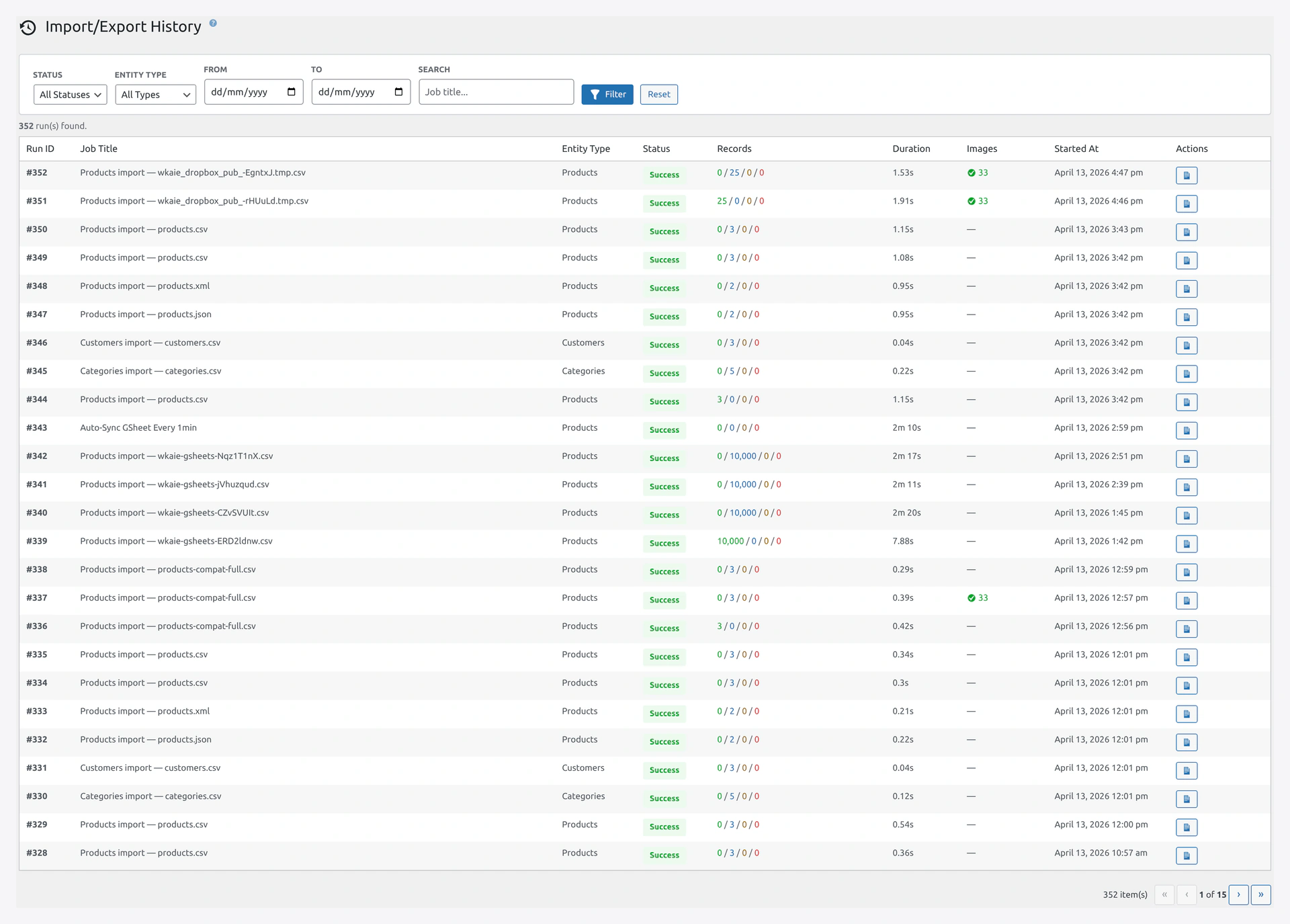
History pageHistory page — every run with filters, status badges, and actions.

Filter Bar

Five filter controls at the top.

FilterLabelTypeOptions
1StatusDropdownAll Statuses, Success, Failed, Running
2Entity TypeDropdownAll Types, Products, Orders, Customers, etc.
3FromDate pickerFilter from this date
4ToDate pickerFilter up to this date
5SearchText inputSearch job title. Placeholder: "Job title..."

Buttons

  • Filter (blue primary button, filter icon) — apply filters
  • Reset (gray button) — clear all filters

Summary Line

Above the table, you see: "[X] run(s) found."

History Table

Columns in Exact Order

#ColumnWidthShows
1Run ID60pxUnique ID for this run
2Job Title—Name of the job, or "Quick Import"
3Entity Type100pxProducts, Orders, etc.
4Status90pxColor-coded badge
5Records240pxCreated / Updated / Skipped / Failed counts
6Duration90pxTotal time taken
7Images110pxImage download status
8Started At160pxFormatted date and time
9Actions130pxView Log, Download Log, Rollback

Status Badge Colors

BadgeBackgroundText ColorMeaning
SuccessLight greenGreen #00a32aRan successfully
RunningLight orangeOrange #996800Currently running
FailedLight redRed #d63638Error during run
UnknownLight grayGray #646970Status unclear

Records Column Display

For successful runs:

Shows color-coded numbers separated by slashes:

  • Created (green)
  • Updated (blue)
  • Skipped (orange)
  • Failed (red)

Example: 850 / 120 / 15 / 0

For failed runs that did not start:

Instead of 0 / 0 / 0 / 0, the column shows the error message in red:

"File could not be opened"

Or: "Run did not start"

Click a Row

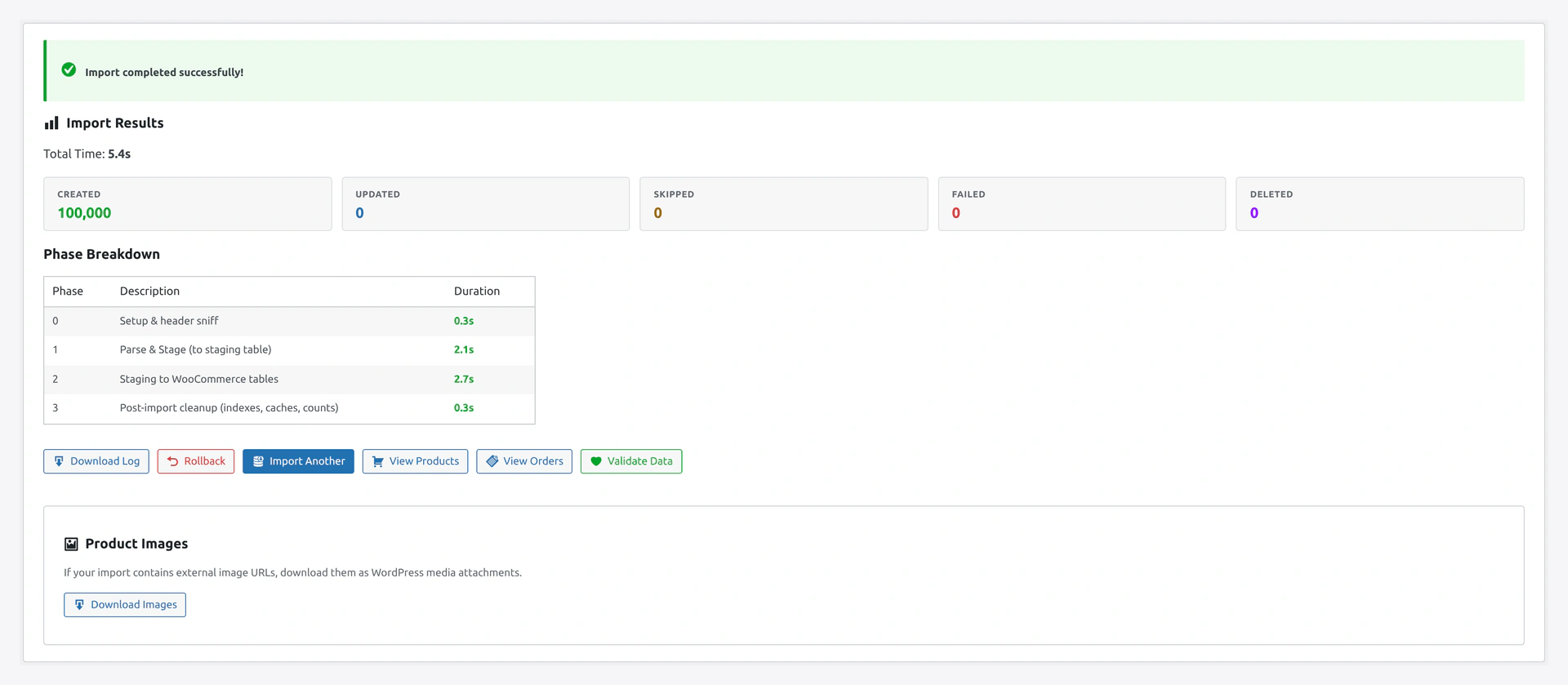
Click any row to open the run's detail view. You see:

  • Summary card: counts, status, duration
  • Phase breakdown (time per phase)
  • Source info: file name, size, row count
  • Target info: entity, mode, match key
  • Column mapping used
  • Error details (if failed)
  • Log preview (first 100 lines)

Run result summaryEach history row drills into this detailed result view with record counts, timings, and a Rollback button.

Action Buttons Per Row

ButtonIconWhen It Appears
View LogMedia textAlways
Download LogDownloadIf log file still exists
RollbackUndo (red)If rollback is available

Rollback Confirmation

Click Rollback shows this dialog:

"Are you sure you want to rollback this import? This cannot be undone."

Click OK to proceed. See Rollback.

Pagination

At the bottom, if there are multiple pages:

  • Total count: "[X] item(s)"
  • Page nav: « ‹ [current] of [total] › »

Empty State

If no runs match filters:

"No import/export history found matching your filters."

Log Files

Every run writes a log file to wp-content/uploads/wkaie-logs/.

Log Contents

  • Timestamp of each phase
  • SQL queries run
  • Row-level errors (if any)
  • Image download results
  • Memory usage
  • Total timing

Log Levels

Set in Settings → Performance & Advanced → Log Level:

LevelWhat It Logs
ErrorOnly errors
WarningErrors and warnings
Info (default)Normal activity + warnings + errors
DebugEverything including SQL (huge files)

Log Retention

Old logs auto-delete. Default: 30 days.

Change in Settings → Performance & Advanced → Log Retention (Days).

Download Log

Click Download Log on any run row.

You get a .txt file you can open in any text editor. Useful for support tickets.

Deleting Old History

Auto Cleanup

Based on retention setting in Performance & Advanced tab.

Manual via WP-CLI

# All history older than 30 days
wp wkaie history cleanup --older-than=30d

# Specific job
wp wkaie history cleanup --job_id=42

# Successful runs only (keep failed for investigation)
wp wkaie history cleanup --status=success --older-than=7d

Manual via Admin UI

History page → select rows → Bulk action → Delete.

Audit Trail

Every action is logged:

  • Who triggered the run (logged-in user, "Schedule", or "API")
  • IP address
  • Job
  • Timestamp

Useful for compliance (GDPR, SOC 2).

Integration With Dashboard

The Recent Activity feed on the Dashboard shows the last 10 runs. Click to jump to full History.

The Failed (Last 24h) card shows failed count. Click to filter History.

Troubleshooting

ProblemFix
History page is blankYou have not run any imports yet
"Run did not start" for every runJob is broken before it can start. Check source settings
Cannot download logLog file auto-deleted. Check retention settings
Rollback button is grayRollback not available (too old or disabled)
Log is hugeLog level set to Debug. Change to Info

Related Pages

  • Dashboard — Recent activity at a glance
  • Rollback — Undo a run
  • Troubleshooting — Fix failed runs
  • Settings — Log level and retention
  • WP-CLI — Clean up history from command line
Prev
Jobs — Saved and Scheduled Imports and Exports
Next
Rollback — Undo Any Import in One Click