
Posts Import
Import WordPress blog posts from a CSV, XML, or JSON file.
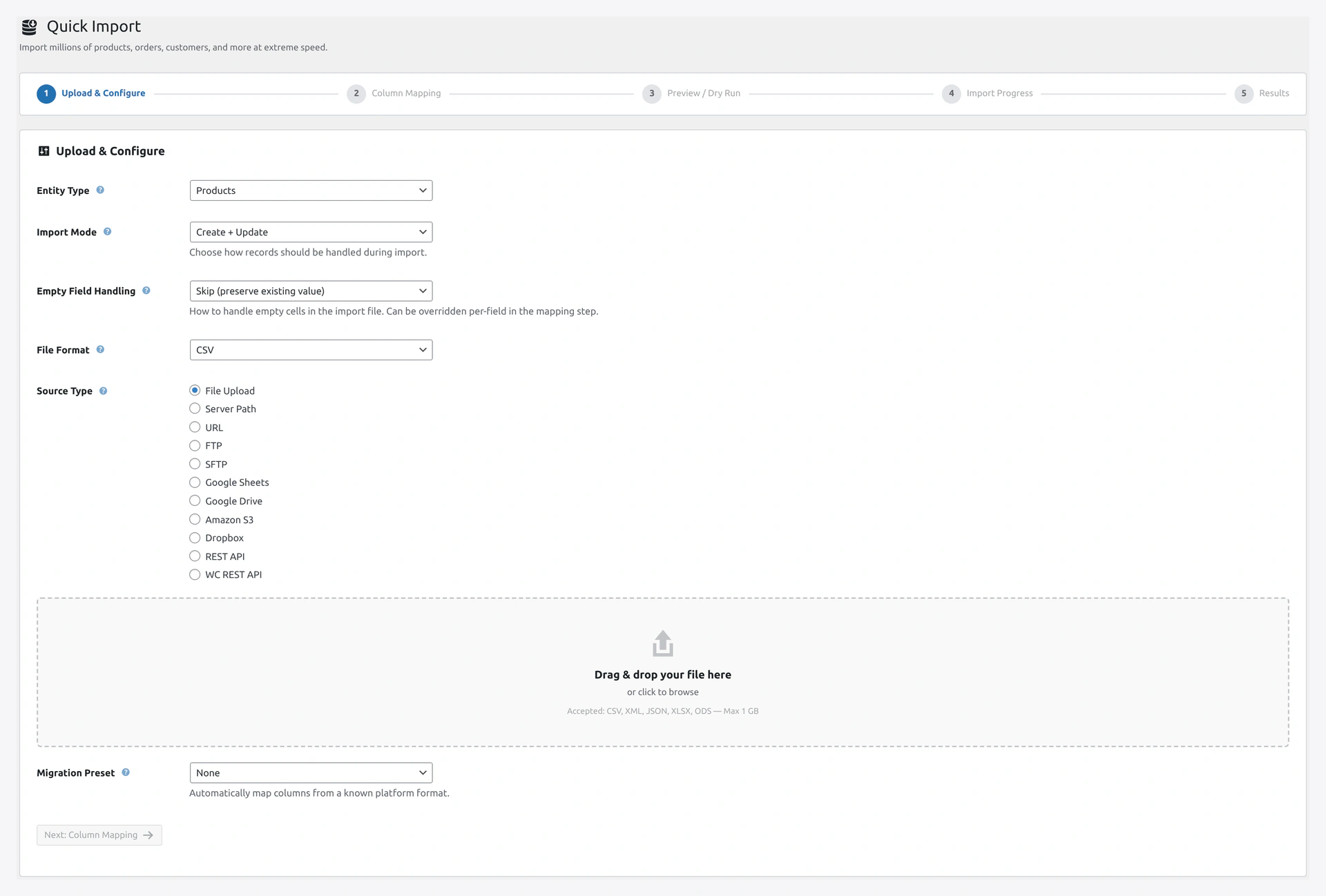 Step 1 of the Quick Import wizard: pick Posts, upload your blog export, and choose how to match against existing posts (title, slug, or ID).
When to Use
- Migrating from another CMS (Shopify blog, Squarespace, WordPress.com)
- Bulk publishing pre-written content
- Restoring posts from a backup
Match Keys
The plugin finds existing posts by these keys:
title(default)slugid(WordPress post ID)
Pick the match key in Step 1 of the wizard.
Column Reference
| Column | Required | Example |
|---|---|---|
id | No | 42 (for updates) |
title | Yes | 5 Tips for Cotton Care |
content | No | <p>Here are five tips...</p> (HTML allowed) |
excerpt | No | Learn how to care for cotton products |
status | No (default publish) | publish, draft, pending, private, future, trash |
author | No | Login name, email, or user ID |
date | No | 2026-04-14 10:30:00 |
slug | No | cotton-care-tips |
categories | No | News, Guides (comma-separated names or IDs) |
tags | No | cotton, care, tips |
featured_image | No | https://example.com/image.jpg |
format | No | standard, aside, gallery, image, link, quote, status, video, audio, chat |
comment_status | No | open or closed |
ping_status | No | open or closed |
Example CSV
title,content,status,author,categories,tags,featured_image
5 Tips for Cotton Care,<p>Cotton is a great fabric...</p>,publish,admin,"Guides","cotton, care",https://example.com/cotton.jpg
Summer Collection Launch,<p>Our summer collection...</p>,publish,editor,"News","summer, launch",https://example.com/summer.jpg
Handling Authors
The author column accepts:
- Login name (e.g.,
admin) - Email (e.g.,
[email protected]) - User ID (e.g.,
1)
If the author does not exist, the post falls back to the current user running the import.
Handling Categories and Tags
- Categories and tags that do not exist are auto-created
- Use commas to separate multiple values
For nested categories:
categories
"Blog > News > 2026"
Separator is > by default. Change in Step 2 → Separators.
Featured Image
Provide an image URL. The plugin:
- Downloads the image
- Adds it to Media Library
- Sets as the post's featured image
Images are cached — the same URL downloads only once even if used by many posts.
Post Status
| Status | Meaning |
|---|---|
publish | Live on the site |
draft | Saved but not live |
pending | Awaiting review |
private | Visible only to admins and editors |
future | Scheduled for a future date |
trash | Soft-deleted |
Post Formats
WordPress supports 9 post formats. Your theme must support them to display differently.
| Format | Typical Use |
|---|---|
standard | Regular blog post |
aside | Short note |
gallery | Image gallery |
image | Single image |
link | External link |
quote | Pulled quote |
status | Short status update |
video | Video post |
audio | Audio post |
chat | Chat transcript |
Troubleshooting
| Problem | Fix |
|---|---|
| Category not auto-created | Check "Auto-create categories" in Step 3 of the wizard |
| Featured image missing | Check Settings → Image & Media → Download Images is on |
| Date shows 1970 | Use format Y-m-d H:i:s (e.g., 2026-04-14 10:30:00) |
| HTML shows as text | Check your CSV properly escapes HTML inside quotes |
| Author shows as admin | The author in your file does not exist. Create the user first |
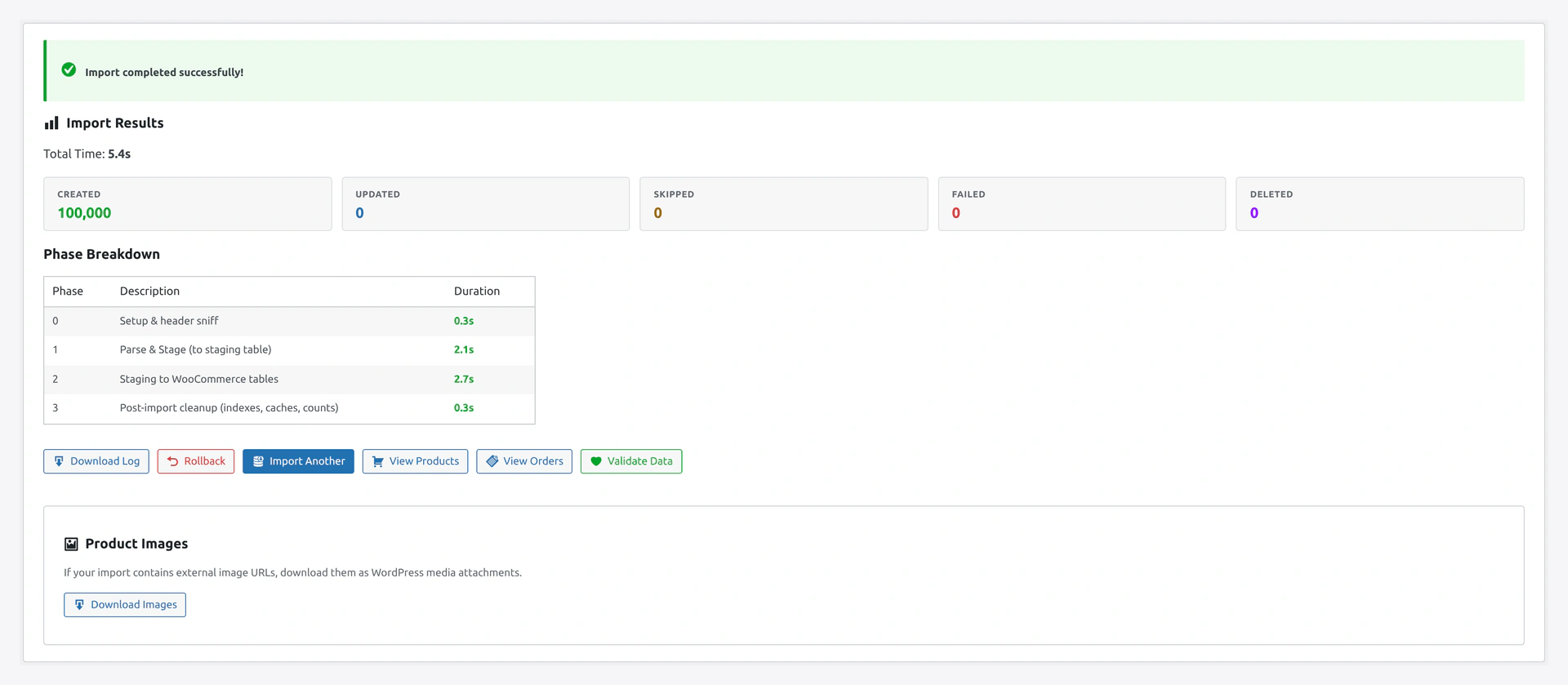 Results screen confirms new posts published, existing posts updated, featured images downloaded, and any authors that fell back to the current user.
Related Pages
- Pages Import — Import WordPress pages
- Categories Import — Create categories first
- Users Import — Create authors first
- Quick Import Wizard — How to run the import