
Rollback — Undo Any Import
Made a mistake? Imported the wrong file? Click Rollback. Every changed record is restored to its exact state before the import.
Why Rollback Matters
Bulk imports are scary because mistakes are big. You change 1,000 prices and realize 20 minutes later that you used the wrong column.
Most plugins have no undo. You have to restore from a database backup — which is slow, risky, and may lose other recent changes.
Our plugin takes a snapshot before every import. One click restores the snapshot. Nothing else on your site is affected.
How to Rollback
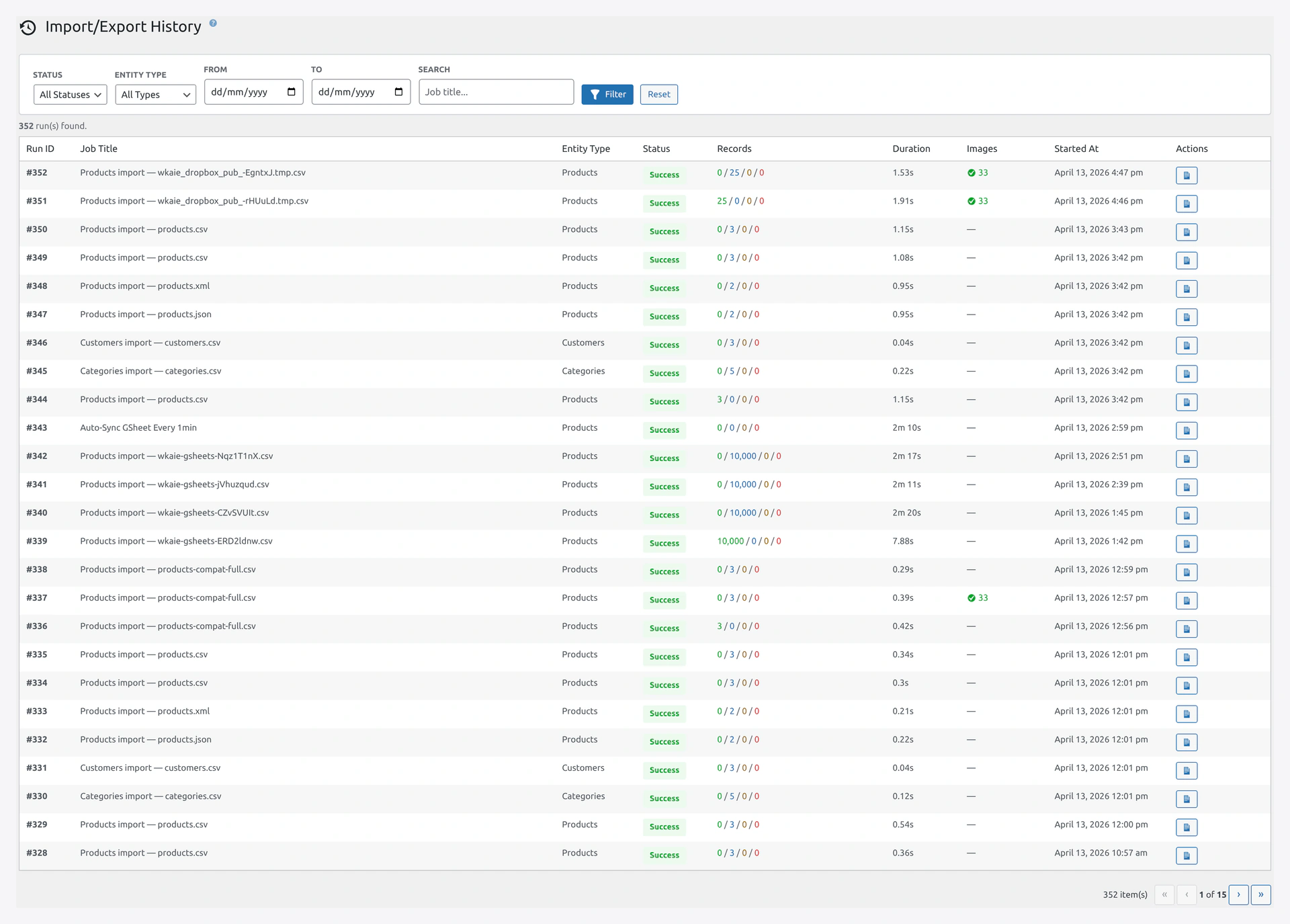 Every run in History shows a Rollback button in the Actions column — available for the configured retention window.
Option 1 — From the History Page
- Go to
Webkul WC Addons → Advance Import Export → History - Find the run you want to undo
- Click Rollback in the Actions column
- Confirm
A progress bar shows the rollback. Usually takes less time than the original import.
Option 2 — From the Run Details Page
- Click on a run in the History to open details
- Click Rollback at the top
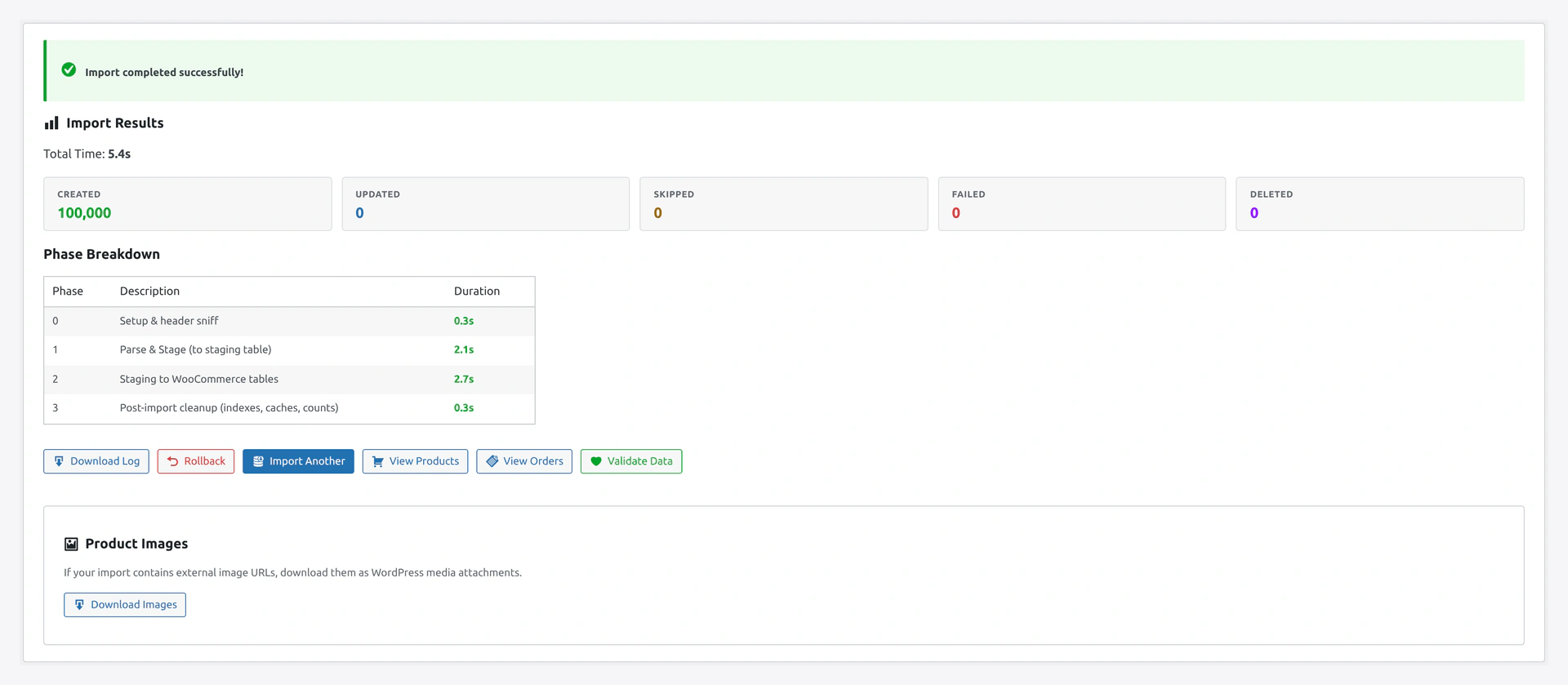 Step 5 of the Quick Import wizard also exposes a Rollback button right after a successful run.
Option 3 — Via WP-CLI
wp wkaie rollback 123 --yes
Where 123 is the run ID.
What Gets Rolled Back
For Imports
The plugin restores:
- Product data (name, price, description, stock, etc.)
- Custom meta fields
- Category assignments
- Tag assignments
- Attribute assignments
- SEO fields (Yoast, RankMath, AIOSEO)
- Variation data
- Image assignments (but images themselves stay in Media Library)
For New Records
If the import CREATED new products:
- The new products are DELETED
- Images uploaded with them stay in Media Library (may want to clean up manually)
For Updated Records
If the import UPDATED existing products:
- Products are restored to their pre-import state
- All changed fields revert
For Deleted Records
If the import DELETED products:
- The products are RECREATED
- All their data comes back
Selective Rollback
Don't want to undo everything? Pick specific records.
How to Use
- Open the run details page
- Click Selective Rollback
- A list of every changed record appears
- Check the ones you want to restore
- Leave the rest alone
- Click Rollback Selected
Example
You imported 1,000 products. 990 are fine but 10 have wrong prices. Don't undo everything. Select just those 10 and rollback only those.
What Does NOT Roll Back
Images in Media Library
The plugin does not delete images from the Media Library, even if the products are rolled back.
Why? Images may be used by other products, posts, or pages. Deleting could break other things.
Orders
Order imports do not support rollback. Once an order is imported, it is a live order in the system. Rollback would cause issues with inventory, reports, and payment tracking.
External Changes
If the import fired off other actions (like sending emails, webhook triggers, stock adjustments to other stores), those do NOT unwind. Only direct database changes from the import roll back.
Rollback Retention
Rollback snapshots take disk space. They are auto-deleted after a period.
Default Retention
- 30 days for normal imports
- 7 days for very large imports (over 100,000 rows)
Change Retention
Settings → Logs → Rollback Retention (Days).
Longer retention = more recovery safety. Shorter = less disk space.
Manual Cleanup
Free up disk space manually:
# Delete all rollback snapshots older than 14 days
wp wkaie rollback cleanup --older-than=14d

# Delete rollback snapshots for a specific job
wp wkaie rollback cleanup --job=42
Rollback Availability
Not every run can be rolled back.
When Rollback Is NOT Available
| Reason | What to Do |
|---|---|
| Run is older than retention period | You cannot rollback — restore from database backup |
| Entity does not support rollback (Orders) | Manually edit the orders |
| Disabled in job settings | Turn it on: Job → Tab 6: Advanced → Enable Rollback |
| Run is still in progress | Wait for it to finish |
The Rollback button is gray if rollback is not possible.
How Rollback Works Internally
This is technical — you don't need to know this to use rollback.
- Before the import runs, the plugin reads every record that will be changed
- Those records are serialized and saved in a
wkaie_rollbacktable - When you click Rollback:
- The plugin reads the saved snapshots
- Replaces current data with the snapshot data
- Rebuilds indexes
- Flushes caches
The process is the same speed as the original import — often faster since there's less computation.
Partial Rollback After Success
You can rollback a successful import (not just failed ones). Common use case: you imported successfully but realized a day later the data was wrong.
As long as the rollback is within the retention period, it works.
Safety Tips
Do a Test Import First
Before running a huge import, run a tiny test file (10 rows). Verify everything looks right. Then run the full import.
This is cheaper than a rollback.
Turn On Preview/Dry Run
Before the import actually writes to the database, the Preview shows exactly what will change. Use this to catch mistakes before the rollback is even needed.
Keep Recent Backups
Even with rollback, always keep recent database backups. UpdraftPlus is a popular free plugin. Set it to backup daily.
Troubleshooting
| Problem | Fix |
|---|---|
| Rollback button is gray | Run is too old, or rollback is not supported for this entity |
| Rollback says "snapshot not found" | Disk cleanup may have removed it. Check rollback retention |
| Rollback is slow | It processes the same amount of data as the original import. Be patient |
| Rollback completed but data is still wrong | Another import ran after this one. Check History for newer runs |
| I rolled back to restore a deleted product but the product is still gone | Try re-running the rollback. If it still fails, check log for errors |
Related Pages
- History — Find runs to rollback
- Quick Import Wizard — Rollback button in result step
- Settings — Configure retention
- WP-CLI — Rollback from command line