
Dashboard
The Dashboard is the first page you land on when clicking Webkul WC Addons → Import Export in your sidebar. It shows stats, recent activity, quick action buttons, and a system info check.
Page URL: /wp-admin/admin.php?page=wkaie
Page title at the top: "Advance Import Export" (with a database import icon)
Subtitle: "Import & export millions of WooCommerce products, orders, customers, and more."
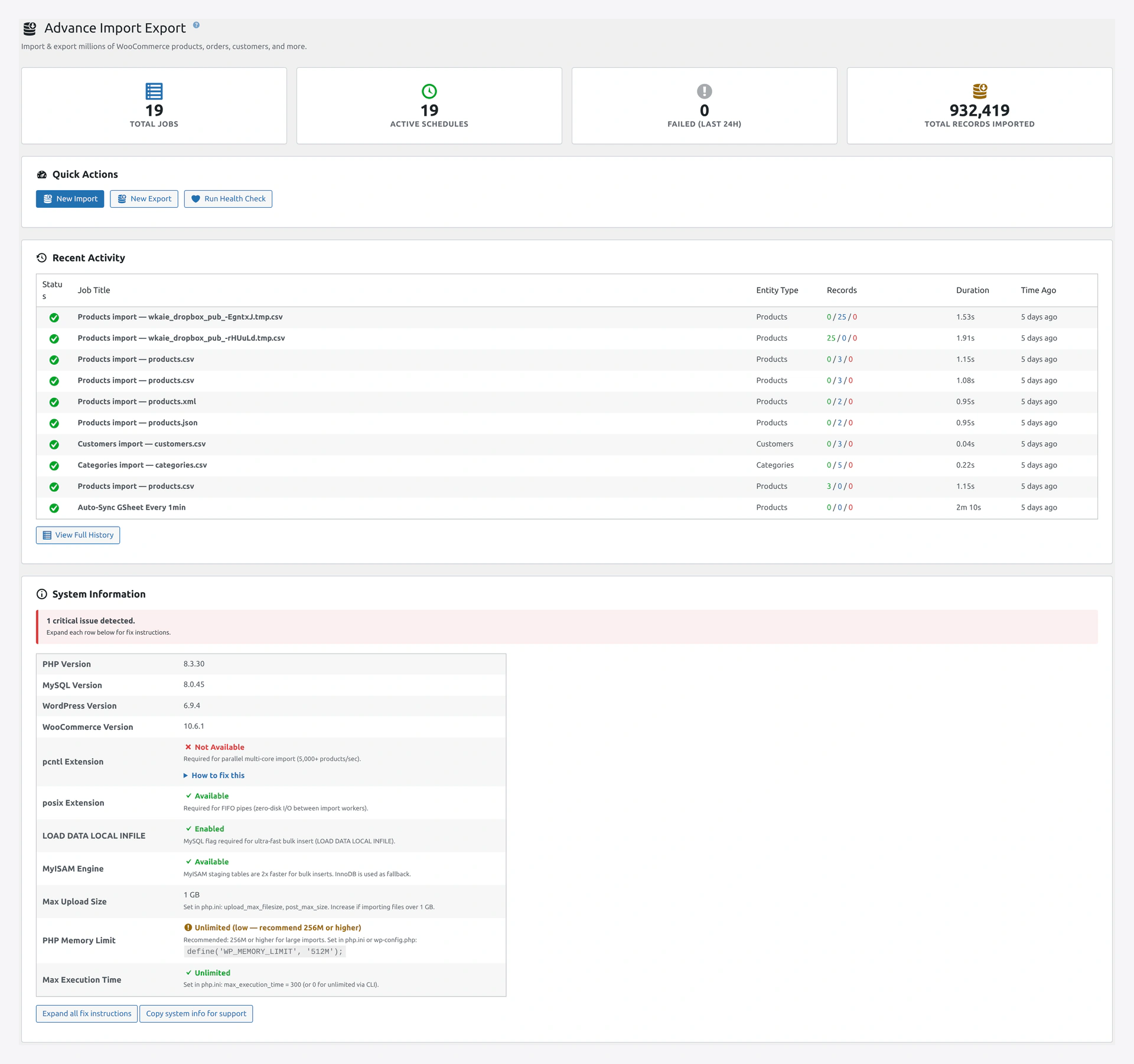 Dashboard — stat cards, quick actions, and recent activity.
The 4 Stat Cards
Four cards sit at the top in a grid.
| # | Card Title | What It Shows | Icon |
|---|---|---|---|
| 1 | Total Jobs | All saved jobs (enabled + disabled) | List icon, blue |
| 2 | Active Schedules | Jobs with cron schedule turned on | Clock icon, green |
| 3 | Failed (Last 24h) | Runs that failed in the past 24 hours | Warning icon, red if > 0 |
| 4 | Total Records Imported | Lifetime total records | Database import icon, orange |
Click Failed (Last 24h) to jump to History filtered by failed status.
Quick Actions Card
Heading: "Quick Actions" (with a performance icon)
Three buttons in a horizontal row:
| Button | Goes To |
|---|---|
| New Import (blue primary button) | Quick Import Wizard |
| New Export (gray secondary button) | Quick Export page |
| Run Health Check (gray secondary button) | Health Check page |
Recent Activity Card
Heading: "Recent Activity" (with a backup icon)
Shows the last 10 runs. If no runs yet:
"No import/export activity yet. Start your first import above."
When runs exist, you see a table with these columns:
| Column | What It Shows |
|---|---|
| Status | Green check (success) / red X (failed) / orange clock (running) |
| Job Title | Name of the job, or "Quick Import" if run from wizard |
| Entity Type | Products, Orders, etc. |
| Records | Created / Updated / Failed counts |
| Duration | How long the run took |
| Time Ago | "5 min ago", "2 hours ago", etc. |
Click any row to open the full run in the History page.
At the bottom of the card: View Full History button.
"Run did not start" in the Records column
If a run crashed before processing any rows (e.g., file not found), the Records column shows "Run did not start" instead of "0 / 0 / 0". Click for full error details.
System Information Card
The most important card — it checks every server requirement.
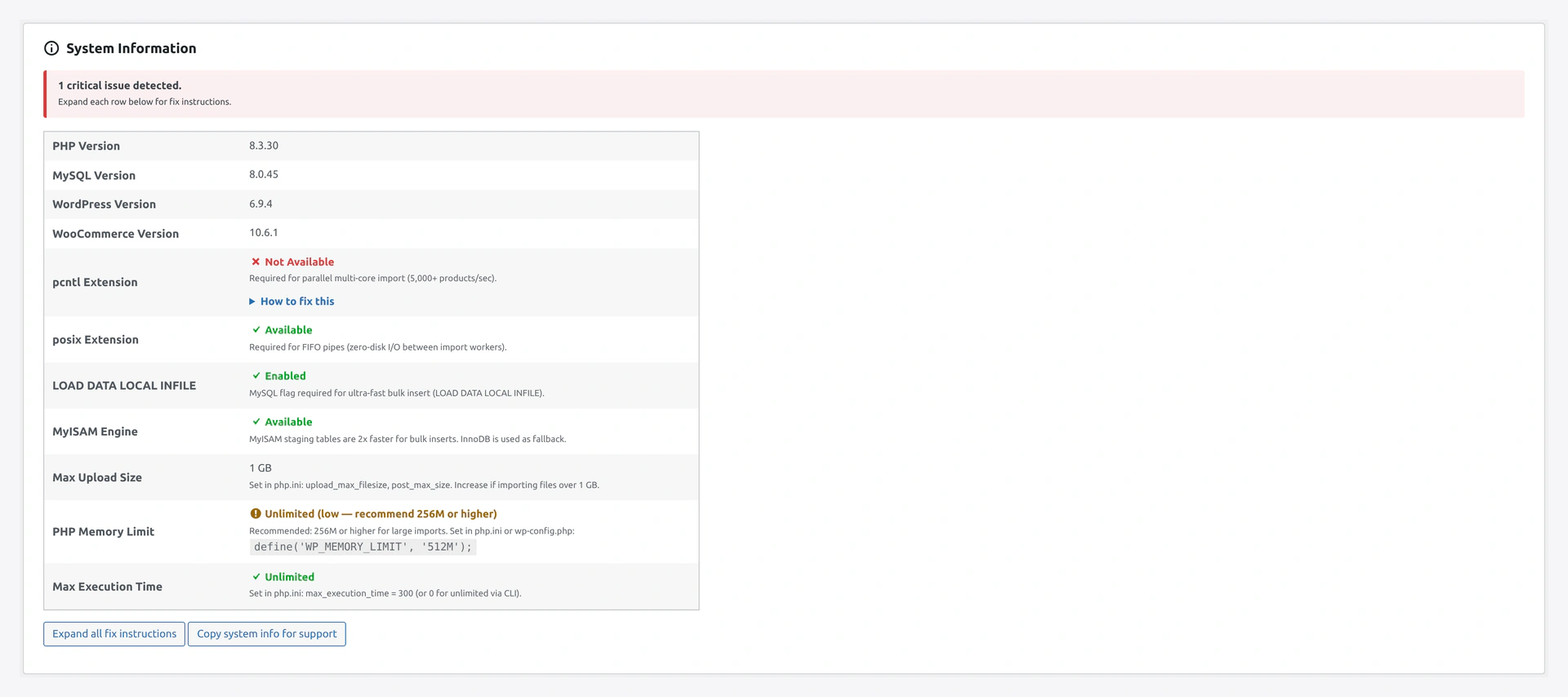 System Info — green good, yellow warning, red needs attention.
Status Banner at Top
The banner summarizes:
| Banner | Meaning |
|---|---|
| Green: "All system requirements met. Your server is fully optimized for high-speed imports." | Everything works |
| Yellow: "X performance warnings." | Works but slower than possible |
| Red: "X critical issues detected." | Fix these first |
| Yellow + Red: "X critical issue(s) and Y warning(s) detected. Expand each row below for fix instructions." | Mixed |
What's Checked
| # | Row | Minimum | What It Means |
|---|---|---|---|
| 1 | PHP Version | 8.1 | Your PHP version |
| 2 | MySQL Version | 8.0 | Your MySQL/MariaDB |
| 3 | WordPress Version | 6.0 | Your WordPress |
| 4 | WooCommerce Version | 8.0 | Your WooCommerce |
| 5 | pcntl Extension | Recommended | Enables parallel processing (10x speed) |
| 6 | posix Extension | Recommended | Enables FIFO pipes |
| 7 | LOAD DATA LOCAL INFILE | Required | MySQL flag for fastest bulk insert |
| 8 | MyISAM Engine | Optional | 2x speed boost for staging |
| 9 | PHP Memory Limit | 256M+ | Memory per PHP process |
| 10 | PHP Max Execution Time | 300s+ | Max script run time |
Each Row Shows
- Name on the left
- Value in the middle (your current value)
- Status on the right:
- Green checkmark + "Available" (good)
- Red X + "Not Available" (need to fix)
- Yellow warning icon (suboptimal)
"How to Fix This" Sections
Any row with a red X or yellow warning has an expandable section labeled How to fix this.
Click to expand. The plugin auto-detects your server OS and shows the right commands:
For pcntl missing on Ubuntu:
sudo apt-get install php8.3-pcntl
sudo systemctl restart php8.3-fpm
For pcntl missing on CentOS / RHEL:
sudo dnf install php-process
sudo systemctl restart php-fpm
For pcntl missing on macOS:
brew install [email protected]
For Windows:
"pcntl is not supported on Windows. Use WSL2 or a Linux server."
For LOAD DATA LOCAL INFILE disabled, three options:
Option 1 — SQL as admin:
SET GLOBAL local_infile = 1;
Option 2 — Permanent in my.cnf:
[mysqld]
local_infile = 1
Then restart MySQL.
Option 3 — Ask your host:
Copy-paste this message: "Please enable LOAD DATA LOCAL INFILE for my MySQL user. The plugin requires this for bulk imports."
Buttons at the Bottom
| Button | What It Does |
|---|---|
| Expand all fix instructions | Opens every "How to fix" box at once |
| Copy system info for support | Copies the whole system info table to your clipboard |
Use Copy system info for support when opening a support ticket.
Troubleshooting the Dashboard
| Problem | Fix |
|---|---|
| All stat cards show 0 | You have not run any imports yet. Click New Import |
| Dashboard takes a long time to load | Your database may be slow. Clean old history: wp wkaie history cleanup --older-than=30d |
| "Failed (Last 24h)" shows a high number | Open History, inspect each failed run for the error message |
| System info shows pcntl "Not Available" | Expand "How to fix this" for install commands |
| "PHP Memory Limit" shows yellow | Add define('WP_MEMORY_LIMIT', '512M'); to wp-config.php |
| "LOAD DATA LOCAL INFILE" shows red | Run the SQL or ask your host |
Related Pages
- Installation — Initial setup
- First-Time Setup — Step-by-step checklist
- Quick Import Wizard — Start importing
- History — Full run history
- Health Check — Find and fix data issues
- Settings — Change defaults
- PHP Configuration — Fix PHP limits