
Advance Import and Export for WooCommerce DocumentationAdvance Import and Export for WooCommerce Documentation
Buy Now
View Demo
  • Getting Started

    • Introduction
    • Quick Start
    • Features
    • Installation
    • First-Time Setup
    • CSV Preparation
    • Sample Files
    • Use Cases
    • Common Mistakes
  • Tutorials

    • Google Sheets Live Sync
    • Shopify Migration
    • Daily Backup to S3
    • Multi-Store Sync
  • Using the Plugin

    • Dashboard
    • Quick Import Wizard
    • Quick Export
    • Settings
    • Compatibility
  • Import In Detail

    • Import Sources
    • Import Modes
    • Column Mapping
    • Transformations
    • Migration Presets
    • Delta Import
  • Export In Detail

    • Export Features
    • Export Destinations
    • Browser Download
    • Server Path (REST / CLI)
  • Data Types

    • Products
    • Variable Products
    • Orders
    • Customers
    • Categories & Tags
    • Coupons
    • Reviews
    • Posts
    • Pages
    • Users
    • Subscriptions
    • Bookings
    • Memberships
    • Menus
  • Automation

    • Scheduled Jobs
    • History & Logs
    • Rollback
    • Health Check
  • Cloud Service Setup

    • Google API Setup
    • Amazon S3 Setup
    • Dropbox Setup
    • Email / SMTP Setup
  • Server Configuration

    • PHP Configuration
    • Server Cron Setup
    • Image Handling
  • Developer

    • REST API
    • WP-CLI Commands
  • Compare

    • vs WP All Import
    • vs Product Import Export (WebToffee)
  • Help

    • Troubleshooting
    • FAQ
    • Glossary
    • Security
    • Changelog
Support
Buy Now
View Demo
  • Getting Started

    • Introduction
    • Quick Start
    • Features
    • Installation
    • First-Time Setup
    • CSV Preparation
    • Sample Files
    • Use Cases
    • Common Mistakes
  • Tutorials

    • Google Sheets Live Sync
    • Shopify Migration
    • Daily Backup to S3
    • Multi-Store Sync
  • Using the Plugin

    • Dashboard
    • Quick Import Wizard
    • Quick Export
    • Settings
    • Compatibility
  • Import In Detail

    • Import Sources
    • Import Modes
    • Column Mapping
    • Transformations
    • Migration Presets
    • Delta Import
  • Export In Detail

    • Export Features
    • Export Destinations
    • Browser Download
    • Server Path (REST / CLI)
  • Data Types

    • Products
    • Variable Products
    • Orders
    • Customers
    • Categories & Tags
    • Coupons
    • Reviews
    • Posts
    • Pages
    • Users
    • Subscriptions
    • Bookings
    • Memberships
    • Menus
  • Automation

    • Scheduled Jobs
    • History & Logs
    • Rollback
    • Health Check
  • Cloud Service Setup

    • Google API Setup
    • Amazon S3 Setup
    • Dropbox Setup
    • Email / SMTP Setup
  • Server Configuration

    • PHP Configuration
    • Server Cron Setup
    • Image Handling
  • Developer

    • REST API
    • WP-CLI Commands
  • Compare

    • vs WP All Import
    • vs Product Import Export (WebToffee)
  • Help

    • Troubleshooting
    • FAQ
    • Glossary
    • Security
    • Changelog
Support
  • Getting Started

    • Introduction
    • Quick Start — Your First Import in 5 Minutes
    • Features — Full Tour
    • Installation — Full Setup Guide
    • First-Time Setup — Complete Checklist
    • CSV Preparation — How to Make a Good Import File
    • Sample Files — Download Ready-to-Use Templates
    • Use Cases — "I Want To..." Quick Reference
    • Common Mistakes — Things To Watch Out For
  • Tutorials

    • Tutorial — Google Sheets Live Sync
    • Tutorial — Migrate from Shopify to WooCommerce
    • Tutorial — Daily Backup to Amazon S3
    • Tutorial — Sync Between Two WooCommerce Stores
  • Using the Plugin

    • Dashboard — What You See First
    • Quick Import Wizard — 5 Steps to Import Any File
    • Quick Export — One-Page Export Tool
    • Settings — Every Option Explained
    • Compatibility — Third-Party Plugin Support
  • Import In Detail

    • Import Sources — 11 Ways to Pull Data In
    • Import Modes — Create, Update, Delete, Replace
    • Column Mapping — Connect Your Columns to WooCommerce
    • Transformations — Change Values During Import
    • Migration Presets — Move From Shopify, Magento, BigCommerce
    • Delta Import — Skip Unchanged Rows
  • Export In Detail

    • Export Features
    • Export Destinations — Where Your Files Go
    • Export Download — One-Click Browser Download
    • Export to Server Path — WP-CLI
  • Data Types

    • Products Import — Full Field Reference
    • Variable Products — The Complete Guide
    • Orders Import — Historical Orders and Line Items
    • Customers Import — With Addresses and Notes
    • Categories and Tags Import
    • Coupons Import — Discount Codes
    • Reviews Import — Product Reviews and Ratings
    • Posts Import — WordPress Blog Posts
    • Pages Import — WordPress Pages
    • Users Import — WordPress User Accounts
    • Subscriptions Import — WooCommerce Subscriptions
    • Bookings Import — WooCommerce Bookings
    • Memberships Import — WooCommerce Memberships
    • Menus Import — WordPress Navigation Menus
  • Automation

    • Jobs — Saved and Scheduled Imports and Exports
    • History — Every Run You Have Ever Done
    • Rollback — Undo Any Import in One Click
    • Health Check — Data Integrity Checks With Auto-Fix
  • Cloud Service Setup

    • Google API Setup — Sheets, Drive, OAuth
    • Amazon S3 Setup — IAM User and Bucket Permissions
    • Dropbox Setup — API Token for Private Files
    • Email Setup — Making Notifications Actually Work
  • Server Configuration

    • PHP Configuration — Memory, Execution Time, Upload Size
    • Server Cron Setup — Reliable Scheduled Imports
    • Image Handling — Download, Resize, Watermark
  • Developer

    • REST API — Developer Reference
    • WP-CLI Commands — Command Line Automation
  • Compare

    • Advance Import and Export vs WP All Import
    • Advance Import and Export vs Product Import Export for WooCommerce
  • Help

    • Troubleshooting — Fix Common Problems
    • FAQ — Common Questions
    • Glossary — Every Term Explained
    • Security — How Your Data Is Protected
    • Changelog — What Changed

First-Time Setup — Complete Checklist

Brand-new to the plugin? This page walks you through everything in order. Check each box as you complete the step.

Why a checklist?

The plugin has many features, but most users do not need all of them at once. This page covers the essential setup that 95% of stores need.

Estimated Time

About 30 minutes for a complete setup.

The Checklist

Part 1 — Install (5 min)

  • [ ] Check system requirements (see Installation)
  • [ ] Download the plugin ZIP from Webkul or CodeCanyon
  • [ ] Upload via Plugins → Add New → Upload Plugin
  • [ ] Activate the plugin
  • [ ] See "Webkul WC Addons" in your sidebar

Part 2 — System Check (5 min)
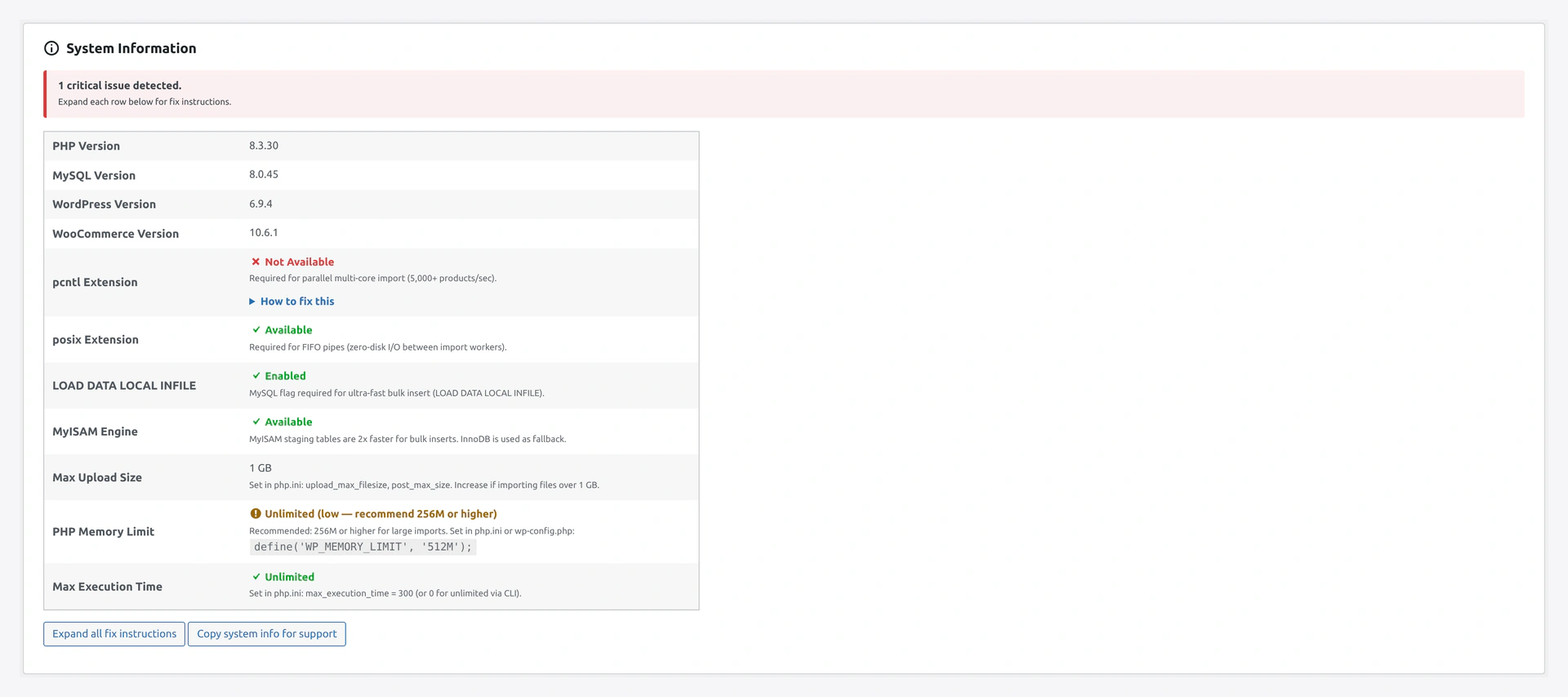
System Information cardScreenshot: Dashboard System Information card — review status before continuing.

  • [ ] Open Webkul WC Addons → Import Export (Dashboard)
  • [ ] Scroll to System Information card
  • [ ] Check the banner:
    • Green "All system requirements met" → skip to Part 3
    • Yellow "X performance warnings" → review warnings but you can continue
    • Red "X critical issues" → fix these first
  • [ ] For any red items, click How to fix this
  • [ ] Follow the OS-specific install commands
  • [ ] Refresh the Dashboard — confirm everything is green

Most common fixes:

  • pcntl not available — Ask hosting to install php8.3-pcntl
  • LOAD DATA LOCAL INFILE disabled — Ask hosting to enable MySQL local_infile = 1
  • PHP memory < 256M — Add define('WP_MEMORY_LIMIT', '512M'); to wp-config.php

See PHP Configuration for details.

Part 3 — Basic Settings (5 min)
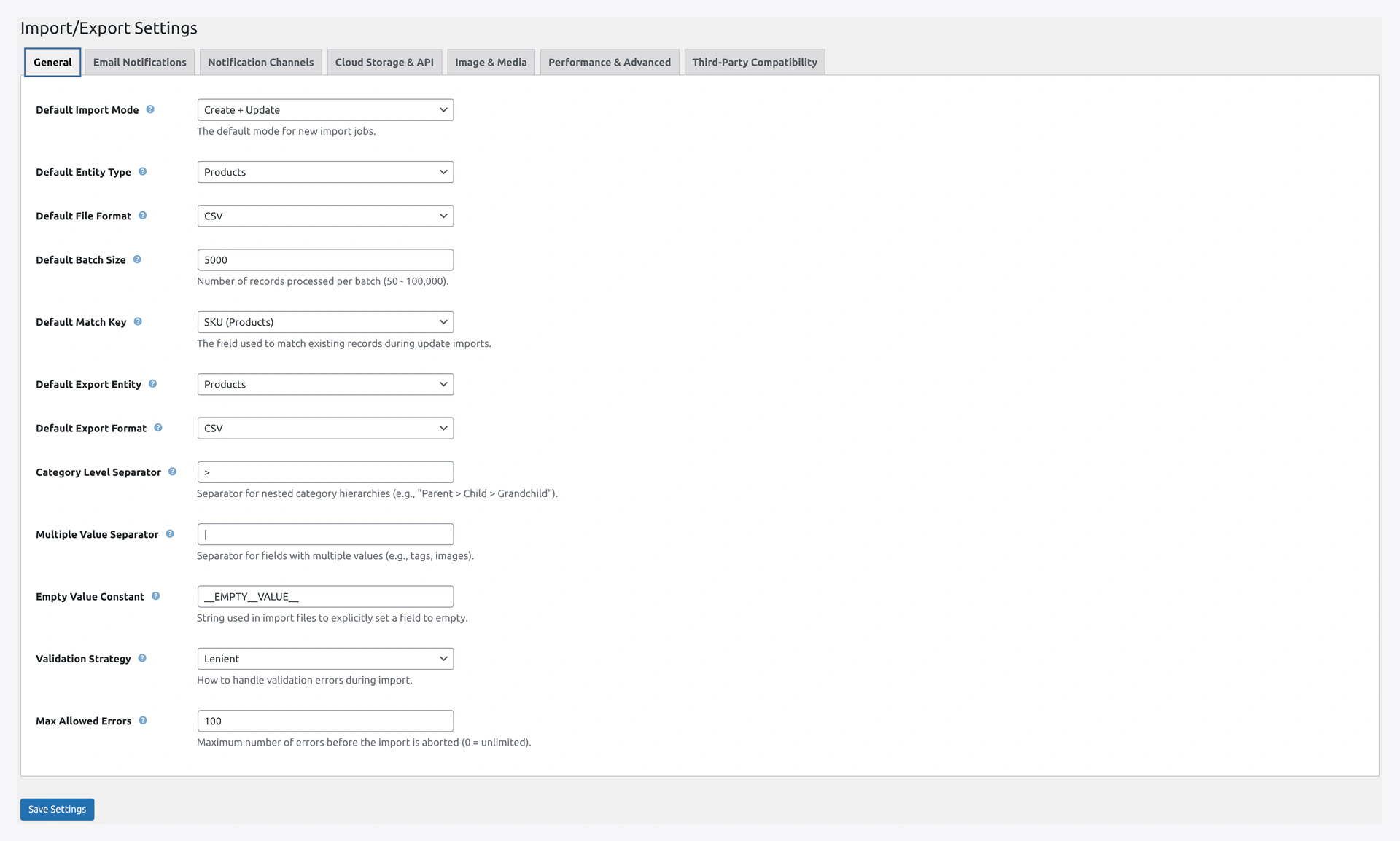
Settings General tabScreenshot: Settings — General tab for default import mode, entity, and batch size.

  • [ ] Open Settings → General
  • [ ] Set Default Import Mode to Create + Update (most common)
  • [ ] Set Default Entity Type to Products (or whatever you import most)
  • [ ] Set Default Batch Size based on your store:
    • Small store (<10K products): 500
    • Medium (10-100K): 1000
    • Large (>100K): 2000
  • [ ] Click Save Changes

Part 4 — Email Notifications (5 min)

  • [ ] Open Settings → Email Notifications
  • [ ] Check Send on Failure (you want to know when things break)
  • [ ] Fill Recipients (To) with your email
  • [ ] Leave Send on Success unchecked (daily schedules would spam you)
  • [ ] Click Save Changes
  • [ ] Install an SMTP plugin like WP Mail SMTP if your hosting mail is unreliable

See Email Setup for SMTP configuration.

Part 5 — Compatibility Plugins (5 min)
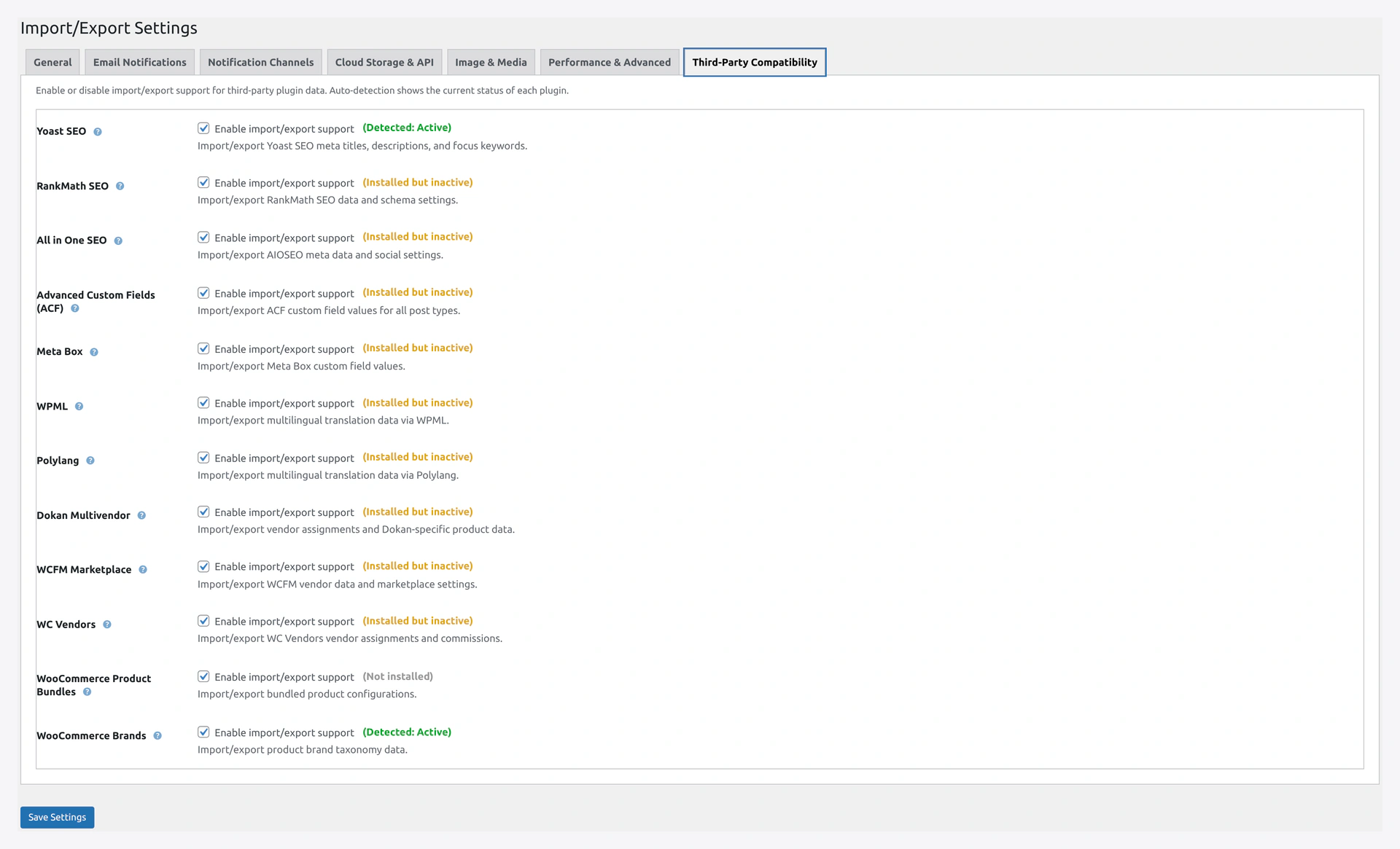
Third-party compatibility tabScreenshot: Settings — Third-party compatibility with detection badges.

  • [ ] Open Settings → Third-Party Compatibility
  • [ ] For each plugin you use, check the status badge:
    • "Detected: Active" — check the box to enable support
    • "Installed but inactive" — activate the plugin first
    • "Not installed" — skip
  • [ ] Common to enable: Yoast SEO, RankMath, ACF, WPML/Polylang
  • [ ] Click Save Changes

See Compatibility for what each integration does.

Part 6 — Your First Import (10 min)
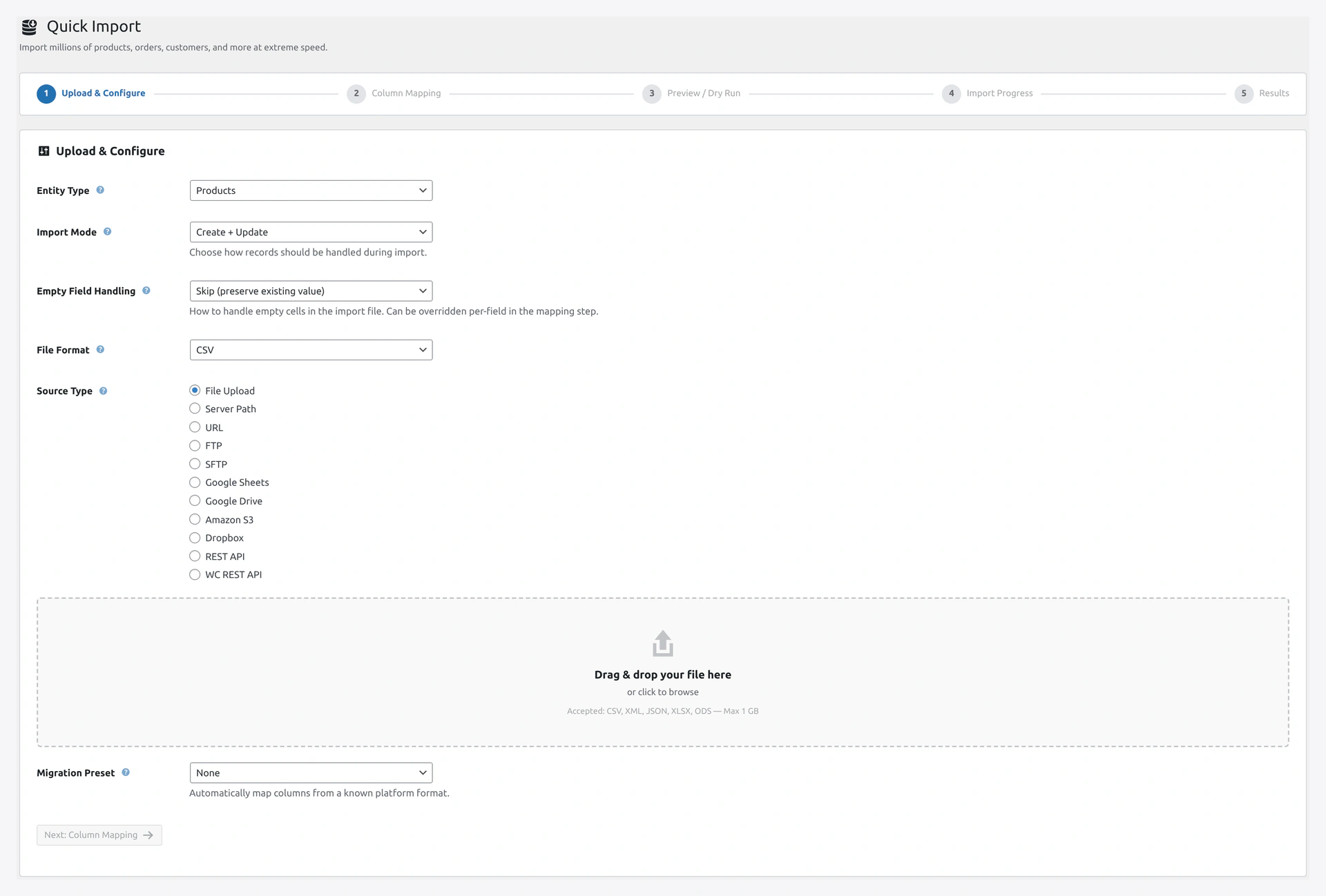
Quick Import wizard step 1Screenshot: Quick Import wizard step 1 — upload and configure your file.

  • [ ] Prepare a test CSV with 10 products (or use the sample file)
  • [ ] Open Quick Import from the menu
  • [ ] Step 1:
    • [ ] Entity Type: Products
    • [ ] Import Mode: Create + Update
    • [ ] File Format: Auto-Detect
    • [ ] Source Type: File Upload
    • [ ] Upload your file
  • [ ] Click Next
  • [ ] Step 2: Review column mapping (should auto-match standard columns)
  • [ ] Click Next
  • [ ] Step 3: Read the preview summary
  • [ ] Click Start Import
  • [ ] Step 4: Watch the progress bar
  • [ ] Step 5: See the result — click View Products to verify

Part 7 — Save as Job (Optional, 3 min)

If this will be a recurring import:

  • [ ] Click Save as Job on the result page
  • [ ] Give it a clear title (e.g., "Daily Supplier Feed")
  • [ ] Pick a schedule (e.g., Daily at 3 AM)
  • [ ] Click Save
  • [ ] Go to Jobs page and verify it is listed

Part 8 — Server Cron (For Reliable Scheduling)

WordPress built-in cron is unreliable. For scheduled jobs:

  • [ ] SSH into your server (or use cPanel → Cron Jobs)
  • [ ] Add this to your server crontab:
    */5 * * * * curl -s https://your-site.com/wp-cron.php > /dev/null
    
  • [ ] Save

See Server Cron Setup for full instructions.

Part 9 — Backups (Optional but Recommended)

  • [ ] Install UpdraftPlus or similar
  • [ ] Schedule daily backups before imports run
  • [ ] Test restore once to make sure it works

This is separate from the plugin's Rollback, which only undoes one import.

You Are Done

After completing this checklist, you have:

  • Plugin installed and working
  • System optimized
  • Defaults set
  • Notifications configured
  • Compat plugins connected
  • First import done
  • Scheduling set up (if needed)
  • Backups in place

What to Learn Next

TopicWhy It Matters
Quick Import WizardDeep dive on each step
Import SourcesConnect Google Sheets, FTP, S3
JobsSet up scheduled imports
RollbackUndo mistakes
Health CheckKeep your data clean
TroubleshootingFix issues when they come up

Common First-Time Questions

Do I need to import everything at once?

No. Start with 10 products. Get comfortable with the flow. Then do the full import.

Should I test on staging first?

Yes, especially for large imports. Most hosts offer free staging.

Can I undo my first import if I mess up?

Yes. Every import creates a rollback snapshot. See Rollback.

How long will a 10,000-product import take?

On a decent VPS with pcntl enabled: under 10 seconds. On shared hosting without pcntl: 2-10 minutes.

Related Pages

  • Installation
  • Quick Import Wizard
  • Settings
  • Tutorials
Prev
Installation — Full Setup Guide
Next
CSV Preparation — How to Make a Good Import File