
Import Sources
The Quick Import Wizard supports 11 sources. Pick the one that fits your workflow.
At a Glance
| Source | Radio Value | When to Use |
|---|---|---|
| File Upload | file | One-time imports from your computer |
| Server Path | server_path | File already on your server |
| URL | url | Download from any link |
| FTP | ftp | Supplier or partner FTP server |
| SFTP | sftp | Secure FTP (with SSH keys) |
| Google Sheets | google_sheets | Shared spreadsheet for team editing |
| Google Drive | google_drive | File in your Google Drive |
| Amazon S3 | s3 | AWS S3 bucket |
| Dropbox | dropbox | Dropbox shared link |
| REST API | rest_api | Custom JSON API |
| WooCommerce REST API | wc_rest_api | Pull from another WC store |
File Upload
The most common source. Pick a file from your computer.
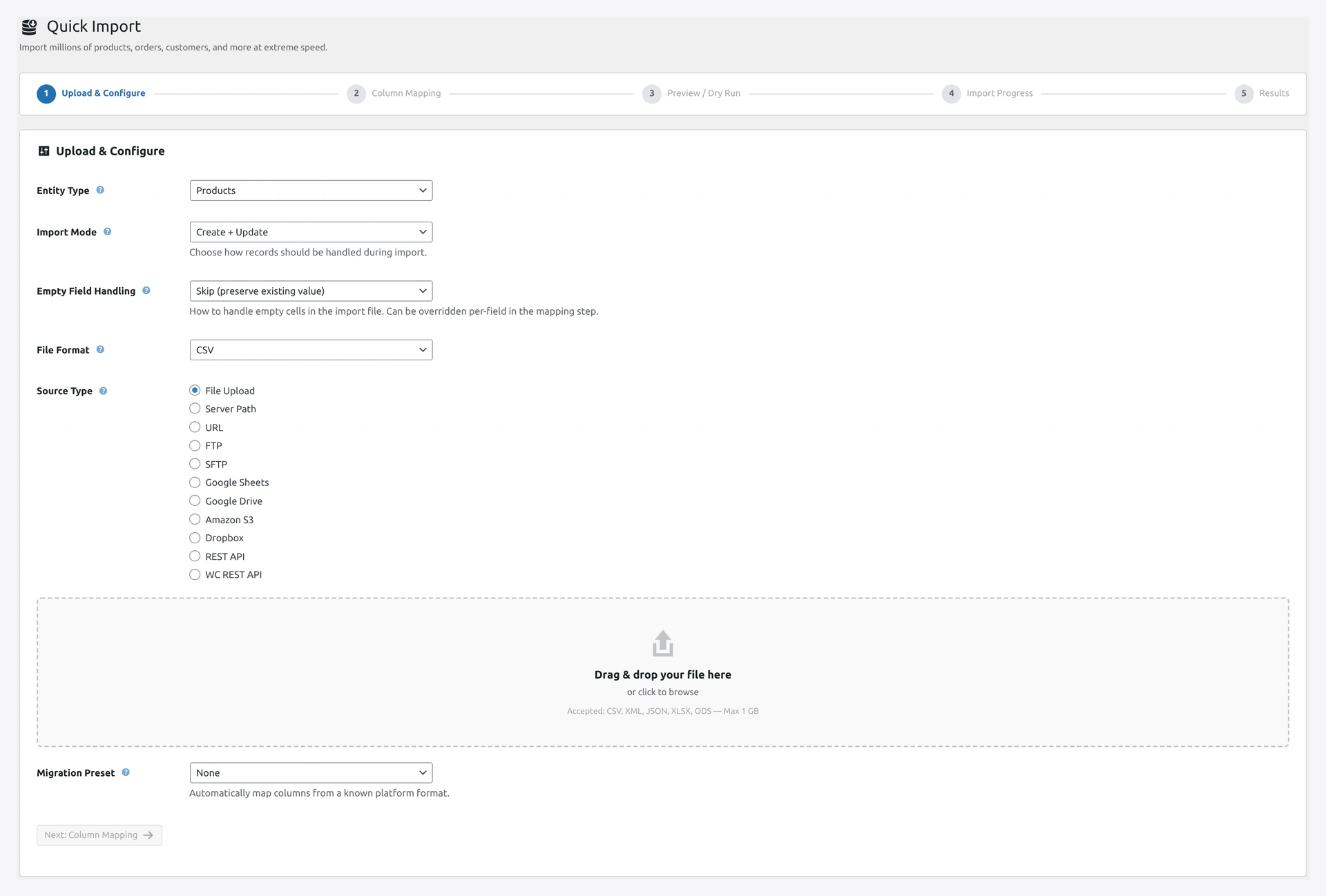 Screenshot: File Upload — drag-and-drop or click to browse; file info shown after upload.
How to Use
- Quick Import Wizard → Step 1 → Source Type: File Upload
- Click Choose File
- Pick your CSV, XML, JSON, XLSX, or ODS file
- File name and size appear once uploaded
Limits
- Max file size: your PHP
upload_max_filesizesetting (usually 64MB to 1GB) - Files over 1GB: use Server Path instead
Supported Formats
- CSV (most common)
- XML
- JSON
- XLSX (Excel)
- ODS (OpenOffice)
- ZIP (auto-extracts the first file inside)
- TAR (auto-extracts)
Server Path
Best for very large files. Upload via FTP first, then point the plugin at the server path.
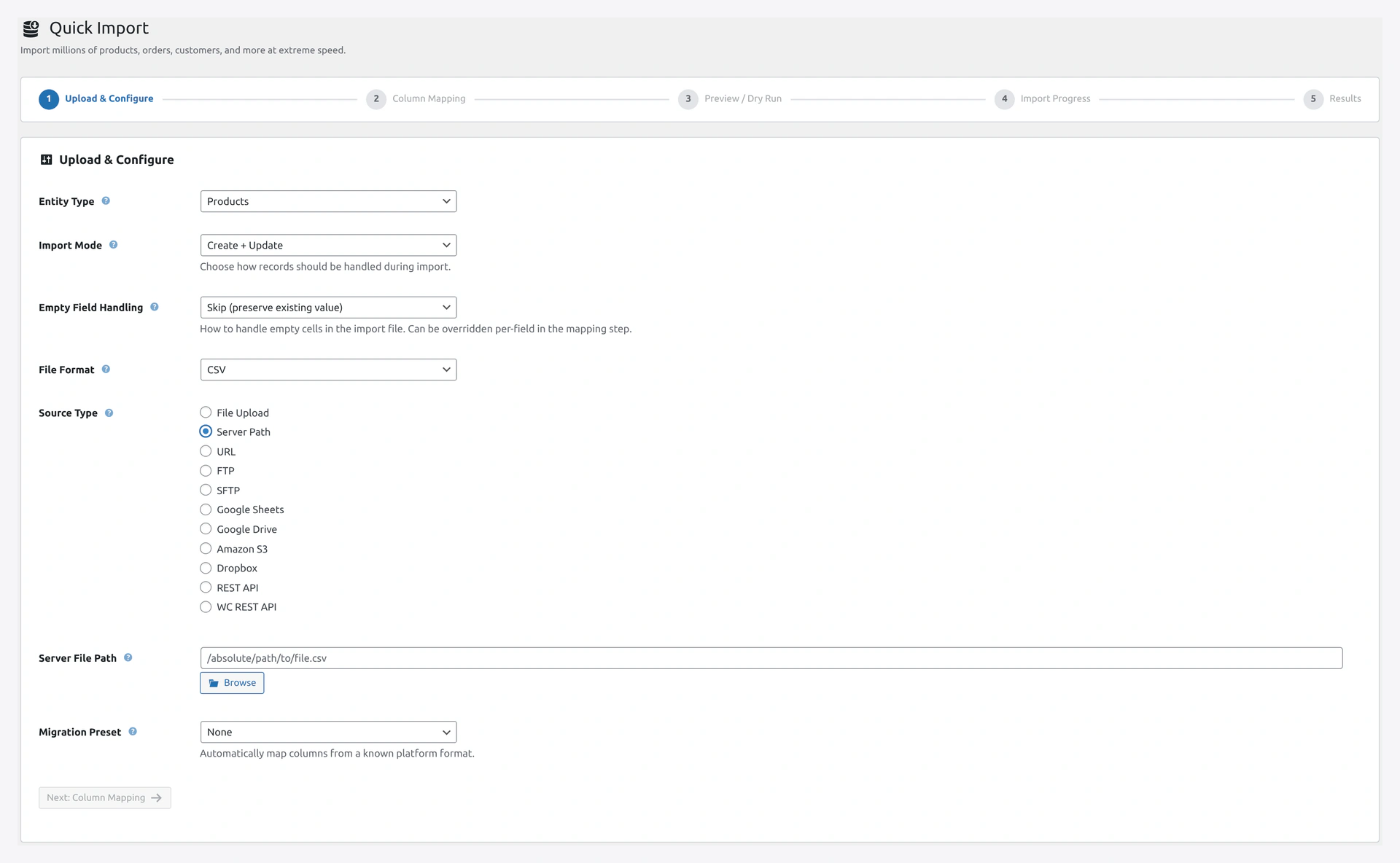 Screenshot: Server Path — point the wizard at a file already sitting on your server.
How to Use
- Upload your file via FTP to, say,
/wp-content/uploads/import-files/products.csv - Quick Import Wizard → Step 1 → Source Type: Server Path
- Paste the full path or use the file browser
- Click Next
Why Use This
- No upload size limit
- No browser timeout
- Good for 1GB+ files
URL
Download any publicly available file.
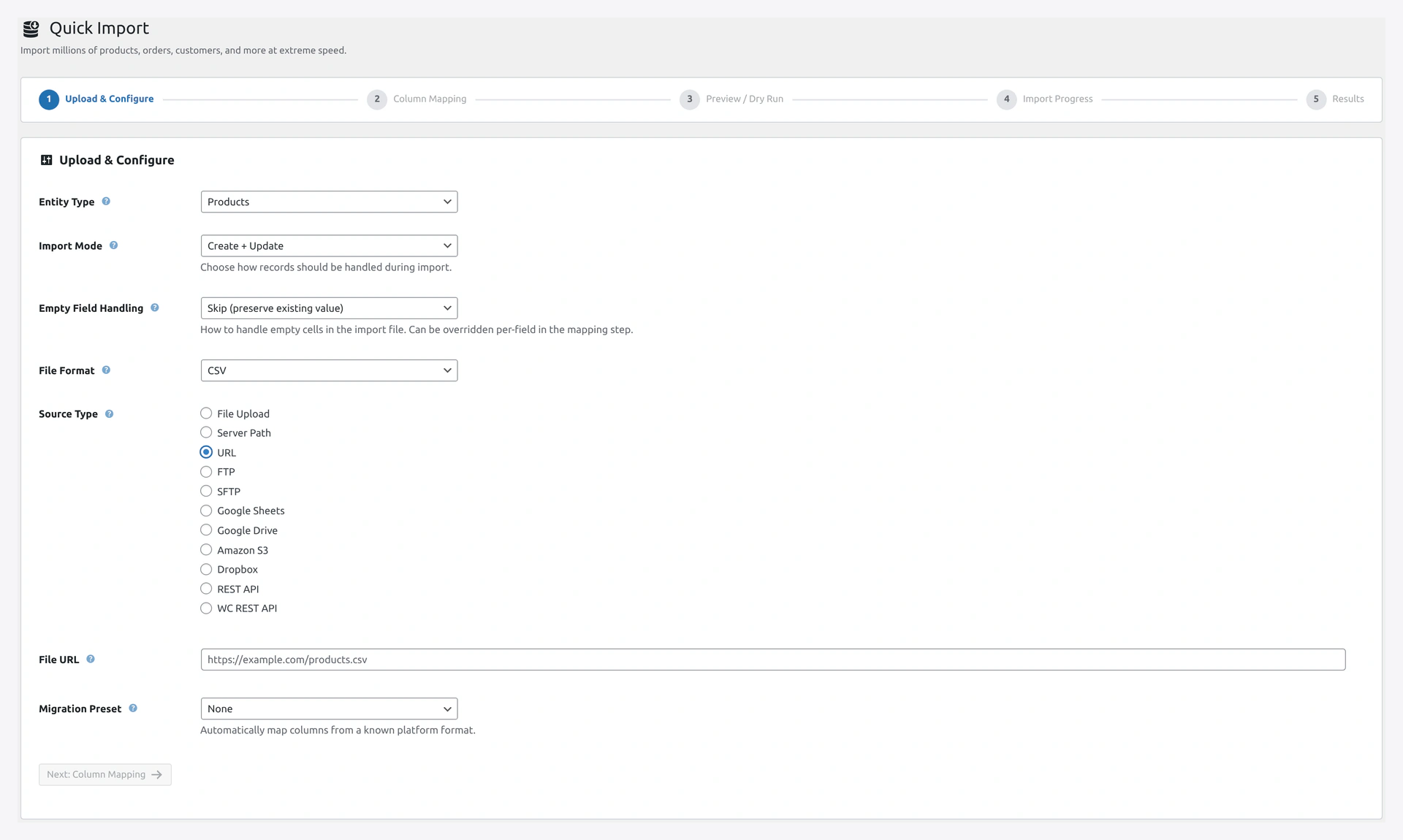 Screenshot: URL source — paste any direct link, the server fetches the file.
How to Use
- Wizard → Source Type: URL
- Paste the URL (e.g.,
https://example.com/products.csv) - Click Next
Tips
- The URL must be reachable from your server (not just your browser)
- HTTPS is supported
- Basic auth via URL is supported:
https://user:[email protected]/file.csv
FTP
Connect to an FTP server.
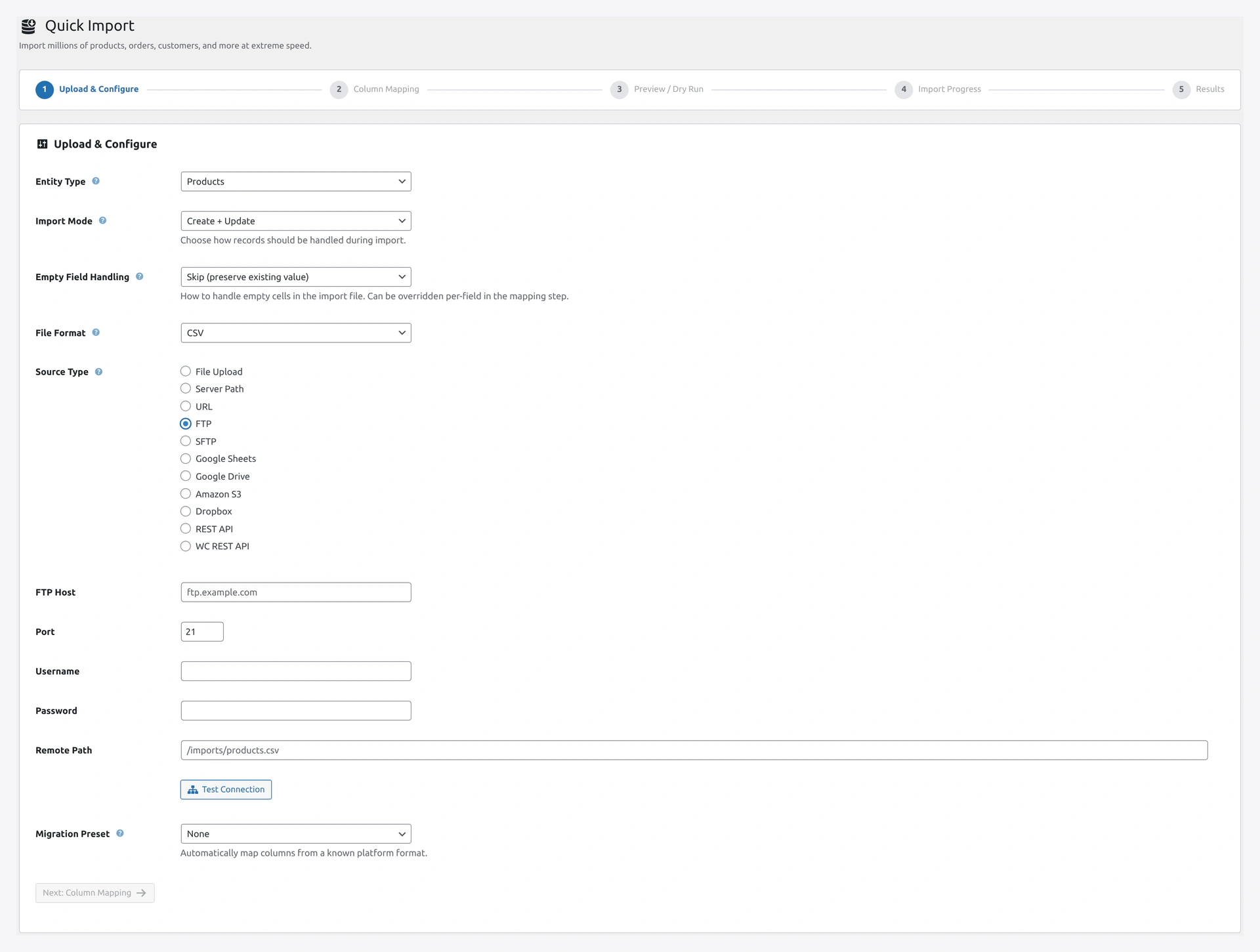 Screenshot: FTP source — host, port, credentials, remote path, and Test Connection.
How to Use
- Wizard → Source Type: FTP
- Fill in:
- Host
- Port (default 21)
- Username
- Password
- File path on the server (e.g.,
/feeds/products.xml)
- Click Test Connection (optional but recommended)
- Click Next
Save FTP Credentials
To avoid typing credentials every time, set defaults in Settings → Cloud Storage & API → FTP / SFTP. Then new jobs auto-fill.
SFTP
Secure FTP with SSH.
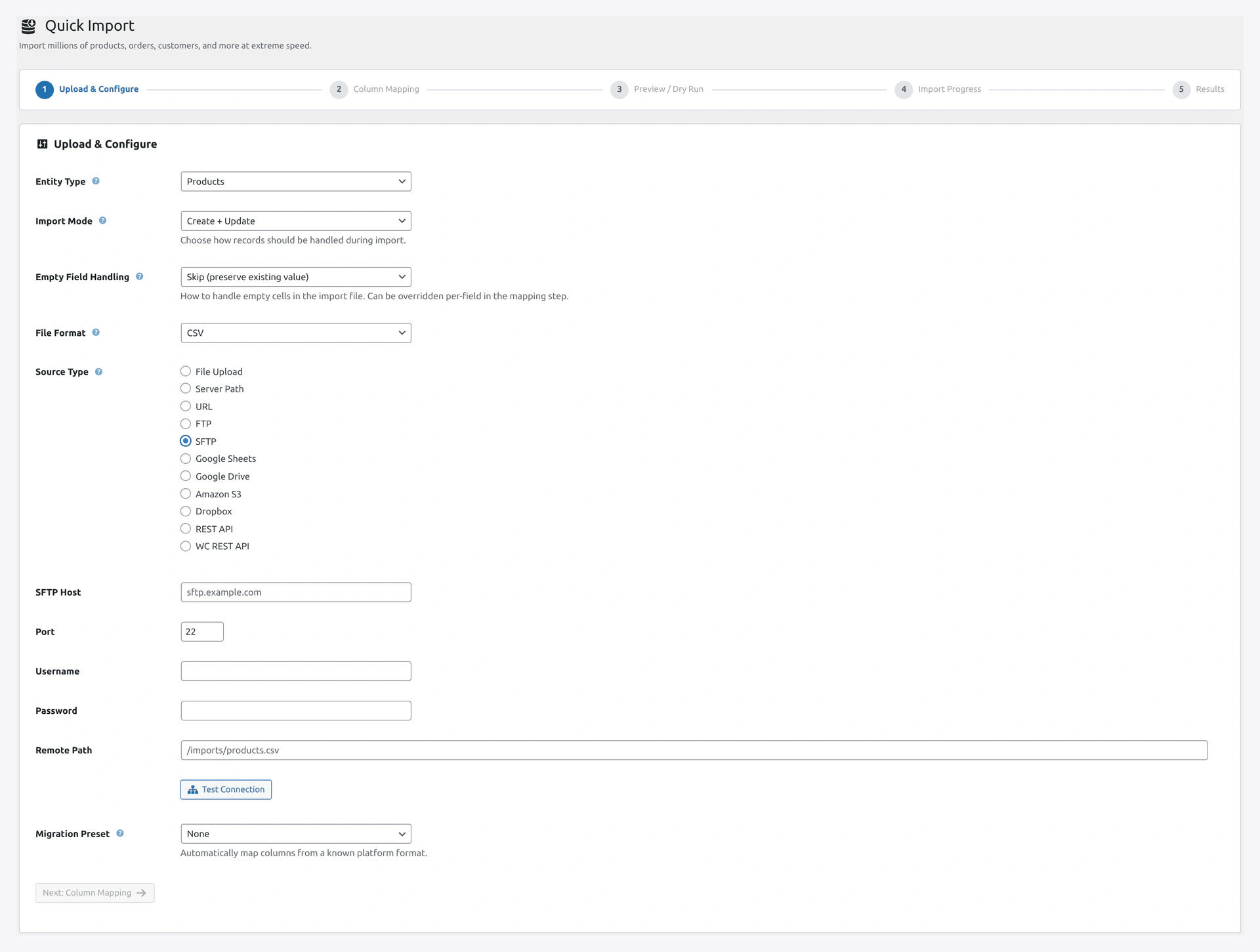 Screenshot: SFTP source — like FTP but on port 22 with optional SSH key.
How to Use
Same as FTP, but:
- Default port is 22
- You can provide an SSH key path instead of a password
How to Use SSH Key
- Upload your private key to the server (outside the web root) — e.g.,
/home/user/.ssh/id_rsa - In Settings → Cloud Storage & API → SFTP Key Path — set the path
- In the job, leave Password blank
Google Sheets
Pull data from a Google Sheet. Perfect for teams that edit prices and stock in a shared sheet.
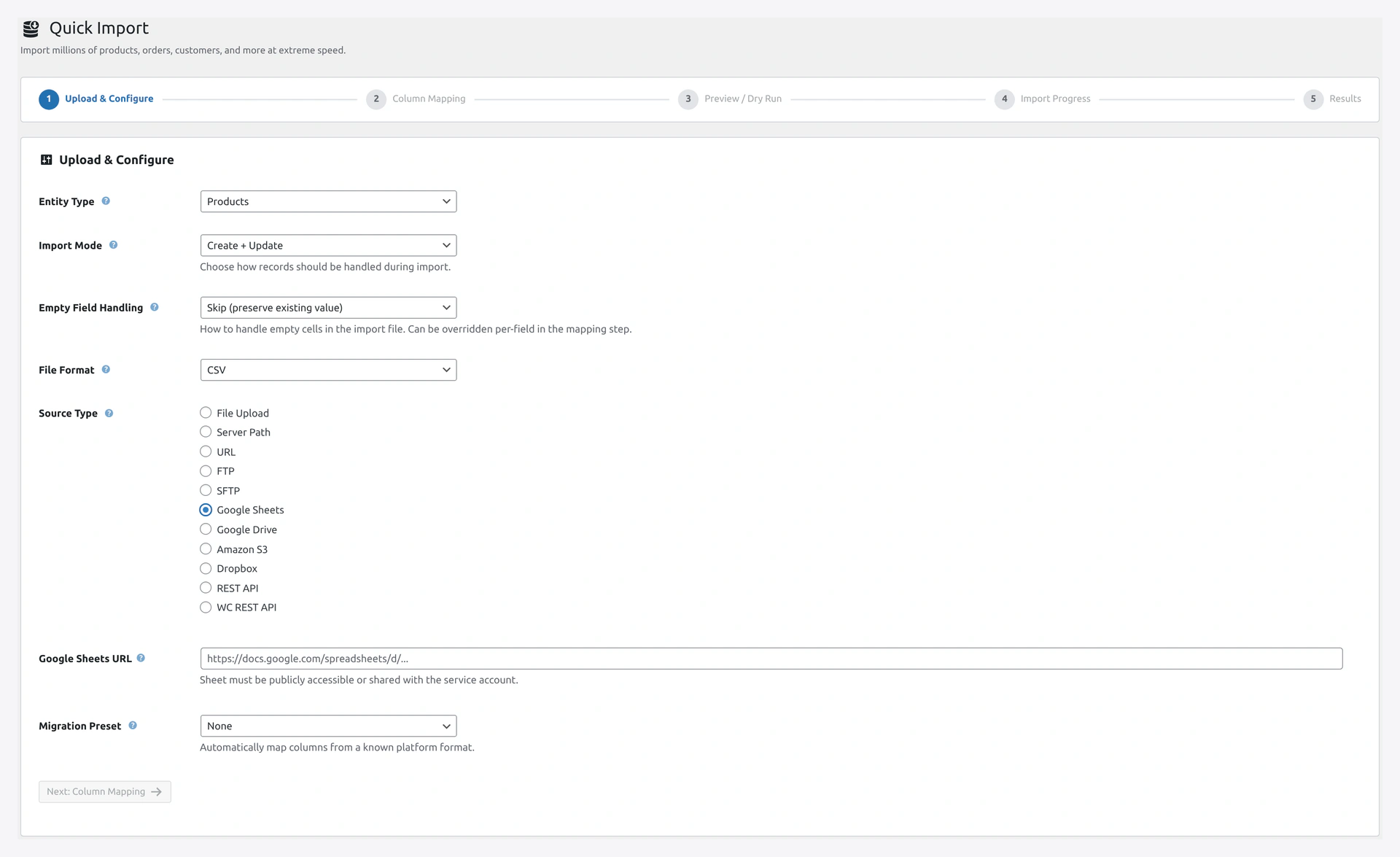 Google Sheets source — paste the full URL, plugin extracts the sheet ID.
How to Use
- Open your Google Sheet
- Click File → Share → Publish to web → Publish (or set sharing to "Anyone with the link can view")
- Copy the full sheet URL (e.g.,
https://docs.google.com/spreadsheets/d/1ABC.../edit) - Wizard → Source Type: Google Sheets
- Paste the URL in the Spreadsheet URL field
- If you have multiple tabs, optionally enter the Sheet Name
- Click Next
For Private Sheets
For sheets that are not public, two options:
- API Key (read-only) — generate at console.cloud.google.com and paste in Settings → Cloud Storage & API → Google APIs
- OAuth2 (read/write) — also from Google Cloud, for full access
Live Sync — The Magic
Pair Google Sheets with a scheduled job and your store becomes live-synced with the sheet.
- Team edits a product name in the sheet
- Cron runs every 5 minutes
- The change appears in the store automatically
Google Drive
Pick a file from your Google Drive.
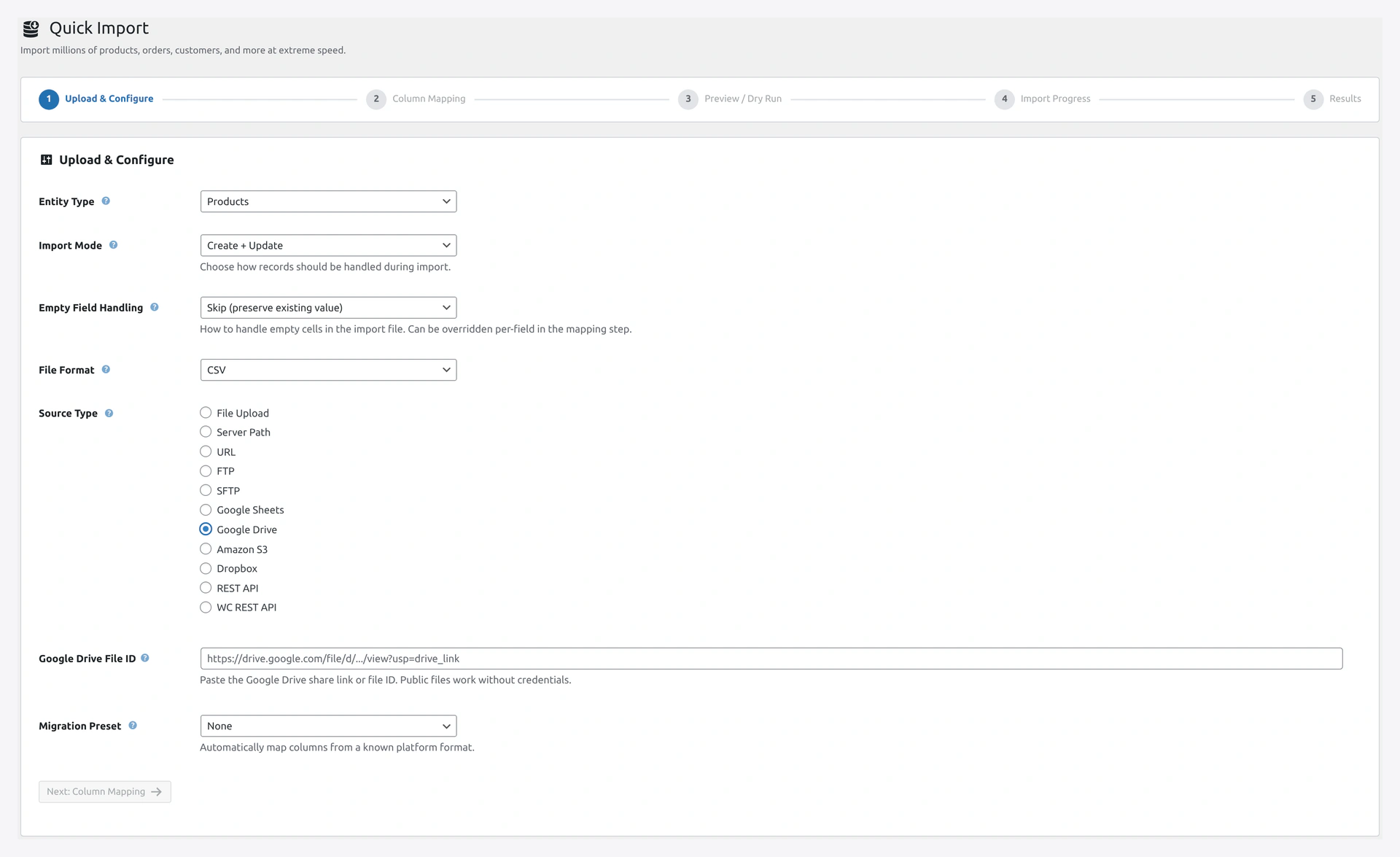 Screenshot: Google Drive source — paste the share link or the file ID.
How to Use
- Upload your file to Google Drive (CSV, XML, etc.)
- Get the shared link (right-click → Share → Copy link)
- Wizard → Source Type: Google Drive
- Paste the link or just the file ID
- Click Next
Setup for Private Files
Private Google Drive files need OAuth2:
- Go to console.cloud.google.com
- Create a project, enable Google Drive API
- Create OAuth 2.0 Client ID
- Paste Client ID and Secret in Settings → Cloud Storage & API → Google APIs
- Authorize the plugin via the OAuth flow
Amazon S3
Pull files from an AWS S3 bucket.
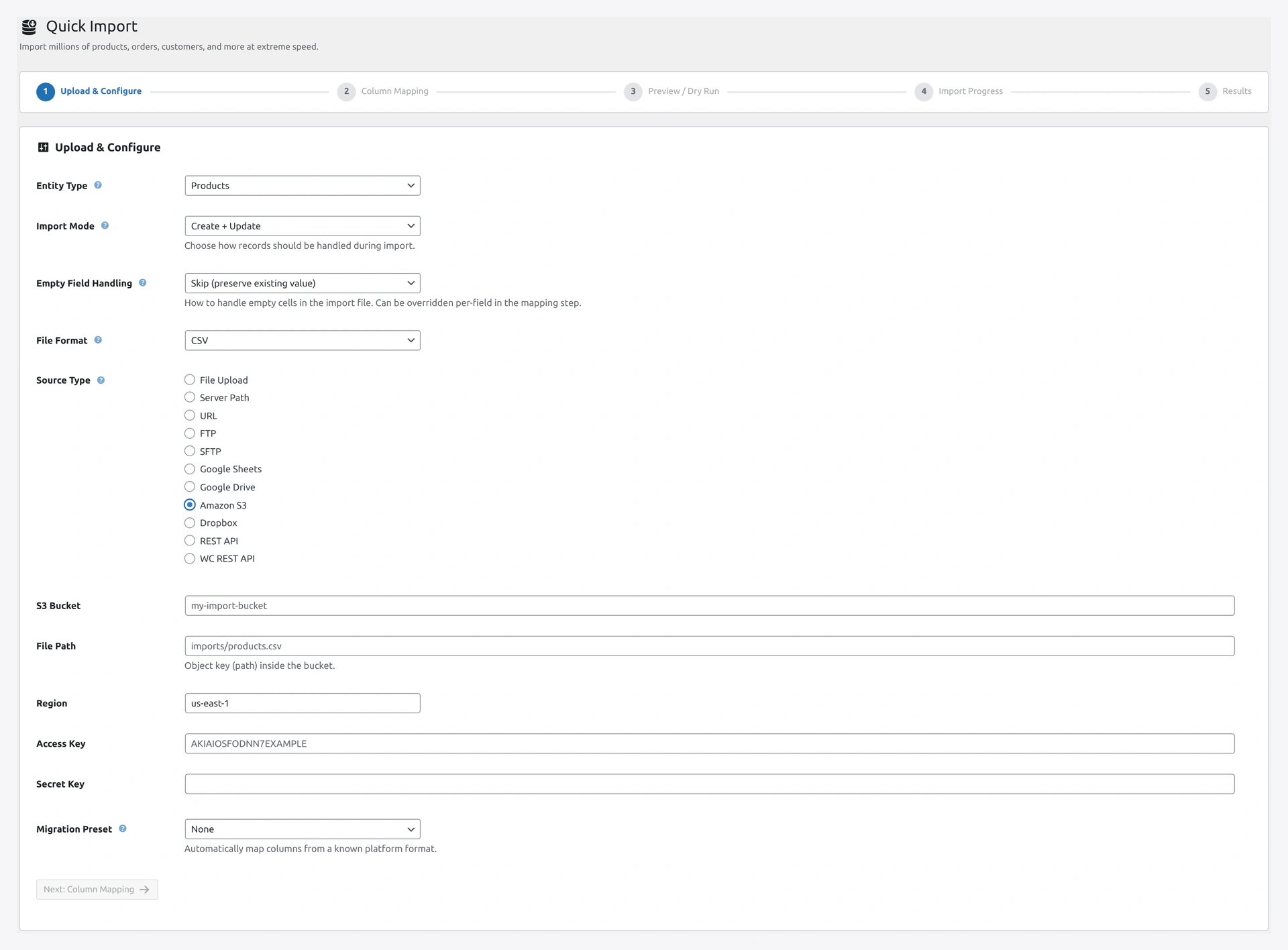 Screenshot: Amazon S3 source — bucket, file path, region, access key, secret key.
How to Use
- In AWS IAM, create a user with these permissions:
s3:GetObjects3:ListBucket
- Copy the Access Key ID and Secret Access Key
- Save them in Settings → Cloud Storage & API → Amazon S3
- Wizard → Source Type: Amazon S3
- Fill in:
- Bucket name
- File path (e.g.,
imports/products.csv) - Region (e.g.,
us-east-1) - Access Key (or leave blank to use Settings default)
- Secret Key (or leave blank to use Settings default)
- Click Next
IAM Policy Example
{
  "Version": "2012-10-17",
  "Statement": [
    {
      "Effect": "Allow",
      "Action": ["s3:GetObject", "s3:ListBucket"],
      "Resource": [
        "arn:aws:s3:::your-bucket-name",
        "arn:aws:s3:::your-bucket-name/*"
      ]
    }
  ]
}
Dropbox
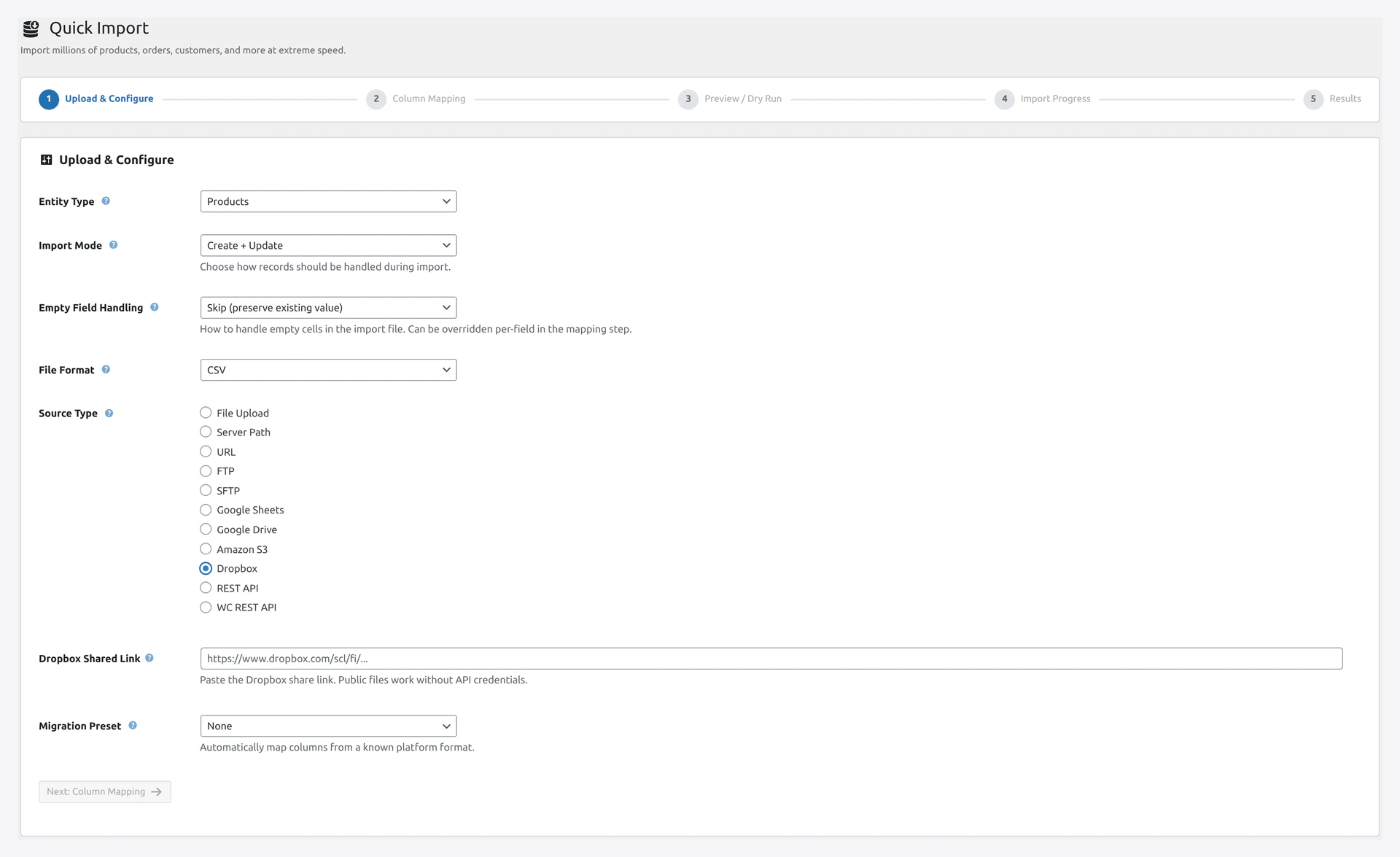 Screenshot: Dropbox source — paste the shared link;
 ?dl=0 is auto-converted to ?dl=1.
How to Use
- Upload your file to Dropbox
- Right-click the file → Copy link
- Wizard → Source Type: Dropbox
- Paste the shared link
- Click Next
The plugin works with public shared links out of the box. For private files, generate a Dropbox API token and paste it in Settings → Cloud Storage & API → Dropbox.
Tip
Dropbox sharing links end with ?dl=0. The plugin automatically changes this to ?dl=1 so the file downloads directly.
REST API
Pull from any JSON REST endpoint.
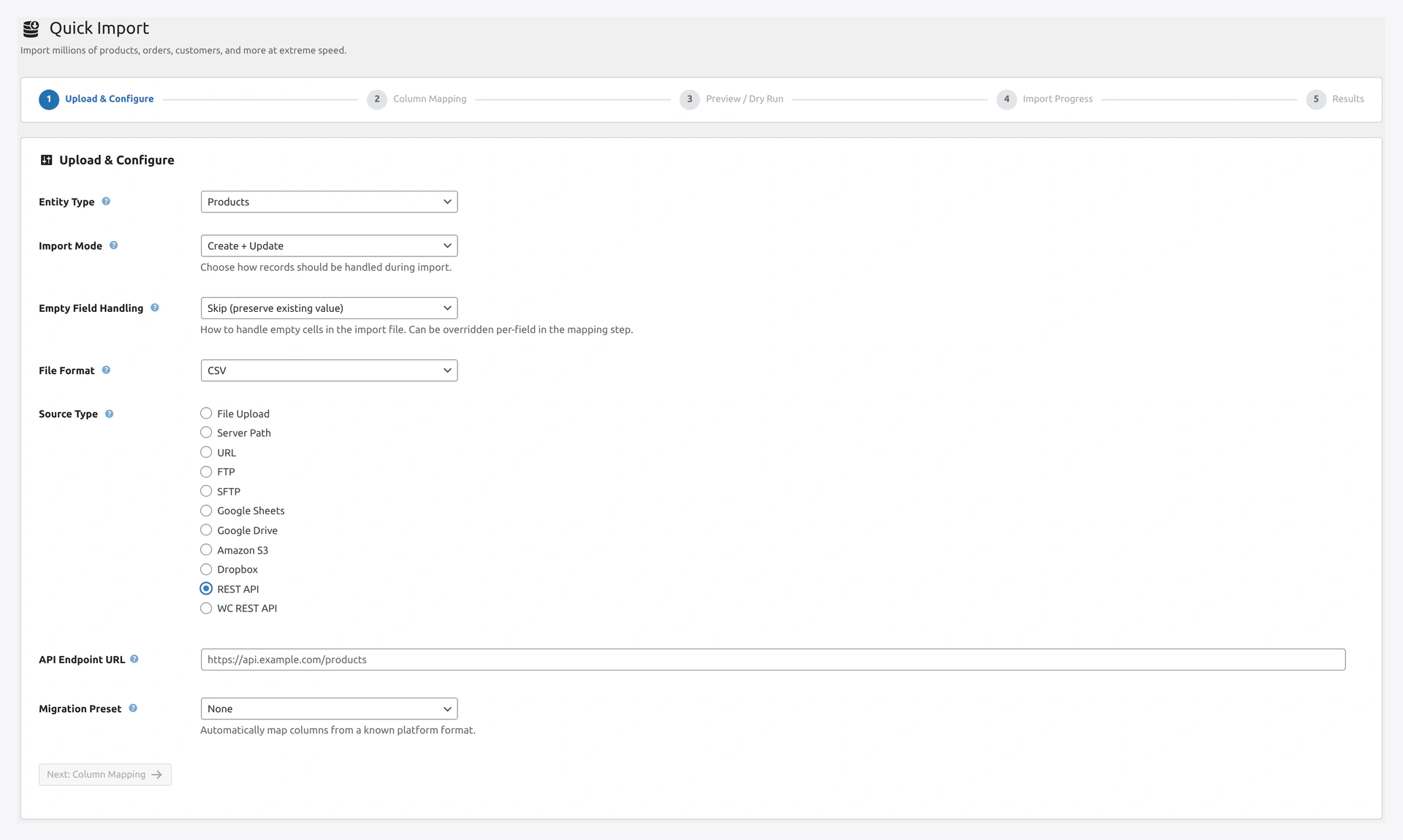 Screenshot: REST API source — endpoint URL plus optional auth headers.
How to Use
- Wizard → Source Type: REST API
- Paste the endpoint URL (e.g.,
https://api.example.com/products) - Optionally add authentication headers
- Click Next
Supported Auth
- None (public API)
- Bearer token (OAuth2)
- Basic auth (username + password)
- Custom header (API key in any header name)
Pagination
The plugin handles these pagination patterns automatically:
- Link header (
Link: <...>; rel="next") - Next URL in JSON (
{"next": "..."}) - Page parameter (
?page=2) - Offset/limit (
?offset=100&limit=50)
WooCommerce REST API
Pull products, orders, or customers from another WooCommerce store.
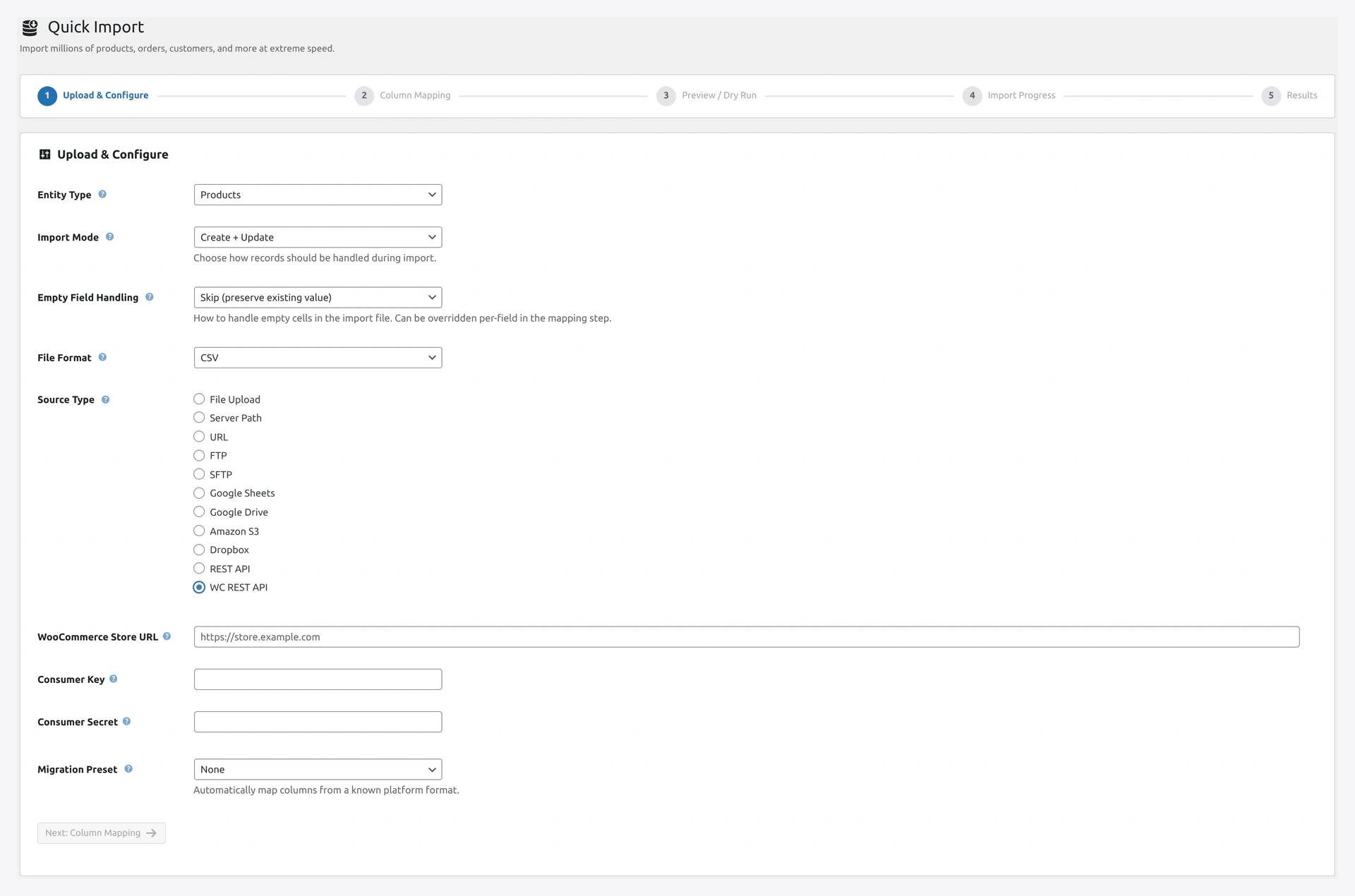 Screenshot: WooCommerce REST API source — remote store URL with Consumer Key and Secret.
How to Use
- On the source store:
WooCommerce → Settings → Advanced → REST API → Add Key - Pick "Read" permissions
- Copy the Consumer Key and Consumer Secret
- On your store: Wizard → Source Type: WC REST API
- Fill in:
- Remote store URL (e.g.,
https://other-store.com) - Consumer Key
- Consumer Secret
- Remote store URL (e.g.,
- Click Next
Multi-Store Sync
Combine with a scheduled job to keep two WooCommerce stores in sync.
Which Source Should I Use?
| Use Case | Best Source |
|---|---|
| One-time product upload | File Upload |
| 1GB+ file | Server Path |
| Supplier sends a daily feed | FTP or SFTP |
| Team edits a shared sheet | Google Sheets |
| Manual team uploads | Google Drive |
| Individual CSV files | Dropbox |
| Enterprise backups | Amazon S3 |
| Custom integration | REST API |
| Multi-store sync | WooCommerce REST API |
Troubleshooting
| Problem | Fix |
|---|---|
| FTP test connection fails | Try SFTP (port 22) instead. Some hosts block FTP |
| Google Sheets "access denied" | Make sure the sheet is "Anyone with the link can view" |
| Google Drive file not found | Make sure the file ID in the URL is correct |
| S3 returns 403 | Check IAM permissions. Add s3:ListBucket to the policy |
| REST API returns partial data | Check pagination works. Server may have max row count |
| URL download timeouts | File is too big or server is slow. Use Server Path instead |
Related Pages
- Quick Import Wizard — Use these sources in the wizard
- Jobs — Auto-sync on a schedule
- Settings — Save credentials once, reuse everywhere