
Health Check
The Health Check scans your WooCommerce database for common integrity issues and offers one-click auto-fix.
Page URL: /wp-admin/admin.php?page=wkaie-health-check
Page title: "Data Health Check"
Subtitle: "Run integrity checks on your WooCommerce data to find and fix common issues."
Tooltip: "Scans your WooCommerce database for 17 types of data integrity issues — missing meta, orphaned variations, broken category links, duplicate SKUs, and more. Read-only — nothing is changed until you click Auto-Fix."
Why Run Health Check
Over time, WooCommerce databases get messy:
- Products deleted but their meta data stays
- Variations with no parent (parent was deleted)
- Category counts show wrong numbers
- Lookup tables get out of sync
- Broken image URLs
These cause weird problems — products showing out of stock when they're not, wrong counts on category pages, slow searches.
Health Check finds all of these and fixes them.
What You See Before Running
 Health Check page before running.
At the top:
- Page title and subtitle
- Three buttons
Three Action Buttons
| Button | Color | Icon | What It Does |
|---|---|---|---|
| Run Health Check | Blue (primary) | Heart | Start the scan (read-only, safe) |
| Auto-Fix Issues | Gray (secondary) | Tools | Fix issues automatically (appears after scan if issues found) |
| Export Issues CSV | Gray (secondary) | Download | Download issue list as CSV (appears if failures found) |
Running the Check
Step 1 — Click Run Health Check
While running, the page shows:
"Running health check..." (with a spinner)
Takes 10 seconds for small stores, up to a few minutes for large ones.
Step 2 — See the Results
When done, the page shows:
Status message:
- "Health check complete." (success)
- "Health check failed." (technical failure)
- "Network error." (connection issue)
Heading: "Health Check Results"
Summary stats bar:
- X passed (green checkmark)
- X failed (red X)
- X auto-fixable (tools icon) — only shows if fixable issues exist
Step 3 — Review the Results Table
Columns:
| Column | What It Shows |
|---|---|
| Check | Name of the check (e.g., "Product Count", "Orphaned Post Meta") |
| Status | Green "Pass" or red "Fail" |
| Details | Description + up to 5 affected products (with links) |
| Fixable | "Yes" with tools icon, or "No" |
Row styling:
- Pass rows: Green background tint
- Fail rows: Red background tint
If more than 5 products are affected: Shows first 5 with "..." at the end.
The 23 Checks
The plugin runs these checks. Each has a plain-English name and a "what it catches" meaning.
Product Integrity
| # | Check Name | What It Catches |
|---|---|---|
| 1 | Product Count | Total product count sanity check |
| 2 | Product Post Status | Every product has a valid post_status |
| 3 | Meta Completeness (SKU, Price, Stock) | Every product has _sku, _price, _stock_status |
| 4 | Product Type Term | Every product has a product_type taxonomy term |
| 5 | Variable Product Integrity | Variable products have variations |
| 6 | Variation Parent Linkage | Variations link to valid parents |
| 7 | Grouped Product Integrity | Grouped products have valid _children meta |
| 8 | Variable Product Attributes | Variable products have attribute terms |
Stock, Price, and Image
| # | Check Name | What It Catches |
|---|---|---|
| 9 | Price Consistency | _price matches _regular_price or _sale_price |
| 10 | Stock Status Consistency | _stock_status matches _stock quantity |
| 11 | Variable Product Price Range | Min/max prices are accurate |
| 12 | Product Image Validity | _thumbnail_id points to valid attachments |
| 13 | Product Image URLs | Image URLs return 200 OK |
Links and Taxonomies
| # | Check Name | What It Catches |
|---|---|---|
| 14 | Upsell Links (SKU Resolution) | Upsell SKUs resolve to real products |
| 15 | Upsell Links (ID Validity) | Upsell IDs point to existing products |
| 16 | Cross-sell Links (SKU Resolution) | Cross-sell SKUs resolve to real products |
| 17 | Cross-sell Links (ID Validity) | Cross-sell IDs point to existing products |
| 18 | Orphaned Term Relationships | Category/tag links to deleted products |
| 19 | Category Assignment | Every product is in at least one category |
Database Consistency
| # | Check Name | What It Catches |
|---|---|---|
| 20 | WooCommerce Lookup Table Sync | wc_product_meta_lookup matches postmeta |
| 21 | Orphaned Post Meta | Meta rows for deleted products |
| 22 | Duplicate SKU Check | Two products with the same SKU |
End-to-End
| # | Check Name | What It Catches |
|---|---|---|
| 23 | Add to Cart Validation | Products can actually be added to cart |
Auto-Fix
After seeing the results, click Auto-Fix Issues.
Confirmation dialog appears:
"This will attempt to automatically fix detected issues. Continue?"
Click OK.
The plugin runs through fixable issues and resolves them.
What Gets Fixed Automatically
Most issues are fixable with SQL cleanup:
- Orphaned meta — DELETE the rows
- Orphaned term relationships — DELETE the rows
- Stale lookup tables — rebuild from scratch
- Wrong category counts — recount
- Duplicate slugs — append
-2,-3to duplicates - Orphaned variations — delete the variation
What Cannot Be Auto-Fixed
Some issues need human decision:
- Duplicate SKU — which product keeps the SKU? You decide
- Variable product has no variations — add them manually
- Broken image URL — replace with working URL
These show "Fixable: No" in the table.
Export Issues CSV
Click Export Issues CSV to download a file listing every issue.
Useful for:
- Manual review before fixing
- Sharing with developers
- Support tickets
CSV includes: check name, status, detail, affected product IDs, affected product titles.
When to Run Health Check
After Every Big Import
Run after any import of 1,000+ records.
Before Going Live
Run before a site launch or major update.
Weekly or Monthly
Add to your regular maintenance.
When Weird Things Happen
- Wrong category counts
- Products showing out of stock when they're not
- Search returning nothing
- Pages loading slowly
Automatic Health Check After Imports
Turn on in Settings → Performance & Advanced → "Auto-run health check after import".
After every import, a quick check runs and auto-fixes common issues.
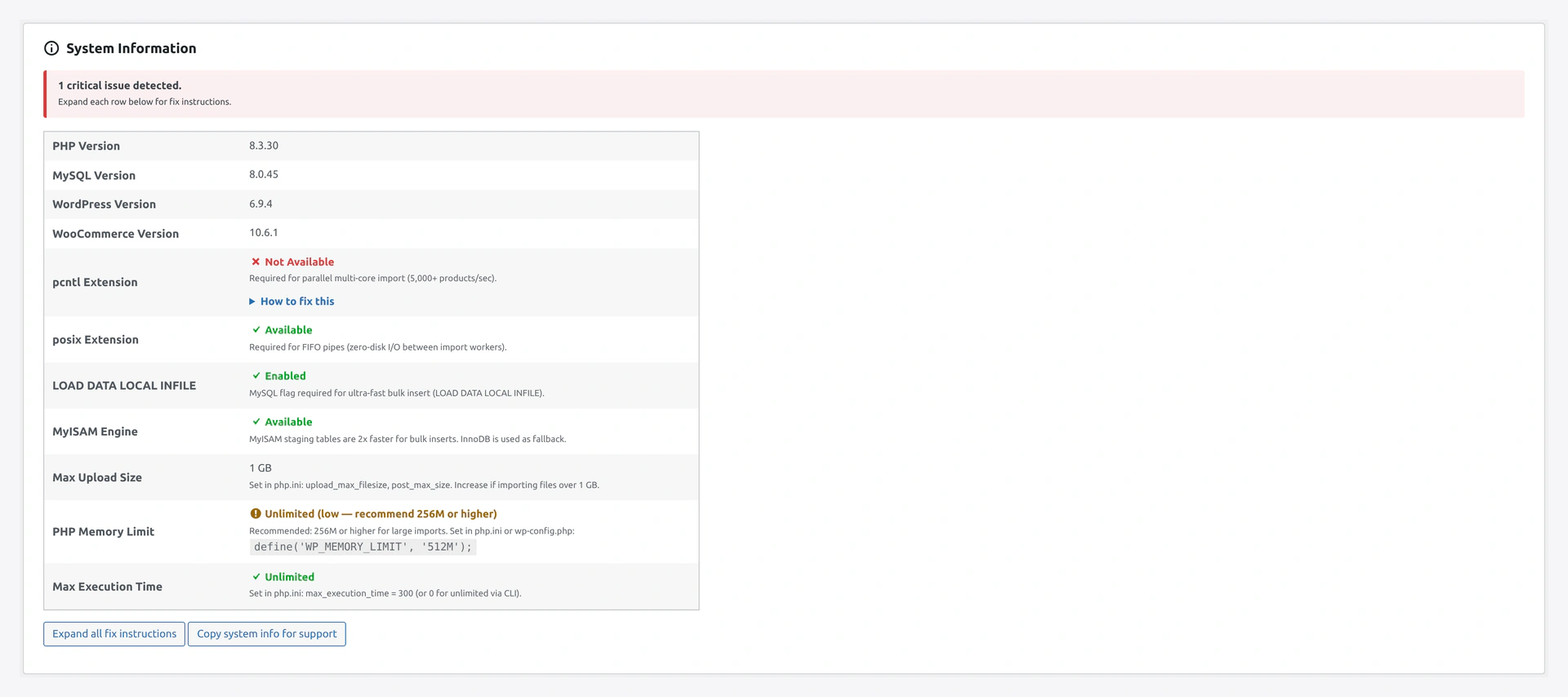 The Dashboard System Information card surfaces server-level readiness — pair it with Health Check for a full health snapshot.
Safety
- Health Check NEVER deletes products (only orphaned metadata)
- Before a destructive fix, a confirmation dialog appears
- Each fix runs in a database transaction — rolls back on error
Running via WP-CLI
# Run full health check
wp wkaie health check

# Run and auto-fix
wp wkaie health check --fix

# Run a specific check
wp wkaie health check --check=orphaned_meta
Troubleshooting
| Problem | Fix |
|---|---|
| "Out of memory" during check | Lower batch size in Settings → Performance |
| Check takes too long | Normal for huge stores. Run individual checks |
| Fix does not resolve issue | May need manual investigation. Open support ticket |
| Category counts wrong again after days | Another plugin is modifying products. Investigate |
| "Network error" while running | Refresh and try again. Check browser console |
Related Pages
- Settings — Enable auto-health-check after imports
- WP-CLI — Run from command line
- Troubleshooting — Fix common problems