Advance Import and Export for WooCommerce DocumentationAdvance Import and Export for WooCommerce Documentation
Buy Now
View Demo
  • Getting Started

    • Introduction
    • Quick Start
    • Features
    • Installation
    • First-Time Setup
    • CSV Preparation
    • Sample Files
    • Use Cases
    • Common Mistakes
  • Tutorials

    • Google Sheets Live Sync
    • Shopify Migration
    • Daily Backup to S3
    • Multi-Store Sync
  • Using the Plugin

    • Dashboard
    • Quick Import Wizard
    • Quick Export
    • Settings
    • Compatibility
  • Import In Detail

    • Import Sources
    • Import Modes
    • Column Mapping
    • Transformations
    • Migration Presets
    • Delta Import
  • Export In Detail

    • Export Features
    • Export Destinations
    • Browser Download
    • Server Path (REST / CLI)
  • Data Types

    • Products
    • Variable Products
    • Orders
    • Customers
    • Categories & Tags
    • Coupons
    • Reviews
    • Posts
    • Pages
    • Users
    • Subscriptions
    • Bookings
    • Memberships
    • Menus
  • Automation

    • Scheduled Jobs
    • History & Logs
    • Rollback
    • Health Check
  • Cloud Service Setup

    • Google API Setup
    • Amazon S3 Setup
    • Dropbox Setup
    • Email / SMTP Setup
  • Server Configuration

    • PHP Configuration
    • Server Cron Setup
    • Image Handling
  • Developer

    • REST API
    • WP-CLI Commands
  • Compare

    • vs WP All Import
    • vs Product Import Export (WebToffee)
  • Help

    • Troubleshooting
    • FAQ
    • Glossary
    • Security
    • Changelog
Support
Buy Now
View Demo
  • Getting Started

    • Introduction
    • Quick Start
    • Features
    • Installation
    • First-Time Setup
    • CSV Preparation
    • Sample Files
    • Use Cases
    • Common Mistakes
  • Tutorials

    • Google Sheets Live Sync
    • Shopify Migration
    • Daily Backup to S3
    • Multi-Store Sync
  • Using the Plugin

    • Dashboard
    • Quick Import Wizard
    • Quick Export
    • Settings
    • Compatibility
  • Import In Detail

    • Import Sources
    • Import Modes
    • Column Mapping
    • Transformations
    • Migration Presets
    • Delta Import
  • Export In Detail

    • Export Features
    • Export Destinations
    • Browser Download
    • Server Path (REST / CLI)
  • Data Types

    • Products
    • Variable Products
    • Orders
    • Customers
    • Categories & Tags
    • Coupons
    • Reviews
    • Posts
    • Pages
    • Users
    • Subscriptions
    • Bookings
    • Memberships
    • Menus
  • Automation

    • Scheduled Jobs
    • History & Logs
    • Rollback
    • Health Check
  • Cloud Service Setup

    • Google API Setup
    • Amazon S3 Setup
    • Dropbox Setup
    • Email / SMTP Setup
  • Server Configuration

    • PHP Configuration
    • Server Cron Setup
    • Image Handling
  • Developer

    • REST API
    • WP-CLI Commands
  • Compare

    • vs WP All Import
    • vs Product Import Export (WebToffee)
  • Help

    • Troubleshooting
    • FAQ
    • Glossary
    • Security
    • Changelog
Support
  • Getting Started

    • Introduction
    • Quick Start — Your First Import in 5 Minutes
    • Features — Full Tour
    • Installation — Full Setup Guide
    • First-Time Setup — Complete Checklist
    • CSV Preparation — How to Make a Good Import File
    • Sample Files — Download Ready-to-Use Templates
    • Use Cases — "I Want To..." Quick Reference
    • Common Mistakes — Things To Watch Out For
  • Tutorials

    • Tutorial — Google Sheets Live Sync
    • Tutorial — Migrate from Shopify to WooCommerce
    • Tutorial — Daily Backup to Amazon S3
    • Tutorial — Sync Between Two WooCommerce Stores
  • Using the Plugin

    • Dashboard — What You See First
    • Quick Import Wizard — 5 Steps to Import Any File
    • Quick Export — One-Page Export Tool
    • Settings — Every Option Explained
    • Compatibility — Third-Party Plugin Support
  • Import In Detail

    • Import Sources — 11 Ways to Pull Data In
    • Import Modes — Create, Update, Delete, Replace
    • Column Mapping — Connect Your Columns to WooCommerce
    • Transformations — Change Values During Import
    • Migration Presets — Move From Shopify, Magento, BigCommerce
    • Delta Import — Skip Unchanged Rows
  • Export In Detail

    • Export Features
    • Export Destinations — Where Your Files Go
    • Export Download — One-Click Browser Download
    • Export to Server Path — WP-CLI
  • Data Types

    • Products Import — Full Field Reference
    • Variable Products — The Complete Guide
    • Orders Import — Historical Orders and Line Items
    • Customers Import — With Addresses and Notes
    • Categories and Tags Import
    • Coupons Import — Discount Codes
    • Reviews Import — Product Reviews and Ratings
    • Posts Import — WordPress Blog Posts
    • Pages Import — WordPress Pages
    • Users Import — WordPress User Accounts
    • Subscriptions Import — WooCommerce Subscriptions
    • Bookings Import — WooCommerce Bookings
    • Memberships Import — WooCommerce Memberships
    • Menus Import — WordPress Navigation Menus
  • Automation

    • Jobs — Saved and Scheduled Imports and Exports
    • History — Every Run You Have Ever Done
    • Rollback — Undo Any Import in One Click
    • Health Check — Data Integrity Checks With Auto-Fix
  • Cloud Service Setup

    • Google API Setup — Sheets, Drive, OAuth
    • Amazon S3 Setup — IAM User and Bucket Permissions
    • Dropbox Setup — API Token for Private Files
    • Email Setup — Making Notifications Actually Work
  • Server Configuration

    • PHP Configuration — Memory, Execution Time, Upload Size
    • Server Cron Setup — Reliable Scheduled Imports
    • Image Handling — Download, Resize, Watermark
  • Developer

    • REST API — Developer Reference
    • WP-CLI Commands — Command Line Automation
  • Compare

    • Advance Import and Export vs WP All Import
    • Advance Import and Export vs Product Import Export for WooCommerce
  • Help

    • Troubleshooting — Fix Common Problems
    • FAQ — Common Questions
    • Glossary — Every Term Explained
    • Security — How Your Data Is Protected
    • Changelog — What Changed

Pages Import

Import WordPress pages from a CSV, XML, or JSON file.
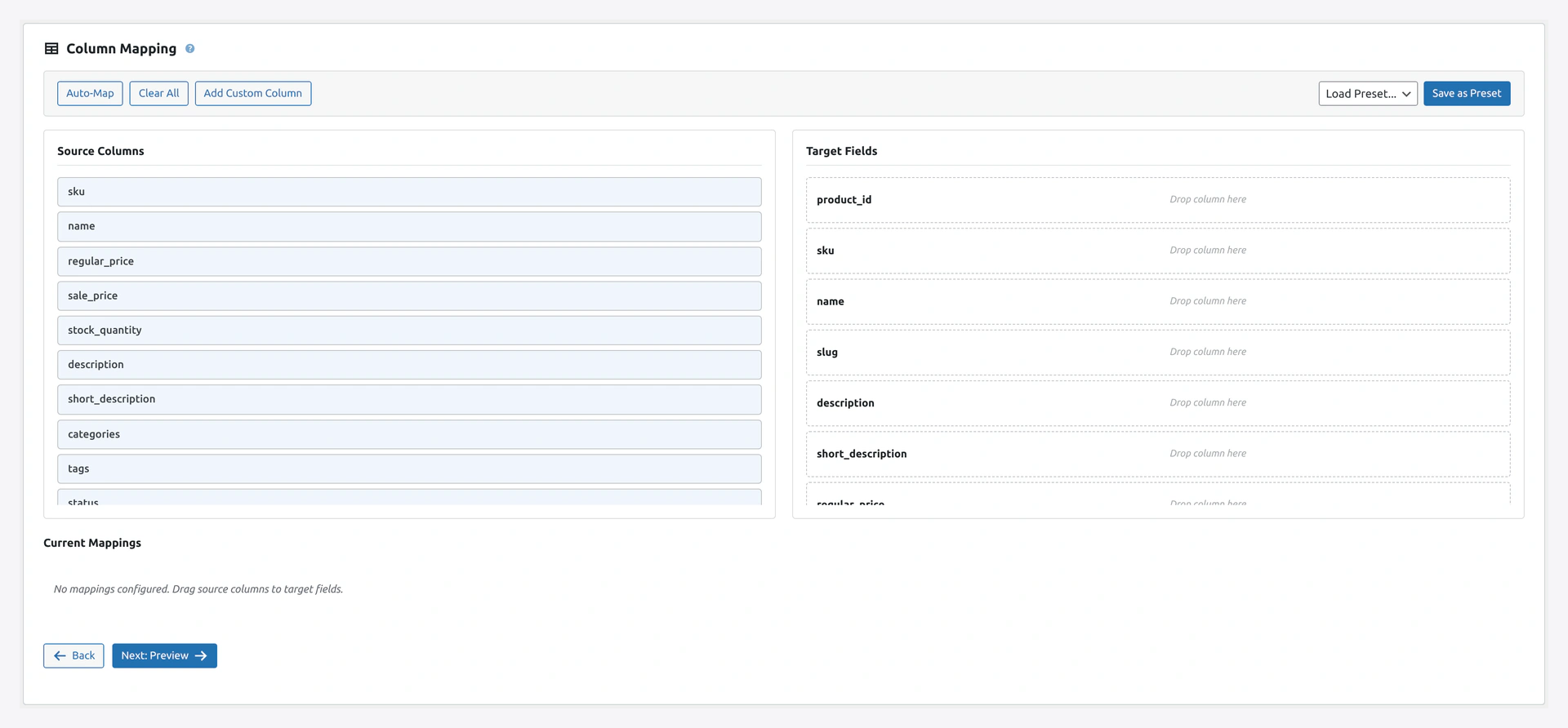
Wizard step 2 — column mapping for pagesStep 2 maps source fields to WordPress page columns: title, content, slug, parent, template, and menu_order.

When to Use

  • Setting up a new site with template pages
  • Migrating pages from another CMS
  • Bulk creating landing pages
  • Restoring pages from a backup

Match Keys

  • title (default)
  • slug
  • id (WordPress post ID)

Column Reference

ColumnRequiredExample
idNo42 (for updates)
titleYesAbout Us
contentNo<h1>About Our Store</h1>... (HTML allowed)
excerptNoLearn about our company
statusNo (default publish)publish, draft, pending, private
authorNoLogin, email, or user ID
dateNo2026-04-14 10:30:00
slugNoabout-us
parentNoParent page slug, title, or ID
templateNotemplate-full-width.php or similar
menu_orderNo1, 2, 3 (sort order)
featured_imageNohttps://example.com/page-image.jpg
comment_statusNoopen or closed (most pages use closed)

Example CSV

title,content,slug,parent,template,menu_order
About Us,<h1>About Our Store</h1>,about-us,,template-full-width.php,1
Our Story,<p>We started in 2010...</p>,our-story,about-us,,2
Team,<p>Meet the team</p>,team,about-us,,3
Contact,<p>Get in touch</p>,contact,,template-contact.php,4

Parent-Child Pages

To create a page hierarchy (About → Our Story, Team), use the parent column.

By Parent Title

title,parent
About Us,
Our Story,About Us
Team,About Us

By Parent Slug

title,parent
About Us,
Our Story,about-us

By Parent ID

title,parent
Our Story,42

The plugin creates parent pages first (if they do not exist), then the children.

Page Templates

Many themes include custom page templates. Use the template column to assign one.

How to Find Template Names

  1. Open your theme folder via FTP or WordPress file editor
  2. Look for files starting with template- (e.g., template-full-width.php)
  3. Use the file name (with .php) in the CSV

Common examples:

  • template-full-width.php
  • template-sidebar-left.php
  • template-contact.php
  • template-landing.php

If the template does not exist in the active theme, WordPress falls back to the default.

Menu Order

menu_order controls the order of pages on parent lists and in nav menus that show children.

Lower numbers appear first.

title,parent,menu_order
Home,,0
About Us,,1
Products,,2
Contact,,99

Comment Status

For pages, comments are usually closed.

title,comment_status
About Us,closed
Contact,closed
Blog Landing,open

Troubleshooting

ProblemFix
Parent not setParent page does not exist. Create parents first or import in correct order
Template ignoredTemplate file must exist in the active theme folder
Featured image missingSome themes do not show page featured images. Check your theme
Page at wrong URLSlug may conflict. Plugin auto-appends -2 for duplicates

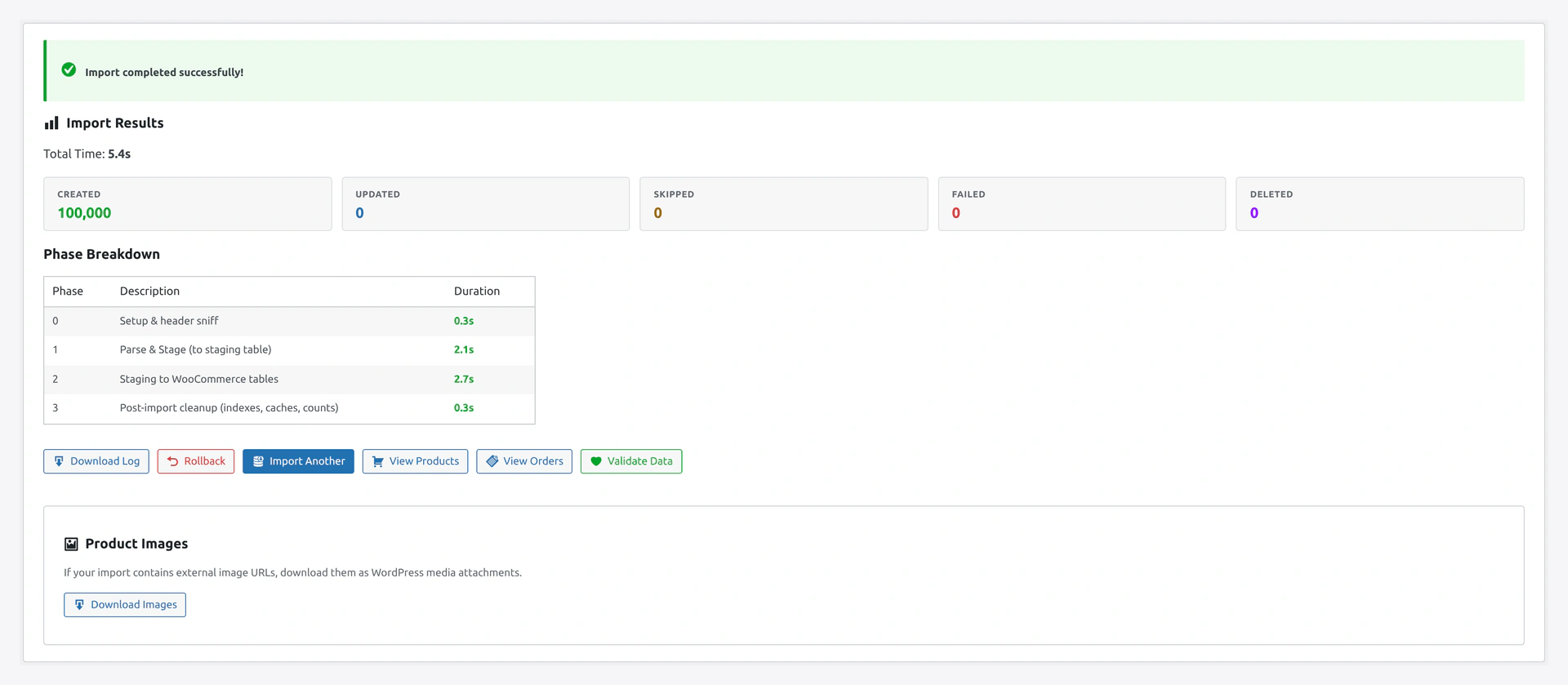
Wizard step 5 — import results summaryResults screen: pages created, pages updated, parent-child relationships resolved, and any template assignments that fell back because the file was missing from the active theme.

Related Pages

  • Posts Import — Import WordPress blog posts
  • Quick Import Wizard — How to run the import
Prev
Posts Import — WordPress Blog Posts
Next
Users Import — WordPress User Accounts