
Import Modes
When you import a file, you pick one of five strategies. This page explains each one with real examples.
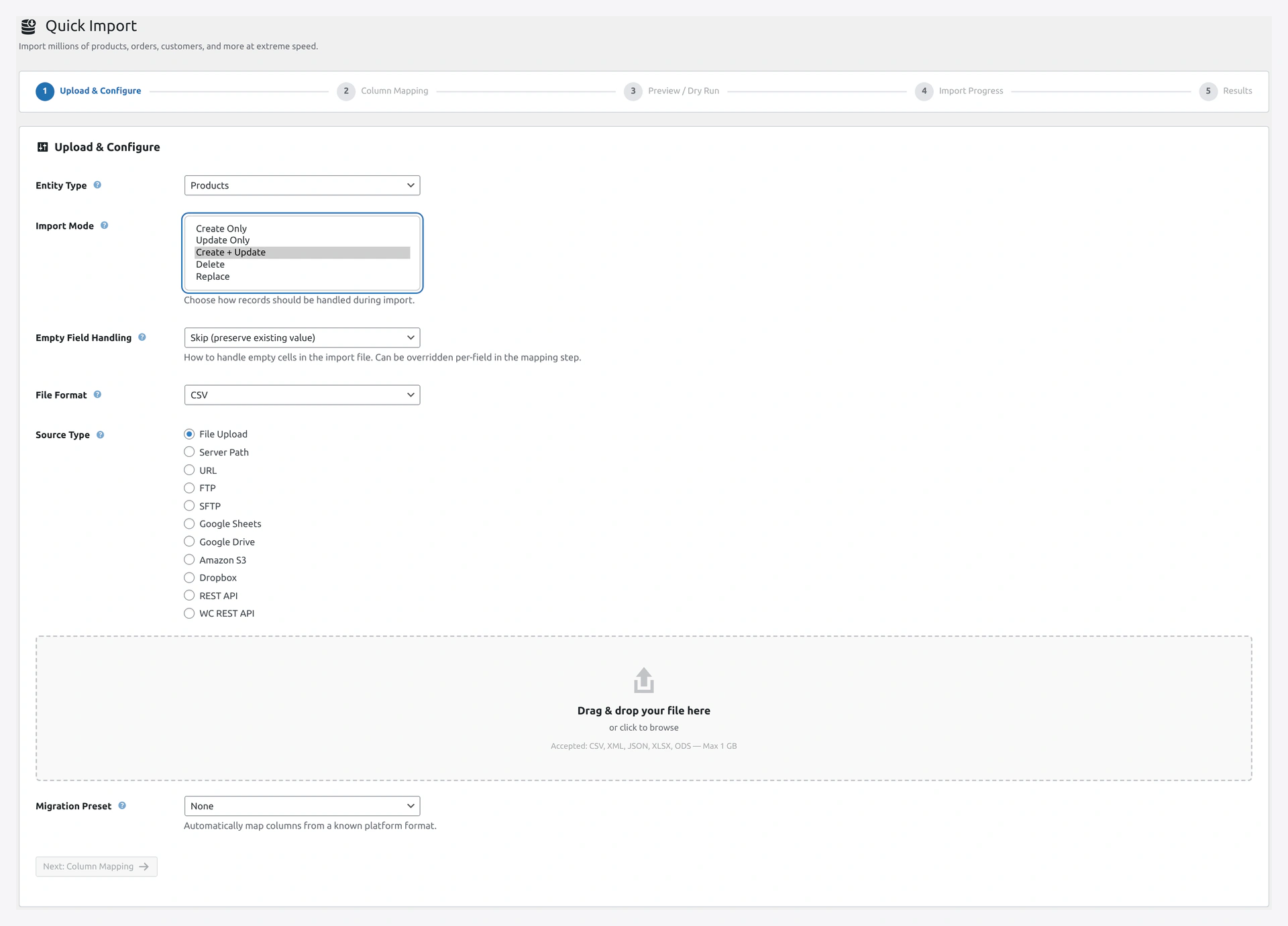 Screenshot: Import Mode dropdown — Create Only, Update Only, Create + Update, Delete, Replace.
The Five Modes
| Mode | What It Does |
|---|---|
| Create Only | Add new records. Skip existing ones |
| Update Only | Update existing records. Skip new ones |
| Create + Update (default) | Add new ones AND update existing ones |
| Delete | Remove the records listed in the file |
| Replace | Wipe everything, then import the file |
How the Plugin Knows What Is "Existing"
The plugin uses a match key to find existing records:
| Entity | Default Match Key | Alternatives |
|---|---|---|
| Products | SKU | ID, Slug, Custom meta |
| Orders | Order Number | ID |
| Customers | ID, Username | |
| Categories | Slug | ID, Name |
| Posts | Slug | ID, Title |
You pick the match key in Step 3 of the wizard.
Create Only
What It Does
Adds new records. Skips any record that already exists.
When to Use
- New product launch with fresh SKUs
- Importing customers from a CRM (no duplicates wanted)
- Adding categories for the first time
Example
You have 1,000 products in your store. You upload a file with 100 new products.
- Before: 1,000 products
- After: 1,100 products
- None of your existing 1,000 products are touched
What Gets Skipped
- Any row whose SKU already exists
- Counted as "Skipped" in the result
Update Only
What It Does
Updates existing records. Skips any record that does not exist.
When to Use
- Price updates (only want to touch products you already have)
- Stock adjustments
- Bulk editing products
Example
You have 1,000 products. You upload a file with 200 rows. 50 of those SKUs match existing products. The other 150 do not match anything.
- 50 products get updated
- 150 rows are skipped (no match)
- 1,000 products stay at 1,000 products
Create + Update (Default)
What It Does
Adds new ones AND updates existing ones. The most common mode.
When to Use
- Supplier sends a daily catalog with a mix of new and existing products
- Sync from another platform
- Google Sheets live sync
Example
You have 1,000 products. You upload a file with 200 rows. 50 match existing products, 150 are new.
- 50 existing products get updated
- 150 new products get created
- You now have 1,150 products
Why This Is the Default
Most imports work this way. You upload a file and expect:
- Old products to update with new data
- New products to be added
Delete
What It Does
Removes the records listed in the file.
When to Use
- Discontinued product cleanup
- Bulk customer removal
- Removing old categories
Example
You have 1,000 products. You upload a file with 100 SKUs you want gone.
- 100 products get deleted
- 900 products remain
Safety Notes
- Always test on staging first. Delete is permanent for the database (though you can roll back the import)
- The plugin moves products to trash, not hard delete (depends on WooCommerce setting)
- Related data (order line items referencing the product) stays intact — products are soft-deleted in the database
Replace
What It Does
Deletes all existing records first, then imports from the file.
When to Use
- Fresh start on a staging site
- Complete catalog replacement
- Seasonal catalog swap
Example
You have 1,000 products. You upload a file with 500 rows.
- All 1,000 products are deleted
- 500 products from the file are created
- You now have 500 products
Safety Notes
- Extremely destructive. Think twice before using this
- Not available for all entities (see the Limitations section below)
- Always use Rollback if you change your mind
Limitations
Not every mode works with every entity type.
| Entity | Create | Update | Create+Update | Delete | Replace |
|---|---|---|---|---|---|
| Products | Yes | Yes | Yes | Yes | Yes |
| Variations | Yes | Yes | Yes | Yes | No |
| Categories | Yes | Yes | Yes | Yes | No |
| Tags | Yes | Yes | Yes | Yes | No |
| Attributes | Yes | Yes | Yes | Yes | No |
| Orders | Yes | Yes | Yes | Yes | No |
| Customers | Yes | Yes | Yes | Yes | No |
| Coupons | Yes | Yes | Yes | Yes | No |
| Reviews | Yes | Yes | Yes | Yes | No |
| Posts | Yes | Yes | Yes | Yes | Yes |
| Pages | Yes | Yes | Yes | Yes | Yes |
| Users | Yes | Yes | Yes | No | No |
| Subscriptions | Yes | Yes | Yes | No | No |
| Bookings | Yes | Yes | Yes | No | No |
| Memberships | Yes | Yes | Yes | No | No |
Replace mode is disabled for entities where it is too risky. You cannot replace all your categories or your entire customer list, for example.
How to Pick the Right Mode
Ask yourself: "What is in the file, and what should happen to records NOT in the file?"
| What's in the File | What Should Happen to Old Ones | Mode |
|---|---|---|
| Only new records | Keep the old ones | Create Only |
| Only updates to existing | Keep the old ones | Update Only |
| Mix of new and updates | Keep the old ones | Create + Update |
| Records you want deleted | Delete only these | Delete |
| Fresh complete catalog | Delete everything else | Replace |
Decision Flowchart
Special case — Replace mode: Use only when you want a complete fresh catalog. It deletes everything first, then imports. Not reversible through normal edits (but rollback still works).
Empty Field Handling
Alongside the import mode, you decide what happens when a cell in the file is empty.
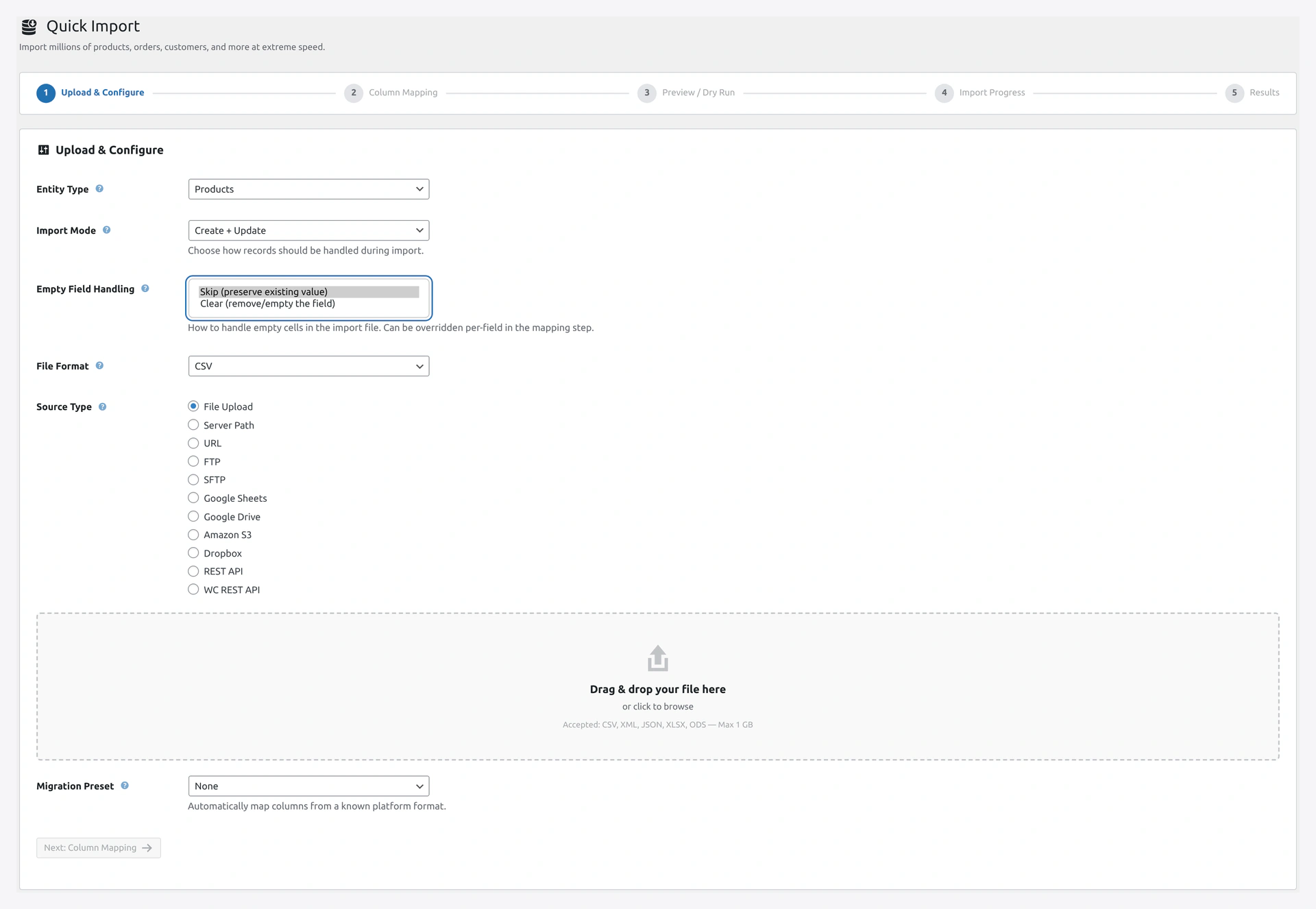 Screenshot: Empty Field Handling — choose Skip (preserve existing value) or Clear (remove/empty the field).
- Skip (preserve existing value): leave the stored value untouched for that row.
- Clear (remove/empty the field): overwrite the existing value with an empty value.
You can still override this per-field in the Column Mapping step.
Handling Products Not in File (For Create+Update)
When you use Create + Update, products in your store that are NOT in your import file are untouched by default. But you can change that.
In Step 3 of the wizard, pick one:
| Option | What It Does |
|---|---|
| Do nothing (default) | Products not in file stay as-is |
| Set out of stock | Products not in file are marked out of stock |
| Set quantity to 0 | Products not in file have stock reset to 0 |
| Disable (draft) | Products not in file move to draft status |
| Delete | Products not in file are deleted |
Useful when your supplier sends a complete catalog — anything missing must be discontinued.
Delta / Incremental Mode
For stores that re-import the same data often (daily price sync from Google Sheets), the plugin can skip rows that did not change.
See Delta Import for details.
Troubleshooting
| Problem | Fix |
|---|---|
| Everything says "Skipped" in Create Only | SKUs match existing products. Use Update Only or Create + Update |
| Everything says "Skipped" in Update Only | SKUs do not match any existing products. Check your match key |
| Delete mode deletes wrong products | Check your match key. Maybe SKU in file matches a different product |
| Replace mode asks for confirmation | That is by design — it is destructive |
Related Pages
- Quick Import Wizard — Pick the mode in Step 3
- Rollback — Undo any import
- Delta Import — Skip unchanged rows