
Migration Presets
Moving from another platform? The plugin has built-in templates for the most popular ones. No manual column mapping needed.
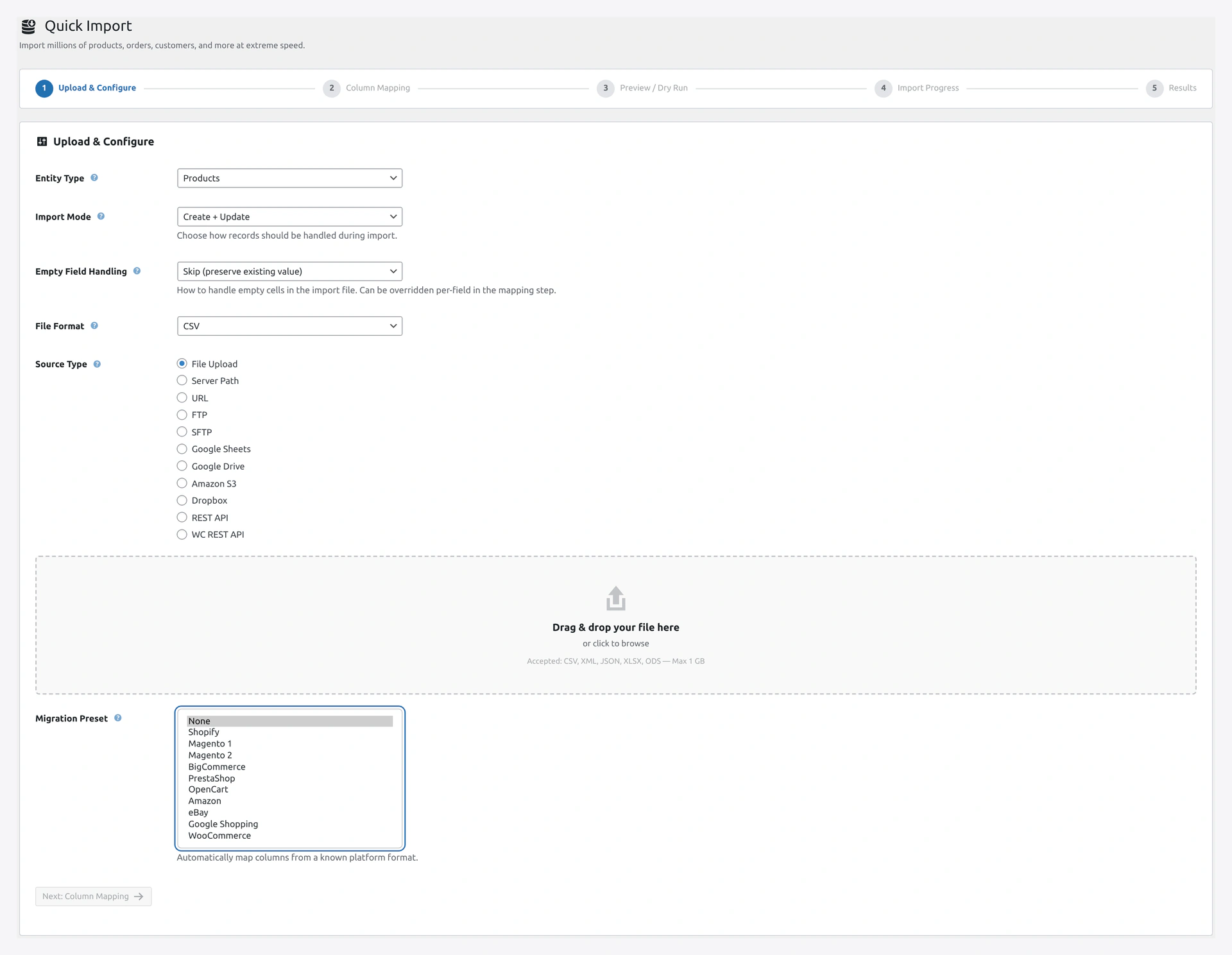 Screenshot: Migration Preset dropdown — Shopify, Magento 1/2, BigCommerce, PrestaShop, OpenCart, Amazon, eBay, Google Shopping, and more.
Available Presets
| Preset | For Files Exported From |
|---|---|
| WooCommerce | Default WooCommerce CSV format |
| Shopify | Shopify product CSV export |
| Magento 1 | Magento 1.x CSV export |
| Magento 2 | Magento 2.x CSV export |
| BigCommerce | BigCommerce product export |
| PrestaShop | PrestaShop CSV export |
| OpenCart | OpenCart export |
| Amazon Seller | Amazon flat file |
| eBay | eBay File Exchange |
| Google Shopping | Google product feed XML |
| Custom | Save your own mapping as a preset |
How to Use a Preset
Step 1 — Export from the Old Platform
Export your data from the source platform as CSV (or XML for Google Shopping).
- Shopify: Admin → Products → Export → All products → CSV
- Magento 2: System → Data Transfer → Export → Products → CSV
- BigCommerce: Products → Export → Bulk Edit
- PrestaShop: Catalog → Products → Export
- Amazon: Seller Central → Inventory → Add Products via Upload
Step 2 — Upload to This Plugin
- Open the Quick Import Wizard
- Pick Products as entity
- Pick File Upload as source
- Pick CSV as format
- Upload your exported file
Step 3 — Select the Preset
On the same Step 1, find the Migration Preset dropdown.
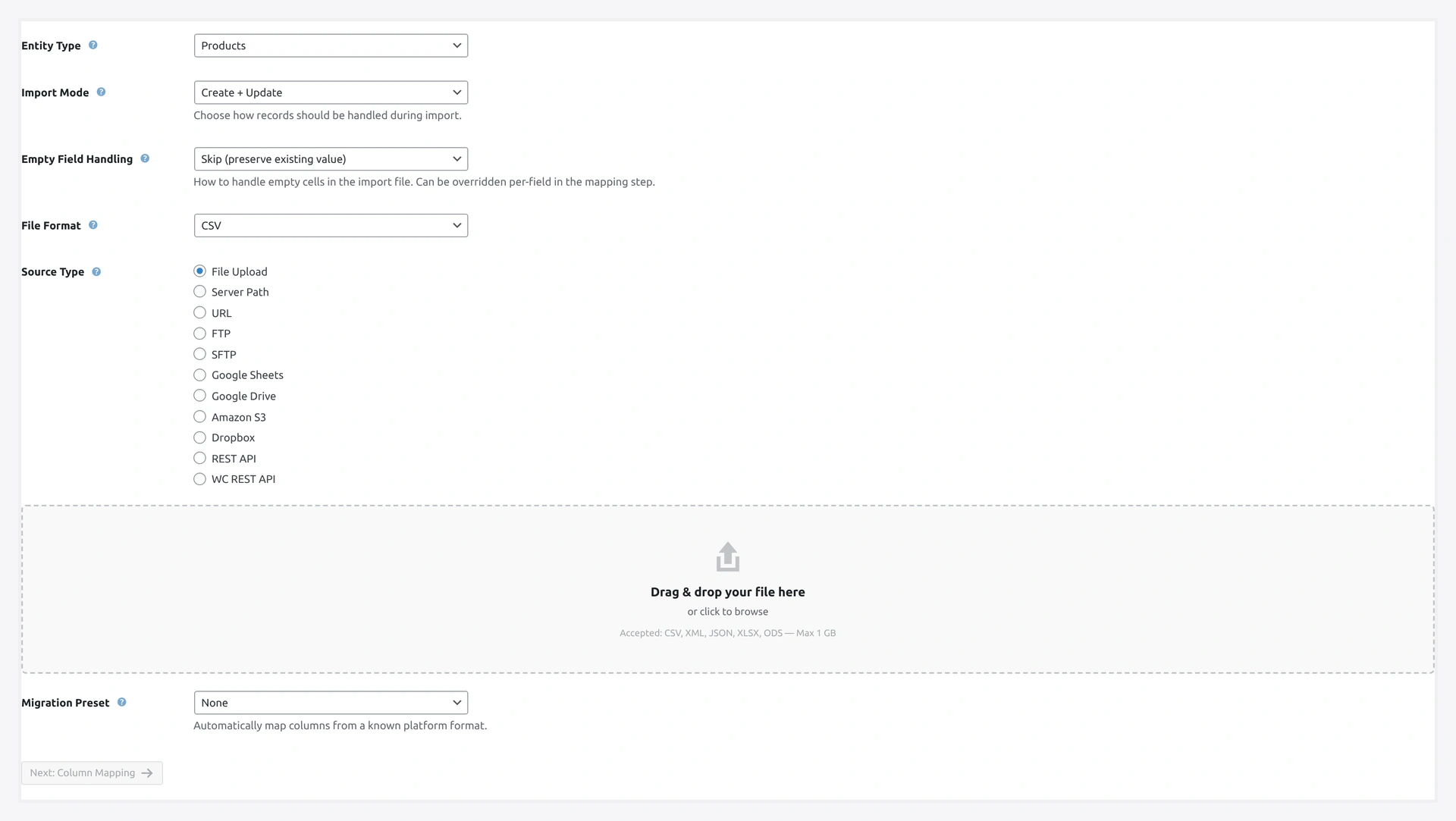 Migration preset — pick your source platform.
Select the preset that matches your source (e.g., Shopify).
Step 4 — Click Next
The plugin auto-configures:
- Column mapping (Shopify column names → WooCommerce fields)
- Value translations (Shopify values → WooCommerce values)
- Transformations (date format, price format)
- Category separator
- Special fields handling
Step 5 — Review and Import
You can still tweak the mapping in Step 2 if needed. Most presets get 95%+ columns right out of the box.
What Each Preset Does
Shopify
Maps these Shopify columns to WooCommerce:
| Shopify | WooCommerce |
|---|---|
Handle | Slug |
Title | Name |
Body (HTML) | Description |
Vendor | Brand (if brands plugin active) |
Type | Product type |
Tags | Tags |
Published | Status |
Option1 Name | Attribute 1 name |
Option1 Value | Attribute 1 values |
Variant SKU | SKU |
Variant Grams | Weight (converted to kg) |
Variant Inventory Qty | Stock quantity |
Variant Price | Regular price |
Variant Compare At Price | Regular price (if "Variant Price" becomes sale price) |
Image Src | Featured image + gallery |
Magento 1 and 2
Both Magento presets map these common columns:
| Magento | WooCommerce |
|---|---|
sku | SKU |
name | Name |
description | Description |
short_description | Short description |
price | Regular price |
special_price | Sale price |
qty | Stock quantity |
categories | Categories (with / separator) |
visibility | Visibility (enum mapped) |
status | Status |
weight | Weight |
base_image | Featured image |
additional_images | Gallery images |
Magento's visibility values are translated:
| Magento | WooCommerce |
|---|---|
Catalog, Search | visible |
Not Visible Individually | hidden |
Catalog | catalog |
Search | search |
BigCommerce
| BigCommerce | WooCommerce |
|---|---|
Product Name | Name |
Product SKU | SKU |
Product Type | Product type |
Product Description | Description |
Price | Regular price |
Sale Price | Sale price |
Current Stock Level | Stock |
Category | Categories |
Brand Name | Brand |
Product Weight | Weight |
Product Image ID - 1 | Featured image |
Product Image ID - 2..N | Gallery |
PrestaShop
| PrestaShop | WooCommerce |
|---|---|
Product ID | ID |
Active (0/1) | Status |
Name | Name |
Categories (x,y,z...) | Categories |
Price tax excluded | Regular price |
Tax rules ID | Tax class |
Wholesale price | (ignored) |
Reference # | SKU |
Stock quantity | Stock |
Short description | Short description |
Description | Description |
Image URLs (x,y,z...) | Images |
OpenCart
| OpenCart | WooCommerce |
|---|---|
product_id | ID |
sku | SKU |
name | Name |
description | Description |
price | Regular price |
quantity | Stock |
status | Status |
categories | Categories |
image | Featured image |
additional_images | Gallery |
Amazon Seller (Flat File)
Maps Amazon's flat file columns:
| Amazon | WooCommerce |
|---|---|
seller-sku | SKU |
item-name | Name |
item-description | Description |
product-id | (used for match key) |
standard-price | Regular price |
quantity | Stock |
main-image-url | Featured image |
other-image-url1..N | Gallery |
Google Shopping
For XML feeds exported from Google Merchant Center.
Handles:
- Product ID → SKU
- Title → Name
- Description → Description
- Link → External URL
- Image link → Featured image
- Additional image link → Gallery
- Brand → Brand
- Condition → (custom meta)
- Availability → Stock status
- Price → Regular price
Create a Custom Preset
Already did a mapping you want to reuse? Save it.
- Finish the Step 2 column mapper
- Click Save Mapping at the top of Step 2
- Give it a name (e.g., "My Supplier X Format")
- Click Save
Share Presets Across Sites
- Go to
Settings → Presets - Click Export next to a preset
- Download the JSON file
- On another site,
Settings → Presets → Importand upload the JSON
Post-Migration Checklist
After importing from another platform, verify:
- [ ] Product count matches (use Health Check)
- [ ] Prices look right (spot-check 10 products)
- [ ] Images downloaded (check Media Library)
- [ ] Categories have the right hierarchy
- [ ] Variable products have their variations
- [ ] SEO data imported (if using compat plugins)
- [ ] Reviews imported (if you did a separate review export)
- [ ] Customers and orders (if you want history)
Multi-Step Migration
Big migrations usually go in this order:
- Customers first — so orders can link to them
- Categories and tags — so products can assign them
- Attributes and terms — same reason
- Products — the main step
- Orders — historical orders
- Reviews — after products exist
Each step is a separate import. You can save each as a job for easy re-runs.
Common Migration Gotchas
Shopify Handles Become Slugs
Shopify's "Handle" column becomes the WooCommerce slug. If you want to keep URLs the same, make sure slugs match.
Magento Category Hierarchy
Magento exports categories as Category 1/Subcategory/Sub-subcategory. We convert / to > automatically, but check Step 2 → Separators to confirm.
BigCommerce Product Type
BigCommerce uses custom product types. Our preset maps common ones (Physical, Digital). Custom types need manual mapping.
Variable Products From Shopify
Shopify doesn't have a "variable product" concept — each variation is a row. Our preset auto-groups variants by Handle.
Images on a Different Domain
When images are on the old platform's CDN, the plugin downloads them to your Media Library. This can take time for 10,000+ products. Turn on Deferred Image Import in Settings for speed.
Troubleshooting
| Problem | Fix |
|---|---|
| Preset dropdown is empty | Presets load only when entity is "Products" |
| Categories all imported as one big string | Check Step 2 → Separators → Category hierarchy |
| Shopify variants did not group | Make sure your CSV has the Handle column |
| Prices show as 0 | Check the decimal separator (European uses ,, US uses .) |
| Images failed to download | Source domain might block hotlinking. Download locally first |
| Wrong tax class | Magento tax rules do not translate 1:1 — map manually |
Related Pages
- Column Mapping — Tweak auto-mappings
- Transformations — Change values during import
- Quick Import Wizard — Run the migration
- Health Check — Verify after migration