
Transformations
Transformations let you change values in your file while they import. You can add 20% to every price, change "rouge" to "red", round prices to .99, or combine two columns into one.
When to Use Transformations
- Your supplier uses different terms than your store ("Yes/No" vs "1/0")
- You want to add a markup (percentage or fixed amount)
- Prices are in another currency
- Dates are in a non-standard format
- Text needs to be in Title Case
- You want to combine first_name and last_name into a single Name
How to Open Transformations
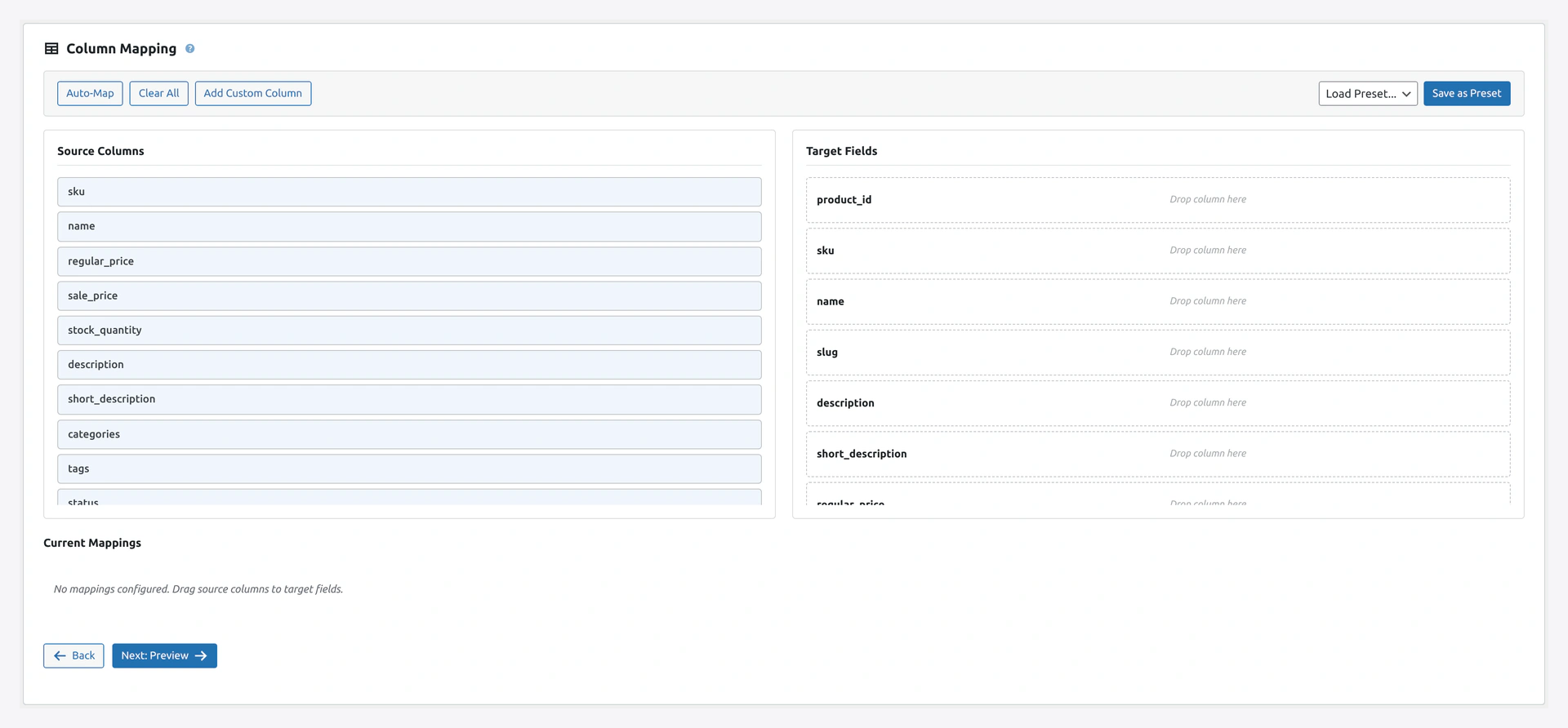 Screenshot: Column Mapping — each mapped row has a Transform control that opens the side panel.
- Finish column mapping in Step 2
- Click the Transform icon next to any mapped column (looks like a tiny gear)
- A side panel opens with all transformation options for that column
Available Transformations
1. Find and Replace
Change one value to another.
| Option | What It Does |
|---|---|
| Find | The text to look for |
| Replace | What to change it to |
| Case Sensitive | Match uppercase and lowercase differently |
| Whole Word Only | Only match complete words |
| Use Regex | Use regular expression patterns |
Examples
| Find | Replace | Result |
|---|---|---|
rouge | red | rouge shirt → red shirt |
Inc. | Incorporated | ABC Inc. → ABC Incorporated |
Regex: \d+% | [PERCENT] | 20% off → [PERCENT] off |
2. Value Mapping
Like Find and Replace, but with a table of pairs. Good for translating multiple values.
French → English
rouge    Red
bleu     Blue
vert     Green
jaune    Yellow
3. Case Change
| Option | Example |
|---|---|
| UPPERCASE | cotton shirt → COTTON SHIRT |
| lowercase | COTTON SHIRT → cotton shirt |
| Title Case | cotton shirt → Cotton Shirt |
| Sentence case | cotton shirt IS great → Cotton shirt is great |
4. Trim and Clean
| Option | What It Does |
|---|---|
| Trim whitespace | Remove leading and trailing spaces |
| Remove extra spaces | Cotton Shirt → Cotton Shirt |
| Strip HTML | <p>Hello <b>world</b></p> → Hello world |
| URL decode | Red%20Shirt → Red Shirt |
| URL encode | Red Shirt → Red%20Shirt |
5. Prepend and Append
Add text before or after each value.
| Option | Example |
|---|---|
Prepend WK- | 001 → WK-001 |
Append (Eco) | Cotton Shirt → Cotton Shirt (Eco) |
6. Number Formatting
For price, weight, stock fields.
| Option | Example |
|---|---|
| Decimals: 2 | 9.999 → 10.00 |
| Thousands separator: , | 1234567 → 1,234,567 |
| Decimal separator: , | 9.99 → 9,99 (European format) |
7. Date Format
Convert dates from one format to another.
| From | To | Example |
|---|---|---|
DD/MM/YYYY | YYYY-MM-DD | 14/04/2026 → 2026-04-14 |
MM-DD-YYYY | Y-m-d | 04-14-2026 → 2026-04-14 |
timestamp | YYYY-MM-DD | 1744588800 → 2026-04-14 |
8. Split Multi-Value
Split one cell into multiple values.
| Input | Separator | Output |
|---|---|---|
Red, Blue, Green | , | Array: [Red, Blue, Green] |
Small|Medium|Large | | | Array: [Small, Medium, Large] |
Useful for attributes and categories.
9. Concatenate Columns
Combine two or more columns into one.
| Columns | Format | Result |
|---|---|---|
first_name, last_name | {first_name} {last_name} | John Doe |
brand, model | {brand} - {model} | Sony - WH1000XM5 |
city, state, zip | {city}, {state} {zip} | Boston, MA 02101 |
10. Math Operations
For numeric fields.
| Operation | What It Does |
|---|---|
Add 5 | 10 → 15 |
Subtract 5 | 10 → 5 |
Multiply 1.2 | 10 → 12 (20% markup) |
Divide 2 | 10 → 5 (50% off) |
| Round up | 9.1 → 10 |
| Round down | 9.9 → 9 |
| Round to .49 or .99 | 9.55 → 9.49, 9.67 → 9.99 |
11. Custom PHP
For advanced users. Write a tiny PHP snippet.
// Example: convert Euros to USD with 15% markup
return (float) $value * 1.10 * 1.15;
Available variables:
$value— the current value$row— the entire row as an array$column— the column name
Safety
Custom PHP runs with plugin permissions. Only trusted admins should use this. Use the built-in transformations when possible.
Price Rules (Dedicated UI)
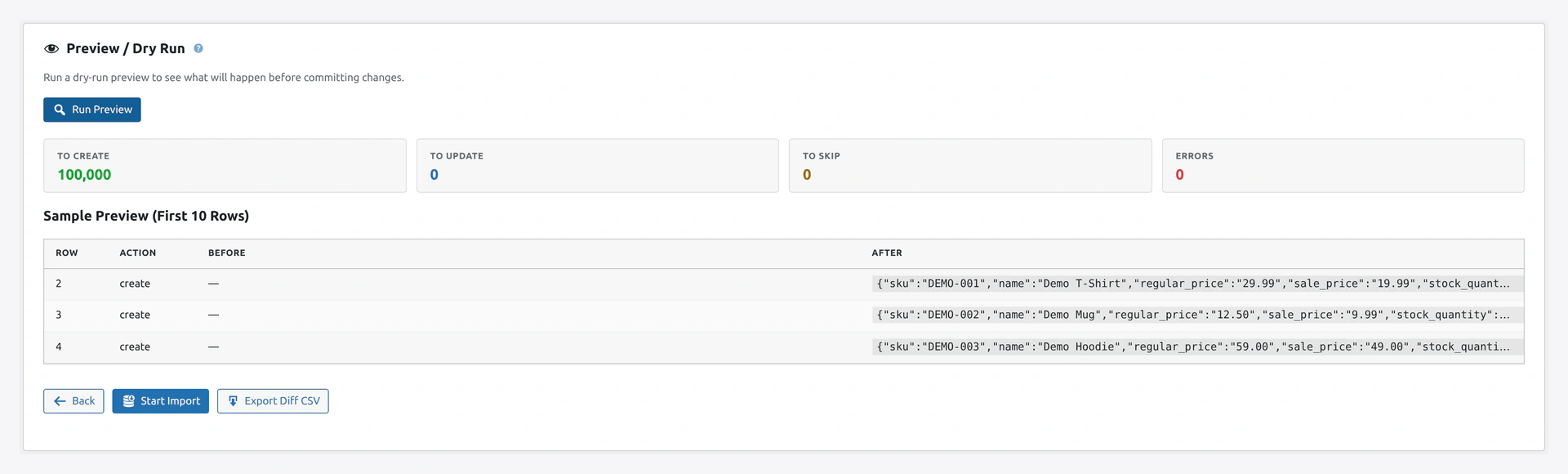 Screenshot: Step 3 — where Price Rules live, next to the sample rows and create/update counts.
Because price changes are the most common transformation, there is a dedicated Price Rules section in Step 3 of the wizard.
How to Set Up
- Step 3 → Scroll to Price Rules
- Click + Add Rule
- Pick:
- Field: Regular Price or Sale Price
- Action: Add / Subtract / Add percentage / Subtract percentage / Round / Convert currency
- Value: The number
- Condition: (Optional) Apply only to certain categories, brands, or SKU patterns
Example Rules
| Rule | Result |
|---|---|
| Add 20% to Regular Price for all products | 10.00 → 12.00 |
| Subtract 15% from Regular Price for category "Sale" | 10.00 → 8.50 |
| Round Regular Price to .99 | 12.34 → 12.99 |
| Multiply by 1.08 for currency conversion (EUR→USD) | 10.00 → 10.80 |
Add fixed 5.00 for products with SKU starting WK-PREMIUM | 10.00 → 15.00 |
Rule Order
Rules run in the order you list them. Drag and drop to reorder.
If you have "Add 20%" followed by "Round to .99", the final price is rounded after the markup.
Conditional Transformations
Most transformations can be applied only to rows that match a condition.
Condition Types
| Type | Example |
|---|---|
| Column equals | Only apply when Type = simple |
| Column contains | Only apply when Name contains Shirt |
| Column matches regex | Only apply when SKU matches WK-\d+ |
| Column greater than | Only apply when Price > 100 |
| Column is empty | Only apply when Brand is empty (fill blanks) |
Testing Transformations
Before running the full import, test your transformations:
- Step 2 → Click Preview Data
- The preview applies all transformations to the first 10 rows
- Verify the output before continuing
Save Transformations with Mapping Preset
When you save a mapping preset, all transformations are saved with it. Next time you load the preset, transformations load too.
Troubleshooting
| Problem | Fix |
|---|---|
| Transformation did not apply | Make sure you saved the transformation (click Apply) |
| Regex not matching | Test your regex at regex101.com first |
| Date format wrong | Use PHP date format codes, not custom |
| Math gives weird result | Check the column is actually numeric in your file |
| Custom PHP not running | Check admin has manage_options capability |
Related Pages
- Column Mapping — Map before you transform
- Quick Import Wizard — Step 2 in context
- Migration Presets — Pre-made transformations for Shopify, Magento