
CSV Preparation
80% of failed imports are caused by bad CSV files. This page shows how to prepare a CSV that imports cleanly.
The Anatomy of a Good CSV
SKU,Name,Regular price,Stock
WK-TEE-001,Cotton T-Shirt,29.99,150
WK-MUG-002,"Coffee Mug, 12oz",18.50,80
WK-BOOK-003,Notebook,9.99,200
Key things to notice:
- First row is the header with column names
- Comma separates values
- Quotes around values that contain commas
- No extra spaces around values
- Decimal point in prices (US format)
The 5 Most Common Mistakes
1. Wrong Encoding
Problem: Your CSV has special characters like é, ñ, ü, 中 and they show as garbled text after import.
Fix: Save your CSV as UTF-8 encoding.
- Google Sheets: File → Download → CSV (UTF-8 is default)
- Excel: File → Save As → CSV UTF-8 (Comma delimited)
- LibreOffice: File → Save As → CSV → check "Character set: UTF-8"
2. Wrong Delimiter
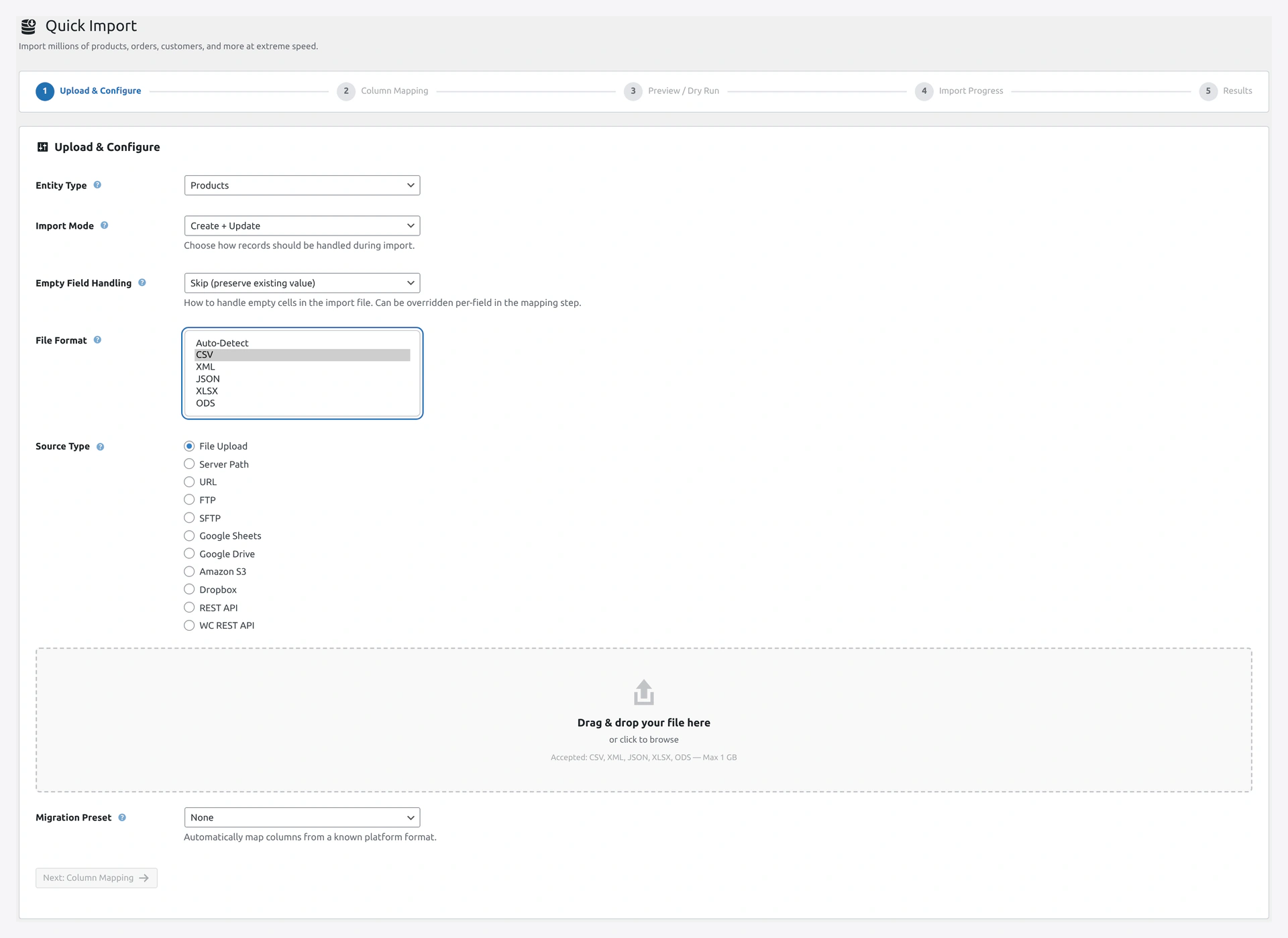 Screenshot: File Format dropdown — leave on Auto-Detect, or force CSV/XML/JSON/XLSX/ODS.
Problem: Your file uses semicolons but the plugin expects commas.
Fix: The plugin auto-detects common delimiters (,, \t, ;, |). But if it fails:
- Wizard → Step 2 → Separators
- Set "Field delimiter" to match your file
Or re-save as standard comma-separated.
3. Unquoted Commas
Problem: A value contains a comma and your CSV is broken.
Bad:
SKU,Name,Price
WK-001,Coffee Mug, 12oz,18.50
Plugin sees 4 columns instead of 3.
Good:
SKU,Name,Price
WK-001,"Coffee Mug, 12oz",18.50
Wrap values with commas in double quotes.
4. Line Endings
Problem: CSV was saved on an old Mac with \r line endings. Plugin sees one huge row.
Fix: Modern tools save in \n (Unix) or \r\n (Windows). Both work. Only old Mac files (pre-2001) cause issues.
To check line endings in your file, open in a text editor like Notepad++ or VS Code. View → Show symbol → Show all characters.
5. Trailing Whitespace
Problem: Values have hidden spaces at the end. "Red Shirt " ≠ "Red Shirt" for match keys.
Fix: In Step 2 → Transformations → Trim whitespace.
Or fix in Excel: Data → Text to Columns → skip trimming → accept.
Encoding Deep Dive
What Is UTF-8?
UTF-8 is a text encoding standard that handles every character in every language. Modern computers use it by default.
How to Check Your File Encoding
On Windows:
- Open file in Notepad
- File → Save As
- Bottom-right shows the encoding
On Mac / Linux:
file -I products.csv
Output:
products.csv: text/csv; charset=utf-8
Or:
products.csv: text/csv; charset=iso-8859-1 ← Not UTF-8
Converting to UTF-8
On Windows (Notepad):
- Open the file
- File → Save As
- Encoding dropdown → UTF-8
- Save
On Mac (Terminal):
iconv -f ISO-8859-1 -t UTF-8 input.csv > output.csv
With Online Tool:
- Online UTF-8 Converter
- Upload, download UTF-8 version
Excel Gotchas
Excel is the most common source of bad CSV files.
Problem 1 — Leading Zeros Stripped
Excel converts 00123 to 123. ZIP codes become broken.
Fix: Format the column as Text BEFORE entering data, or use ' prefix ('00123). On export, use "Save As CSV" and verify.
Problem 2 — Dates Reformatted
2026-04-14 becomes 14/04/2026 or 4/14/26.
Fix: Format date columns as Text. Or use ISO format YYYY-MM-DD which is standard.
Problem 3 — Large Numbers Become Scientific Notation
1234567890123 becomes 1.23457E+12.
Fix: Format as Text before entering.
Problem 4 — Commas in Prices
European Excel uses , for decimals: 29,99 instead of 29.99.
Fix: Change Windows/Excel region to US, or manually replace before save.
BOM (Byte Order Mark)
Some tools add a hidden marker at the start of UTF-8 files: `` (0xEF 0xBB 0xBF). It's invisible but breaks some parsers.
Good news: The plugin auto-strips BOMs. No action needed.
Quoting Rules
When to Quote
- Value contains a comma:
"Small, Medium, Large" - Value contains a quote:
"He said ""hello""" - Value contains a newline:
"Line 1\nLine 2"
When NOT to Quote
- Plain numbers:
29.99(no quotes needed) - Plain text without special chars:
Cotton Shirt(no quotes needed)
Escaping Quotes
If your value contains a ", double it up.
Name,Description
T-Shirt,"He said ""hello"" to her"
Multiple Values in One Cell
For columns like tags, categories, images:
Comma-separated:
SKU,Tags
WK-001,"cotton, summer, casual"
Pipe-separated (useful if tags contain commas):
SKU,Attributes
WK-001,"Color:Red|Size:Small|Material:Cotton"
Set the separator in Step 2 → Separators.
Category Hierarchy
For nested categories, use the default > separator:
SKU,Categories
WK-001,Clothing > Men > T-Shirts
WK-002,Clothing > Women > Dresses
Change separator in Step 2 if your file uses something else (/, |).
Multiple Categories
Products can be in multiple categories. Use commas to separate:
SKU,Categories
WK-001,"Men > T-Shirts, Sale, Featured"
Note the outer quotes because the value contains commas.
Variable Product Rows
Variable products span multiple rows. Parent first, variations after:
Type,SKU,Parent,Attribute 1 name,Attribute 1 value(s),Regular price
variable,TSHIRT-001,,,Color,"Red, Blue, Green",
variation,TSHIRT-001-RED,TSHIRT-001,Color,Red,29.99
variation,TSHIRT-001-BLUE,TSHIRT-001,Color,Blue,29.99
variation,TSHIRT-001-GREEN,TSHIRT-001,Color,Green,29.99
- Parent row has empty price
- Variation rows use
variationtype and reference parent SKU
Empty vs Missing Fields
Empty Value
SKU,Name,Color with row WK-001,Shirt, — Color is explicitly empty.
Missing Column
SKU,Name with row WK-001,Shirt — Color is missing. Plugin keeps existing value (for updates).
Clear a Field Explicitly
Use __EMPTY__VALUE__ to clear an existing value:
SKU,Description
WK-001,__EMPTY__VALUE__
This clears the description for WK-001 (instead of keeping the old one).
Size Limits
| Limit | Typical Value |
|---|---|
| Max file size | Your PHP upload_max_filesize (often 64MB-1GB) |
| Max rows per file | No hard limit — tested up to 1 million |
| Max columns per row | Depends on PHP memory_limit |
| Max length per value | 65,535 characters (text fields) |
For files over 1GB, upload via FTP and use Server Path source.
Tools for CSV Editing
For Small Files (< 100K rows)
- Google Sheets — opens any CSV, saves as UTF-8 by default
- LibreOffice Calc — free, respects UTF-8
- Excel — works but has encoding quirks (see above)
For Large Files (> 100K rows)
- Sublime Text or VS Code — open huge files fast
- Modern CSV (Mac/Windows) — dedicated CSV editor
- EmEditor (Windows) — handles multi-GB CSVs
For Command Line Users
# Count rows
wc -l products.csv

# View first 10 rows
head products.csv

# Search for a value
grep "WK-001" products.csv

# Replace a value
sed -i 's/rouge/red/g' products.csv
Validating Before Import
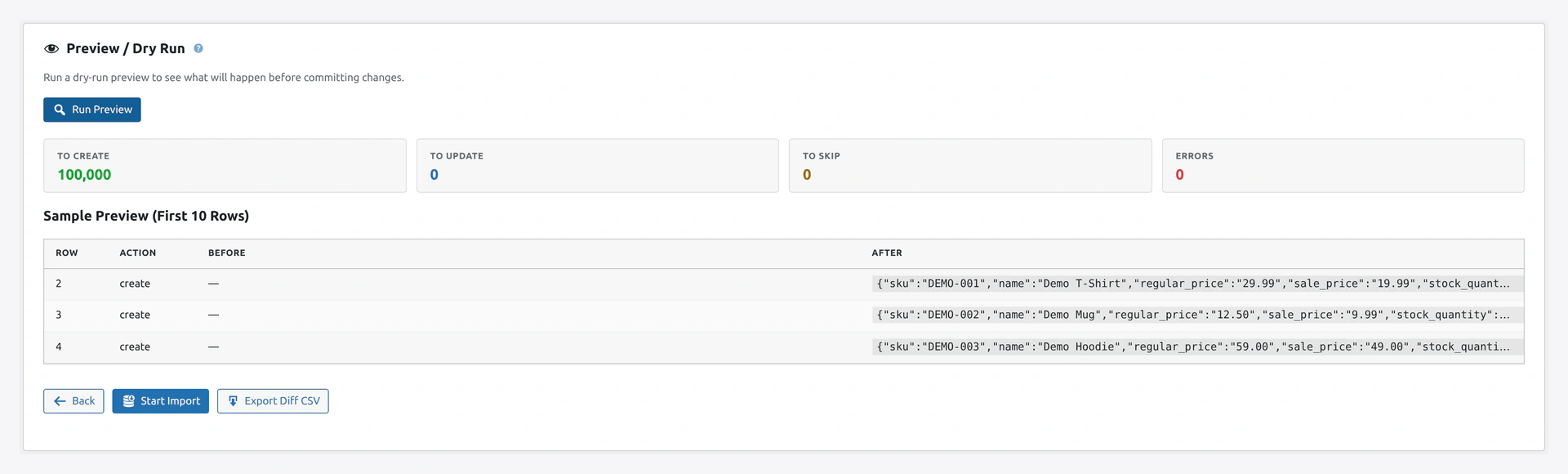 Screenshot: Step 3 preview — sample rows, create/update/skip counts, and any file-level errors before the real import runs.
Run the validator before you import:
- Wizard → Step 3 → Click Run Preview
- Review errors
- Fix your file
- Re-upload
Or via WP-CLI:
wp wkaie validate /path/to/products.csv --entity=products
Template Files
Not sure where to start? The plugin includes sample CSVs at:
wp-content/plugins/woocommerce-importer/sample-data/
products-sample.csv— 10 simple productsorders-sample.csv— 5 orderscustomers-sample.csv— 20 customers
Download from your installed plugin folder and edit.
Troubleshooting
| Problem | Fix |
|---|---|
| Garbled characters after import | Re-save as UTF-8 |
| Columns split wrong | Check for unquoted commas |
| Numbers show with extra zeros | Format as Text in Excel before export |
| Import shows "0 columns" | File is empty or has BOM issues — try a text editor |
| Rows have wrong column count | Some rows have extra or missing commas. Fix in spreadsheet |
| Prices show as text | Decimal separator mismatch. Use . not , |
Related Pages
- Quick Import Wizard — Upload your prepared CSV
- Column Mapping — Map columns to WooCommerce fields
- Transformations — Fix values during import
- Troubleshooting — More fixes