
Variable Products — The Complete Guide
Variable products are products with options — like a t-shirt in Small, Medium, Large and Red, Blue, Green. Each specific combo is a variation.
Getting variable products right is the #1 source of confusion. This page walks you through it slowly.
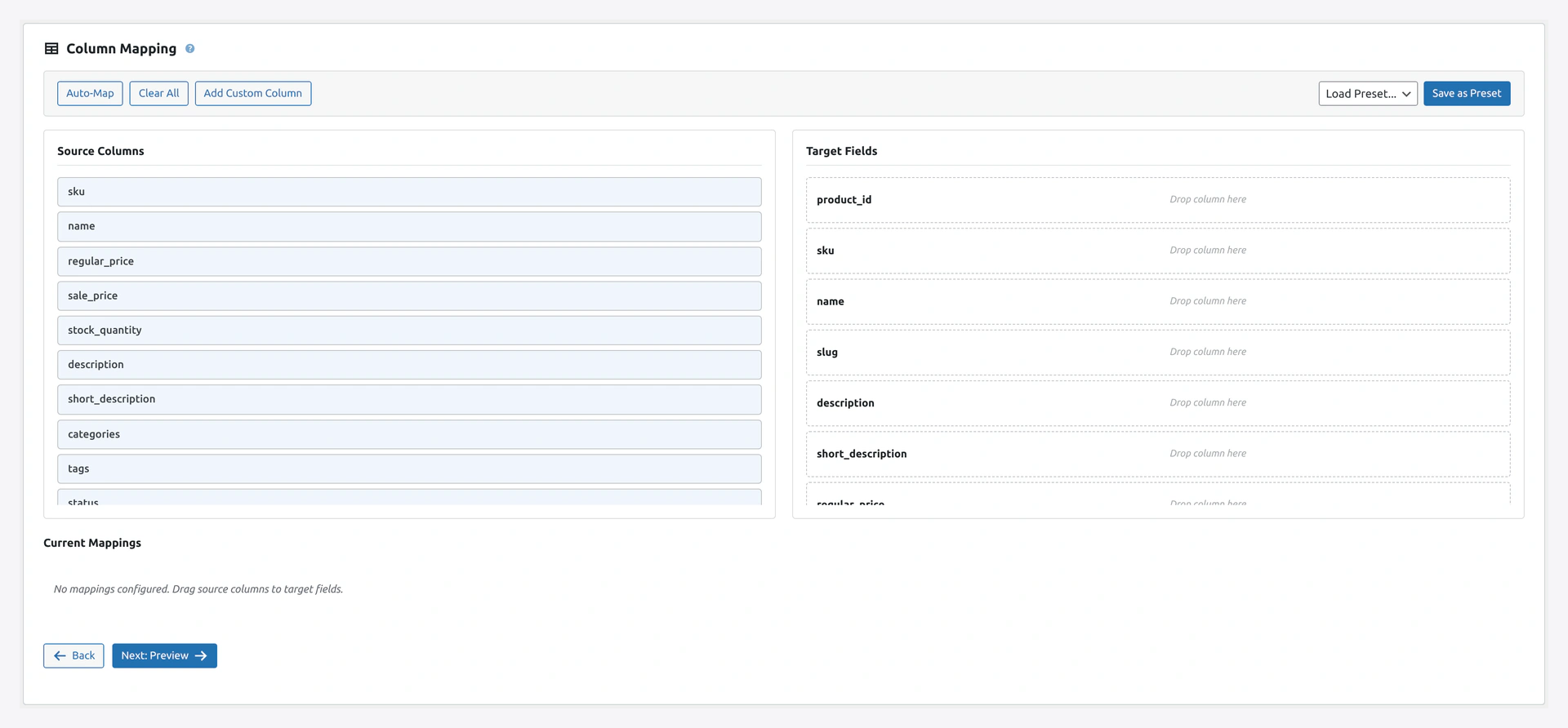 Step 2 maps your CSV headers to WooCommerce fields. Variable products depend on getting
 Type, Parent, and each Attribute N column right.
What You Will Learn
- How variable products are structured in WooCommerce
- How to write a CSV with a parent and variations
- How attributes work
- How to auto-build variable products from simple rows
- Common mistakes and how to avoid them
The 3-Level Structure
Variable products have 3 levels:
Variable Product (parent)
├── Variation 1 (e.g., Red + Small)
├── Variation 2 (e.g., Red + Medium)
├── Variation 3 (e.g., Blue + Small)
└── ...
Parent — the product customers see in search. Holds the name, description, images.
Variations — the actual buyable items. Each has its own SKU, price, and stock.
Attributes — the options like Color and Size. Attributes have values like Red, Blue, Small, Large.
Two Ways to Import Variable Products
Method 1 — Separate Rows for Parent + Variations (Recommended)
One row for the parent, then one row per variation.
Method 2 — Auto-Create From Simple Rows (Advanced)
Upload only simple product rows. The plugin groups them by SKU pattern or a "Parent SKU" column.
Method 1 — Full CSV Example
Download ready templates:
- Variable products in Excel (simple + variable in one file)
- WC official CSV format (includes variations)
The Structure
Type,SKU,Parent,Name,Regular price,Stock,Attribute 1 name,Attribute 1 value(s),Attribute 1 visible,Attribute 1 global
variable,TSHIRT-001,,Cotton T-Shirt,,,Color,"Red, Blue, Green",1,1
variation,TSHIRT-001-RED-S,TSHIRT-001,,29.99,100,Color,Red,,
variation,TSHIRT-001-RED-M,TSHIRT-001,,29.99,100,Color,Red,,
variation,TSHIRT-001-BLU-S,TSHIRT-001,,29.99,100,Color,Blue,,
variation,TSHIRT-001-BLU-M,TSHIRT-001,,29.99,100,Color,Blue,,
Key Rules
| Rule | Why |
|---|---|
| Parent row first | Plugin needs parent to exist before linking variations |
Parent Type = variable | Tells WooCommerce this has variations |
Variation Type = variation | Tells WooCommerce this is a child |
Variation Parent = parent's SKU | Links child to parent |
| Parent has no price | Variations hold the prices |
Parent Attribute 1 value(s) = all possible values | Comma-separated list of all colors/sizes |
Variation Attribute 1 value(s) = ONE value | The specific value for this variation |
The Two-Attribute Version (Color × Size)
Type,SKU,Parent,Name,Regular price,Stock,Attribute 1 name,Attribute 1 value(s),Attribute 2 name,Attribute 2 value(s)
variable,TSHIRT-001,,Cotton T-Shirt,,,Color,"Red, Blue",Size,"Small, Medium, Large"
variation,TSHIRT-001-RED-S,TSHIRT-001,,29.99,100,Color,Red,Size,Small
variation,TSHIRT-001-RED-M,TSHIRT-001,,29.99,100,Color,Red,Size,Medium
variation,TSHIRT-001-RED-L,TSHIRT-001,,29.99,100,Color,Red,Size,Large
variation,TSHIRT-001-BLU-S,TSHIRT-001,,29.99,100,Color,Blue,Size,Small
variation,TSHIRT-001-BLU-M,TSHIRT-001,,29.99,100,Color,Blue,Size,Medium
variation,TSHIRT-001-BLU-L,TSHIRT-001,,29.99,100,Color,Blue,Size,Large
2 colors × 3 sizes = 6 variations. All 6 rows after the parent row.
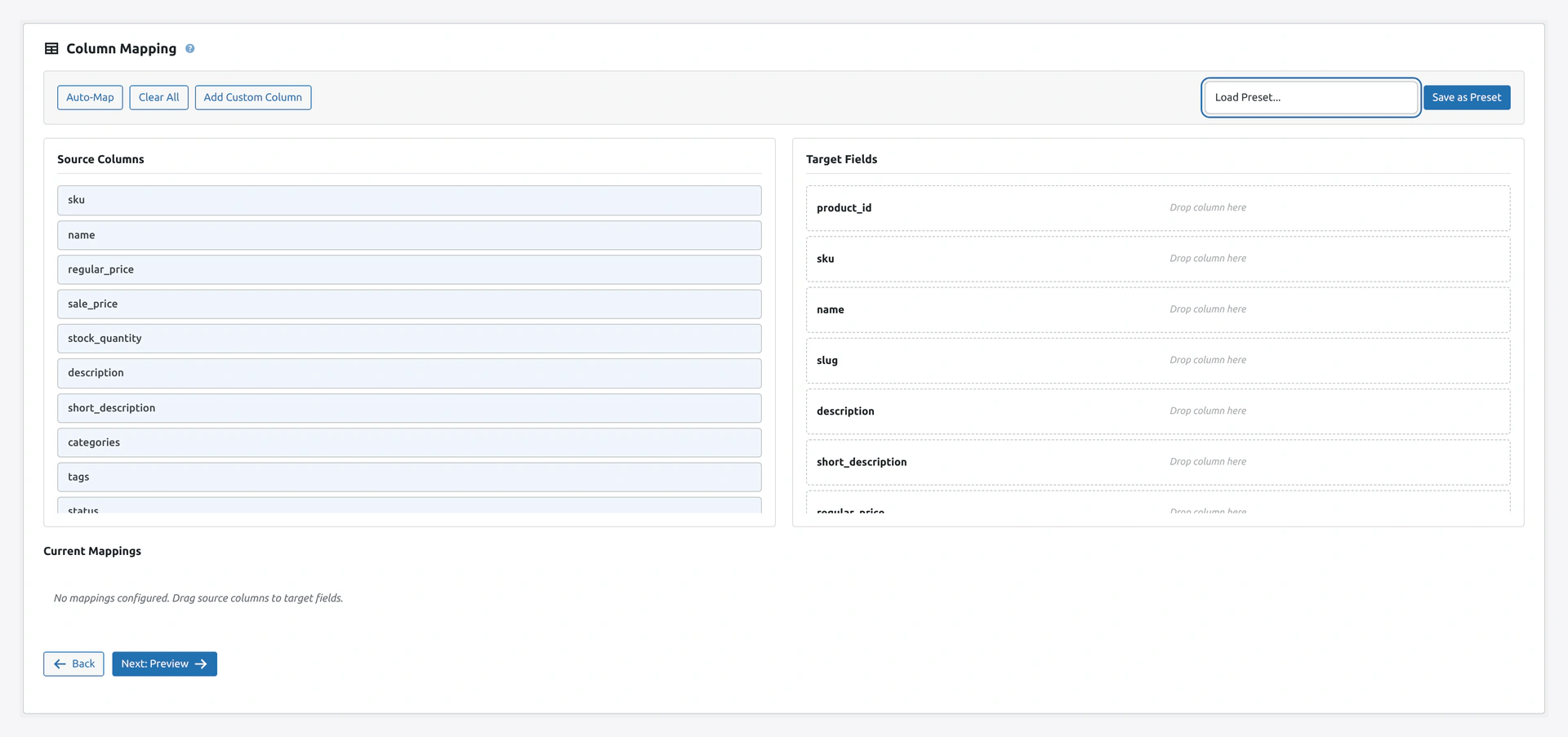 Expand the target-field select to pick
 parent_sku, Attribute 1 name, Attribute 1 value(s), and the other variation-specific targets.
Attribute Flags Explained
Each attribute has 4 flags. You only need to set these on the PARENT row.
| Flag | Values | What It Does |
|---|---|---|
| Attribute N name | Color, Size, etc. | The attribute label |
| Attribute N value(s) | Comma-separated on parent, single value on variations | The options |
| Attribute N visible | 1 or 0 | Shows on the product page "Additional Information" tab |
| Attribute N global | 1 or 0 | 1 = use WooCommerce global attribute taxonomy. 0 = custom text attribute for this product only |
| Attribute N default | Single value, parent row only | The default selected when page loads |
Global vs Local Attributes
Global (Attribute N global = 1)
- Stored as
pa_color,pa_sizetaxonomy - Reusable across products
- Shows in WooCommerce → Products → Attributes
- Needed for layered navigation / filters
Local (Attribute N global = 0)
- Stored as text on this product only
- Not reusable
- Faster to import
- Good for one-off custom attributes
For standard stores, use global (1).
Method 2 — Auto-Build From Simple Rows
If your supplier sends flat simple-product CSVs without variable structure, the plugin can group them.
Option A — By Parent SKU Column
Add a Parent SKU column (maps to parent_sku or custom meta) on every row:
SKU,Parent SKU,Name,Regular price,Attribute 1 name,Attribute 1 value(s)
TSHIRT-001-RED-S,TSHIRT-001,Cotton T-Shirt Red Small,29.99,Color,Red
TSHIRT-001-RED-M,TSHIRT-001,Cotton T-Shirt Red Medium,29.99,Color,Red
TSHIRT-001-BLU-S,TSHIRT-001,Cotton T-Shirt Blue Small,29.99,Color,Blue
TSHIRT-001-BLU-M,TSHIRT-001,Cotton T-Shirt Blue Medium,29.99,Color,Blue
All rows with the same "Parent SKU" group into one variable product.
Option B — By SKU Prefix
If your SKUs follow a pattern like TSHIRT-001-RED-S where the first part identifies the parent:
In Step 3 of the wizard → Advanced → Auto-Create Variable Parent:
- Method: SKU prefix
- Prefix length: 10 (for
TSHIRT-001)
Plugin groups all rows whose first 10 characters match.
Option C — By Text Before a Delimiter
If SKUs look like TSHIRT-001::RED::S:
- Method: Text before delimiter
- Delimiter:
::
Plugin uses TSHIRT-001 as the parent.
Option D — By Shared Attribute Values
Auto-group products with the same name and similar attributes.
Example:
- Rows with Name = "Cotton T-Shirt" and different Color/Size → one variable product
Images for Variable Products
Parent Image
Use the Images column on the parent row:
Type,SKU,Name,Images
variable,TSHIRT-001,Cotton T-Shirt,"https://example.com/tshirt-main.jpg"
Variation-Specific Images
Use the Images column on variation rows:
variation,TSHIRT-001-RED-S,,https://example.com/tshirt-red.jpg
variation,TSHIRT-001-BLU-S,,https://example.com/tshirt-blue.jpg
When customers click "Red" on the product page, the red image shows.
Default Variation
The attribute selection shown when a customer first lands on the page.
Type,SKU,Name,Attribute 1 name,Attribute 1 value(s),Attribute 1 default
variable,TSHIRT-001,Cotton T-Shirt,Color,"Red, Blue, Green",Red
Attribute 1 default = Red → page loads with "Red" pre-selected.
Stock Management
Stock at Parent Level
Parent's Stock column is ignored (usually left empty) — WooCommerce sums variation stock.
Stock at Variation Level
Each variation has its own stock count.
variation,TSHIRT-001-RED-S,TSHIRT-001,,29.99,100
variation,TSHIRT-001-RED-M,TSHIRT-001,,29.99,50
Red Small has 100, Red Medium has 50.
"In stock" Display
WooCommerce marks the parent "In stock" if ANY variation has stock > 0.
Variation Prices
Same Price for All Variations
Set the same Regular price on every variation row.
Different Prices per Variation
Set different prices per row:
variation,TSHIRT-001-RED-S,TSHIRT-001,,29.99,100
variation,TSHIRT-001-RED-M,TSHIRT-001,,29.99,100
variation,TSHIRT-001-RED-L,TSHIRT-001,,34.99,100
variation,TSHIRT-001-XL,TSHIRT-001,,34.99,50
Large and XL cost more.
Sale Prices
Each variation can have its own sale price:
variation,TSHIRT-001-RED-S,TSHIRT-001,,29.99,100,,,,,,,24.99,2026-04-01,2026-04-30
(Columns: ...Regular price, Stock, ..., Sale price, Sale from, Sale to)
Common Mistakes
Mistake 1 — Parent Row After Variations
Wrong:
variation,TSHIRT-001-RED-S,TSHIRT-001,,29.99,100
variation,TSHIRT-001-RED-M,TSHIRT-001,,29.99,100
variable,TSHIRT-001,Cotton T-Shirt,,,
Plugin sees variations first, can't find parent. All variations fail.
Right: Parent row first. Variations after.
Mistake 2 — Missing Parent Column on Variations
Wrong:
variation,TSHIRT-001-RED-S,,29.99,100,Color,Red
Plugin doesn't know which parent this belongs to.
Right: Set Parent = TSHIRT-001 on every variation row.
Mistake 3 — Price on Parent, Not Variations
Wrong:
variable,TSHIRT-001,Cotton T-Shirt,29.99,100
variation,TSHIRT-001-RED-S,TSHIRT-001,,,
Price on parent is ignored. Variations have no price.
Right: Set prices on variation rows only.
Mistake 4 — Attribute Value on Parent Missing
Wrong:
variable,TSHIRT-001,Cotton T-Shirt,,,,Color,
variation,TSHIRT-001-RED-S,TSHIRT-001,,29.99,,Color,Red
Parent has no list of possible values. Variations pick from nothing.
Right: Parent row has all possible values comma-separated:
variable,TSHIRT-001,Cotton T-Shirt,,,,Color,"Red, Blue, Green"
variation,TSHIRT-001-RED-S,TSHIRT-001,,29.99,,Color,Red
Mistake 5 — Duplicate Variation SKUs
Two variations with the same SKU:
variation,TSHIRT-001-RED,TSHIRT-001,Color,Red,Size,Small,29.99,100
variation,TSHIRT-001-RED,TSHIRT-001,Color,Red,Size,Medium,29.99,100
WooCommerce rejects duplicate SKUs.
Right: Each variation SKU must be unique:
variation,TSHIRT-001-RED-S,TSHIRT-001,...
variation,TSHIRT-001-RED-M,TSHIRT-001,...
Troubleshooting
| Problem | Fix |
|---|---|
| Variations not appearing on parent | Parent Type = variable and each variation Type = variation |
| "Parent product not found" | Parent row must come BEFORE variation rows |
| All variations show as "out of stock" | Set Stock > 0 on each variation |
| Price range shows as "$0 - $0" | Variation prices are blank. Set a price on each variation |
| Wrong attribute showing | Check attribute order: Attribute 1 vs Attribute 2 in columns |
| "Attribute not found" | Check Attribute N global = 1 and attribute name is valid |
| Variation image not switching | Variation row needs its own Images column value |
Variation Count Math
How many variation rows you need:
Formula: N colors × M sizes = total variations
Examples:
| Attributes | Rows Needed |
|---|---|
| 3 colors | 3 variations |
| 3 sizes | 3 variations |
| 3 colors × 3 sizes | 9 variations |
| 3 colors × 3 sizes × 2 materials | 18 variations |
| 5 colors × 5 sizes | 25 variations |
Each variation gets its own row in the CSV.
Performance Tip
Variable products with many variations take longer to import. A product with 100 variations = 101 rows (1 parent + 100 children).
For stores with thousands of variations, import speed is still fast. Just expect big CSVs.
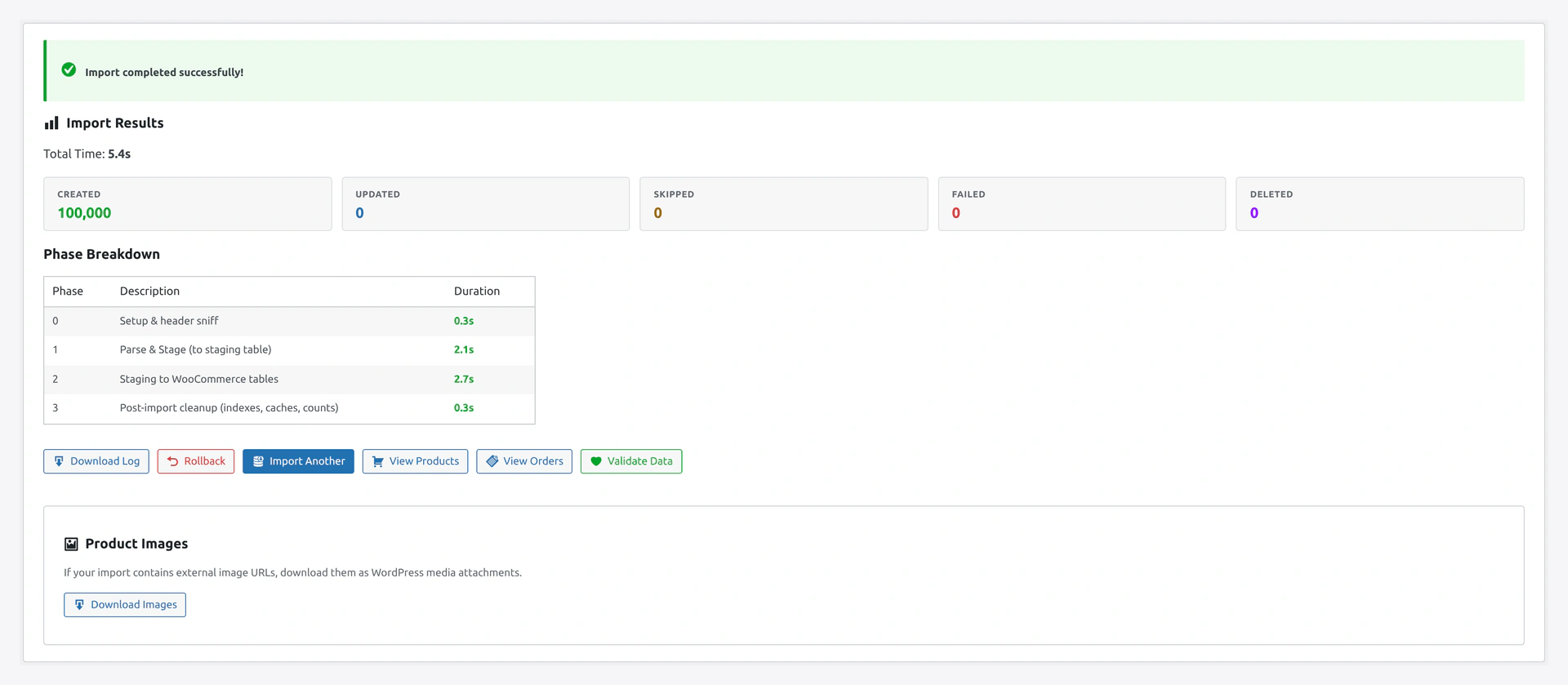 After the run, the results screen tells you how many parents and variations were created, updated, or skipped.
Related Pages
- Products Import — Full product field reference
- Sample Files — Download variable product template
- Column Mapping — Map variation columns
- Quick Import Wizard — How to run the import
- Troubleshooting — More fixes