
Advance Import and Export for WooCommerce DocumentationAdvance Import and Export for WooCommerce Documentation
Buy Now
View Demo
  • Getting Started

    • Introduction
    • Quick Start
    • Features
    • Installation
    • First-Time Setup
    • CSV Preparation
    • Sample Files
    • Use Cases
    • Common Mistakes
  • Tutorials

    • Google Sheets Live Sync
    • Shopify Migration
    • Daily Backup to S3
    • Multi-Store Sync
  • Using the Plugin

    • Dashboard
    • Quick Import Wizard
    • Quick Export
    • Settings
    • Compatibility
  • Import In Detail

    • Import Sources
    • Import Modes
    • Column Mapping
    • Transformations
    • Migration Presets
    • Delta Import
  • Export In Detail

    • Export Features
    • Export Destinations
    • Browser Download
    • Server Path (REST / CLI)
  • Data Types

    • Products
    • Variable Products
    • Orders
    • Customers
    • Categories & Tags
    • Coupons
    • Reviews
    • Posts
    • Pages
    • Users
    • Subscriptions
    • Bookings
    • Memberships
    • Menus
  • Automation

    • Scheduled Jobs
    • History & Logs
    • Rollback
    • Health Check
  • Cloud Service Setup

    • Google API Setup
    • Amazon S3 Setup
    • Dropbox Setup
    • Email / SMTP Setup
  • Server Configuration

    • PHP Configuration
    • Server Cron Setup
    • Image Handling
  • Developer

    • REST API
    • WP-CLI Commands
  • Compare

    • vs WP All Import
    • vs Product Import Export (WebToffee)
  • Help

    • Troubleshooting
    • FAQ
    • Glossary
    • Security
    • Changelog
Support
Buy Now
View Demo
  • Getting Started

    • Introduction
    • Quick Start
    • Features
    • Installation
    • First-Time Setup
    • CSV Preparation
    • Sample Files
    • Use Cases
    • Common Mistakes
  • Tutorials

    • Google Sheets Live Sync
    • Shopify Migration
    • Daily Backup to S3
    • Multi-Store Sync
  • Using the Plugin

    • Dashboard
    • Quick Import Wizard
    • Quick Export
    • Settings
    • Compatibility
  • Import In Detail

    • Import Sources
    • Import Modes
    • Column Mapping
    • Transformations
    • Migration Presets
    • Delta Import
  • Export In Detail

    • Export Features
    • Export Destinations
    • Browser Download
    • Server Path (REST / CLI)
  • Data Types

    • Products
    • Variable Products
    • Orders
    • Customers
    • Categories & Tags
    • Coupons
    • Reviews
    • Posts
    • Pages
    • Users
    • Subscriptions
    • Bookings
    • Memberships
    • Menus
  • Automation

    • Scheduled Jobs
    • History & Logs
    • Rollback
    • Health Check
  • Cloud Service Setup

    • Google API Setup
    • Amazon S3 Setup
    • Dropbox Setup
    • Email / SMTP Setup
  • Server Configuration

    • PHP Configuration
    • Server Cron Setup
    • Image Handling
  • Developer

    • REST API
    • WP-CLI Commands
  • Compare

    • vs WP All Import
    • vs Product Import Export (WebToffee)
  • Help

    • Troubleshooting
    • FAQ
    • Glossary
    • Security
    • Changelog
Support
  • Getting Started

    • Introduction
    • Quick Start — Your First Import in 5 Minutes
    • Features — Full Tour
    • Installation — Full Setup Guide
    • First-Time Setup — Complete Checklist
    • CSV Preparation — How to Make a Good Import File
    • Sample Files — Download Ready-to-Use Templates
    • Use Cases — "I Want To..." Quick Reference
    • Common Mistakes — Things To Watch Out For
  • Tutorials

    • Tutorial — Google Sheets Live Sync
    • Tutorial — Migrate from Shopify to WooCommerce
    • Tutorial — Daily Backup to Amazon S3
    • Tutorial — Sync Between Two WooCommerce Stores
  • Using the Plugin

    • Dashboard — What You See First
    • Quick Import Wizard — 5 Steps to Import Any File
    • Quick Export — One-Page Export Tool
    • Settings — Every Option Explained
    • Compatibility — Third-Party Plugin Support
  • Import In Detail

    • Import Sources — 11 Ways to Pull Data In
    • Import Modes — Create, Update, Delete, Replace
    • Column Mapping — Connect Your Columns to WooCommerce
    • Transformations — Change Values During Import
    • Migration Presets — Move From Shopify, Magento, BigCommerce
    • Delta Import — Skip Unchanged Rows
  • Export In Detail

    • Export Features
    • Export Destinations — Where Your Files Go
    • Export Download — One-Click Browser Download
    • Export to Server Path — WP-CLI
  • Data Types

    • Products Import — Full Field Reference
    • Variable Products — The Complete Guide
    • Orders Import — Historical Orders and Line Items
    • Customers Import — With Addresses and Notes
    • Categories and Tags Import
    • Coupons Import — Discount Codes
    • Reviews Import — Product Reviews and Ratings
    • Posts Import — WordPress Blog Posts
    • Pages Import — WordPress Pages
    • Users Import — WordPress User Accounts
    • Subscriptions Import — WooCommerce Subscriptions
    • Bookings Import — WooCommerce Bookings
    • Memberships Import — WooCommerce Memberships
    • Menus Import — WordPress Navigation Menus
  • Automation

    • Jobs — Saved and Scheduled Imports and Exports
    • History — Every Run You Have Ever Done
    • Rollback — Undo Any Import in One Click
    • Health Check — Data Integrity Checks With Auto-Fix
  • Cloud Service Setup

    • Google API Setup — Sheets, Drive, OAuth
    • Amazon S3 Setup — IAM User and Bucket Permissions
    • Dropbox Setup — API Token for Private Files
    • Email Setup — Making Notifications Actually Work
  • Server Configuration

    • PHP Configuration — Memory, Execution Time, Upload Size
    • Server Cron Setup — Reliable Scheduled Imports
    • Image Handling — Download, Resize, Watermark
  • Developer

    • REST API — Developer Reference
    • WP-CLI Commands — Command Line Automation
  • Compare

    • Advance Import and Export vs WP All Import
    • Advance Import and Export vs Product Import Export for WooCommerce
  • Help

    • Troubleshooting — Fix Common Problems
    • FAQ — Common Questions
    • Glossary — Every Term Explained
    • Security — How Your Data Is Protected
    • Changelog — What Changed

Delta Import (Incremental Sync)

If you sync the same file repeatedly (like a daily supplier feed), most rows are identical to last time. Delta Import skips those and only processes the rows that actually changed.

Why Use Delta Import

Say you have a 1 million product supplier feed that runs every night. In most days, only 500 products change price. Without delta:

  • Every row is processed: 1 million writes
  • Takes 3+ minutes

With delta:

  • Only 500 rows are processed
  • Takes 2 seconds

That is 150x faster.

How It Works

  1. On the first import, the plugin computes a SHA-256 fingerprint of each row
  2. Fingerprints are saved in a database table (wp_wkaie_row_hashes)
  3. On the next import, the plugin compares each row to its saved fingerprint
  4. If the fingerprint matches, the row is skipped (treated as unchanged)
  5. If the fingerprint differs (even by one character), the row is processed

How to Turn On Delta Import
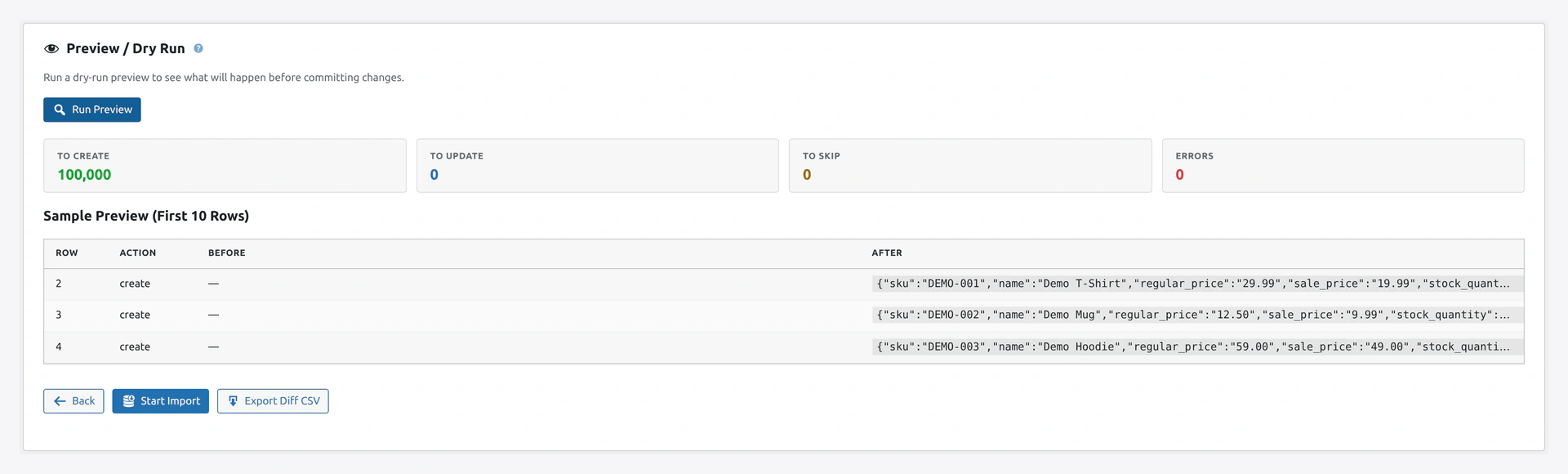
Wizard Step 3 — preview and delta optionsScreenshot: Step 3 — Delta Import lives alongside the preview/dry run, so you can confirm what will be skipped.

On the Quick Import Wizard

  1. Wizard Step 3 → Scroll down to Delta Import
  2. Check Skip unchanged rows
  3. (Optional) Pick which columns count for the fingerprint

On Scheduled Jobs

  1. Edit the job
  2. Tab: Advanced
  3. Check Delta Import
  4. Save

Delta Import works on any entity, not just products.

Picking the Right Hash Columns

By default, the plugin hashes every column in the row. This means:

  • If you change even a whitespace character, the row is considered changed
  • If a new column is added (even unused), every row changes

You can pick specific columns to hash, like only the ones that matter.

Example

Your file has 50 columns: SKU, Name, Price, Stock, plus 46 others that never change. You only care about price and stock changes.

Set hash columns to:

  • SKU
  • Price
  • Stock

Now changes in the other 46 columns do not trigger updates.

Watermark Approach

For very large imports, the plugin also supports a watermark approach:

  • Pick a column like date_modified or last_updated
  • Plugin remembers the highest watermark from the last run
  • Next run, only rows with a higher watermark are processed

This is simpler than hashing but requires your source to have a reliable modified-date column.

When to Use Watermark

  • Source has a date_modified column
  • You trust that column to update when data changes
  • You want the fastest possible delta

When to Use Hash (SHA-256)

  • Source does not have a reliable modified-date column
  • You want safety — hash catches any byte change
  • You are okay with the small overhead of computing fingerprints

Reset Delta

Sometimes you want to force a full re-import (after a plugin update, schema change, etc.).

How to Reset

  1. Go to Webkul WC Addons → Advance Import Export → Settings → Advanced
  2. Click Reset Delta Hashes next to a job
  3. Next import processes every row

Or via WP-CLI:

wp wkaie delta reset --job=42

Delta Import with Google Sheets
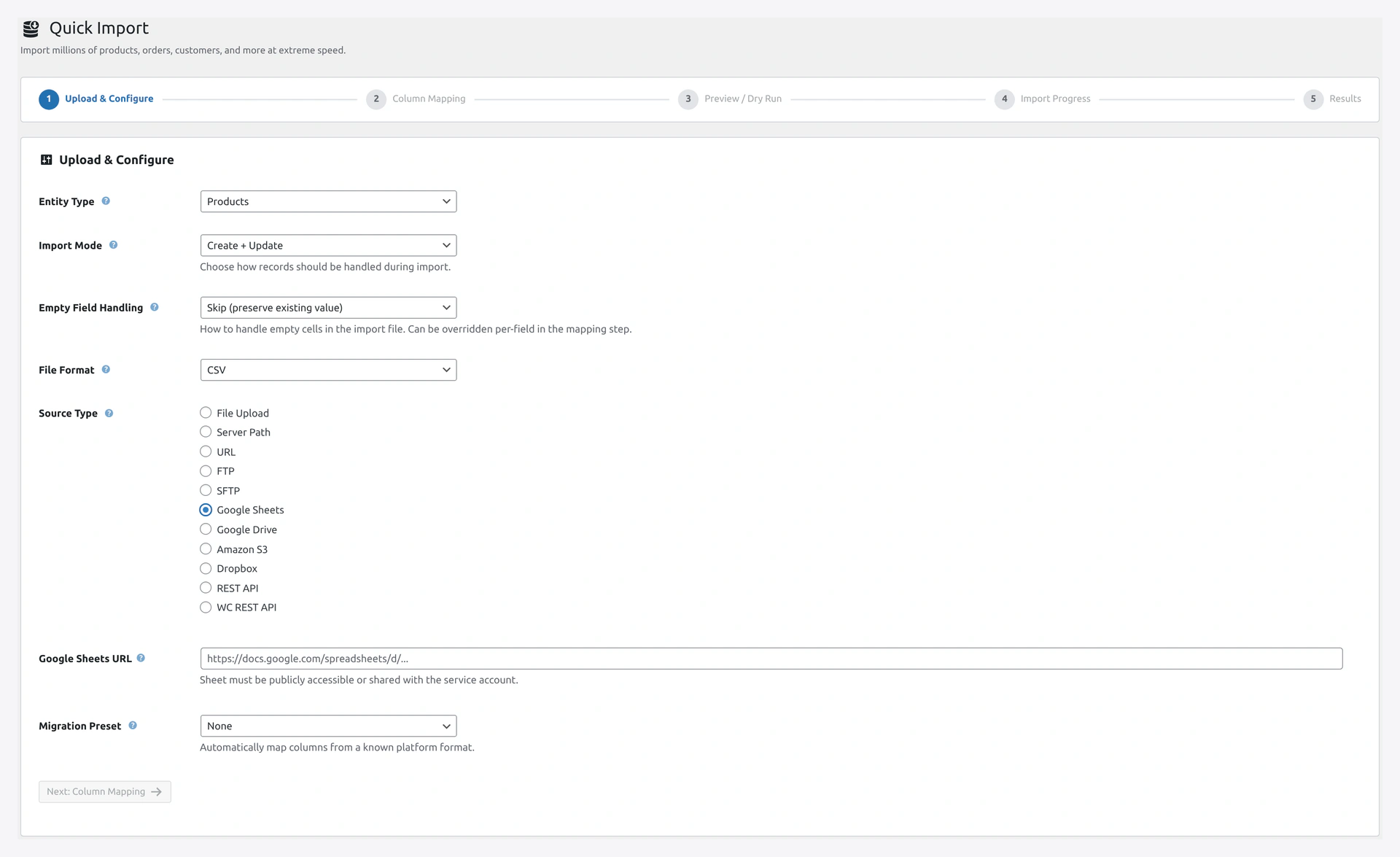
Google Sheets source panelScreenshot: Google Sheets source — paired with Delta Import for a 5-minute live sync.

This is the killer combo. Your team edits a Google Sheet. The plugin runs every 5 minutes. Only changed cells update the store.

Setup

  1. Create a scheduled job with source = Google Sheets
  2. Turn on Delta Import
  3. Set schedule to Every 5 minutes
  4. Activate

Now your store auto-syncs with the sheet. Edit a cell, wait 5 minutes, see it in the store.

Performance Impact
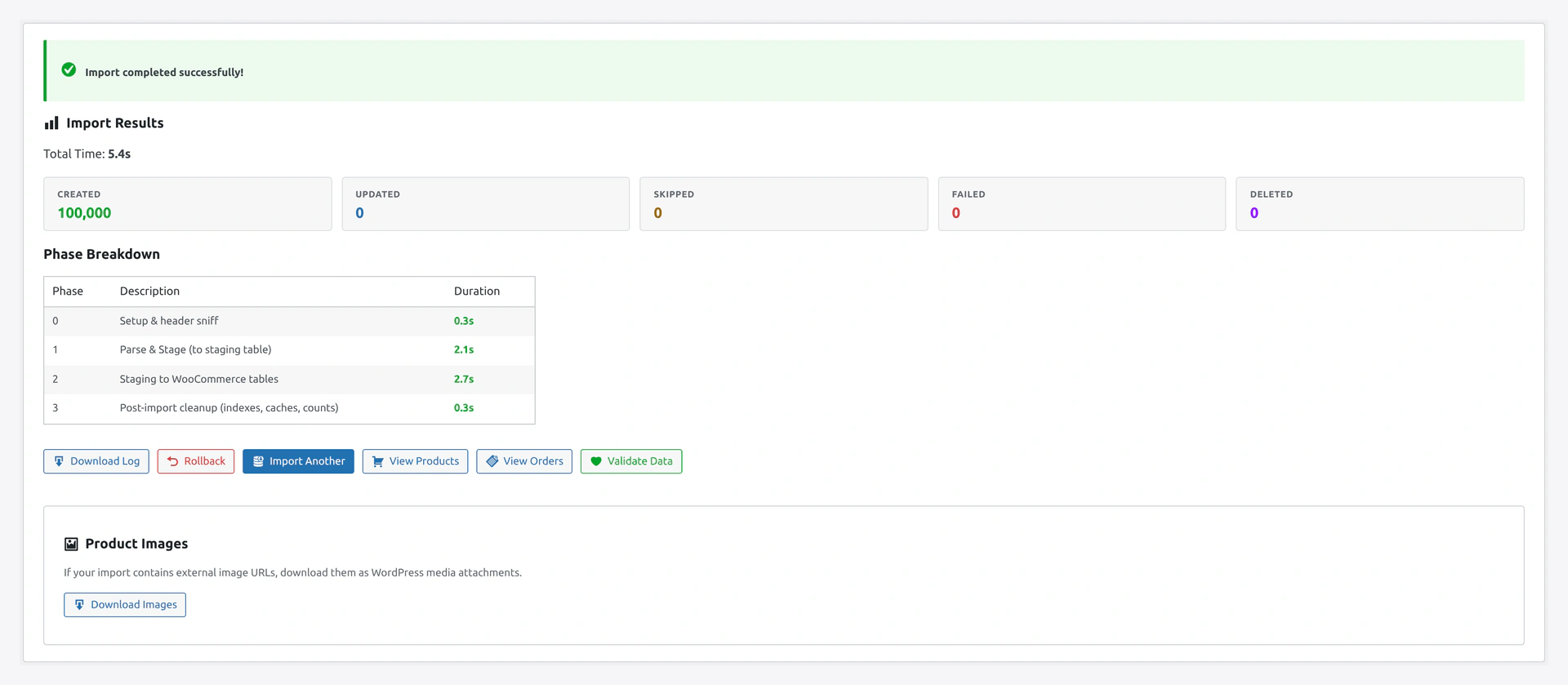
Import results with phase breakdownScreenshot: Results page — showing total time and phase breakdown, where delta savings show up vividly.

Delta Import has two costs:

  • Storage: Each row's fingerprint takes ~48 bytes in a database table. 1 million products = ~48 MB
  • Compute: Hashing is fast (microseconds per row)

For a 1 million row table, the delta lookup takes about 1 second. Compared to the 3 minutes of a full re-import, that is a massive win.

What Counts as "Changed"

Every byte matters. These all count as different:

  • Red Shirt vs Red shirt (case)
  • Red Shirt vs Red Shirt (trailing space)
  • 10.00 vs 10 (format)
  • "Red Shirt" vs Red Shirt (quotes)

If your source includes random unrelated changes (like adding a trailing whitespace), delta will treat them as changed.

Workaround — Normalize First

Before hashing, you can normalize values:

  1. In the wizard → Advanced → Delta Settings
  2. Turn on Normalize before hash
  3. Options: Lowercase, Trim whitespace, Strip HTML

Compared to the WP All Import Caching

If you used WP All Import before, their "caching" feature is similar but less robust:

FeatureWP All ImportOur Plugin
Skip unchanged rowsPartial (based on URL)Full (row-by-row hash)
Custom hash columnsNoYes
Watermark optionNoYes
Reset individual jobsManualOne-click
Hash algorithm—SHA-256

Troubleshooting

ProblemFix
Every row is "changed" on second runCheck for trailing whitespace or case changes. Turn on Normalize
Delta says "no changes" but there should beReset Delta Hashes, then re-import
Watermark column returns nullYour source does not have a date_modified column. Switch to hash
Hash table too bigClean up old jobs: wp wkaie delta cleanup --older-than=30d

Related Pages

  • Scheduled Jobs — Run delta imports on a schedule
  • Import Modes — Use with Create + Update mode
  • Google Sheets source — The perfect pairing
Prev
Migration Presets — Move From Shopify, Magento, BigCommerce