
Server Cron Setup
WordPress's built-in cron (wp-cron.php) is unreliable. This page shows how to replace it with a real server cron for reliable scheduled imports.
Why WP-Cron Is Unreliable
WordPress cron only runs when someone visits your site:
- Low-traffic sites: Jobs miss their schedule
- High-traffic sites: Every visitor triggers cron check — slow
- Cached sites (CloudFlare, etc.): Cron often skipped entirely
A real server cron fires exactly on time, every time, no matter the traffic.
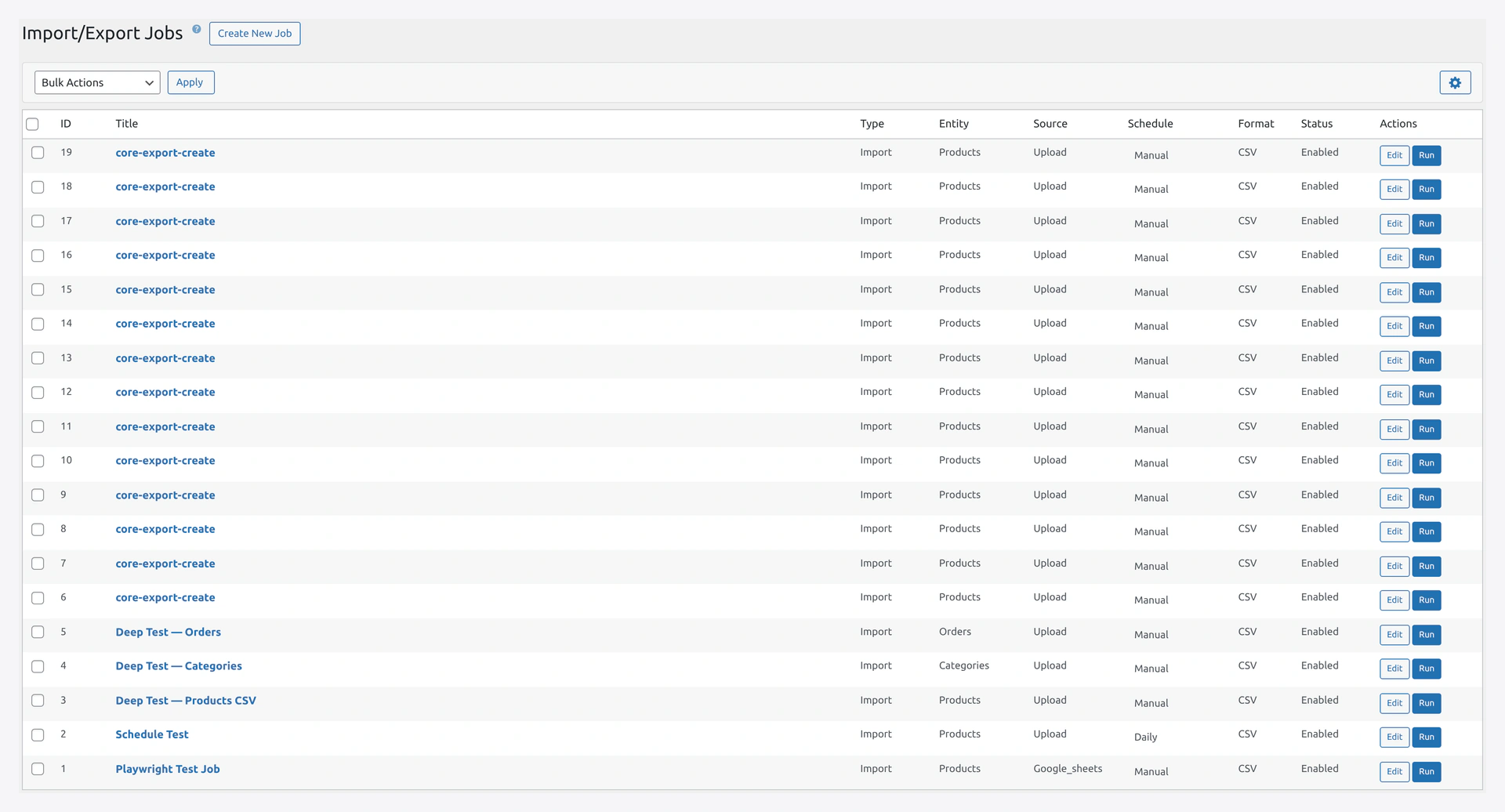 Saved jobs show Next Run times — these only fire reliably when a real server cron hits
 wp-cron.php.
The Fix — Two Steps
- Turn off WordPress cron (optional but recommended)
- Add a server cron that calls
wp-cron.phpevery 5 minutes
Step 1 — Turn Off WordPress Cron
Add this line to wp-config.php:
define( 'DISABLE_WP_CRON', true );
Place it above the line /* That's all, stop editing! Happy publishing. */.
This stops WordPress from checking cron on every page load. Your site gets faster.
Step 2 — Add a Server Cron
Pick the method that matches your hosting.
Method A — cPanel / Plesk (Most Shared Hosts)
- Log into cPanel
- Find Cron Jobs (usually under Advanced)
- Under "Add New Cron Job":
- Common Settings: Every 5 minutes
- Command:
curl -s https://your-site.com/wp-cron.php?doing_wp_cron > /dev/null 2>&1
- Click Add New Cron Job
Replace your-site.com with your actual domain.
Method B — SSH Access (VPS / Dedicated)
- SSH into your server
- Open crontab:
crontab -e - Add this line:
*/5 * * * * curl -s https://your-site.com/wp-cron.php?doing_wp_cron > /dev/null 2>&1 - Save and exit (
Ctrl+X,Y, Enter in nano)
Method C — WP-CLI (Most Reliable)
If you have SSH and WP-CLI installed:
*/5 * * * * cd /var/www/html && wp cron event run --due-now
This skips the HTTP layer entirely, so no timeouts.
Method D — Cloudflare Worker (For Sites Behind Cloudflare)
If your site is behind Cloudflare, cron requests may get blocked. Use a Cloudflare Worker:
- Cloudflare dashboard → Workers & Pages → Create Worker
- Code:
addEventListener('scheduled', event => { event.waitUntil(handleRequest()) }) async function handleRequest() { await fetch('https://your-site.com/wp-cron.php?doing_wp_cron') return new Response('OK') } - Triggers → Add Cron Trigger →
*/5 * * * * - Save
Testing
Check WP-Cron is Registered
wp cron event list
Output should show scheduled events:
Hook                     Next Run                Schedule
wp_version_check         2026-04-14 11:00:00     twicedaily
wkaie_scheduled_job_42   2026-04-14 11:00:00     every_5_minutes
Trigger a Test
curl -s https://your-site.com/wp-cron.php?doing_wp_cron
Expected output: empty response (status 200).
Check the Last Run
wp cron event list --format=json | grep last_run
Or check the plugin's History page. Scheduled jobs should show recent runs.
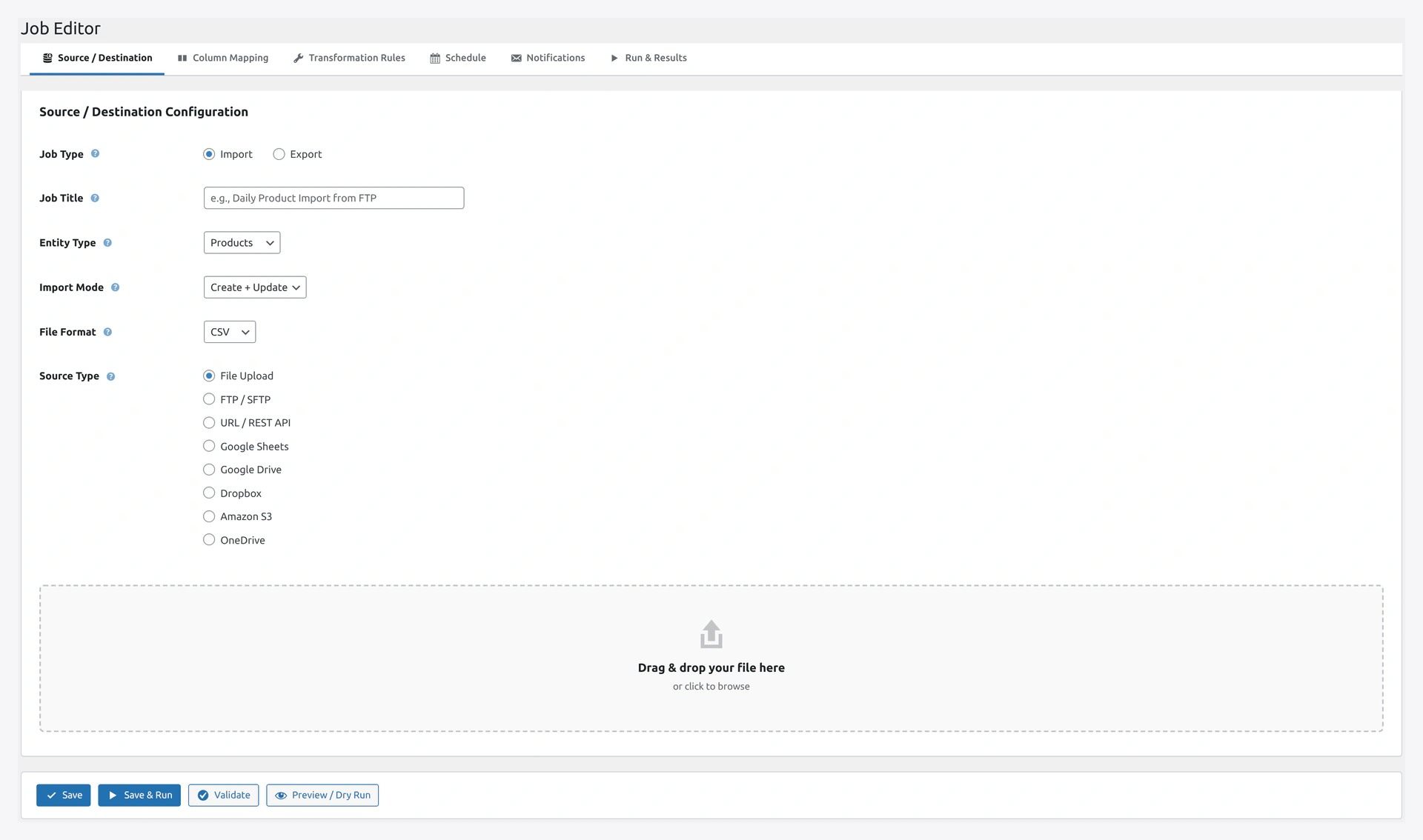 Set a job's frequency in the Schedule tab — the server cron triggers it on time.
Cron Schedule Quick Reference
| Pattern | Meaning |
|---|---|
* * * * * | Every minute |
*/5 * * * * | Every 5 minutes (recommended for wp-cron.php) |
*/15 * * * * | Every 15 minutes |
0 * * * * | Top of every hour |
0 3 * * * | 3 AM every day |
0 3 * * 0 | 3 AM every Sunday |
0 3 1 * * | 3 AM on the 1st of every month |
Use crontab.guru to build custom patterns.
Alternative — Running Jobs Directly Via Cron
Instead of going through WP-Cron, you can call WP-CLI directly for specific jobs:
# Run job 42 every day at 3 AM
0 3 * * * cd /var/www/html && wp wkaie run 42 >> /var/log/wkaie.log 2>&1

# Run all enabled jobs at 4 AM
0 4 * * * cd /var/www/html && wp wkaie run-chain >> /var/log/wkaie.log 2>&1
This bypasses WordPress cron entirely for the plugin's jobs.
For Managed WordPress Hosts
Some managed hosts (Kinsta, WP Engine, Flywheel) have their own cron systems:
- Kinsta: cPanel-like cron manager in MyKinsta dashboard
- WP Engine: Contact support to disable WP-Cron and set up server cron
- Flywheel: Server cron supported — email support
- Siteground: Tools → Cron Jobs in Site Tools
For most managed hosts, WP-Cron works fine if you have decent traffic. Only worry about this if jobs are missing their schedule.
Security
Don't Expose wp-cron.php Publicly
By default, wp-cron.php is publicly callable. Someone could hit it a lot and slow your site.
Add a Secret Key
- Generate a random string, e.g.,
abc123xyz - Add to
wp-config.php:define( 'WP_CRON_LOCK_TIMEOUT', 60 ); define( 'ALTERNATE_WP_CRON', false ); - In cron, use:
*/5 * * * * curl -s "https://your-site.com/wp-cron.php?secret=abc123xyz" > /dev/null - Block public access to wp-cron via
.htaccess:<Files wp-cron.php> order allow,deny deny from all allow from 127.0.0.1 </Files>
Or restrict via nginx:
location = /wp-cron.php {
    deny all;
    allow 127.0.0.1;
}
Troubleshooting
| Problem | Fix |
|---|---|
| "wp-cron.php?doing_wp_cron" returns 403 | Your firewall / security plugin blocks it. Whitelist localhost or your server IP |
| Cron runs but jobs do not | Check wp cron event list — are jobs registered? |
| Jobs are scheduled but the time is wrong | WordPress timezone must match server timezone. Check Settings → General → Timezone |
| Cron logs show errors | Check /var/log/wkaie.log for details |
| "Too many hits on wp-cron.php" | Reduce frequency from every minute to every 5 |
| cPanel cron field is too short | Use \*/5 \* \* \* \* with backslashes in some cPanel versions |
Monitoring
Log File
Add a log file to your cron to track activity:
*/5 * * * * curl -s https://your-site.com/wp-cron.php >> /var/log/wpcron.log 2>&1
View last 50 lines:
tail -50 /var/log/wpcron.log
WordPress Cron Viewer
Install the WP Crontrol plugin to see:
- All scheduled events
- Next run times
- Last run times
- Manually trigger events
Helpful for debugging scheduled jobs.
Related Pages
- Jobs — Create scheduled jobs
- WP-CLI — Alternative via command line
- First-Time Setup — Cron is in the checklist