
PHP Configuration
Many import issues come from PHP limits that are too low. This page shows how to fix them.
Check Current Settings
From the Dashboard
The plugin dashboard shows your current settings:
- PHP Version
- Memory Limit
- Max Execution Time
- Max Upload Size
Values in red or yellow need fixing.
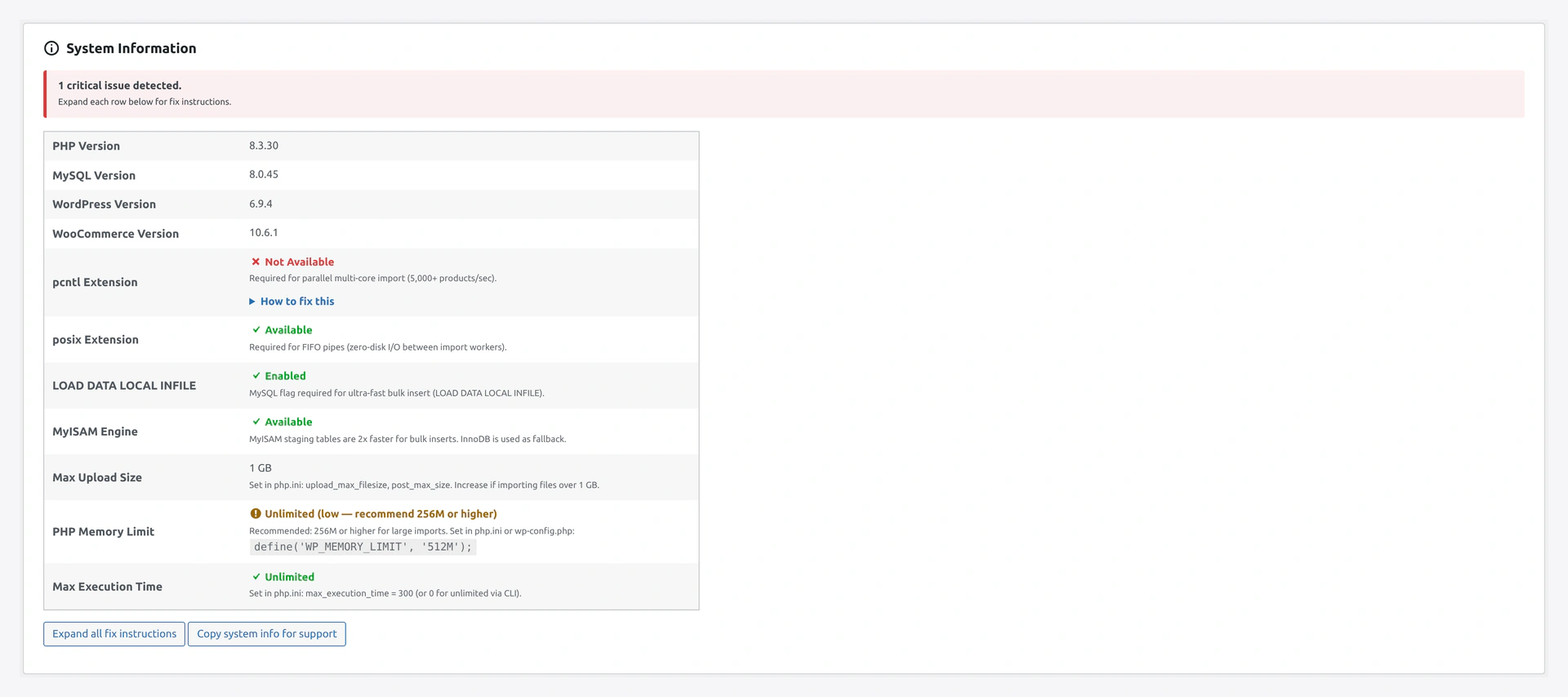 Screenshot: Dashboard System Information card showing PHP and MySQL values.
Via phpinfo()
Create a file phpinfo.php in your site root:
<?php phpinfo();
Visit https://your-site.com/phpinfo.php. Look for these values:
memory_limitmax_execution_timeupload_max_filesizepost_max_size
Delete the file after checking — it reveals server info that should not be public.
Via WP-CLI
wp eval "echo 'Memory: ' . ini_get('memory_limit') . PHP_EOL;"
wp eval "echo 'Time: ' . ini_get('max_execution_time') . PHP_EOL;"
wp eval "echo 'Upload: ' . ini_get('upload_max_filesize') . PHP_EOL;"
Recommended Values
| Setting | Minimum | Recommended | Heavy Use |
|---|---|---|---|
memory_limit | 256M | 512M | 1G |
max_execution_time | 300 | 600 | 0 (unlimited) |
upload_max_filesize | 64M | 256M | 1G |
post_max_size | 64M | 256M | 1G |
max_input_vars | 3000 | 5000 | 10000 |
How to Change Settings
The way depends on your hosting.
Method 1 — php.ini (VPS / Dedicated)
Edit /etc/php/8.3/fpm/php.ini (path varies):
memory_limit = 512M
max_execution_time = 600
upload_max_filesize = 256M
post_max_size = 256M
max_input_vars = 5000
Restart PHP-FPM:
sudo systemctl restart php8.3-fpm
Method 2 — .htaccess (Shared Hosting, Apache)
Add to .htaccess in your WordPress root:
php_value memory_limit 512M
php_value max_execution_time 600
php_value upload_max_filesize 256M
php_value post_max_size 256M
php_value max_input_vars 5000
Works only if your host allows .htaccess overrides.
Method 3 — user.ini (Shared Hosting, PHP-FPM)
Create .user.ini in your WordPress root:
memory_limit = 512M
max_execution_time = 600
upload_max_filesize = 256M
post_max_size = 256M
Restart the site or wait 5 minutes for changes to apply.
Method 4 — wp-config.php (WordPress-Specific)
For memory only, add to wp-config.php:
define( 'WP_MEMORY_LIMIT', '512M' );
define( 'WP_MAX_MEMORY_LIMIT', '1024M' );
This raises WordPress's memory limit but not general PHP limits.
Method 5 — cPanel Multi-PHP Manager
- Log into cPanel
- Software → MultiPHP INI Editor
- Pick your domain
- Change values in the Basic tab
- Apply
Method 6 — Ask Your Host
If you cannot change these yourself, email your host with:
Please increase these PHP limits for my site:

memory_limit = 512M
max_execution_time = 600
upload_max_filesize = 256M
post_max_size = 256M
Most hosts do this within a few hours.
Verifying Changes
After changing, refresh the Dashboard. The System Info card updates immediately.
Or via WP-CLI:
wp eval "echo ini_get('memory_limit');"
PHP Extensions
The plugin needs these extensions. Check via:
php -m | grep -E "pcntl|posix|curl|json|mbstring|zip|xml"
Each should be listed.
Install Missing Extensions
Ubuntu / Debian:
sudo apt-get install php8.3-{pcntl,posix,curl,json,mbstring,zip,xml}
sudo systemctl restart php8.3-fpm
CentOS / RHEL:
sudo dnf install php-{process,pcntl,curl,json,mbstring,zip,xml}
sudo systemctl restart php-fpm
macOS (Homebrew):
brew install [email protected]
pcntl — The Big One
pcntl_fork enables parallel processing. Without it, imports are 10x slower.
Check:
php -r "var_dump(function_exists('pcntl_fork'));"
If false, install it (see above). Some shared hosts do not allow pcntl — you may need to upgrade to a VPS for max speed.
MySQL Configuration
LOAD DATA LOCAL INFILE
Required for the plugin's fast bulk loader.
Check:
wp db query "SHOW VARIABLES LIKE 'local_infile';"
If value is OFF, enable it:
As MySQL admin:
SET GLOBAL local_infile = 1;
Permanently in my.cnf:
[mysqld]
local_infile = 1
Restart MySQL after editing.
Or ask your host:
Please enable LOAD DATA LOCAL INFILE for my MySQL user.
The WooCommerce import plugin requires this for bulk imports.
Innodb Buffer Pool
For large imports, increase MySQL buffer:
[mysqld]
innodb_buffer_pool_size = 2G
Rule of thumb: 70-80% of available RAM.
MySQL Max Allowed Packet
For very wide rows (many columns):
[mysqld]
max_allowed_packet = 128M
WordPress Configuration
Debug Mode (For Troubleshooting)
Add to wp-config.php:
define( 'WP_DEBUG', true );
define( 'WP_DEBUG_LOG', true );
define( 'WP_DEBUG_DISPLAY', false );
Errors log to /wp-content/debug.log. Disable display so errors don't appear on the frontend.
Disable WP Cron (For Real Cron)
Add to wp-config.php before moving cron to the server:
define( 'DISABLE_WP_CRON', true );
See Server Cron Setup.
Server Considerations
CPU Cores
The plugin uses parallel processing. More cores = faster imports.
Check:
nproc
Typical values:
- Shared hosting: 1-2 cores (limited)
- Entry VPS: 2-4 cores
- Standard VPS: 4-8 cores
- Dedicated: 8+ cores
RAM
| Store Size | Recommended RAM |
|---|---|
| < 10K products | 2 GB |
| 10K - 100K | 4 GB |
| 100K - 1M | 8 GB |
| > 1M | 16 GB+ |
Disk Space
Budget for:
- WordPress install: 200 MB
- WooCommerce + plugins: 500 MB
- Media Library: growing (images add up)
- Database: usually 10-500 MB
For a 100K product store with images: expect 5-10 GB.
Nginx vs Apache
Both work. Nginx is usually faster for high-traffic sites.
Nginx Config for Large Uploads
client_max_body_size 256M;
client_body_buffer_size 256M;
fastcgi_read_timeout 600;
Apache Config
Already covered via .htaccess above.
Cloudflare / CDN Considerations
If your site is behind Cloudflare:
- Cloudflare has its own upload limit (usually 100MB on free tier, 500MB on Pro, 5GB on Business)
- For large imports, upload via FTP / SFTP / Server Path instead of through the browser
- Or bypass Cloudflare for
/wp-admin/*URLs via a page rule
Host-Specific Notes
Kinsta
- Default memory: 512M (good)
- Cron: Via MyKinsta dashboard
- pcntl: Available on most plans
WP Engine
- Default memory: 512M
- Cron: Real cron, not WP-Cron
- pcntl: Contact support to enable
Siteground
- Default memory: 256M (raise via Site Tools → PHP Manager)
- Cron: Tools → Cron Jobs
- pcntl: Some plans only
Bluehost / HostGator / GoDaddy
- Often limited PHP settings
- No pcntl on shared plans
- Consider VPS for heavy use
Troubleshooting
| Problem | Fix |
|---|---|
| "Allowed memory size exhausted" | Increase memory_limit to 512M or higher |
| "Maximum execution time exceeded" | Increase max_execution_time to 600 or 0 |
| "File too large" on upload | Increase upload_max_filesize AND post_max_size |
| Changes not taking effect | Restart PHP-FPM. Check you edited the right php.ini |
| Multiple php.ini files confuse | Use php --ini to list which files are loaded |
| Cannot edit php.ini | On shared hosting, use .htaccess or user.ini, or ask host |
Related Pages
- Installation — Initial requirements check
- Dashboard — System Info card with fix-it commands
- Server Cron Setup
- Troubleshooting