
Plugin Settings
The Settings page is where you set defaults and save credentials once so you don't retype them on every job.
Page URL: /wp-admin/admin.php?page=wkaie-settings
Page title: "Import/Export Settings"
The 7 Tabs
Click each tab at the top of the page to switch.
| Tab | What It Controls |
|---|---|
| General | Default mode, entity, format, batch size, separators |
| Email Notifications | Email on success and failure |
| Notification Channels | Slack, Teams, Telegram, WhatsApp, webhooks |
| Cloud Storage & API | Google, S3, Dropbox, OneDrive, FTP credentials |
| Image & Media | Image download, resize, watermark |
| Performance & Advanced | Worker count, batch size, retention |
| Third-Party Compatibility | 15 plugin integrations |
Tab 1 — General
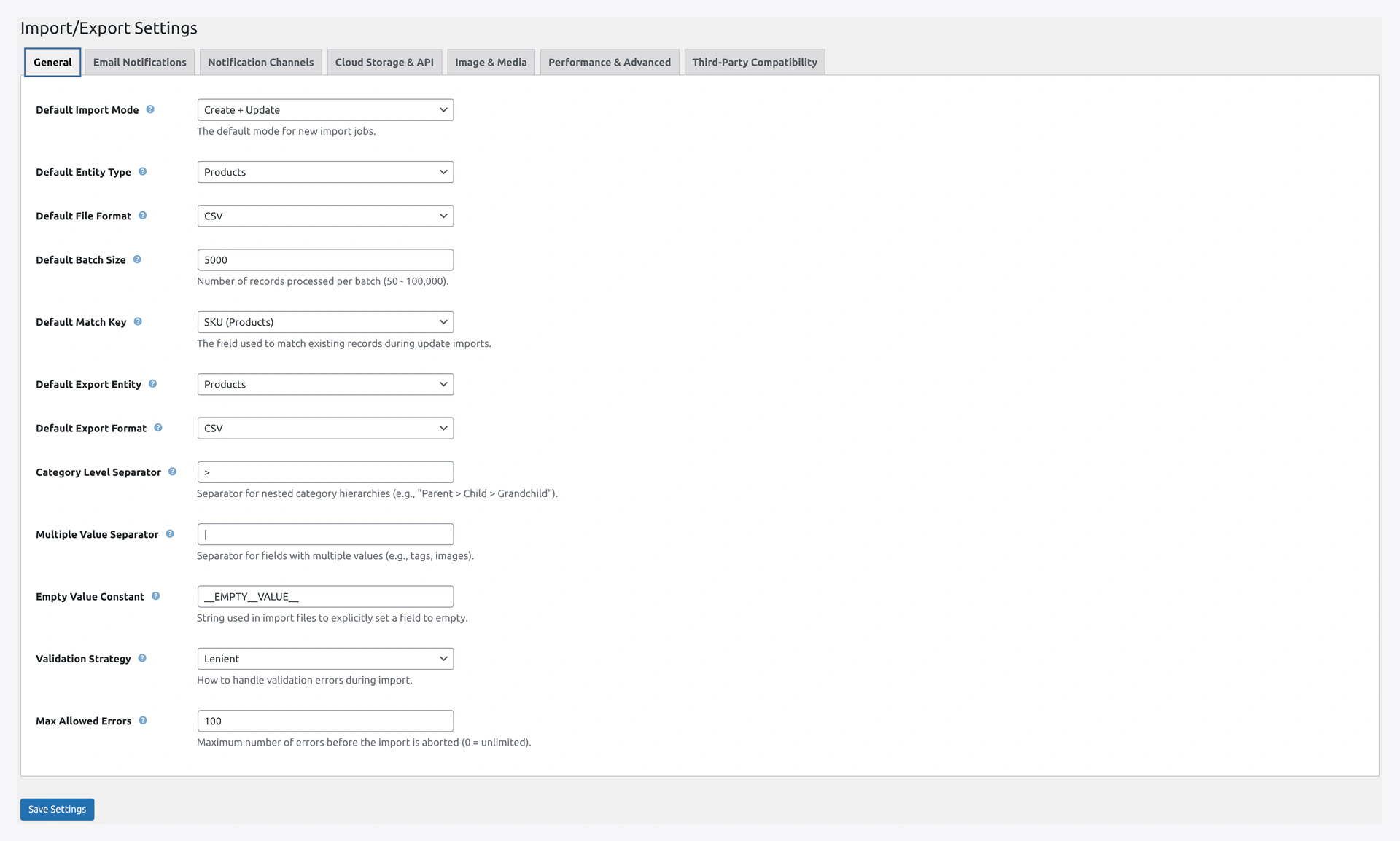 Settings → General tab with default values.
Field Reference
| # | Field Label | What It Does |
|---|---|---|
| 1 | Default Import Mode | Pre-selects the mode on new import jobs (Create Only, Update Only, Create + Update, Delete, Replace) |
| 2 | Default Entity Type | Pre-selects the entity (Products, Orders, Customers, etc.) |
| 3 | Default File Format | Pre-selects the format (CSV, XML, JSON, XLSX, ODS) |
| 4 | Default Batch Size | How many rows process per batch. Min 50, max 100,000 |
| 5 | Default Match Key | How to find existing records: SKU, ID, Email, Slug, Order Number, Title, Coupon Code |
| 6 | Default Export Entity | Pre-selects entity on Quick Export (Products, Orders, etc.) |
| 7 | Default Export Format | Pre-selects export format (CSV, JSON, XML) |
| 8 | Category Level Separator | Symbol for nested categories. Default: > |
| 9 | Multiple Value Separator | Symbol for multiple values in one cell. Default: | |
| 10 | Empty Value Constant | String that means "clear the field." Default: __EMPTY__VALUE__ |
| 11 | Validation Strategy | Strict, Lenient, Skip Errors, Stop on Error, or Force |
| 12 | Max Allowed Errors | Stop after N errors. 0 = unlimited |
Recommended Batch Sizes
| Store Size | Batch Size |
|---|---|
| Under 10,000 products | 500 |
| 10,000 to 100,000 | 1000 |
| 100,000 to 1 million | 2000 |
| Over 1 million | 5000 |
Validation Strategy Options
| Strategy | What It Does |
|---|---|
| Strict | Fail the whole import if any row has errors |
| Lenient | Log warnings but import everything |
| Skip Errors | Skip bad rows, continue with good ones |
| Stop on Error | Stop at the first error |
| Force | Ignore validation, import everything |
Click Save Changes
The button at the bottom of the tab says Save Changes.
Tab 2 — Email Notifications
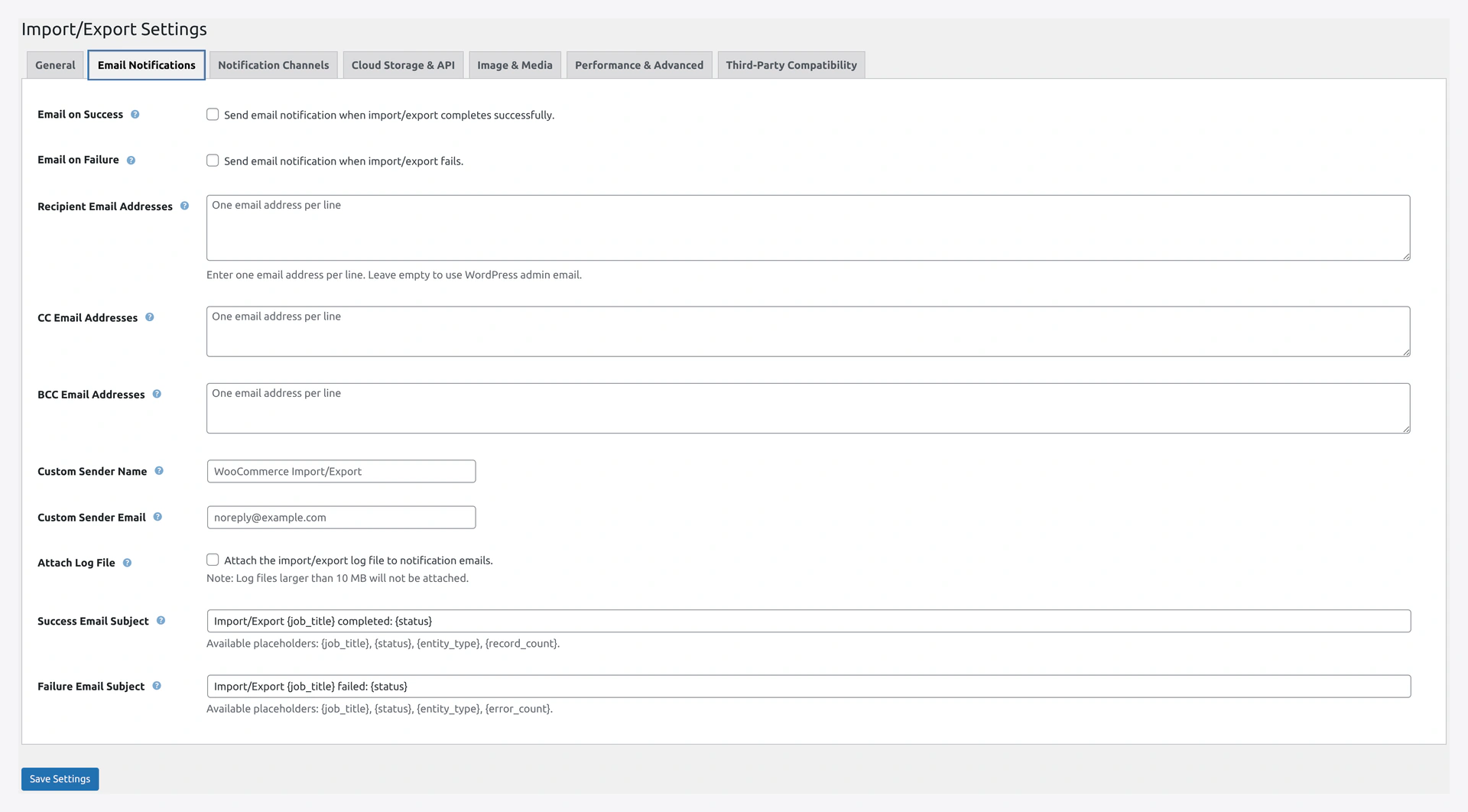 Settings → Email Notifications tab.
Field Reference
| # | Field Label | What It Does |
|---|---|---|
| 1 | Email on Success (checkbox) | Send email when a job completes successfully |
| 2 | Email on Failure (checkbox) | Send email when a job fails |
| 3 | Recipient Email Addresses | Comma or newline-separated list. Empty = WP admin email |
| 4 | CC Email Addresses | Carbon-copy list |
| 5 | BCC Email Addresses | Blind copy list |
| 6 | Custom Sender Name | "From" name in emails |
| 7 | Custom Sender Email | "From" address. Must be valid for your server |
Subject and Body Templates
Further down, you can customize email subject and body with these variables:
| Variable | Value |
|---|---|
{job_title} | Name of the job |
{status} | "Success" or "Failed" |
{record_count} | Total rows processed |
{entity_type} | "Products", "Orders", etc. |
{error_count} | Number of errors |
Setting Up SMTP
WordPress's built-in mail is often broken. See Email Setup for configuring SMTP via WP Mail SMTP or SendGrid.
Tab 3 — Notification Channels
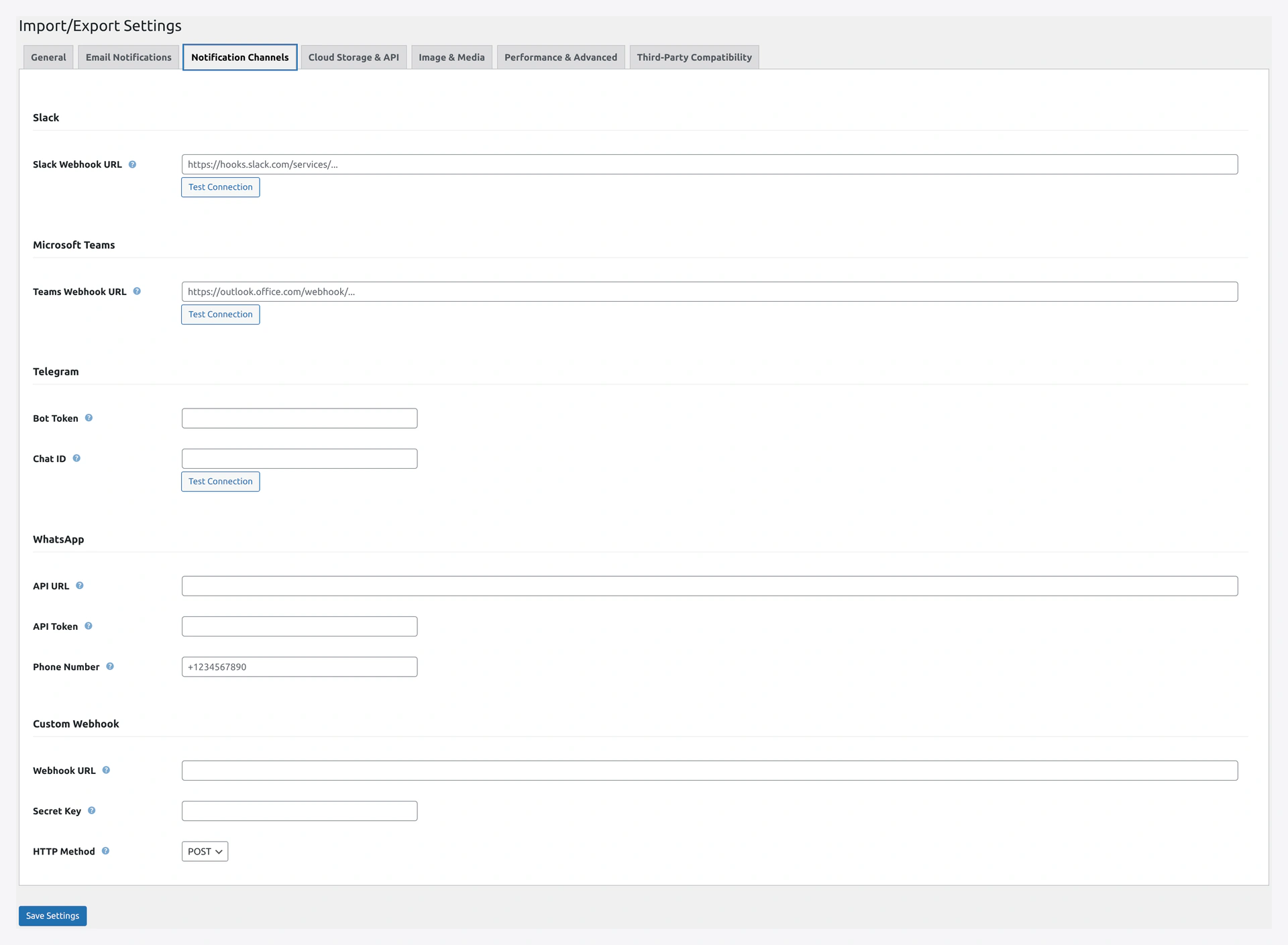 Screenshot: Slack, Microsoft Teams, Telegram, WhatsApp, and Custom Webhook channels.
For team notifications beyond email.
Slack Section
- Slack Webhook URL — paste the webhook from your Slack app
- Test Connection button
Microsoft Teams Section
- Teams Webhook URL — from Teams connector
- Test Connection button
Telegram Section
- Bot Token — from @BotFather on Telegram
- Chat ID — your chat or channel ID
- Test Connection button
WhatsApp Section
- API URL — your WhatsApp API endpoint
- API Token — API token
- Phone Number — with country code, e.g.,
+1234567890
Custom Webhook Section
- Webhook URL — any URL that accepts POST
- Secret Key — for validating the request
- HTTP Method — POST or PUT
Tab 4 — Cloud Storage & API
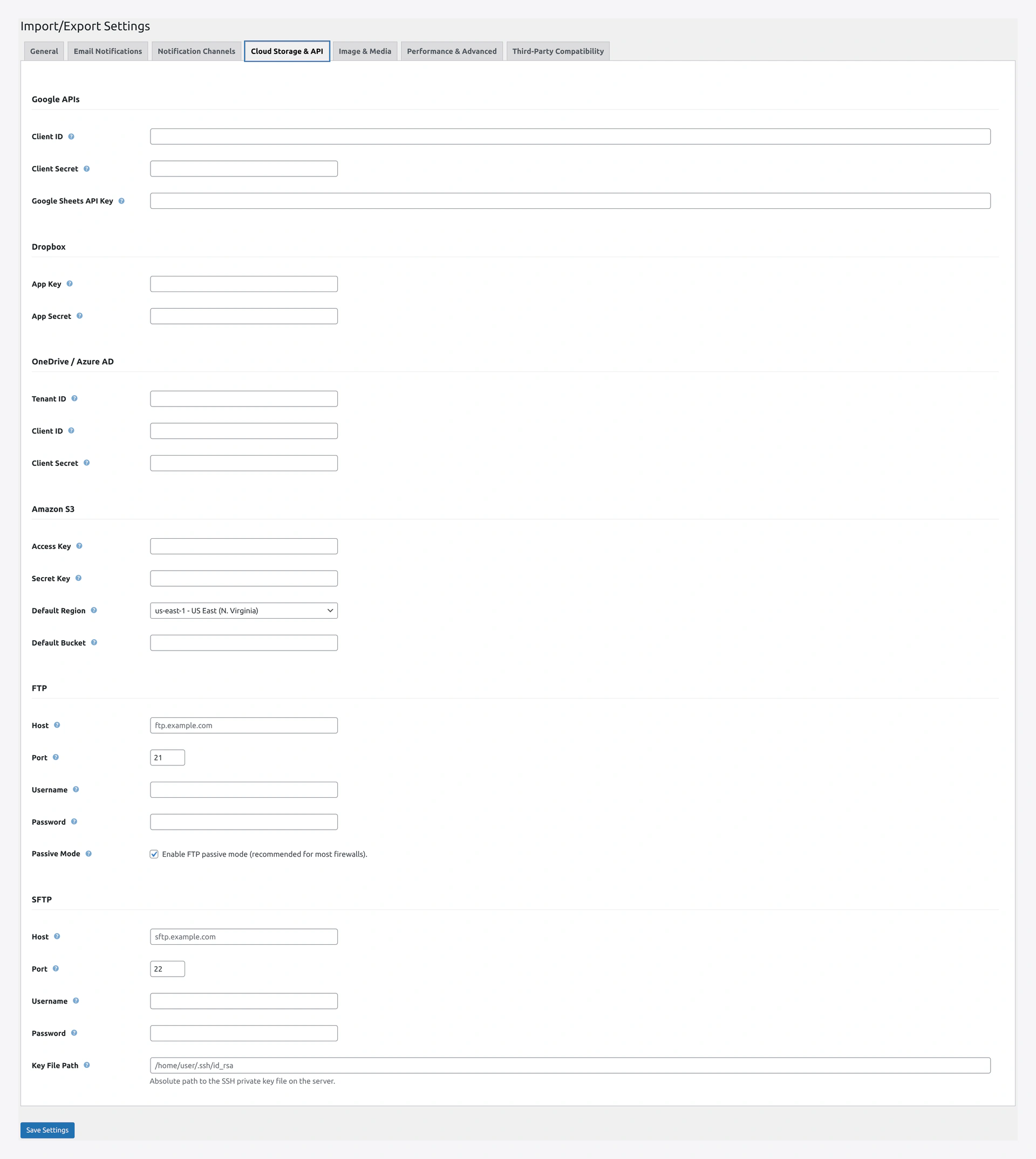 Screenshot: Google APIs, Dropbox, OneDrive / Azure AD, Amazon S3, FTP, and SFTP credentials in one place.
Credentials for remote sources and destinations.
Google APIs Section
| Field | What It Does |
|---|---|
| Client ID | OAuth Client ID from Google Cloud |
| Client Secret | OAuth Client Secret |
| Google Sheets API Key | Read-only access to public sheets |
Setup details: Google API Setup.
Dropbox Section
| Field | What It Does |
|---|---|
| App Key | Dropbox app key |
| App Secret | Dropbox app secret |
Setup details: Dropbox Setup.
OneDrive / Azure AD Section
| Field | What It Does |
|---|---|
| Tenant ID | Azure AD tenant ID |
| Client ID | Azure AD app client ID |
| Client Secret | Azure AD app client secret |
Amazon S3 Section
| Field | What It Does |
|---|---|
| Access Key | AWS IAM Access Key ID |
| Secret Key | AWS IAM Secret Access Key |
| Default Region | Dropdown with all AWS regions |
| Default Bucket | Bucket name |
Setup details: Amazon S3 Setup.
FTP Section (Default Credentials)
| Field | Example |
|---|---|
| Host | ftp.example.com |
| Port | 21 |
| Username | your user |
| Password | (hidden) |
| Passive Mode | Checkbox |
SFTP Section (Default Credentials)
| Field | Example |
|---|---|
| Host | sftp.example.com |
| Port | 22 |
| Username | your user |
| Password | (hidden) |
| Key Path | Path to SSH private key |
Tab 5 — Image & Media
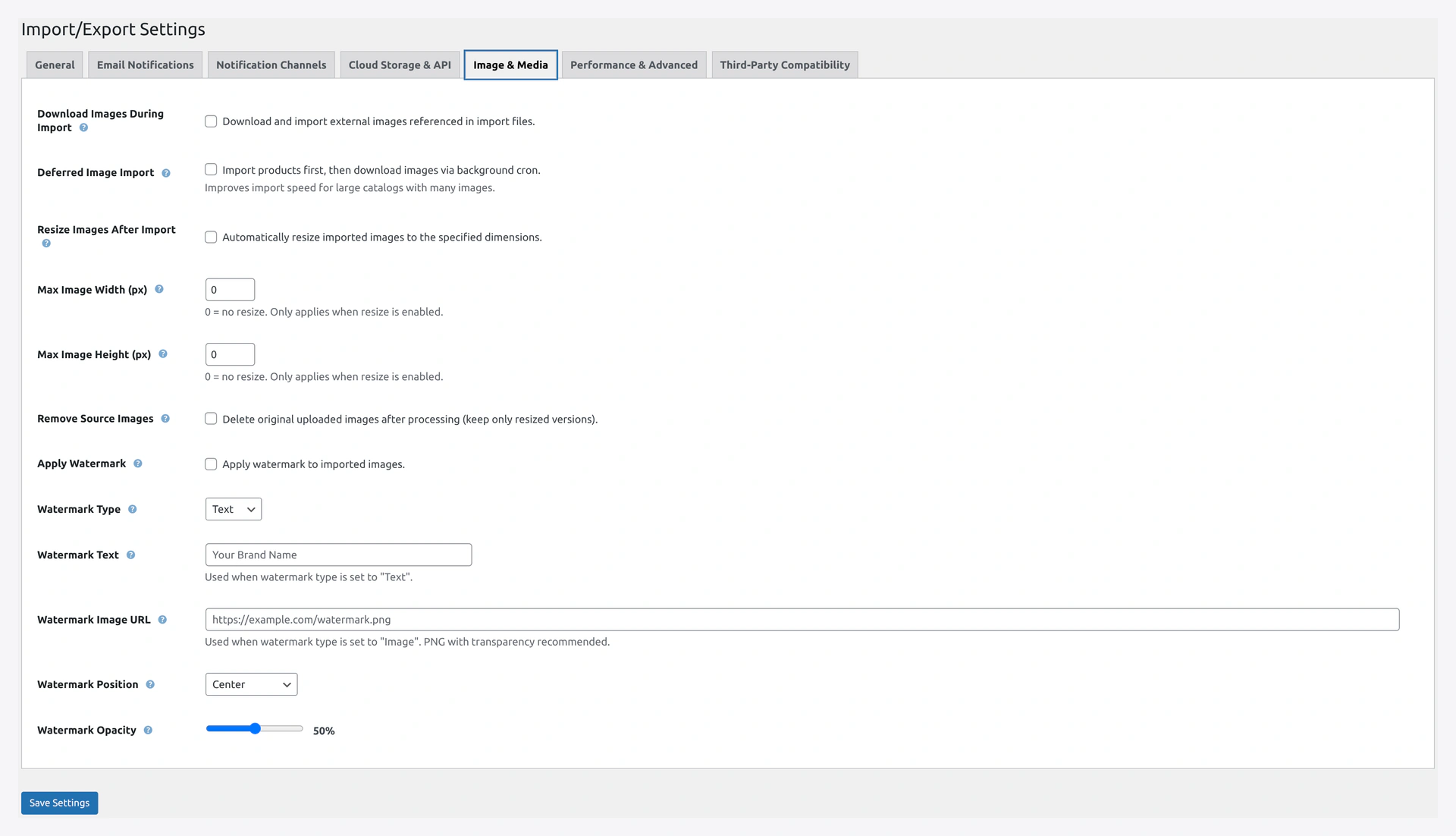 Screenshot: Image handling controls — download, resize, watermark, and media library rules.
Field Reference
| Field | What It Does |
|---|---|
| Download Images | Download product images to Media Library during import |
| Use External URLs | Skip download, use URLs directly |
| Deferred Image Import | Finish import first, download images in background |
| Resize Images | Resize after download |
| Max Image Width | Maximum width in pixels |
| Max Image Height | Maximum height in pixels |
| Apply Watermark | Add watermark to imported images |
| Watermark Type | Text or Image |
| Watermark Text | Your watermark text |
| Watermark Image URL | URL of watermark image (e.g., logo) |
| Watermark Position | Top-left, Top-right, Bottom-left, Bottom-right, Center |
| Watermark Opacity | 0 (invisible) to 100 (solid) |
| Delete Source on Import | Delete the image file from FTP/SFTP after import |
Details: Image Handling.
Tab 6 — Performance & Advanced
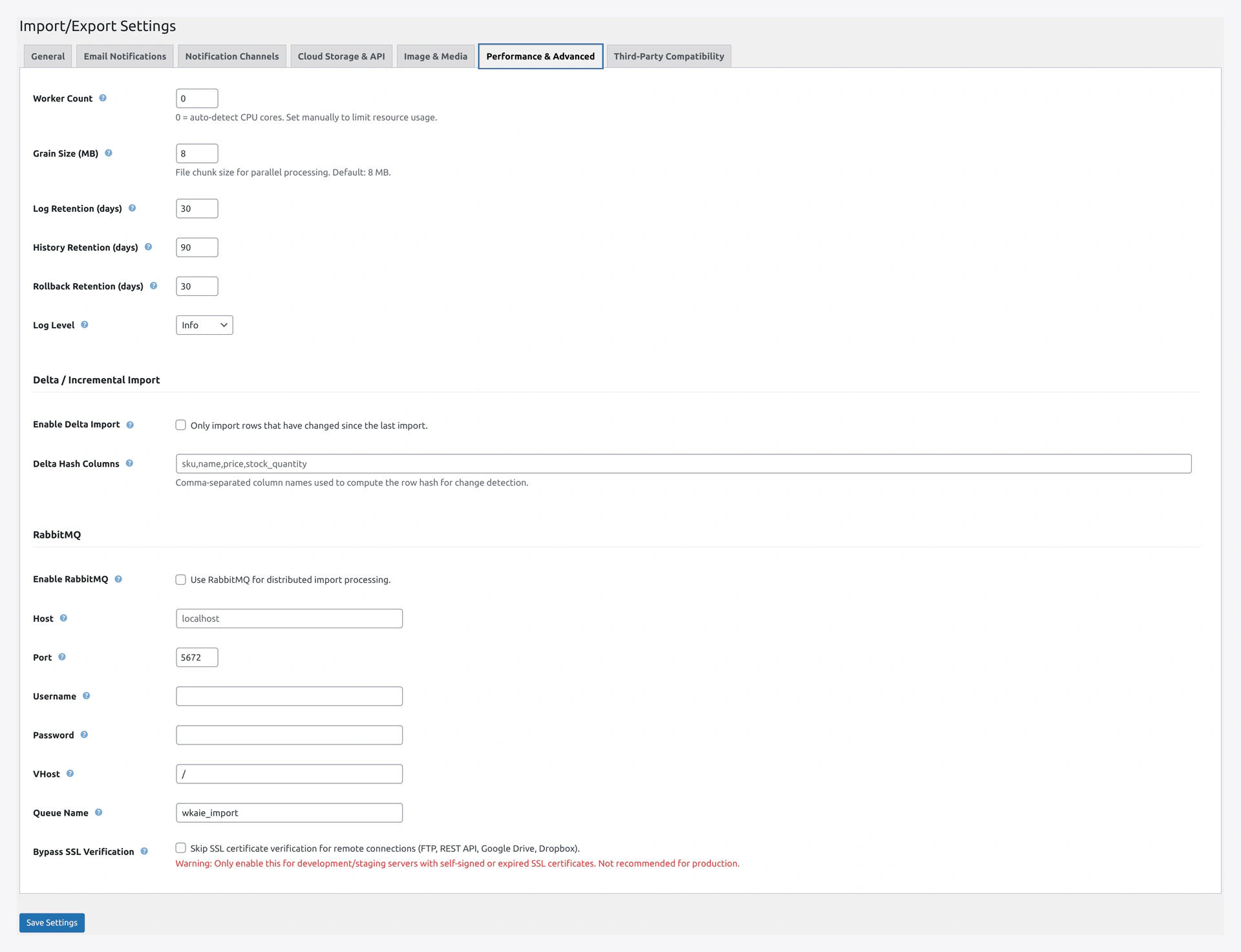 Screenshot: Delta / Incremental Import, RabbitMQ, and tuning knobs for large-scale runs.
Settings for server-level performance.
| Field | What It Does |
|---|---|
| Worker Count | Number of parallel workers. 0 = auto-detect CPU cores |
| Grain Size (MB) | File chunk size per worker. Default 8 |
| Disable Indexes During Import | Speed boost. Default on |
| Disable Foreign Key Checks | Speed boost. Default on |
| Use MyISAM Staging | 2x faster staging. Default on |
| Staging Table Retention | How long to keep staging after failed import |
| Log Level | Error / Warning / Info (default) / Debug |
| Log Retention (Days) | Auto-delete logs after N days |
| Rollback Retention (Days) | Auto-delete rollback snapshots after N days |
| Max Log Size per Run (MB) | Cap log file size |
Advanced Buttons (Bottom of Tab)
- Export Settings — download JSON backup of all settings
- Import Settings — restore from JSON backup
- Reset Plugin — wipe everything and start fresh
Reset is final
Reset wipes jobs, history, mappings, settings. Cannot be undone. Use only when you really want a clean slate.
Tab 7 — Third-Party Compatibility
Turn on integration with 15 popular plugins.
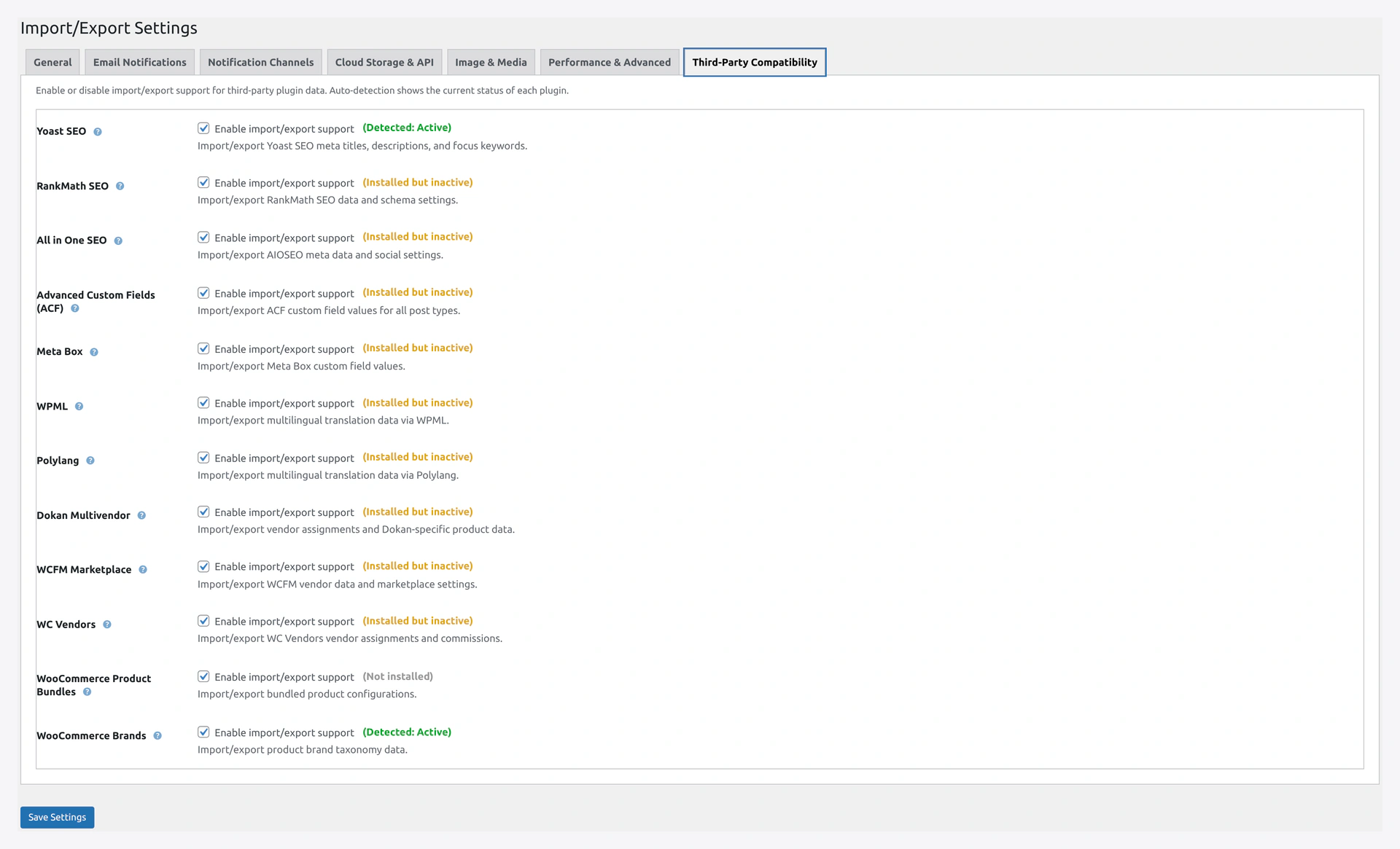 Compatibility tab — each plugin with detection badge and toggle.
For each plugin, a status badge appears:
- Detected: Active (green) — plugin is installed and active
- Installed but inactive (yellow) — activate the plugin
- Not installed (gray) — install it first
Check the box next to each plugin you want to support.
The 15 plugins supported:
- Yoast SEO
- RankMath SEO
- All in One SEO
- Advanced Custom Fields (ACF)
- Meta Box
- WPML
- Polylang
- Dokan
- WCFM Marketplace
- WC Vendors
- WooCommerce Brands
- WooCommerce Product Bundles
- WooCommerce Composite Products
- WooCommerce Product Add-ons
Full details: Compatibility.
Save Changes
Every tab has a Save Changes button at the bottom. Click after editing.
Troubleshooting
| Problem | Fix |
|---|---|
| "Save Changes" does nothing | Check your user role has manage_options capability |
| Tab does not switch | Clear browser cache. JS may be stuck |
| Google API key works but OAuth fails | Redirect URI in OAuth app must match your site URL exactly |
| S3 credentials test fails | Check IAM permissions. Need s3:GetObject and s3:ListBucket at minimum |
| FTP test passes but import fails | FTP server may block passive mode. Try SFTP or Active mode |
| Email notifications never arrive | WordPress mail is often broken. See Email Setup |
| Compat plugin shows "Not installed" | Main plugin file path may differ. Install the exact plugin |
Related Pages
- Compatibility — Third-party plugin integrations
- Import Sources — Use saved credentials
- Email Setup — Make email actually work
- Google API Setup
- Amazon S3 Setup
- Dropbox Setup