
Common Mistakes and How to Avoid Them
Learn from other people's mistakes. These are the top 20 things users get wrong.
File Preparation
Mistake 1 — Saving CSV in Excel Without UTF-8
What happens: Special characters (é, ñ, ü) turn into garbage after import.
Why: Excel defaults to Windows-1252 encoding, not UTF-8.
Fix:
- Excel: File → Save As → CSV UTF-8 (Comma delimited) — not just "CSV"
- Google Sheets: always saves UTF-8 by default
- LibreOffice: File → Save As → check "Keep current format" → pick UTF-8
See CSV Preparation → Encoding.
Mistake 2 — Leading Zeros Stripped by Excel
What happens: ZIP codes like 00123 become 123. Product codes with leading zeros break.
Why: Excel treats numeric-looking text as numbers.
Fix:
- Format the column as Text before entering data
- Or prefix values with
'('00123) - Or edit CSVs in a text editor, not Excel
Mistake 3 — European vs US Decimal Separator
What happens: Prices show as 0 or completely wrong.
Why: European Excel uses , for decimals: 29,99. US uses .: 29.99.
Fix:
- Standardize on
.for decimals - Or use Transformations to convert during import
Mistake 4 — Unquoted Commas in Values
What happens: Product name "Coffee Mug, 12oz" splits into two columns.
Why: Commas inside values must be wrapped in double quotes.
Fix:
SKU,Name,Price
WK-001,"Coffee Mug, 12oz",18.50
Always quote values that contain commas.
Mistake 5 — Using the Wrong Delimiter
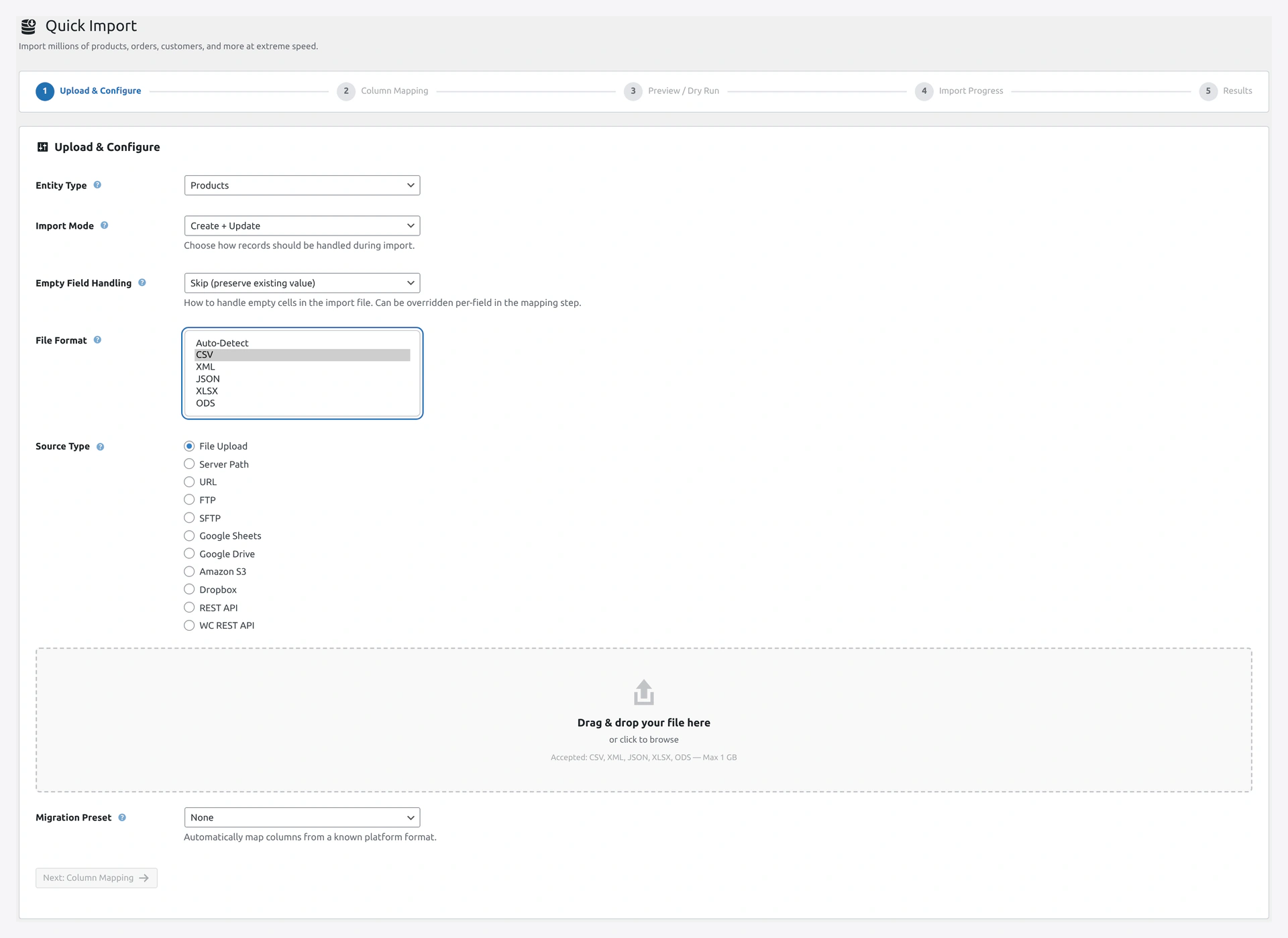 Screenshot: File Format dropdown — Auto-Detect usually works; force CSV if the delimiter trips up auto-detection.
What happens: Plugin sees all your data as one column.
Why: Your file uses ; but the plugin defaulted to ,.
Fix:
- The plugin auto-detects most delimiters
- If not, set in wizard Step 2 → Separators
Variable Products
Mistake 6 — Parent Row After Variations
What happens: All variations fail to import.
Why: Variations reference parent SKU. Parent must exist first.
Fix: Put the variable row first. variation rows after it.
See Variable Products.
Mistake 7 — Missing Parent Column on Variations
What happens: Variations become orphaned (no parent link).
Fix: Every variation row must have Parent = parent's SKU.
Mistake 8 — Attribute Values Not Matching Parent
What happens: Variation shows "No valid attribute combination."
Why: Parent row lists colors as "Red, Blue, Green" but a variation has Color = Yellow — not in the parent list.
Fix: Every value used in variations must appear in the parent row's attribute list.
Mistake 9 — Duplicate SKUs Across Variations
What happens: WooCommerce rejects the import.
Fix: Every variation SKU must be unique across the entire store.
Import Modes
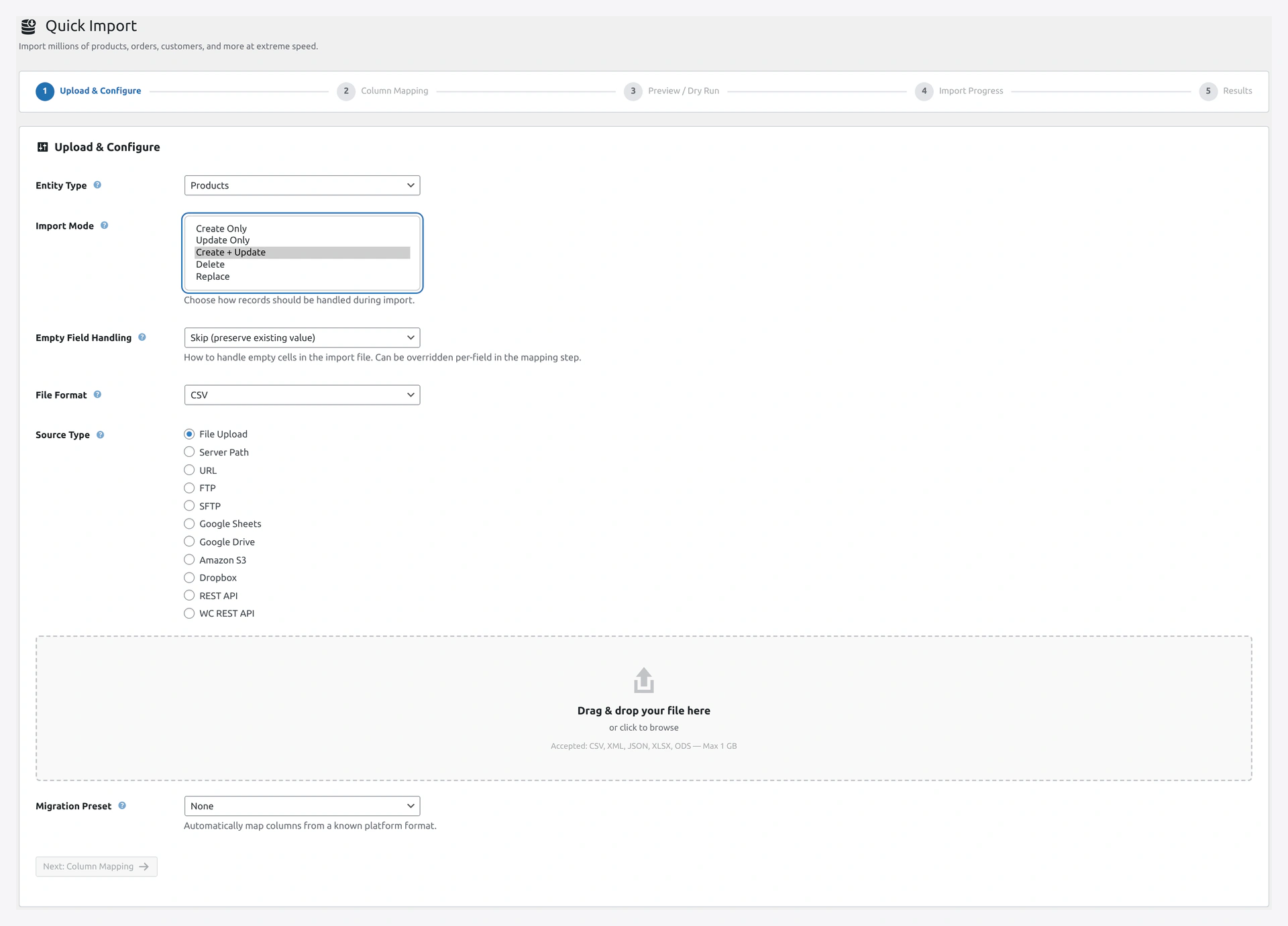 Screenshot: Import Mode — Create Only, Update Only, Create + Update, Delete, Replace. Wrong mode is the root cause of most "nothing happened" reports.
Mistake 10 — Using "Create Only" When Products Already Exist
What happens: Everything shows "Skipped." No products created.
Why: Create Only only adds NEW products. If all SKUs already exist, nothing happens.
Fix: Use Create + Update for mixed files.
Mistake 11 — Using "Replace" on a Live Store
What happens: All your existing products are deleted.
Why: Replace mode wipes everything first, then imports.
Fix: Never use Replace on production. Use Create + Update or Update Only.
Mistake 12 — Wrong Match Key
What happens: Updates don't match. Plugin creates duplicates.
Why: Products match on SKU by default. If your CSV uses a different column, the match fails.
Fix: Set the correct Match Key in Settings or wizard Step 3.
Mapping and Fields
Mistake 13 — Not Mapping Required Fields
What happens: Import fails validation.
Why: Products need SKU or Name. Orders need Order Number. Customers need Email.
Fix: Map required fields (marked with red star) in Step 2.
Mistake 14 — Mapping Image Column to Featured Image
What happens: Only the first image shows. Gallery is empty.
Why: The Images field handles featured + gallery. If you map to Featured Image only, the rest are ignored.
Fix: Map to Images (plural). First URL becomes featured, rest go in gallery.
Mistake 15 — Category Hierarchy Not Working
What happens: Nested categories are created at the top level instead of nested.
Why: Your file uses / but the plugin expects >.
Fix: Set the separator in wizard Step 2 → Separators → Category Level Separator.
Scheduling
Mistake 16 — Relying on WordPress Cron for Critical Jobs
What happens: Scheduled imports miss their times on low-traffic sites.
Why: WordPress cron only fires when someone visits the site.
Fix: Set up real server cron. See Server Cron Setup.
Mistake 17 — Running Every Minute Without Delta Import
What happens: Server gets hammered. Imports overlap and fail.
Why: A daily feed should not run every minute.
Fix:
- Pick the right schedule (hourly, daily) based on how often data changes
- Use Delta Import to skip unchanged rows
Images and Performance
Mistake 18 — Downloading Images on First Import Without Deferred Mode
What happens: Import takes 30x longer than it should.
Why: Each image download is an HTTP request.
Fix: Turn on Deferred Image Import in Settings. Finish the import fast, download images in background.
Mistake 19 — Not Backing Up Before Big Imports
What happens: Something goes wrong and you have no backup.
Why: Rollback is great but might not cover everything (e.g., images in Media Library).
Fix:
- Always take a database backup before big imports
- Use UpdraftPlus or similar
- Test on staging first
Mistake 20 — Ignoring System Info Warnings
What happens: Imports are 10x slower or fail on big files.
Why: Dashboard shows yellow/red warnings but users skip them.
Fix: Check Dashboard → System Information. Fix every yellow and red item before importing.
Plugin Integrations
Mistake 21 — Enabling Compat After Import
What happens: Yoast/RankMath/ACF fields ignored during import.
Why: Compat plugins are only read if enabled BEFORE the import starts.
Fix: Enable compat in Settings → Third-Party Compatibility → Save → THEN import.
Mistake 22 — WPML Without Sitepress
What happens: Language import appears to work but translations don't link.
Why: The plugin supports WPML via the free woocommerce-multilingual plugin, but full translation features require the paid sitepress-multilingual-cms.
Fix: Either buy WPML core, or use free Polylang instead.
Testing and Safety
Mistake 23 — Not Previewing Before Running
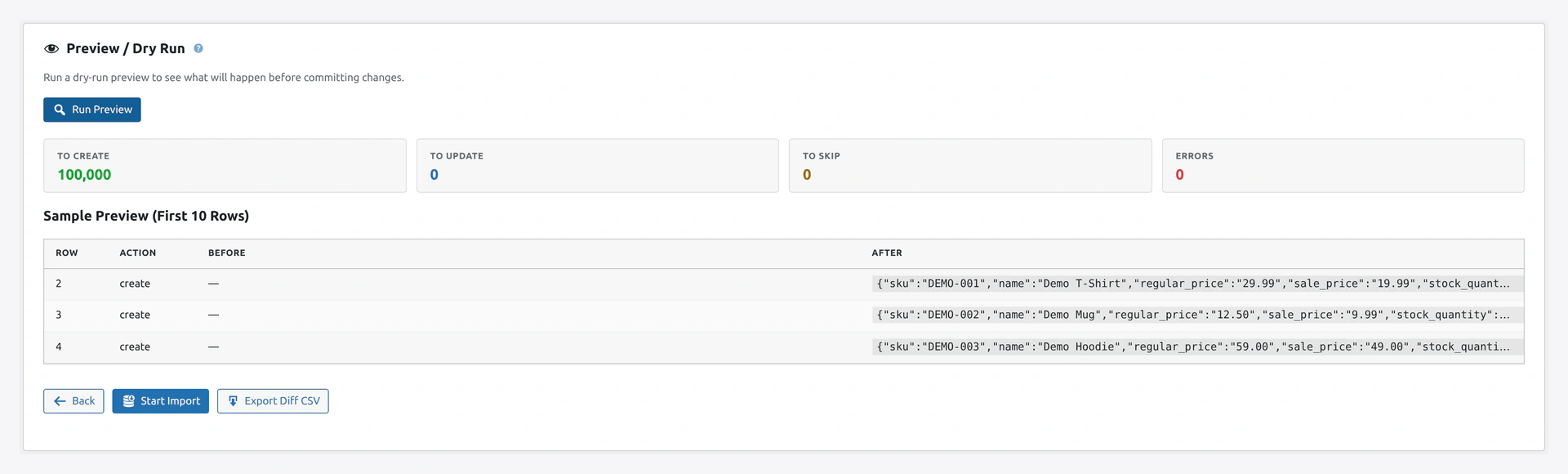 Screenshot: Step 3 preview — sample rows, create/update counts, and any errors. Read this carefully before hitting Start Import.
What happens: You find out the mapping was wrong AFTER destroying data.
Fix: Always click Run Preview in Step 3 before Start Import.
Mistake 24 — Testing on Production
What happens: One wrong click breaks your live store.
Fix: Most hosts offer free staging environments. Clone your store, test there first.
Mistake 25 — Trusting the Same Mapping for Different Files
What happens: New supplier CSV has slightly different columns. Old mapping wrecks the data.
Fix: Always review the mapping in Step 2 — even when loading a saved preset.
Pre-Flight Checklist
Before any big import:
- [ ] File is UTF-8 encoded
- [ ] First row is the header
- [ ] Commas in values are quoted
- [ ] Decimal separator is
. - [ ] Required fields (SKU, Email, etc.) are present
- [ ] Variable products: parent row first
- [ ] Right import mode picked
- [ ] Right match key picked
- [ ] Compat plugins enabled (if needed)
- [ ] Database backup taken
- [ ] Tested on staging (for production sites)
- [ ] Ran Preview in Step 3
- [ ] Reviewed column mapping
- [ ] System info shows green/yellow (no reds)
Related Pages
- CSV Preparation — Format files correctly
- Variable Products — Get variations right
- Import Modes — Pick the right mode
- Troubleshooting — When something breaks
- Rollback — Undo a bad import