
Tutorial — Google Sheets Live Sync
In this tutorial, you will set up a Google Sheet that auto-syncs with your store. Change a price in the sheet, watch the store update within 5 minutes.
Perfect for teams
Your team edits a shared spreadsheet. Products, prices, and stock update automatically. No developer needed.
Scenario
- Your team manages 500 products in a Google Sheet
- They update prices, stock, and descriptions throughout the day
- Your WooCommerce store should stay in sync
- No manual imports needed
Time Required
About 20 minutes for full setup.
Prerequisites
- WordPress with this plugin installed
- Google account
- Products already in your store (or ready to be created)
Part 1 — Prepare the Google Sheet
Step 1 — Create a New Sheet
- Go to sheets.google.com
- Click + Blank spreadsheet
- Name it
Store Products
Step 2 — Add Header Row
In Row 1, add these columns:
SKU Name Regular price Sale price Stock Categories Description
Step 3 — Add Sample Data
Add a few products:
| SKU | Name | Regular price | Sale price | Stock | Categories | Description |
|---|---|---|---|---|---|---|
| WK-TEE-001 | Cotton T-Shirt | 29.99 | 24.99 | 150 | Clothing > T-Shirts | Soft cotton tee |
| WK-MUG-002 | Coffee Mug | 18.50 | 80 | Home > Kitchen | 12oz ceramic mug | |
| WK-BOOK-003 | Notebook A5 | 9.99 | 7.99 | 200 | Stationery | 120-page notebook |
Step 4 — Make the Sheet Shareable
- Click Share (top-right)
- Click Anyone with the link (dropdown under "Get link")
- Set to Viewer (the plugin only reads, does not write)
- Click Copy link
You now have a URL like:
https://docs.google.com/spreadsheets/d/1abc123XYZ/edit?usp=sharing
Copy this URL. You'll paste it into the plugin.
Part 2 — Set Up the Import Job
Step 1 — Open Quick Import
WordPress admin → Webkul WC Addons → Quick Import.
Step 2 — Configure Step 1
Fill in:
| Field | Value |
|---|---|
| Entity Type | Products |
| Import Mode | Create + Update |
| File Format | Auto-Detect |
| Source Type | Google Sheets |
In the Google Sheets panel, paste the URL from Part 1.
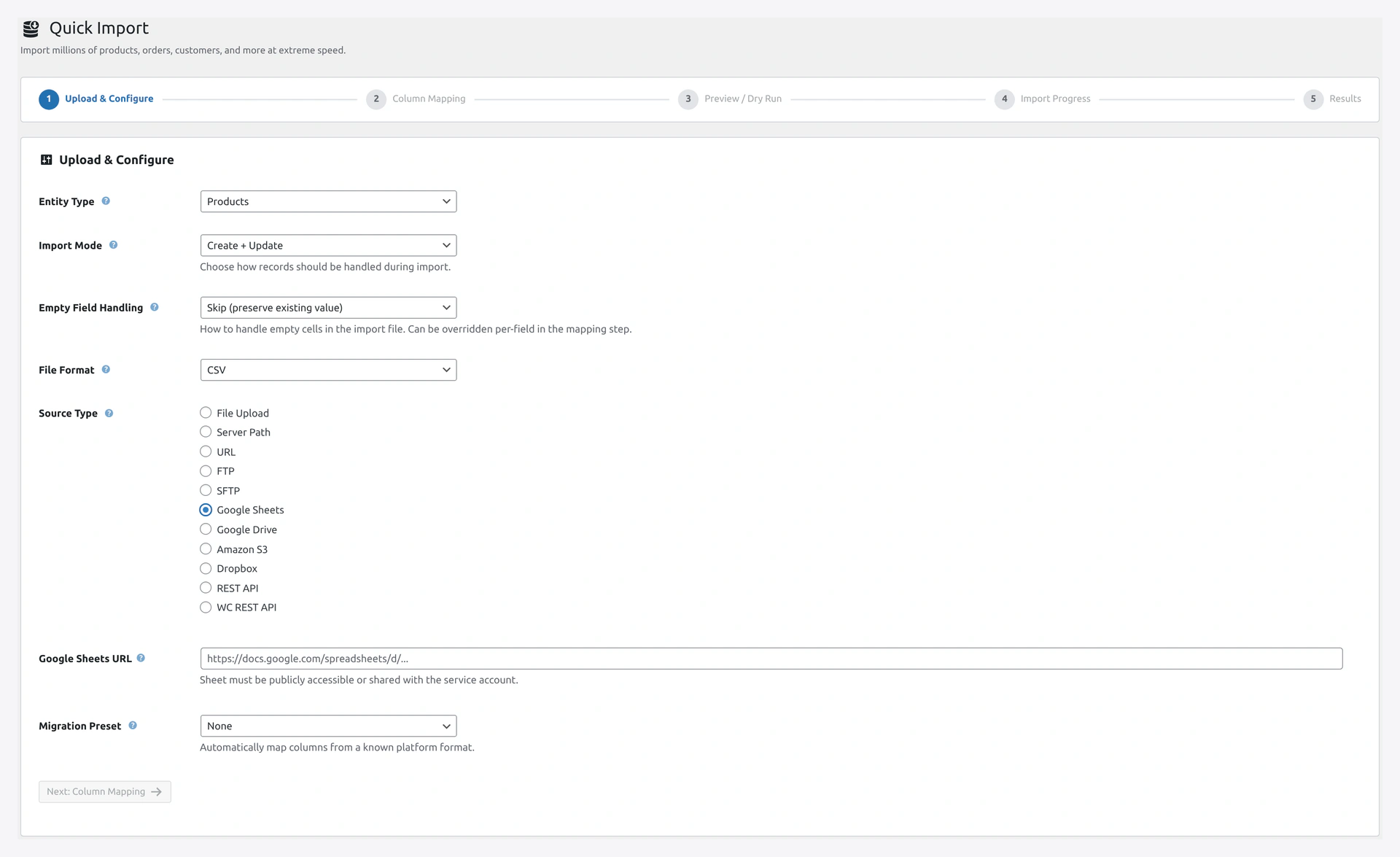 Google Sheets source panel — paste the share link, optionally pick a sheet tab, and the plugin pulls the rows live on every scheduled run.
Leave Sheet Name blank (uses the first tab).
Click Next.
Step 3 — Verify Column Mapping (Step 2)
The plugin auto-loads your sheet's headers.
| Left (Sheet) | Right (WooCommerce) |
|---|---|
| SKU | SKU |
| Name | Name |
| Regular price | Regular price |
| Sale price | Sale price |
| Stock | Stock |
| Categories | Categories |
| Description | Description |
All should auto-match. Click Next.
Step 4 — Preview (Step 3)
Step 3 shows:
- Rows found: 3
- Will create: 3
- Will update: 0 (first time)
- Errors: 0
Click Start Import.
Step 5 — Wait for Completion
Step 4 shows progress. For 3 rows, it takes 1-2 seconds.
Step 5 shows result: 3 created, 0 failed.
Step 6 — Verify in WooCommerce
Go to WooCommerce → Products. You should see 3 new products.
Part 3 — Save as a Scheduled Job
Now let's automate it.
Step 1 — Save as Job
On the result page (Step 5), click Save as Job.
Fill in:
| Field | Value |
|---|---|
| Title | Google Sheet Auto-Sync |
| Schedule | Every 5 minutes |
Click Save.
Step 2 — Verify the Job
Go to Webkul WC Addons → Jobs.
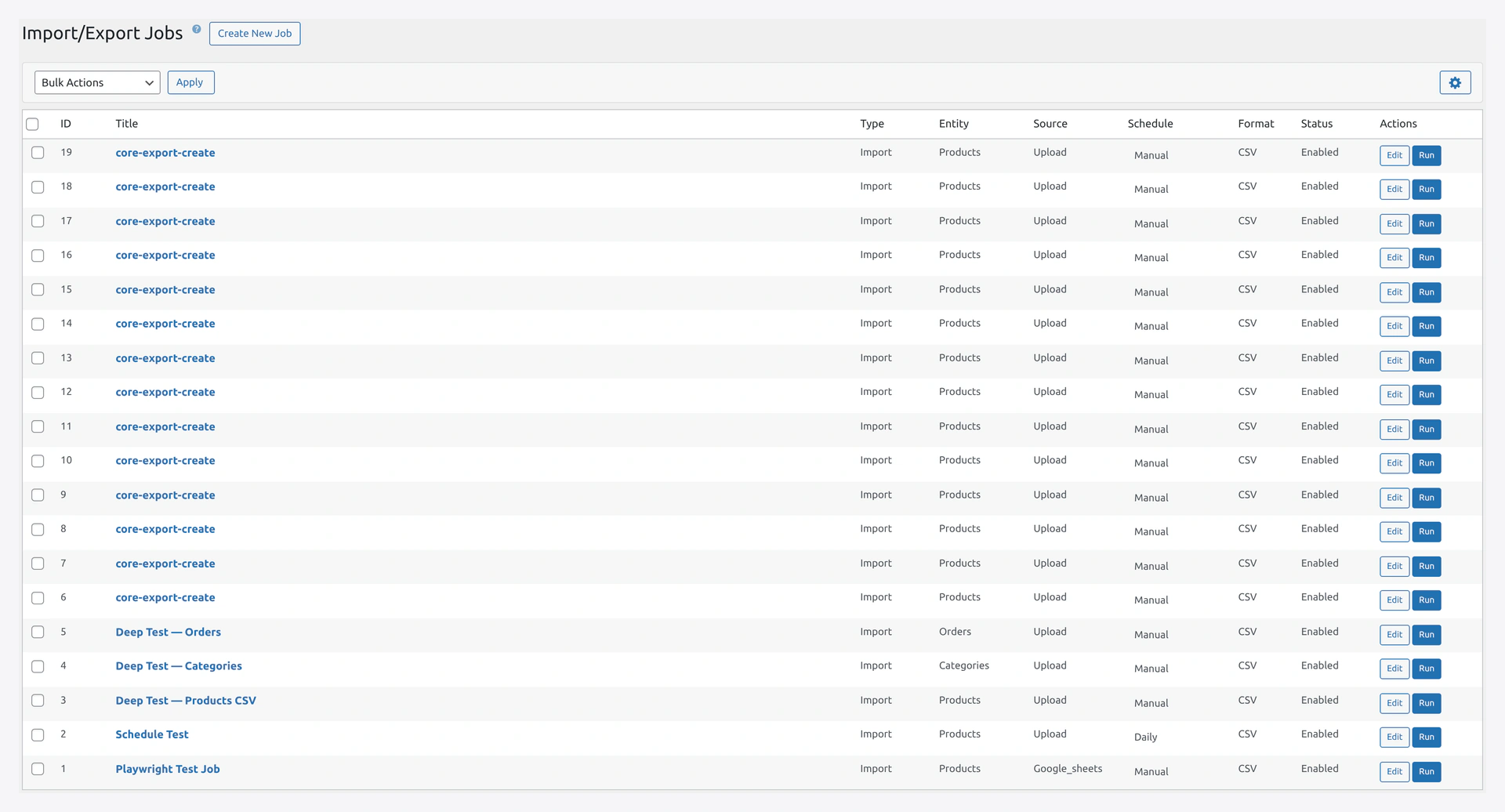 The Jobs grid lists your saved sync with an Enabled status, next run time, and a Run Now action.
You should see:
| ID | Title | Entity | Schedule | Status |
|---|---|---|---|---|
| 1 | Google Sheet Auto-Sync | Products | Every 5 minutes | Enabled |
Step 3 — Enable Delta Import (Optional but Recommended)
Open the job. Go to the Advanced tab.
- Check Delta Import (only process changed rows)
- Save
Now the job only processes rows that changed since the last run. Massive speedup for daily syncs.
Part 4 — Set Up Server Cron
WordPress cron is unreliable. Set up real server cron.
See Server Cron Setup for full details. Quick version:
Add to your server crontab:
*/5 * * * * curl -s https://your-site.com/wp-cron.php > /dev/null 2>&1
Part 5 — Test the Auto-Sync
Change a Value in the Sheet
Open your Google Sheet. Change the price of WK-TEE-001 from 29.99 to 34.99. Save.
Wait 5 Minutes
The cron fires. The job runs. The plugin pulls the sheet, detects the change, updates the product.
Verify
Go to WooCommerce → Products → WK-TEE-001. Price should now show 34.99.
Part 6 — Add a New Product
Add a Row in the Sheet
Add a new row:
| SKU | Name | Regular price | Stock |
|---|---|---|---|
| WK-HAT-004 | Baseball Cap | 24.99 | 50 |
Save.
Wait 5 Minutes
The plugin detects the new row and creates the product.
Verify
WooCommerce → Products → search for WK-HAT-004. New product exists.
Part 7 — Handle Products Not in the Sheet
Scenario
A product was in your store but is no longer in the Google Sheet. What should happen?
Option A — Keep Them (Default)
The plugin leaves them alone. Old products stay in your store.
Option B — Remove from Sheet = Remove from Store
Edit the job. Find "Products not in file":
- Do nothing (default)
- Set out of stock
- Disable (set to draft)
- Delete
Pick based on your workflow. Most users pick Set out of stock to be safe.
Common Workflows
Price Changes
Your team edits prices in the sheet. Plugin syncs every 5 minutes.
Stock Sync
Your supplier provides a stock CSV. Upload to Google Drive, link from the sheet, plugin syncs.
Description Updates
Writers update descriptions in the sheet. Plugin syncs the changes.
Photos
Add an Images column with image URLs. Each URL becomes a product image.
Troubleshooting
| Problem | Fix |
|---|---|
| "Access denied" | Sheet is not public. Re-share with "Anyone with the link can view" |
| Changes not syncing | Check server cron is running. Run wp cron event list |
| Product count does not match | Check for duplicate SKUs in sheet |
| Images not downloading | Check Settings → Image & Media → Download Images is on |
| Sync every 5 min is too often | Change schedule to Every 15 or 30 minutes |
| Sheet very large, sync slow | Use Delta Import (only processes changes) |
Next Steps
Now that your auto-sync works, consider:
- Add email notifications on failure (Settings → Email Notifications)
- Save a mapping preset for future new sheets
- Add more columns (SEO, Yoast title, etc.) with compat turned on
- Use a different schedule for night vs day
Related Pages
- Google API Setup — For private sheets (advanced)
- Jobs — Scheduled jobs deep dive
- Delta Import — Speed up repeated imports
- Server Cron Setup — Reliable scheduling