
Jobs
A job is a saved import or export that you can run again with one click — or on a schedule.
Page URL: /wp-admin/admin.php?page=wkaie-jobs
Why Use Jobs
- Run the same import every day
- Auto-sync with Google Sheets every 5 minutes
- Daily product feed export to Google Shopping
- Nightly full backup to Dropbox or S3
- Event-triggered imports (on new order, stock change, etc.)
Jobs remove the need to manually re-run the wizard.
The Jobs List Page
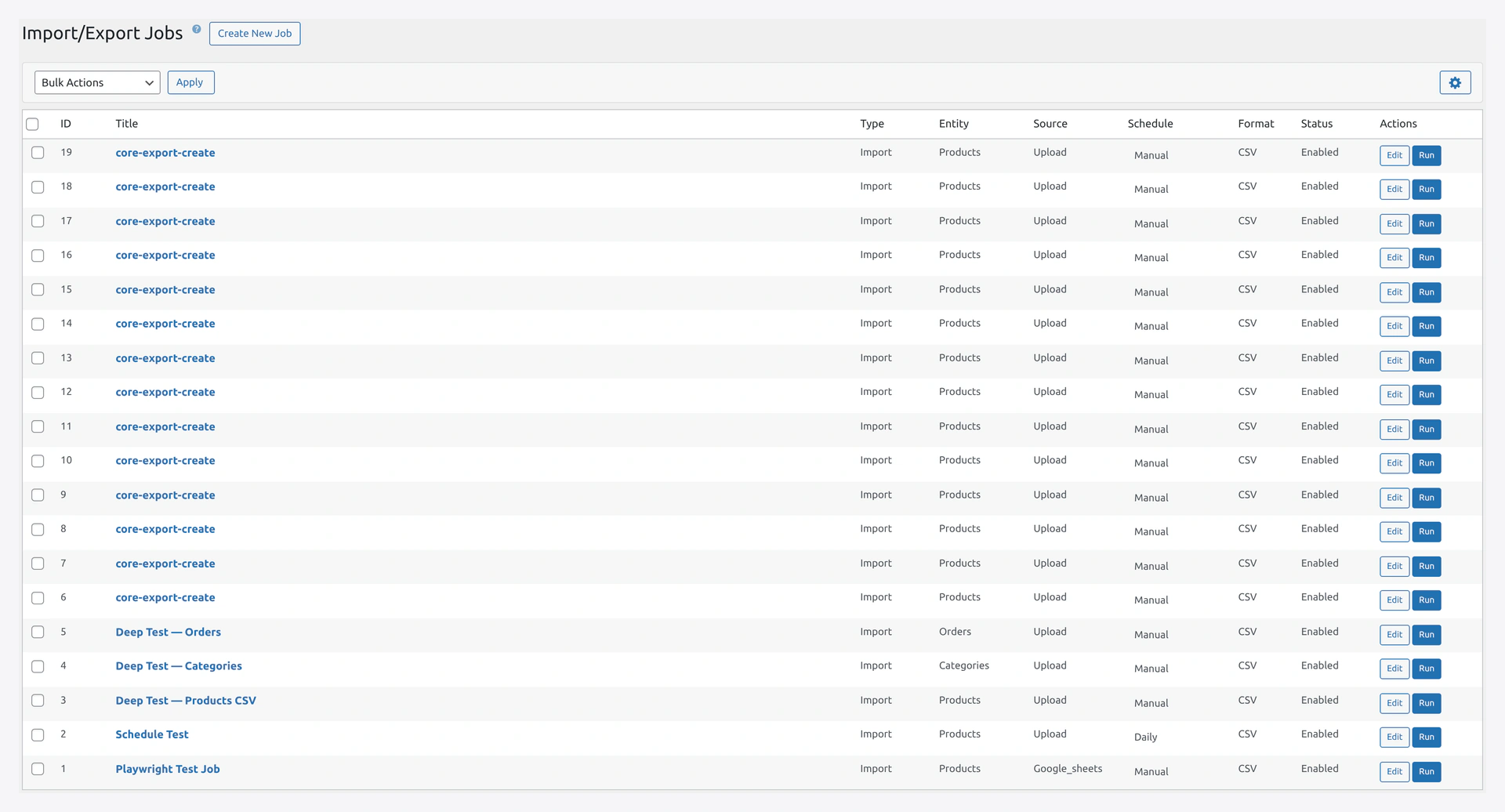 Jobs page — grid of saved jobs with inline schedule editor.
Columns
| Column | Meaning |
|---|---|
| ID | Job ID |
| Title | Your job name |
| Type | Import or Export |
| Entity | Products, Orders, Customers, etc. |
| Source / Destination | Where data comes from or goes to |
| Schedule | How often it runs |
| Status | Enabled or Disabled |
| Last Run | When it last ran |
| Actions | Run Now, Edit, Delete |
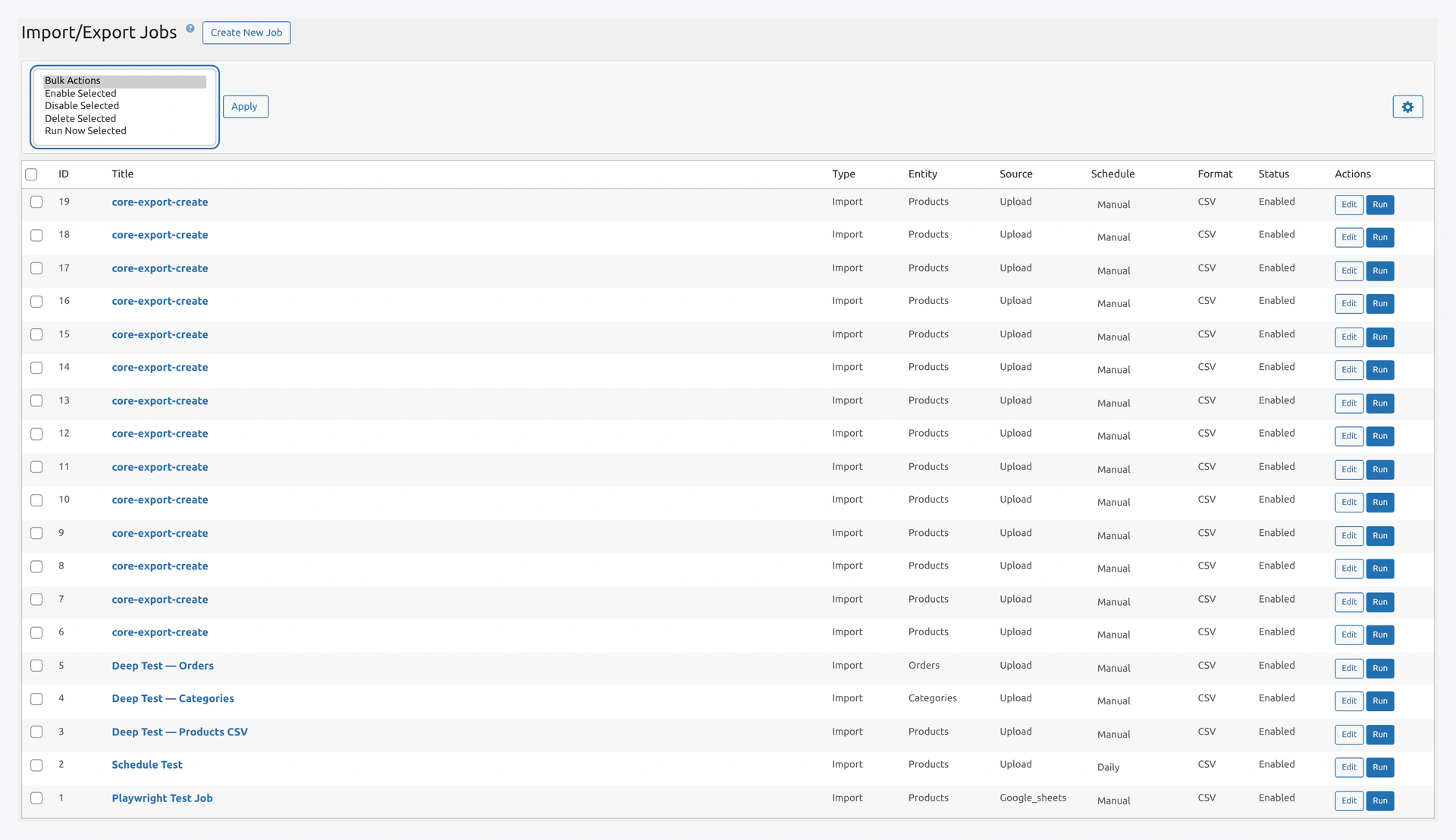 Screenshot: Bulk Actions dropdown — Enable / Disable / Run / Delete applied to selected rows.
Bulk Actions
Select multiple jobs, then pick:
- Enable — turn schedules on
- Disable — pause schedules
- Run Now — run all selected at once
- Delete — remove the jobs
Creating a Job
Two ways:
Option 1 — Save From the Wizard
- Run the Quick Import Wizard as usual
- On Step 5 (Results), click Save as Job
- Give it a title and pick a schedule
- Done
Option 2 — New Job From the Jobs Page
- Click Add New
- Fill in the Job Editor (6 tabs — see below)
- Save
The 6-Tab Job Editor
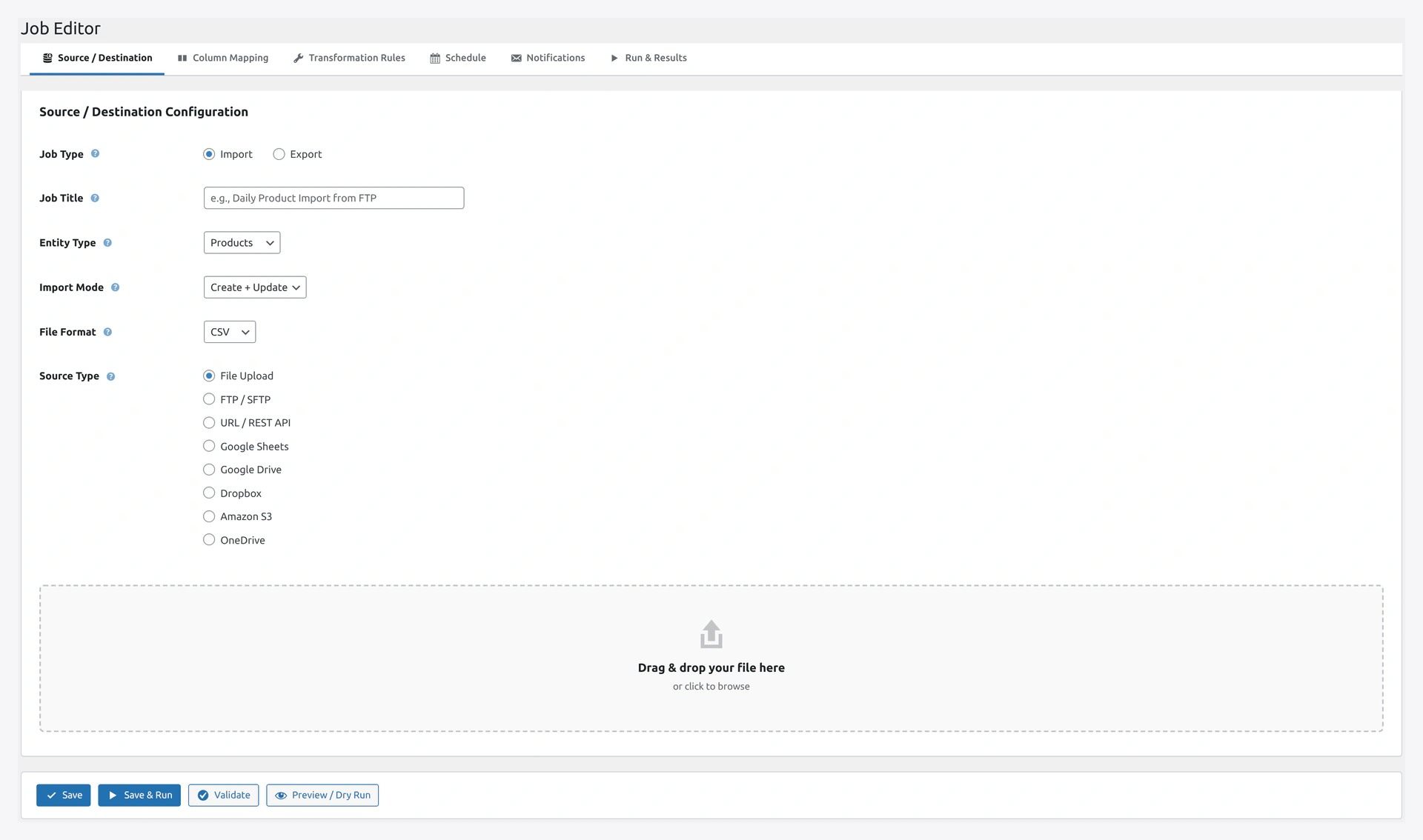 Job Editor — 6 tabs across the top.
The tabs (with icons) in exact order:
| # | Tab Label | Icon |
|---|---|---|
| 1 | Source / Destination | Database import |
| 2 | Column Mapping | Columns |
| 3 | Transformation Rules | Tools |
| 4 | Schedule | Calendar |
| 5 | Notifications | |
| 6 | Run & Results | Play |
Tab 1 — Source / Destination
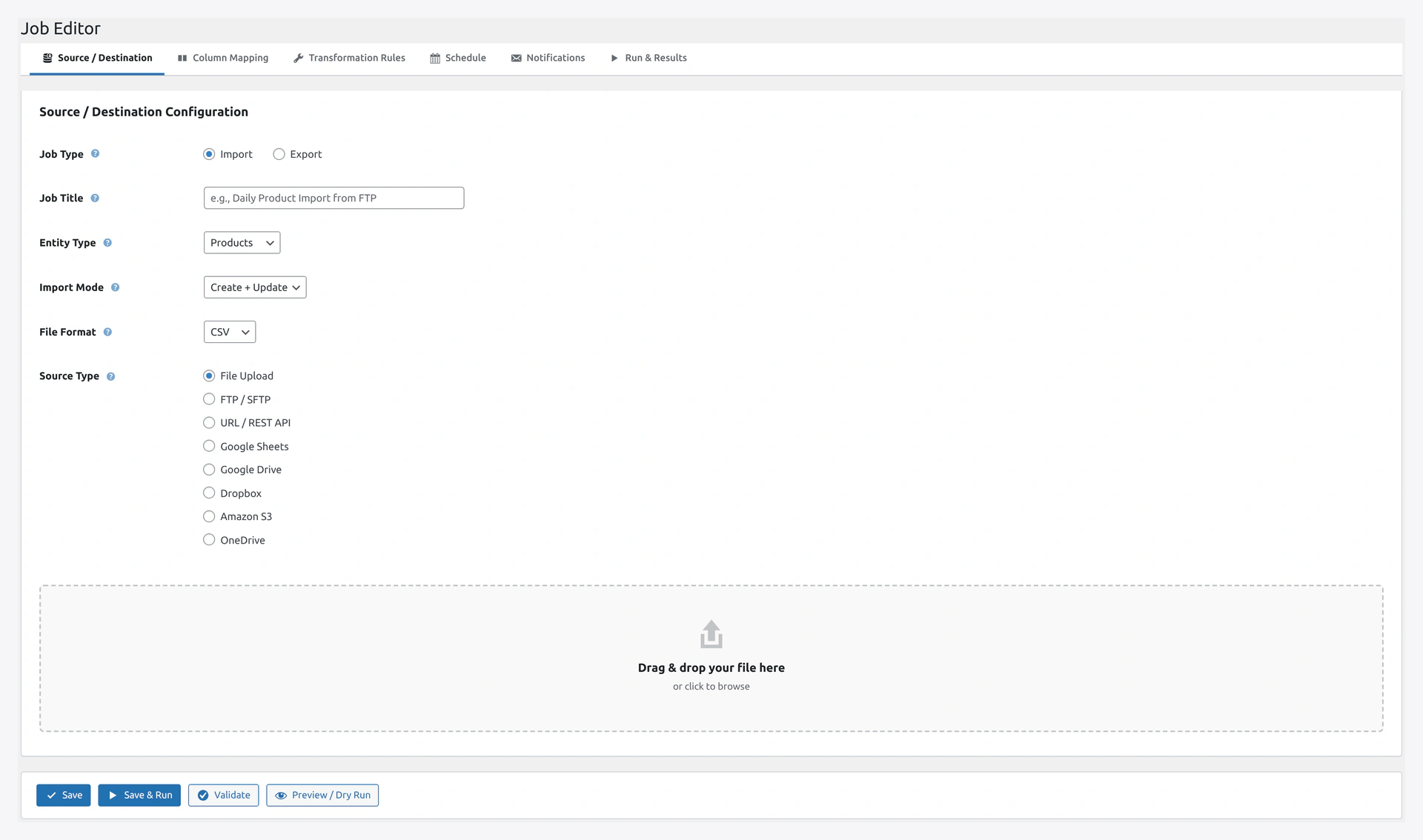 Screenshot: Tab 1 — pick source, destination, test connection.
Fields in Exact Order
| # | Field | Details |
|---|---|---|
| 1 | Job Type (radio) | Import (default) or Export |
| 2 | Job Title | Placeholder: "e.g., Daily Product Import from FTP" |
| 3 | Entity Type | Same options as wizard |
| 4 | Import Mode | Create + Update, Create Only, Update Only, Delete |
| 5 | File Format | CSV, XML, JSON, XLSX |
| 6 | Source Type (radio) | File Upload, FTP/SFTP, URL/REST API, Google Sheets, Google Drive, Dropbox, Amazon S3, OneDrive |
Based on the Source Type pick, a panel appears below with the relevant fields. Same panels as in Quick Import Wizard.
Tab 2 — Column Mapping
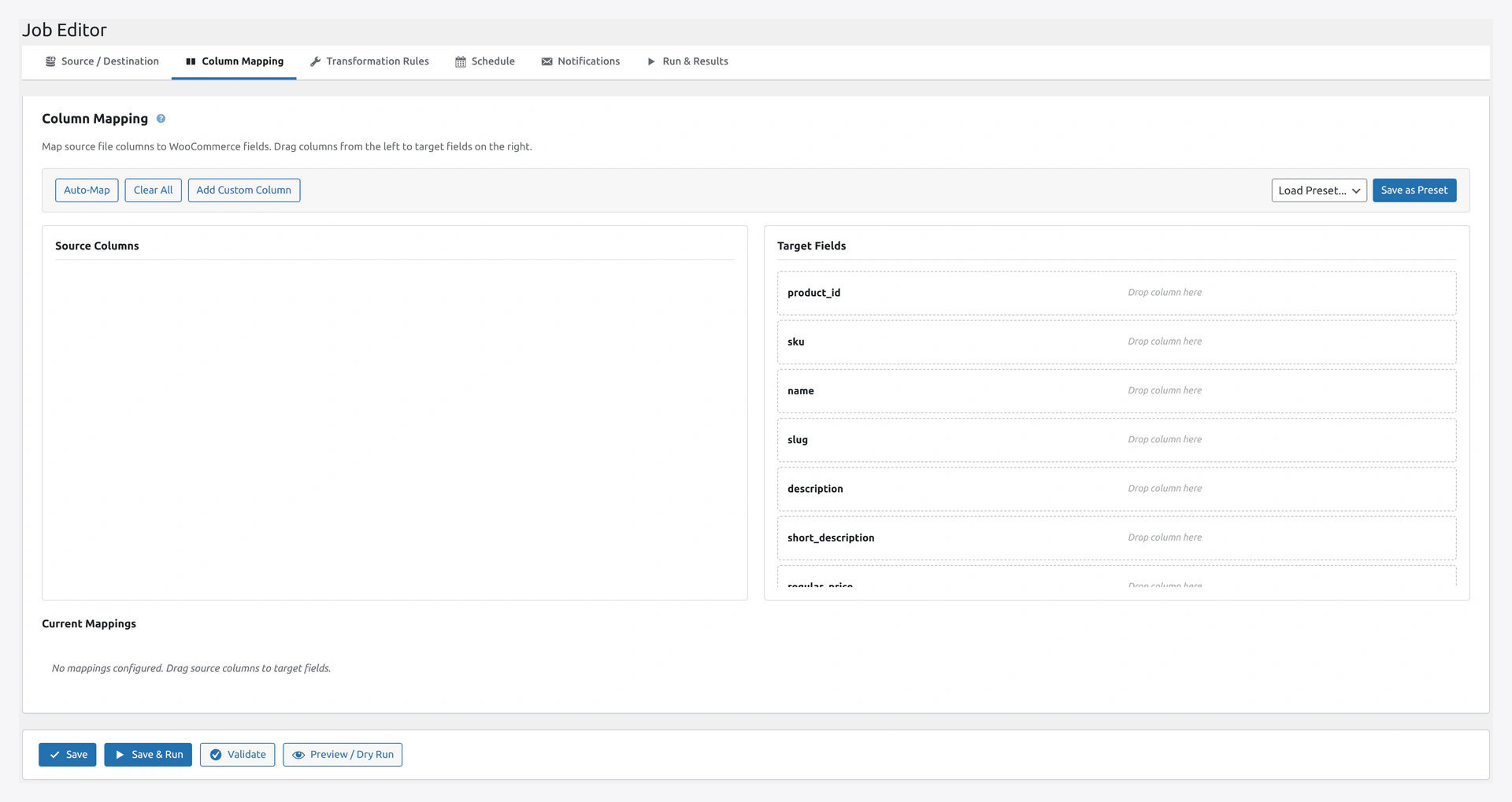 Screenshot: Tab 2 — Auto-Map, Add Custom Column, Save as Preset.
Heading: "Column Mapping"
Description: "Map source file columns to WooCommerce fields. Drag columns from the left to target fields on the right."
Note: Click Save on the Source tab first to load your file headers here.
Same interface as wizard Step 2. See Column Mapping.
Tab 3 — Transformation Rules
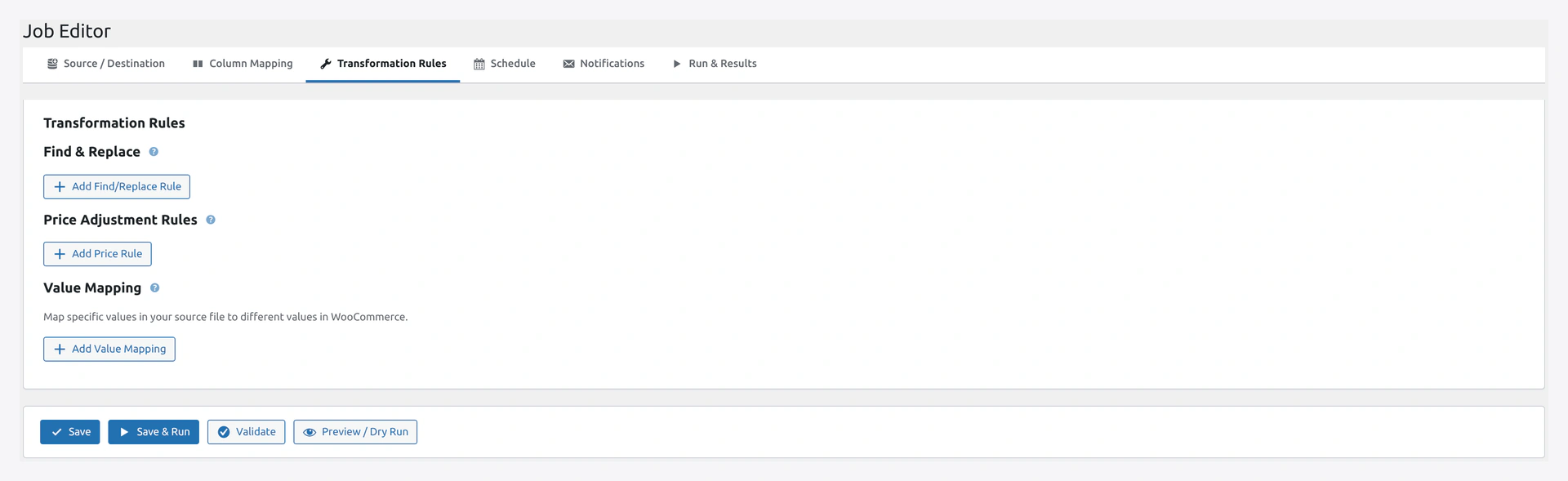 Screenshot: Tab 3 — Find/Replace, Price Adjustment, and Value Mapping rules.
Three sections with + Add Rule buttons:
Find & Replace
Search for text and replace it.
Example: Out of Stock → outofstock
Price Adjustment Rules
Adjust prices during import.
Example: Add 10% markup to all regular prices.
Value Mapping
Translate values to WooCommerce format.
Example: Yes → 1, No → 0.
See Transformations for full details.
Tab 4 — Schedule
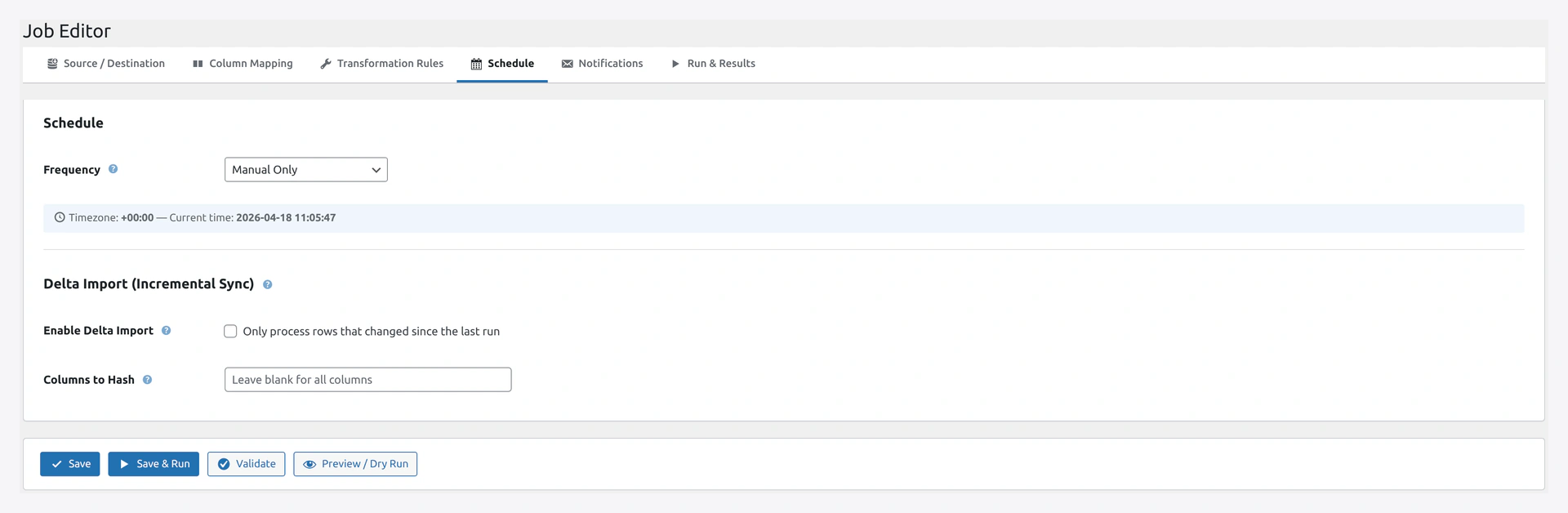 Screenshot: Tab 4 — frequency, custom cron, event triggers, delta import.
Frequency Dropdown
Label: "Frequency"
| Option | When It Runs |
|---|---|
| Manual Only | Only when you click Run Now |
| Run Once at Specific Time | Once at a date/time you pick |
| Every Minute | Every minute |
| Hourly | Every hour |
| Twice Daily | Every 12 hours |
| Daily | Once a day at a chosen time |
| Weekly | Once a week on a chosen day and time |
| Custom Cron Expression | Your own cron pattern |
Conditional Fields
Additional fields appear based on Frequency:
When "Run Once" selected
- Date & Time — date picker + time picker
- Description: "Import will run once at this date and time ([your timezone])."
When Hourly, Daily, Twice Daily, or Weekly selected
- Start Time — time picker (default:
03:00) - Description: "Time of day for the recurring run ([your timezone])."
When Weekly selected
- Day of Week — dropdown with Monday through Sunday
When Custom Cron selected
- Cron Expression — text input (placeholder:
*/15 * * * *) - Description: "Standard cron expression (minute hour day month weekday)."
Timezone Banner
Above the frequency dropdown, a banner shows:
"Timezone: [your timezone] — Current time: [YYYY-MM-DD HH:MM:SS]"
This confirms which timezone the schedule uses.
Custom Cron Examples
*/5 * * * *     Every 5 minutes
0 3 * * *       Daily at 3 AM
0 */4 * * *     Every 4 hours
0 9 * * 1-5     Weekdays at 9 AM
30 2 1 * *      1st of each month at 2:30 AM
Use crontab.guru to build custom patterns.
Event Triggers
Below the schedule fields, three checkboxes for event-based triggers:
| Checkbox | What It Does |
|---|---|
| Run when source file is updated | For FTP/SFTP/S3/URL sources — triggers when the remote file changes |
| Run on incoming webhook | Triggers when an external system POSTs to the webhook URL |
| Run on WooCommerce data change | For export jobs — triggers when products/orders change |
Delta Import Section
Heading: "Delta Import (Incremental Sync)"
Checkbox: Only process rows that changed since the last run
Columns to Hash field — leave blank for all columns, or pick specific ones.
See Delta Import for details.
Tab 5 — Notifications
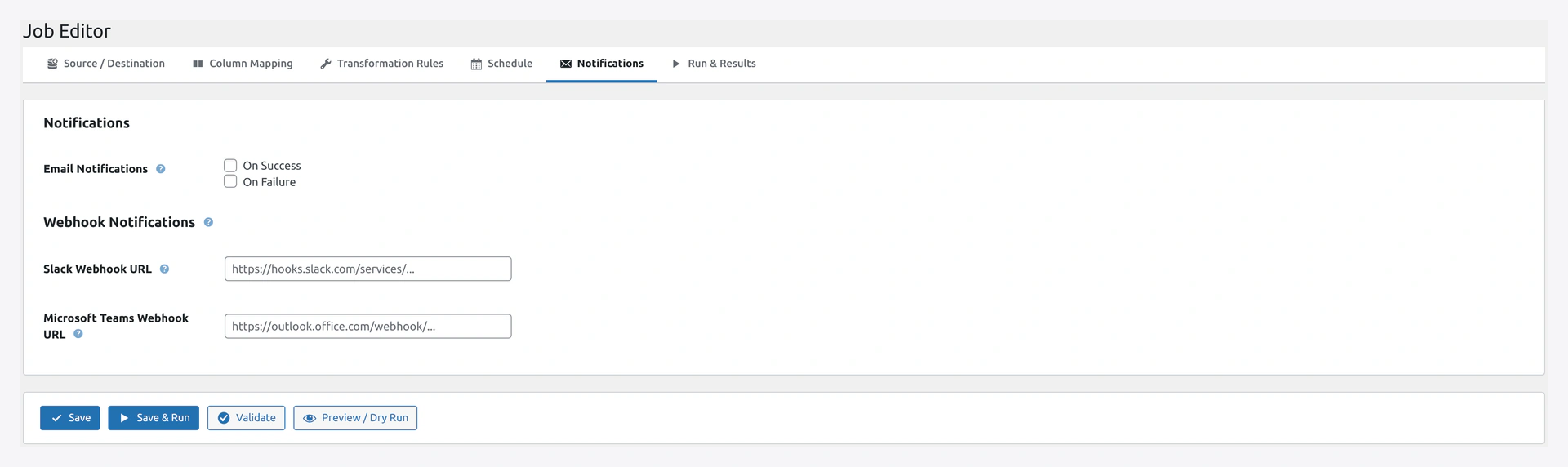 Screenshot: Tab 5 — per-job email + webhook alerts on success/failure.
Email Notifications
Checkboxes:
- On Success — send email on successful runs
- On Failure — send email on failed runs
When either is checked, a text input appears:
Recipient Email(s) — comma-separated list.
Webhook Notifications
| Field | Placeholder |
|---|---|
| Slack Webhook URL | https://hooks.slack.com/services/... |
| Microsoft Teams Webhook URL | https://outlook.office.com/webhook/... |
These override the global notification settings for this job.
Tab 6 — Run & Results
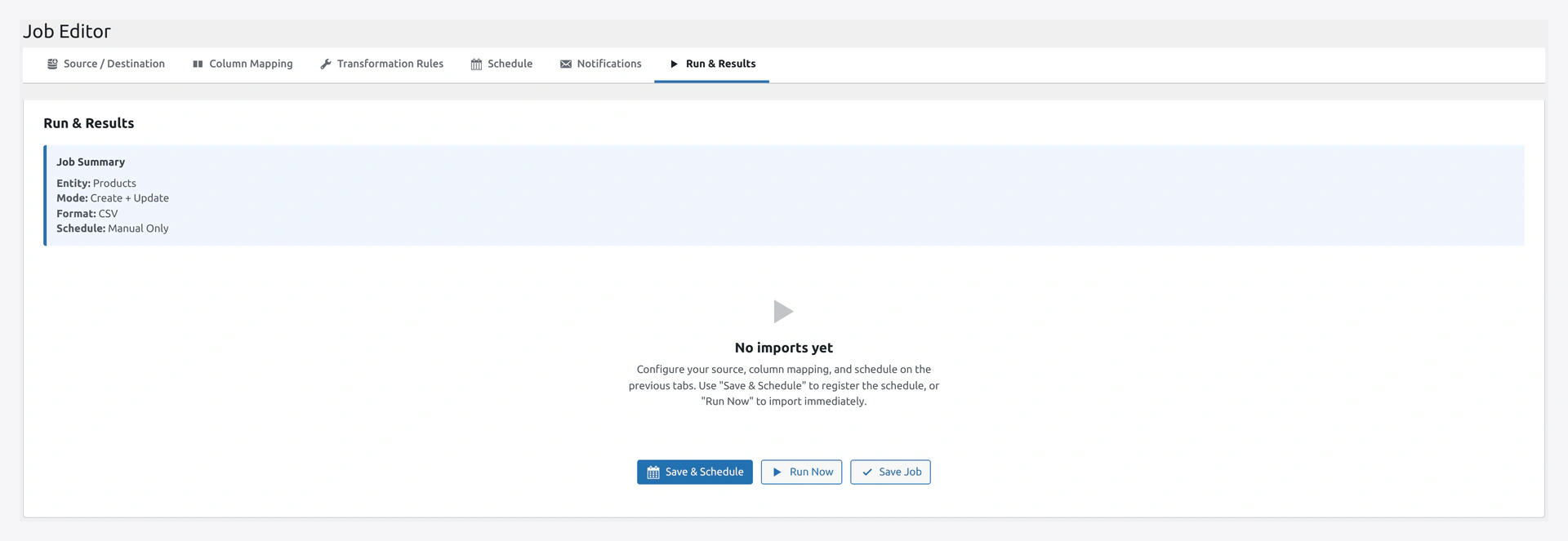 Screenshot: Tab 6 — Save, Save & Run, Validate, Preview / Dry Run, last-run summary.
Summary Box (Blue)
Heading: "Job Summary"
Content shows a summary of the job configuration.
Schedule Info Box (Yellow)
Shows what schedule is configured (hidden until scheduled).
Action Buttons
| Button | What It Does |
|---|---|
| Save & Schedule (primary) | Save the job and activate the schedule |
| Run Now | Run immediately (without saving first — useful for testing) |
| Save Job | Save without running or scheduling |
Progress Section
Hidden until a run starts. Shows:
- Progress bar with percentage
- Stats: Records, Speed, ETA, Elapsed
- 4-phase table (Setup, Parse & Stage, Staging to WC, Post-import cleanup) with status and time per phase
Run Now Button
At the top of the Job Editor, Run Now triggers the job immediately. Use this to test before trusting the schedule.
Enable / Disable
On the Jobs list page, inline editor lets you:
- Turn schedule On (job runs per schedule)
- Turn schedule Off (job stays saved, schedule paused)
Disabled jobs still run if you click Run Now.
Running a Job via REST API
curl -X POST https://your-site.com/wp-json/wkaie/v1/jobs/42/run \
  -H "X-WP-Nonce: YOUR_NONCE"
See REST API.
Running a Job via WP-CLI
wp wkaie run 42
Run all active jobs:
wp wkaie run-chain
How WordPress Cron Works
WordPress cron only fires when someone visits your site. Low-traffic sites may miss scheduled jobs.
For Reliable Scheduling
Set up a real server cron:
*/5 * * * * curl -s https://your-site.com/wp-cron.php > /dev/null 2>&1
See Server Cron Setup.
Tips
Stagger Your Schedules
Don't run all jobs at 3 AM. Spread them out:
- Product sync: 2 AM
- Google Shopping export: 3 AM
- Customer sync: 4 AM
Test Before Scheduling
Always click Run Now first. Then enable the schedule.
Monitor Failures
Turn on "On Failure" email so you hear about problems immediately.
Log Retention
Scheduled jobs create lots of history. Clean up old ones:
wp wkaie history cleanup --older-than=30d
Or set auto-cleanup in Settings → Performance & Advanced → Log Retention (Days).
Troubleshooting
| Problem | Fix |
|---|---|
| Job does not run on schedule | Check WordPress cron: wp cron event list. Set up server cron |
| Job runs but fails | Open History → click the failed row → see error |
| Job runs twice per schedule | Disable + save + re-enable to remove duplicate cron events |
| Schedule time is wrong timezone | WordPress timezone at Settings → General → Timezone |
| Cannot find new job in the grid | Refresh the page |
Related Pages
- Quick Import Wizard — Turn a one-time import into a job
- History — See every run of every job
- REST API — Trigger jobs from other apps
- WP-CLI — Command line commands
- Server Cron Setup — Reliable scheduling
- Tutorial: Google Sheets Live Sync — Complete example