
Quick Export
Quick Export is a one-page tool for exporting WooCommerce data.
Page URL: /wp-admin/admin.php?page=wkaie-export
Page title: "Quick Export"
Subtitle: "Export WooCommerce data to a downloadable file. Pick an entity, choose a format and click Run Export."
When to use Quick Export
Use this page for one-time exports — like downloading a list of all orders from last month, or backing up your products. For recurring exports on a schedule, create a saved job. See Jobs.
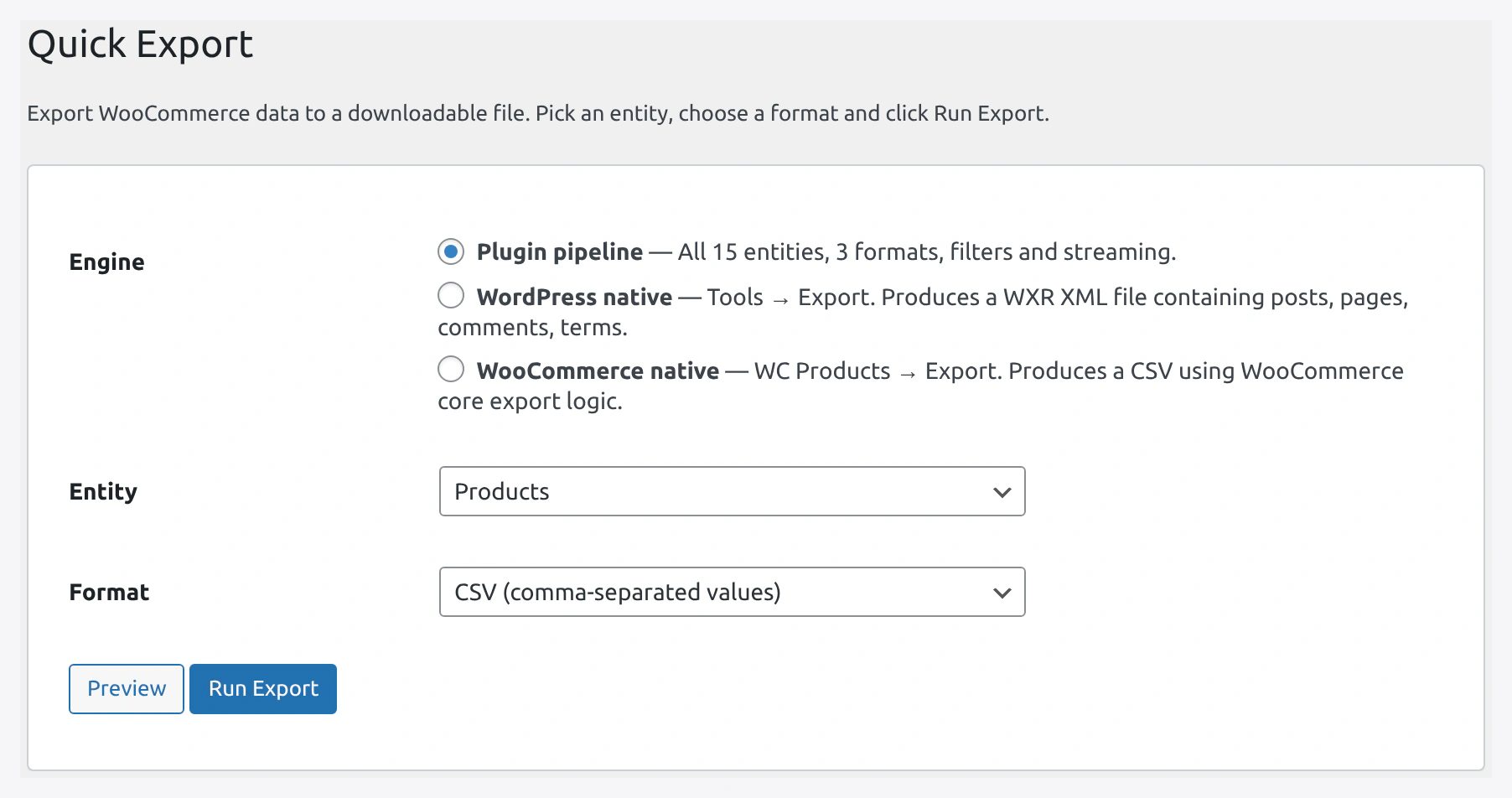 Quick Export — engine selector, entity dropdown, format dropdown, preview, and run buttons.
1. Engine Selector (3 Radio Buttons)
Pick which export engine to use.
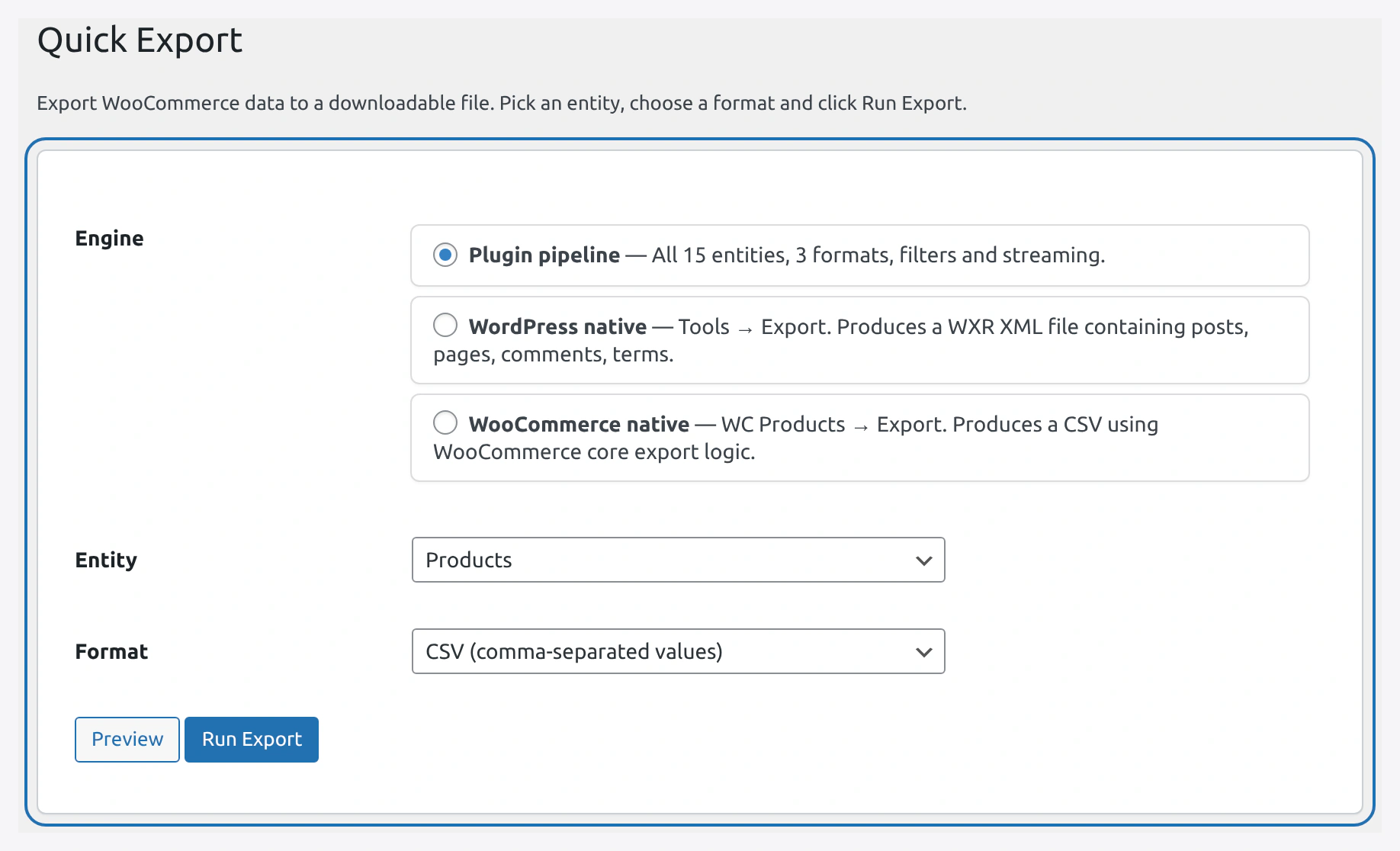 Pick one of three engines: Plugin pipeline, WordPress native, or WooCommerce native.
| Radio | Label + Description |
|---|---|
| Plugin pipeline (default) | "All 15 entities, 3 formats, filters and streaming." |
| WordPress native | "Tools → Export. Produces a WXR XML file containing posts, pages, comments, terms." |
| WooCommerce native | "WC Products → Export. Produces a CSV using WooCommerce core export logic." |
For most use cases, stick with Plugin pipeline.
- Pick WordPress native when you need WXR format (for the built-in WP importer)
- Pick WooCommerce native when you want WC's standard CSV format for products only
2. Entity Dropdown
Label: "Entity"
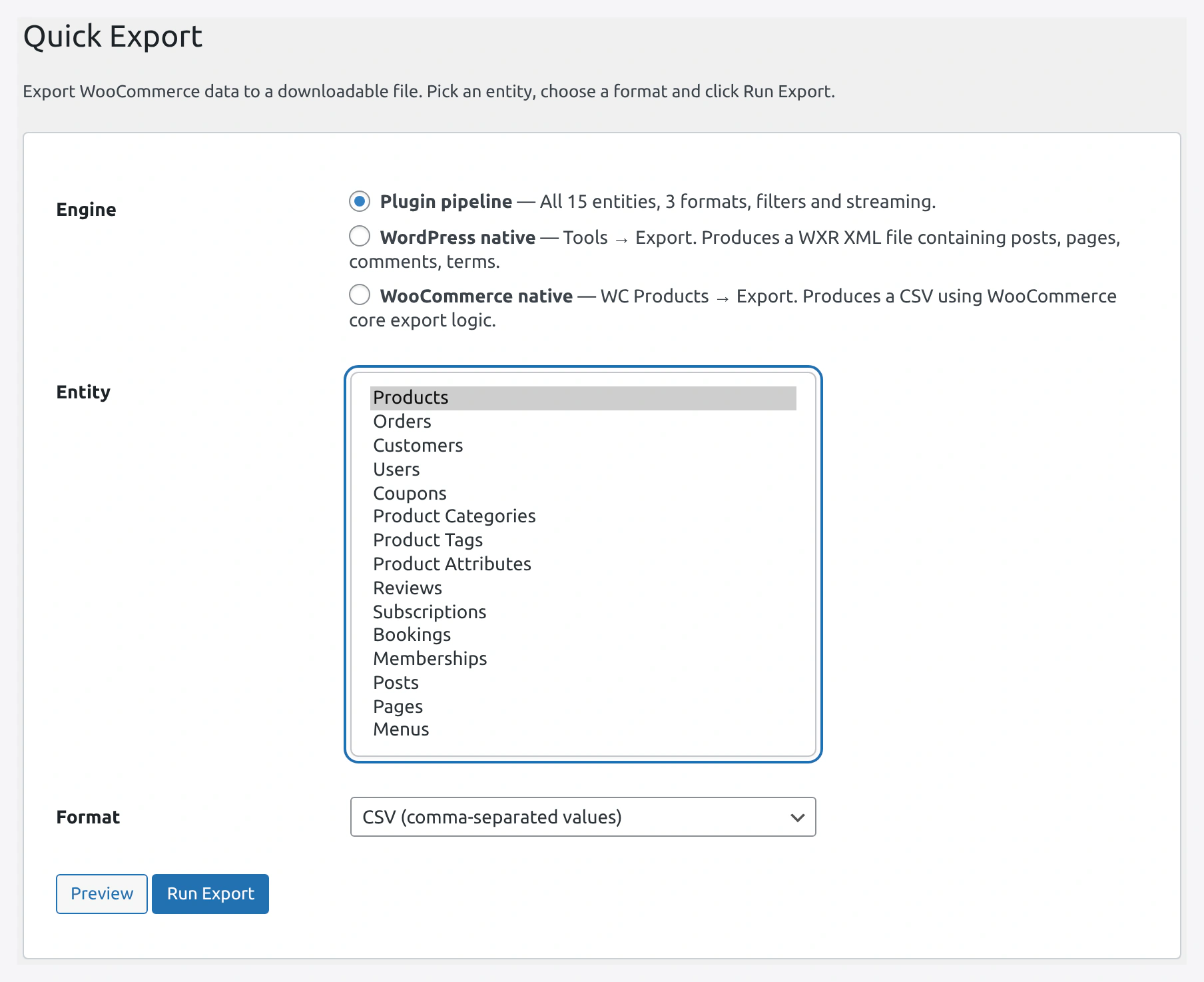 All 15 entity options: Products, Orders, Customers, Users, Coupons, taxonomies, and more.
| Entity | Notes |
|---|---|
| Products | Any product type |
| Orders | Full orders |
| Customers | With addresses |
| Users | Any WordPress user |
| Coupons | All coupons |
| Product Categories | Taxonomy |
| Product Tags | Taxonomy |
| Product Attributes | Taxonomy |
| Reviews | Product reviews |
| Subscriptions | Only if plugin active |
| Bookings | Only if plugin active |
| Memberships | Only if plugin active |
| Posts | WordPress blog posts |
| Pages | WordPress pages |
| Menus | Navigation menus |
3. Format Dropdown
Label: "Format"
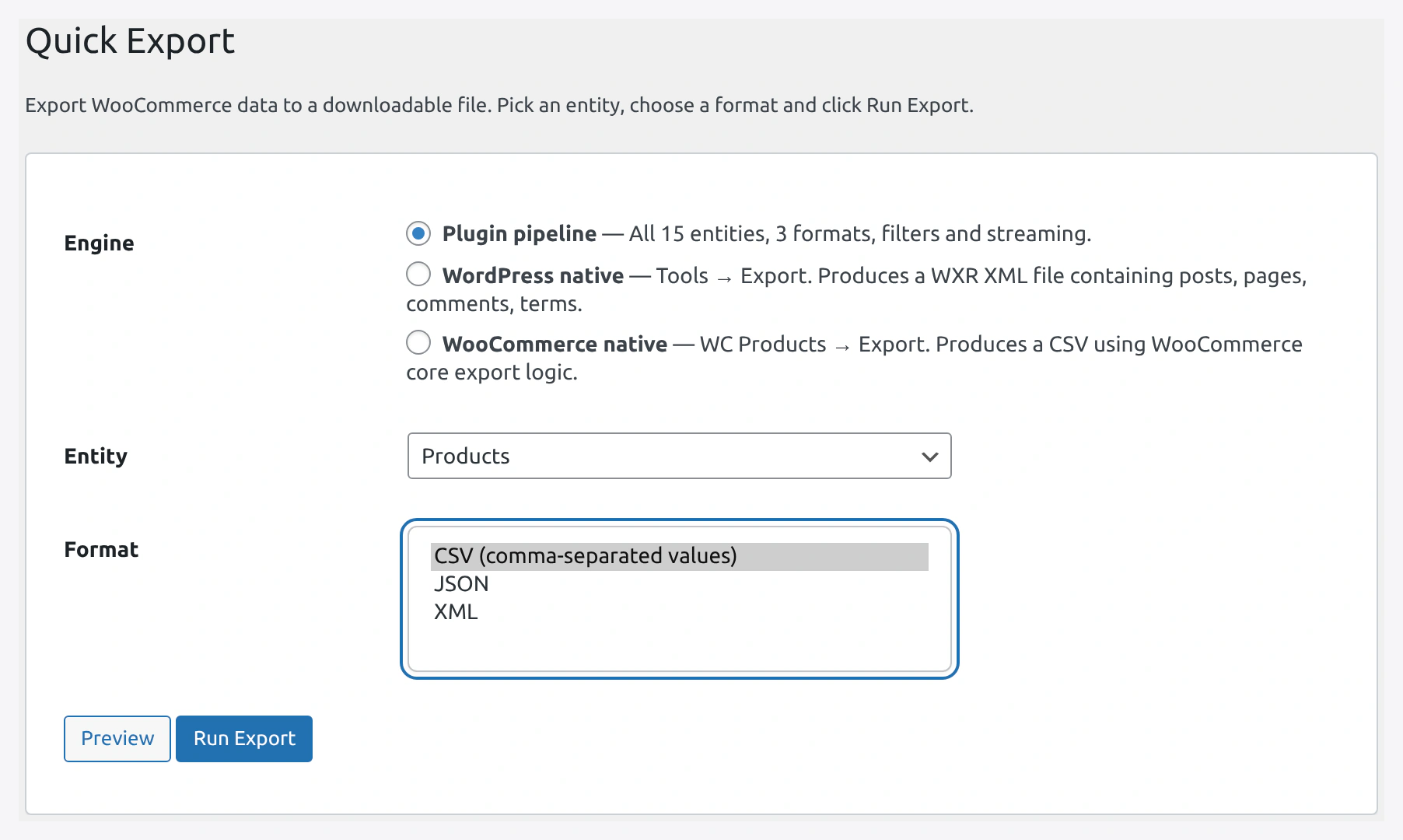 Format options include CSV, JSON, XML, and WXR (locked to the WordPress native engine).
| Option | Notes |
|---|---|
| CSV | Spreadsheet, opens in Excel |
| JSON | For programmatic use |
| XML | For feeds and integrations |
| WXR | Only for WordPress native engine |
Format Locking
- Plugin pipeline — all 3 formats available
- WordPress native — format locks to WXR
- Shown message: "WordPress native export uses the WXR (XML) format only. Format selection is locked."
- WooCommerce native — format locks to CSV
- Shown message: "WooCommerce native exporter outputs CSV only. Format selection is locked."
Buttons
Two buttons at the bottom:
Preview Button
Label: "Preview"
Click to see what will be exported before running.
What shows after clicking:
A blue-bordered box appears with:
- Heading: "[Entity name] — [X] rows total"
- Line: "Columns to export: [X] columns"
- Monospace list of column names
This is a good sanity check before the full export.
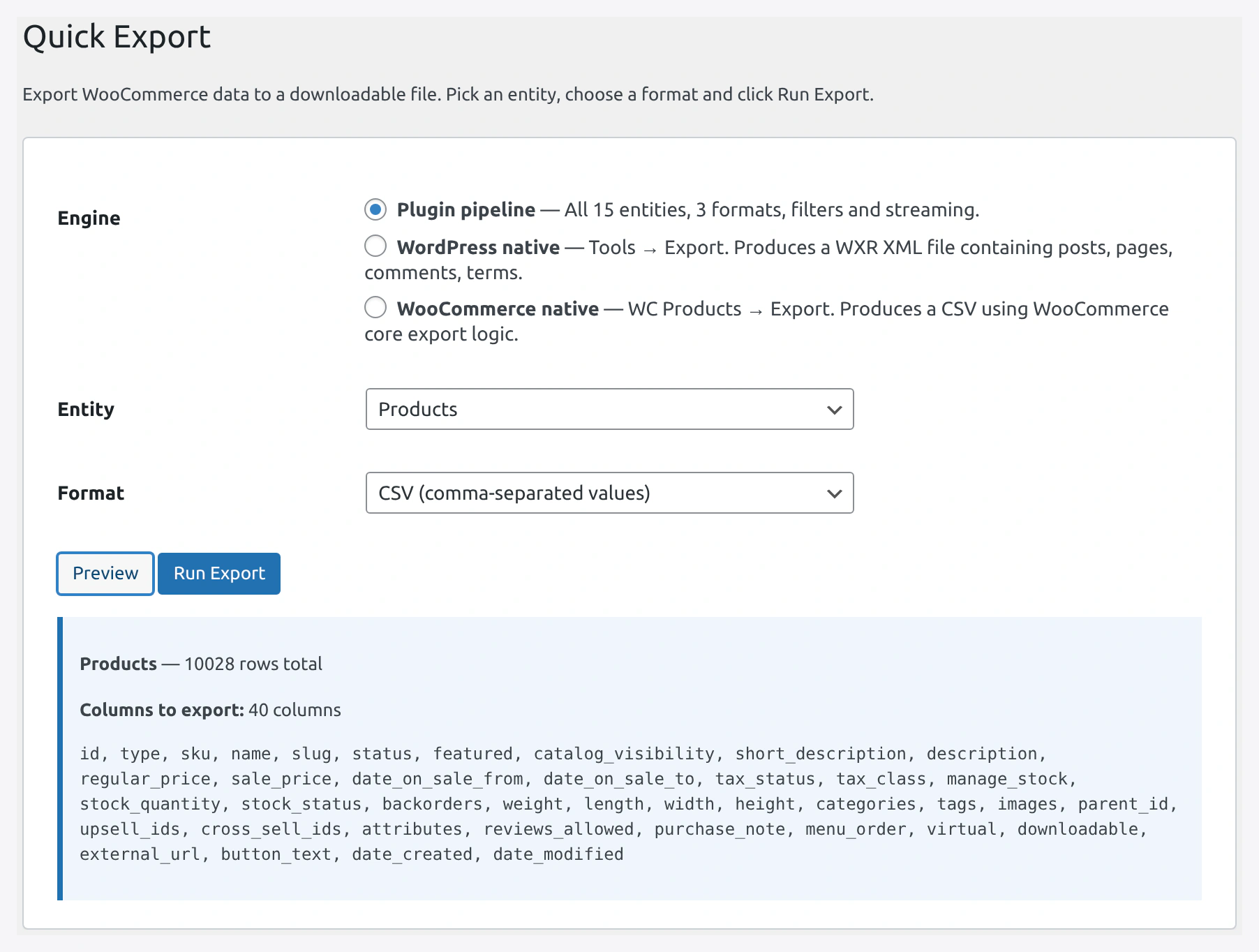 The preview panel shows real row counts and the full column list before you run.
Run Export Button
Label: "Run Export" (primary blue button)
Click to run the export.
What happens:
- Spinner appears next to the button
- Plugin queries the data
- Writes a file to
wp-content/uploads/wkaie-exports/ - Green result panel appears
Green Result Panel
Shows after successful export:
- Success message: "Export completed. [size] bytes."
- Download File button — click to save the file
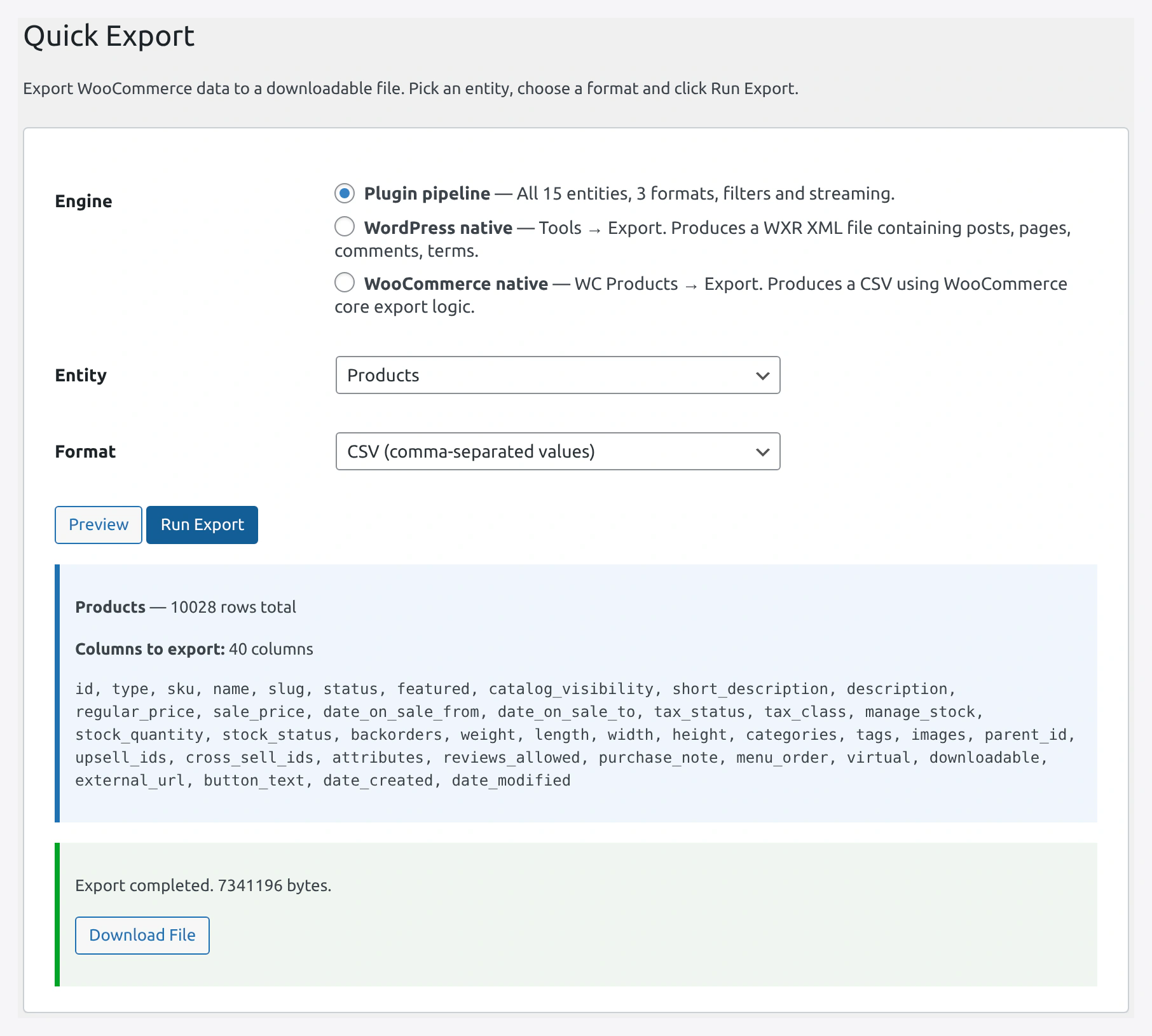 After a successful run, a green panel shows the file size and a Download File button.
Red Error Panel
Shows after a failure:
- Error heading: "Export failed:"
- Error message below
Product Export — Extra Features
When you pick Products with the Plugin pipeline engine, you get:
WC-Standard CSV Format
By default, products export in WooCommerce's 88-column CSV format. This file re-imports cleanly through any WC importer.
Compat Fields Included
If compat plugins are enabled in Settings → Third-Party Compatibility, extra columns are added:
- Yoast SEO (10 fields)
- RankMath (9 fields)
- AIOSEO (6 fields)
- ACF custom fields
- Meta Box custom fields
- Brand taxonomy
- Polylang language
- Vendor IDs (Dokan, WCFM, WC Vendors)
Streaming Mode (For Large Exports)
For 2,000+ rows, the plugin auto-streams output. Memory stays flat no matter how many rows you have.
A 1 million product export uses about the same RAM as a 100-row export.
No setting to change — it just works.
Example Output
CSV
ID,Type,SKU,Name,Regular price,Stock,Categories
123,simple,WK-TEE-001,Cotton T-Shirt,29.99,150,"Clothing > Shirts"
124,simple,WK-MUG-002,Coffee Mug,18.50,80,"Home > Kitchen"
JSON
[
  {
    "id": 123,
    "type": "simple",
    "sku": "WK-TEE-001",
    "name": "Cotton T-Shirt",
    "regular_price": "29.99",
    "stock": 150
  }
]
XML
<?xml version="1.0" encoding="UTF-8"?>
<products>
  <product>
    <id>123</id>
    <sku>WK-TEE-001</sku>
    <name>Cotton T-Shirt</name>
    <regular_price>29.99</regular_price>
  </product>
</products>
Troubleshooting
| Problem | Fix |
|---|---|
| Download link returns 404 | File was auto-cleaned. Rerun the export |
| Export is very slow | Try a specific filter instead of "all" |
| Exported file is empty | No records match your filter. Check the preview first |
| CSV opens with garbled characters in Excel | Open as UTF-8 in Excel (Data → From Text, pick 65001 encoding) |
| Very large export times out | Use Jobs to run in the background |
| WC Native export missing fields | Switch to Plugin pipeline for full features |
Related Pages
- Export Features — Full list of shipped export capabilities
- Export Destinations — Download + Server Path (only two live today)
- Jobs — Run exports on a schedule
- Settings — Set default export entity and format