
Dropbox Setup
Use Dropbox as an import source or export destination. For public shared links, you can skip this page — just paste the link. For private files and write access, follow these steps.
Public Shared Links
If you only need to import from public Dropbox shared links, no setup is needed. Paste the link in the wizard and go. This page is for private files and automatic upload.
What You Need
| Credential | For | Time |
|---|---|---|
| Access Token | Simple read/write, works for one account | 5 min |
| App Key + Secret | OAuth2 for multi-account or production | 10 min |
Part 1 — Create a Dropbox App
Step 1
Go to dropbox.com/developers/apps.
Sign in with your Dropbox account.
Step 2
Click Create app.
Step 3
Pick these options:
- Choose an API: Scoped access
- Choose the type of access:
- App folder — Plugin can only see files in one specific folder (safer)
- Full Dropbox — Plugin can see any file in your Dropbox (more flexible)
- Name your app:
WooCommerce Importer(or any name)
Click Create app.
Part 2 — Set Permissions
Step 1
On the app page, click the Permissions tab.
Step 2
Check these scopes:
files.metadata.read— List filesfiles.content.read— Download files (for import)files.content.write— Upload files (for export)sharing.read— Read shared linkssharing.write— Create shared links
Step 3
Click Submit.
Part 3 — Get the Access Token (Simple Method)
Step 1
On the app page, click the Settings tab.
Step 2
Scroll to Generated access token.
Step 3
Click Generate.
A long string appears (starts with sl.). This is your access token.
Copy it now. Dropbox shows it only once.
Step 4 — Paste in the Plugin
- WordPress admin →
Webkul WC Addons → Settings → Cloud Storage & API → Dropbox - Paste into Access Token
- Click Save Changes
Done. Dropbox import/export works now.
Part 4 — OAuth2 Setup (Advanced)
For production sites where you want proper OAuth (multi-user, automatic token refresh):
Step 1
On the app page, under Settings, find:
- App key — like
abcdef1234567890 - App secret — click Show to reveal
Copy both.
Step 2
Under OAuth 2 → Redirect URIs, add:
https://your-site.com/wp-admin/admin.php?page=wkaie-settings&oauth=dropbox-callback
Replace your-site.com with your actual domain.
Step 3 — Paste in the Plugin
- WordPress admin →
Webkul WC Addons → Settings → Cloud Storage & API → Dropbox - Fill in:
- App Key
- App Secret
- Click Save Changes
Step 4 — Authorize
- Click Authorize with Dropbox (button appears after saving)
- Dropbox asks for permissions
- Click Allow
- You are redirected back to WordPress
The plugin now has OAuth access.
Using Dropbox as Import Source
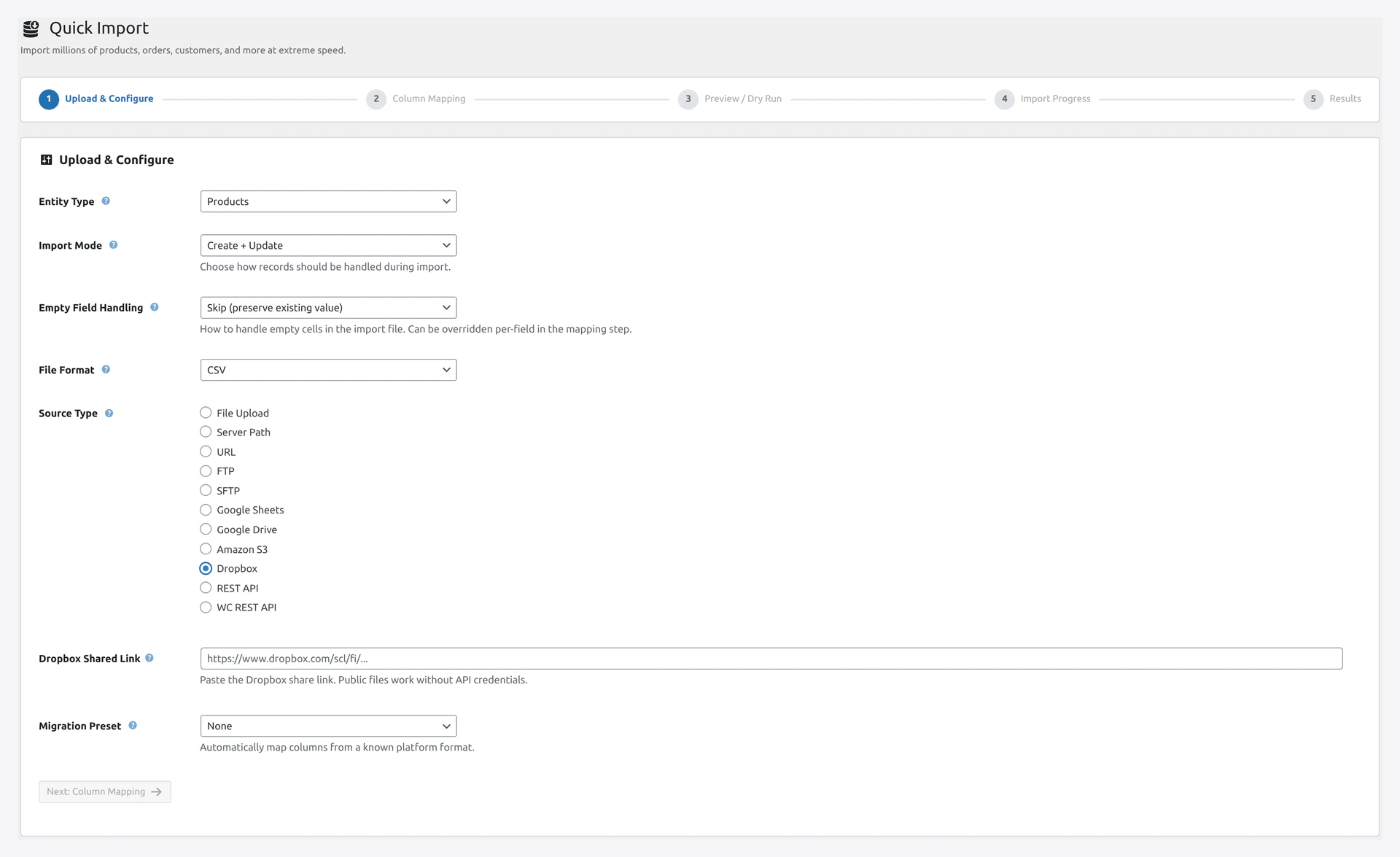 Dropbox source panel — paste a shared link or a file path inside your app folder.
- Wizard → Source Type: Dropbox
- Paste the Dropbox shared link or file path
- Click Next
The plugin auto-appends ?dl=1 to shared links so they download directly.
Using Dropbox as Export Destination
- Create a scheduled job
- Destination: Dropbox
- Set folder path (e.g.,
/Exports/) - Set filename pattern (e.g.,
products-{date}.csv)
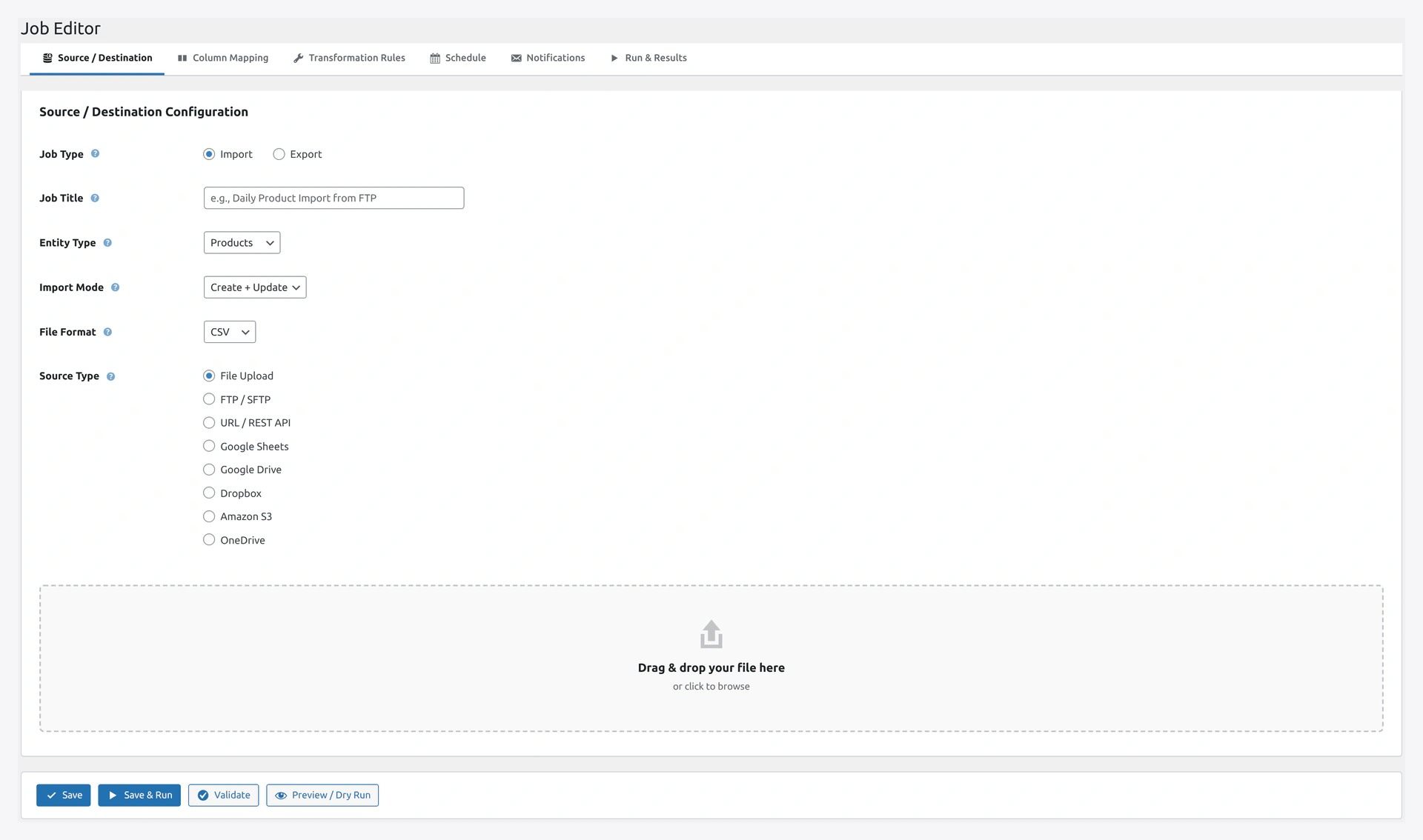 Pick Dropbox in the Destination tab of the Job Editor — folder path and filename pattern go here.
App Folder vs Full Dropbox
You picked one when creating the app. Here's what they mean:
App Folder (Recommended)
- Plugin only sees
Apps/WooCommerce Importer/folder in your Dropbox - Safer — plugin cannot accidentally touch other files
- Best for most users
Full Dropbox
- Plugin can access any file in your Dropbox
- Needed if your team has shared files elsewhere
- Higher risk if credentials are compromised
You cannot change this after creation. Create a new app to switch.
Revoking Access
If you ever want to disconnect:
- Go to dropbox.com/account/connected_apps
- Find your app
- Click Unlink
The token immediately stops working.
Troubleshooting
| Problem | Fix |
|---|---|
| "invalid_access_token" | Token was revoked or typed wrong. Generate a new one |
| "missing_scope" | You did not check the needed permissions. Add them and generate a new token |
| Cannot upload | Check files.content.write scope is enabled |
| Cannot list files | Check files.metadata.read scope |
| App folder shows empty | Dropbox creates the folder on first use. Upload any file to initialize |
Security
- Access tokens are stored encrypted with AES-256
- Dropbox tokens do not expire by default (can be revoked anytime)
- For compliance, rotate tokens every 90-180 days