
Third-Party Plugin Compatibility
This plugin works with 15 popular third-party plugins. When you turn on compatibility, the plugin reads and writes the right custom fields for each one — automatically.
URL: /wp-admin/admin.php?page=wkaie-settings → Third-Party Compatibility tab
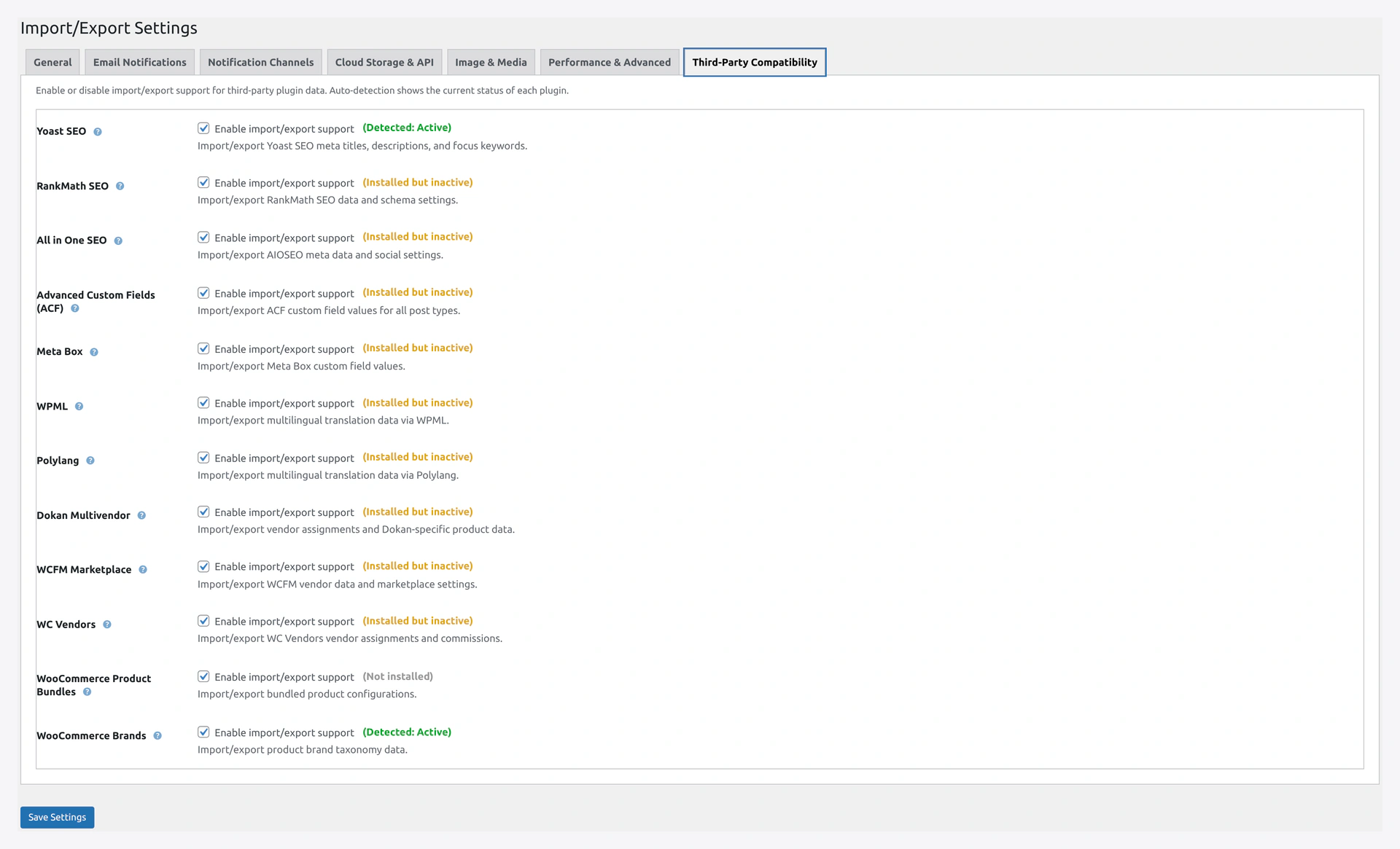 Compatibility tab — every supported plugin with auto-detection and toggle.
How It Works
- The plugin auto-detects which of the 15 plugins are installed.
- Next to each plugin name, a badge shows:
- Detected: Active (green)
- Installed but inactive (yellow)
- Not installed (gray)
- Check the box to turn on compatibility.
- On import or export, the plugin reads or writes that plugin's custom fields.
No manual column setup needed — just turn it on.
Supported Plugins
SEO (3 plugins)
| Plugin | Fields Handled |
|---|---|
| Yoast SEO | 10 meta keys: title, metadesc, focus keyword, canonical, noindex, nofollow, OG title, OG desc, Twitter title, Twitter desc |
| RankMath SEO | 9 keys: title, description, focus keyword, canonical, robots array, OG title, OG desc, Twitter title, schema JSON |
| All in One SEO | 6 keys: title, description, keywords, OG title, OG desc, Twitter title |
Custom Fields (2 plugins)
| Plugin | What's Handled |
|---|---|
| Advanced Custom Fields (ACF) | All field types: text, textarea, number, email, url, true/false, repeater, group, relationship, taxonomy |
| Meta Box | All field types: text, textarea, number, email, url, checkbox, file, image, taxonomy |
Multi-Language (2 plugins)
| Plugin | What's Handled |
|---|---|
| Polylang | Language code, translation group |
| WPML | Language code, translation group, original SKU. Works with sitepress-multilingual-cms (core, paid) OR woocommerce-multilingual (free add-on, limited) |
Multi-Vendor (3 plugins)
| Plugin | What's Handled |
|---|---|
| Dokan | Vendor ID, vendor email, commission, additional fee |
| WCFM Marketplace | Vendor ID, vendor email, store name |
| WC Vendors | Vendor ID, shop name, post_author |
WooCommerce Add-ons (5 plugins)
| Plugin | What's Handled |
|---|---|
| WooCommerce Brands | Brand taxonomy (works with both woocommerce-brands and perfect-woocommerce-brands) |
| WooCommerce Product Bundles | Bundle product configurations |
| WooCommerce Composite Products | Composite product configurations |
| WooCommerce Product Add-ons | Product add-on options |
How to Turn On Compatibility
Step 1 — Install the Third-Party Plugin
Install and activate the plugin you want to support. For example, install Yoast SEO from Plugins → Add New.
Step 2 — Open the Compatibility Tab
Go to Webkul WC Addons → Settings → Third-Party Compatibility.
Step 3 — Check the Status
Look for the badge next to each plugin name.
- Detected: Active — you are good
- Installed but inactive — activate the plugin
- Not installed — install it first
Step 4 — Check the Box
Check the box next to the plugin.
Step 5 — Save Settings
Click Save Settings at the bottom.
Now imports and exports handle that plugin's fields automatically.
How to Import Compat Data
Add columns with specific names in your CSV. The plugin looks for these names and writes the right custom fields.
Yoast SEO Columns
| Column Name | What It Maps To |
|---|---|
_yoast_wpseo_title | SEO title |
_yoast_wpseo_metadesc | Meta description |
_yoast_wpseo_focuskw | Focus keyword |
_yoast_wpseo_canonical | Canonical URL |
_yoast_wpseo_meta-robots-noindex | 1 for noindex, 0 to unset |
_yoast_wpseo_meta-robots-nofollow | 1 for nofollow, 0 to unset |
_yoast_wpseo_opengraph-title | OpenGraph title |
_yoast_wpseo_opengraph-description | OpenGraph description |
_yoast_wpseo_twitter-title | Twitter card title |
_yoast_wpseo_twitter-description | Twitter card description |
RankMath Columns
| Column Name | What It Maps To |
|---|---|
rank_math_title | SEO title |
rank_math_description | Meta description |
rank_math_focus_keyword | Focus keyword |
rank_math_canonical_url | Canonical URL |
rank_math_robots | Comma-separated robots (e.g., noindex, nofollow) |
rank_math_og_title | OpenGraph title |
rank_math_og_description | OpenGraph description |
rank_math_twitter_title | Twitter title |
rank_math_schema_Article | JSON schema |
AIOSEO Columns
| Column Name | What It Maps To |
|---|---|
_aioseo_title | SEO title |
_aioseo_description | Meta description |
_aioseo_keywords | Keywords |
_aioseo_og_title | OG title |
_aioseo_og_description | OG description |
_aioseo_twitter_title | Twitter title |
ACF Fields — Use acf_ Prefix
For ACF custom fields, prefix your column name with acf_.
Example: your ACF field is seo_headline. The CSV column should be acf_seo_headline.
The plugin discovers all registered ACF field groups for products and handles every type.
Meta Box Fields — Use mb_ Prefix
Same idea. Prefix with mb_.
Example: mb_warranty_info maps to the Meta Box field warranty_info.
Polylang Columns
| Column Name | What It Maps To |
|---|---|
polylang_language | Language code (e.g., en, fr) |
polylang_translations | JSON like {"en":"123","fr":"456"} (post IDs or SKUs) |
WPML Columns
| Column Name | What It Maps To |
|---|---|
wpml_language_code | Language code |
wpml_translation_group | Translation group ID (optional) |
wpml_original_sku | SKU of the original language version |
Brands Column
| Column Name | Format |
|---|---|
product_brand | Pipe-separated brand names (e.g., BrandA | BrandB | BrandC) |
Brands that do not exist are auto-created.
Dokan Columns
| Column Name | What It Maps To |
|---|---|
dokan_vendor_id | Vendor user ID |
dokan_vendor_email | Vendor email (alternative to ID) |
_per_product_admin_commission | Commission percentage |
_per_product_admin_additional_fee | Extra fee |
WCFM Columns
| Column Name | What It Maps To |
|---|---|
wcfm_vendor_id | Vendor user ID |
wcfm_vendor_email | Vendor email |
WC Vendors Columns
| Column Name | What It Maps To |
|---|---|
wc_vendors_vendor_id | Vendor user ID |
wc_vendors_vendor_email | Vendor email |
Example CSV with Compat
SKU,Name,Regular price,_yoast_wpseo_title,rank_math_focus_keyword,acf_seo_headline,product_brand,polylang_language,dokan_vendor_id
WK-TEE-001,Cotton T-Shirt,29.99,Best Cotton T-Shirt,cotton shirt,Premium Quality,BrandA | BrandB,en,15
WK-MUG-002,Coffee Mug,18.50,Ceramic Coffee Mug,coffee mug,Handcrafted,BrandC,en,22
Compat in Export
When you export with compat turned on, these columns are added automatically. The exported file can re-import cleanly on another site with the same plugins active.
Plugin Not in the List?
For plugins not supported here (Toolset, Pods, JetEngine, Elementor), two options:
- Use the "Any meta key" mapping — add a custom column in the mapper with the exact meta key name
- Contact us — let us know which plugin you want supported
Troubleshooting
| Problem | Fix |
|---|---|
| Plugin shows "Not installed" even though I installed it | Main plugin file path may differ. For WPML, install either sitepress-multilingual-cms OR woocommerce-multilingual |
| Compat data did not import | Make sure you checked the box AND saved settings. Also check the column name matches exactly |
| ACF fields missing after import | ACF must be active BEFORE the import. The plugin reads the ACF registry at import time |
| Meta Box fields imported as plain text | Meta Box field group must be registered via code or the Meta Box UI |
| Polylang language not set | Polylang requires at least 2 languages. Go to Polylang → Languages |
| Brands do not appear after import | The product_brand taxonomy must exist. Activate the brands plugin first |
Related Pages
- Settings — Configure credentials
- Import Sources — Import from Google Sheets, S3, etc.
- Column Mapping — Custom column mapping