
Email Setup
WordPress's built-in wp_mail() function uses your server's mail() function. On most shared hosting, this is unreliable or blocked entirely. Emails go to spam or never send.
For import notifications to actually reach you, set up SMTP.
Why WordPress Mail Fails
- Many hosts block outgoing SMTP to prevent spam
- Your server IP has no sender reputation
- Gmail, Outlook, and Yahoo aggressively filter "from WordPress"
The Solution — SMTP Plugin
Use a dedicated SMTP plugin to route mail through a proper email service.
Recommended SMTP Plugins
| Plugin | Free Tier | Notes |
|---|---|---|
| WP Mail SMTP | Yes | Most popular. Supports all providers |
| Fluent SMTP | Yes (fully free) | Also great, no pro version push |
| Easy WP SMTP | Yes | Simpler UI |
I recommend WP Mail SMTP for most users.
Setting Up WP Mail SMTP + Gmail
Free and works for most small stores.
Step 1 — Install the Plugin
- WordPress admin → Plugins → Add New
- Search for WP Mail SMTP by WPForms
- Install and Activate
Step 2 — Pick Gmail
- WP Mail SMTP → Settings
- Mailer: Select Google / Gmail
- Fill in From Email (the Gmail address you want to send from)
- From Name: Your store name
Step 3 — Create Google App
Follow the wizard. It walks you through:
- Creating a Google Cloud project
- Enabling Gmail API
- Creating OAuth credentials
- Authorizing WP Mail SMTP
Or see Google API Setup for a similar process.
Step 4 — Send a Test
- WP Mail SMTP → Tools → Email Test
- Enter your email
- Click Send Email
- Check your inbox
If it arrives, SMTP works.
Alternative — SendGrid (More Reliable for Production)
SendGrid is a dedicated email service. Free for 100 emails per day.
Step 1 — Sign Up
Go to sendgrid.com and create a free account.
Step 2 — Verify Domain
- SendGrid dashboard → Settings → Sender Authentication
- Add your domain
- Add DNS records (SPF, DKIM) — ask your host or DNS provider to help
- Wait for verification (10 min to 24 hours)
Step 3 — Create API Key
- Settings → API Keys → Create API Key
- Give it Full Access (or restricted if you know what you're doing)
- Copy the key
Step 4 — Configure WP Mail SMTP
- WP Mail SMTP → Settings
- Mailer: SendGrid
- Paste the API key
- Set From Email and From Name
- Save
Step 5 — Test
WP Mail SMTP → Tools → Email Test → Send.
Other Providers
Same setup pattern. WP Mail SMTP supports:
- Amazon SES — cheap for high volume ($0.10 per 1000 emails)
- Mailgun — free for first 5000 emails
- SMTP.com — paid, with dedicated IP
- Sendinblue (now Brevo) — 300 emails/day free
- Zoho Mail — if you use Zoho for business
- Microsoft 365 / Outlook — if you have MS 365
- Any custom SMTP server — Generic option
Configuring the Plugin's Email Notifications
Once SMTP works, configure what the plugin sends.
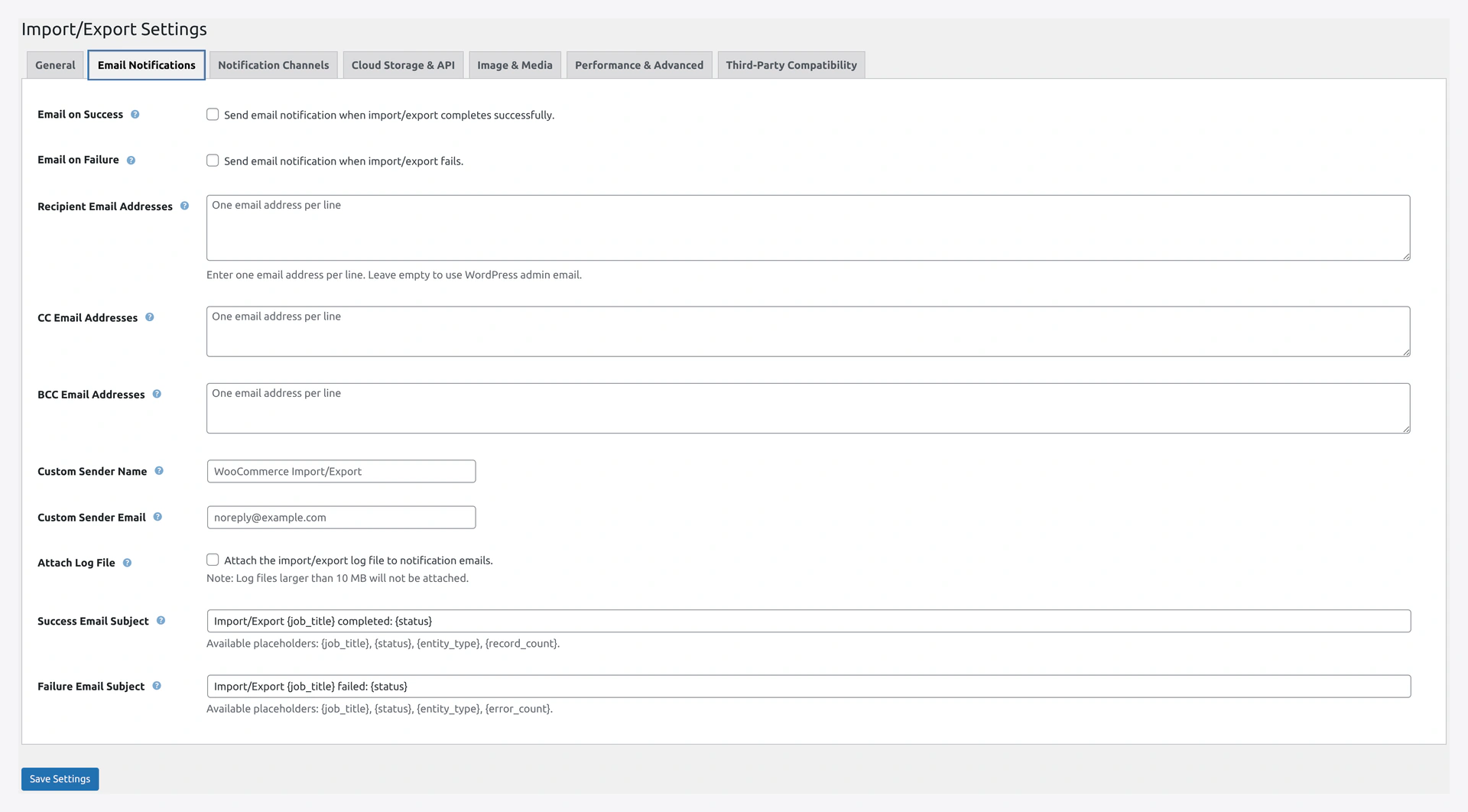 Email Notifications tab — pick triggers, recipients, sender, subject and body templates.
Step 1
WordPress admin → Webkul WC Addons → Settings → Email Notifications.
Step 2
Fill in:
| Field | Example |
|---|---|
| Send on Success | Check if you want every successful run emailed |
| Send on Failure | Check (recommended) |
| Recipients (To) | [email protected] |
| Recipients (CC) | [email protected] (optional) |
| Sender Email | [email protected] |
| Sender Name | Your Store Name |
| Subject Template | [{status}] {job_title} — {records_count} records |
| Body Template | See below |
| Attach Log File | Check (only if file < 10MB) |
Step 3 — Sample Body Template
<h2>Import {status}: {job_title}</h2>

<p>Run completed at {timestamp}.</p>

<table>
  <tr><td>Entity:</td><td>{entity_type}</td></tr>
  <tr><td>Created:</td><td>{created}</td></tr>
  <tr><td>Updated:</td><td>{updated}</td></tr>
  <tr><td>Failed:</td><td>{failed}</td></tr>
  <tr><td>Duration:</td><td>{duration}</td></tr>
</table>

{error_message}

<p><a href="https://your-site.com/wp-admin/admin.php?page=wkaie-history">View full history</a></p>
Step 4 — Save and Test
- Click Save Changes
- Run a quick test import
- Check your email for the notification
Testing Email Delivery
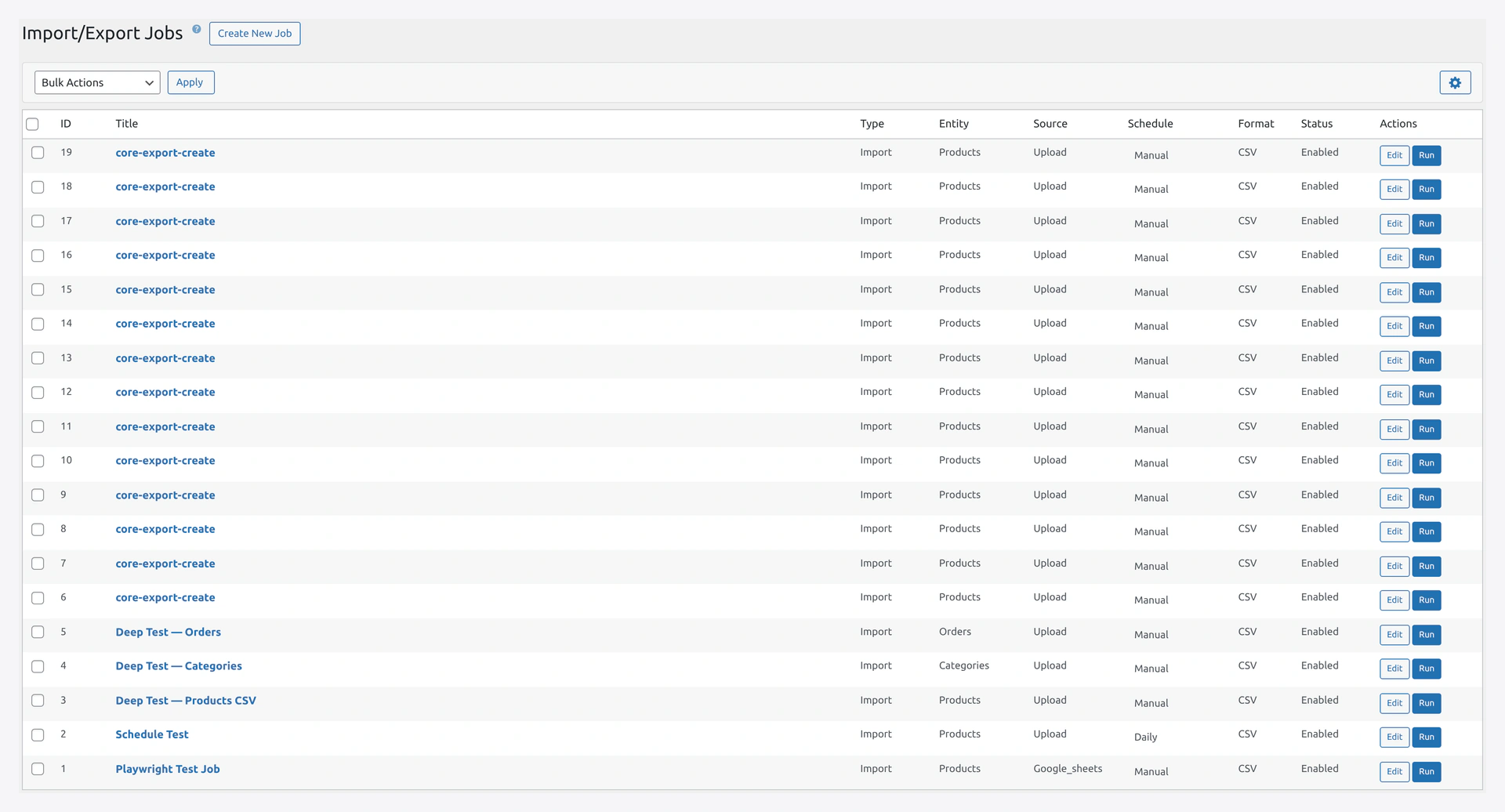 Scheduled jobs trigger the email notifications you just configured — each run produces one email per rule.
Before Going Live
- Run a test import
- Check your inbox
- Check spam/promotions folders
- If not found, check WP Mail SMTP → Tools → Email Log
Spam Score
Test your sender reputation:
- mail-tester.com — free score
- Send a test email to the address they give you
- Get a score out of 10. Aim for 8+.
Avoiding Spam Filters
Use a Real Domain
Do not use noreply@localhost or [email protected]. Use an email on your actual domain like [email protected].
Set Up SPF
Add this TXT record to your domain DNS:
v=spf1 include:_spf.google.com include:sendgrid.net ~all
Adjust includes based on which provider you use.
Set Up DKIM
Your email provider (SendGrid, Google) gives you DKIM records. Add them to your DNS.
Set Up DMARC
Optional but helpful:
v=DMARC1; p=quarantine; rua=mailto:[email protected]
Write Normal-Looking Emails
Avoid:
- ALL CAPS subjects
- Too many emojis
- Words like "FREE", "GUARANTEE", "WINNER"
Troubleshooting
| Problem | Fix |
|---|---|
| Test email never arrives | Check spam folder. Check WP Mail SMTP → Tools → Email Log |
| Emails go to spam | Set up SPF, DKIM, DMARC records |
| "Connection refused" errors | Your host blocks outgoing SMTP port 587. Use SendGrid API instead of SMTP |
| Gmail asks to enable "less secure apps" | Use OAuth2 instead, or generate an app password |
| Test works, real emails do not | WordPress cron is not firing. See Server Cron Setup |
| Emails with attachments fail | File over 10MB. Disable "Attach Log File" or reduce log size |
Monitoring
Enable Email Log
WP Mail SMTP has an Email Log feature. Turn it on to track every email sent.
Check Logs Weekly
Once a week, review the log to make sure emails actually sent. Catch silent failures early.
Related Pages
- Settings → Email Notifications
- Settings → Notification Channels — Alternative: Slack, Teams, Telegram
- Jobs — Configure per-job notifications