
Menus Import
Import WordPress navigation menus from a CSV, XML, or JSON file.
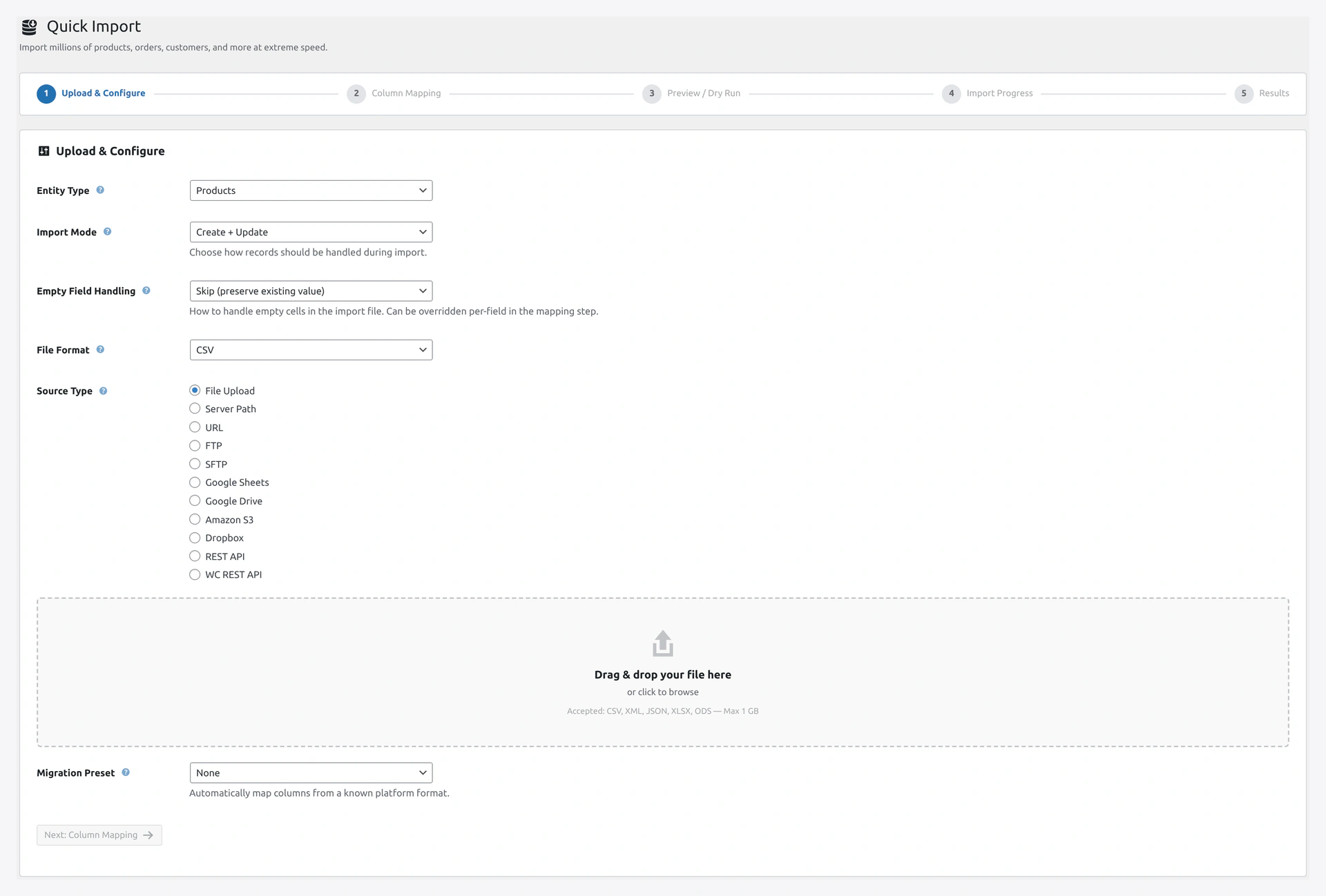 Step 1 of the Quick Import wizard: pick Menus, upload your nav export, and match by menu name.
When to Use
- Setting up menus on a new site with many items
- Migrating menus from another WordPress site
- Bulk creating category or product menus
Match Keys
menu_name(default)
Matches by menu name. If a menu with that name exists, new items are added to it. If not, a new menu is created.
Column Reference
| Column | Required | Example |
|---|---|---|
menu_name | Yes | Main Menu |
location | No | primary, footer, social (theme menu location slug) |
item_title | Yes | Home, About Us |
item_url | Conditional | https://example.com/about (for custom links) |
item_type | No (default custom) | custom, post_type, taxonomy |
item_parent | No | Parent item title or ID (for sub-items) |
item_order | No | 1, 2, 3 (sort order) |
Menu Item Types
| Type | What It Is | Example |
|---|---|---|
custom | Any URL (default) | Home, External link, Contact |
post_type | Links to a post, page, or product | Link to "About Us" page |
taxonomy | Links to a category or tag | Link to "Men's Shirts" category |
Example CSV — Simple Menu
menu_name,location,item_title,item_url,item_order
Main Menu,primary,Home,https://example.com,1
Main Menu,primary,Shop,https://example.com/shop,2
Main Menu,primary,About Us,https://example.com/about,3
Main Menu,primary,Contact,https://example.com/contact,4
Example CSV — Menu with Sub-Items
menu_name,item_title,item_url,item_parent,item_order
Main Menu,Products,https://example.com/shop,,1
Main Menu,Men,https://example.com/shop/men,Products,1
Main Menu,Women,https://example.com/shop/women,Products,2
Main Menu,Kids,https://example.com/shop/kids,Products,3
Main Menu,About,https://example.com/about,,2
In this example:
- Products is a top-level item (no parent)
- Men, Women, Kids are sub-items of Products (their parent is
Products) - About is another top-level item
Theme Menu Locations
Most themes register menu locations like primary, footer, social. To assign a menu to a location, set the location column.
Finding Your Theme's Locations
- WordPress admin → Appearance → Menus
- Look at "Display location" checkboxes at the bottom
- Use the slug of the location (not the label)
Common location slugs:
primary— main navigationfooter— footer linkssocial— social media iconsmobile— mobile menu
Example
menu_name,location,item_title,item_url
Top Menu,primary,Home,/
Top Menu,primary,Shop,/shop
Footer Menu,footer,Privacy Policy,/privacy
Footer Menu,footer,Terms of Service,/terms
Item Order
item_order controls the sort order within each parent group.
item_title,item_parent,item_order
Home,,1
Shop,,2
Men,Shop,1
Women,Shop,2
Kids,Shop,3
About,,3
Nested Sub-Items (3+ Levels)
For deeper hierarchy:
item_title,item_parent,item_order
Shop,,1
Clothing,Shop,1
Men,Clothing,1
T-Shirts,Men,1
Pants,Men,2
Women,Clothing,2
Note: most themes only show 2-3 levels in the UI. Check your theme's capabilities.
Troubleshooting
| Problem | Fix |
|---|---|
| Menu created but not shown on site | Set the location column or assign in Appearance → Menus |
| Sub-items appear at top level | item_parent must match another item's title exactly |
| Duplicate menu items | Menu match key is name. Importing twice adds items twice. Use delete mode first |
| Location not assigned | Location slug is case-sensitive. Use exact theme slug |
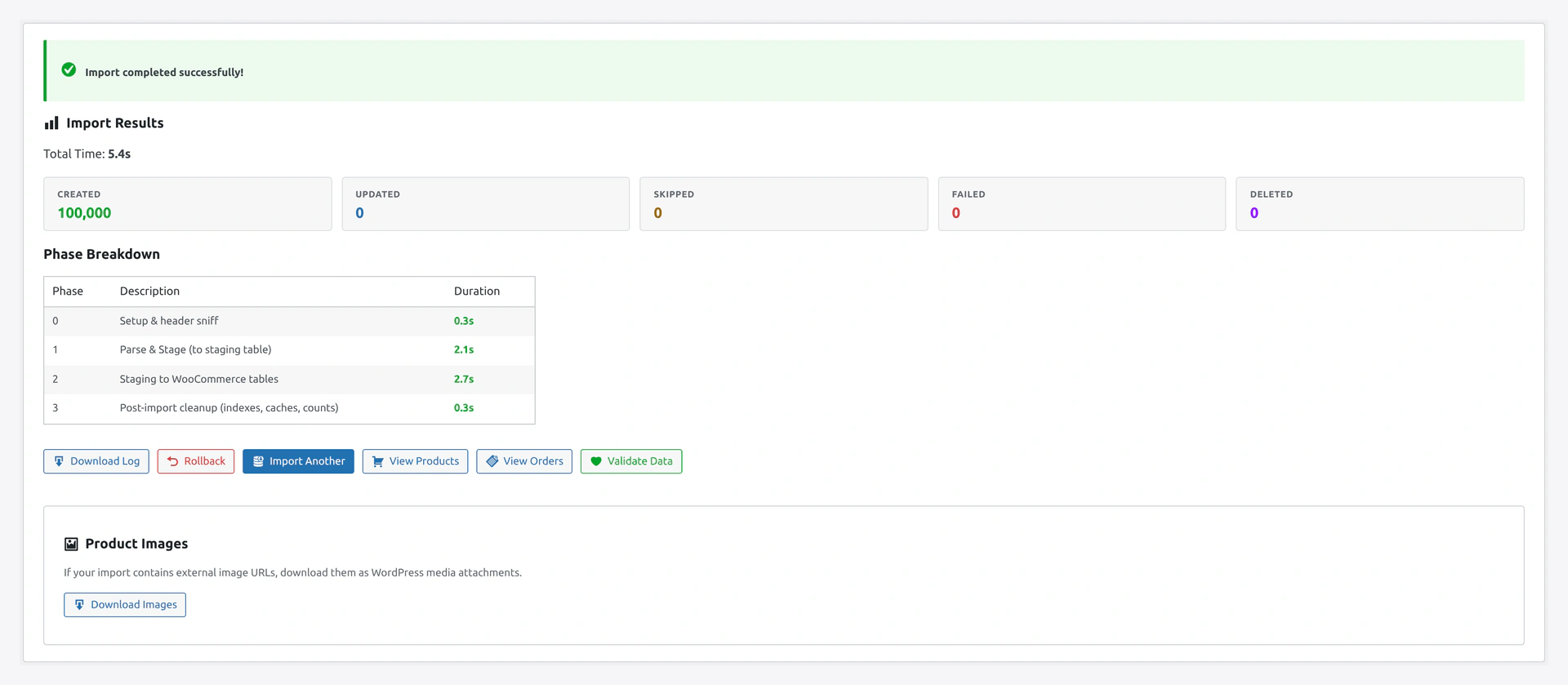 Results screen confirms menus created, items added, parent-child links resolved, and theme locations assigned.
Limitations
- Menu export is currently limited — import works fully
- Deep hierarchy (4+ levels) may not display well in most themes
Related Pages
- Pages Import — Create pages first, then link them in menus
- Categories Import — Create categories first, then link them
- Quick Import Wizard — How to run the import