Advance Import and Export for WooCommerce DocumentationAdvance Import and Export for WooCommerce Documentation
Buy Now
View Demo
  • Getting Started

    • Introduction
    • Quick Start
    • Features
    • Installation
    • First-Time Setup
    • CSV Preparation
    • Sample Files
    • Use Cases
    • Common Mistakes
  • Tutorials

    • Google Sheets Live Sync
    • Shopify Migration
    • Daily Backup to S3
    • Multi-Store Sync
  • Using the Plugin

    • Dashboard
    • Quick Import Wizard
    • Quick Export
    • Settings
    • Compatibility
  • Import In Detail

    • Import Sources
    • Import Modes
    • Column Mapping
    • Transformations
    • Migration Presets
    • Delta Import
  • Export In Detail

    • Export Features
    • Export Destinations
    • Browser Download
    • Server Path (REST / CLI)
  • Data Types

    • Products
    • Variable Products
    • Orders
    • Customers
    • Categories & Tags
    • Coupons
    • Reviews
    • Posts
    • Pages
    • Users
    • Subscriptions
    • Bookings
    • Memberships
    • Menus
  • Automation

    • Scheduled Jobs
    • History & Logs
    • Rollback
    • Health Check
  • Cloud Service Setup

    • Google API Setup
    • Amazon S3 Setup
    • Dropbox Setup
    • Email / SMTP Setup
  • Server Configuration

    • PHP Configuration
    • Server Cron Setup
    • Image Handling
  • Developer

    • REST API
    • WP-CLI Commands
  • Compare

    • vs WP All Import
    • vs Product Import Export (WebToffee)
  • Help

    • Troubleshooting
    • FAQ
    • Glossary
    • Security
    • Changelog
Support
Buy Now
View Demo
  • Getting Started

    • Introduction
    • Quick Start
    • Features
    • Installation
    • First-Time Setup
    • CSV Preparation
    • Sample Files
    • Use Cases
    • Common Mistakes
  • Tutorials

    • Google Sheets Live Sync
    • Shopify Migration
    • Daily Backup to S3
    • Multi-Store Sync
  • Using the Plugin

    • Dashboard
    • Quick Import Wizard
    • Quick Export
    • Settings
    • Compatibility
  • Import In Detail

    • Import Sources
    • Import Modes
    • Column Mapping
    • Transformations
    • Migration Presets
    • Delta Import
  • Export In Detail

    • Export Features
    • Export Destinations
    • Browser Download
    • Server Path (REST / CLI)
  • Data Types

    • Products
    • Variable Products
    • Orders
    • Customers
    • Categories & Tags
    • Coupons
    • Reviews
    • Posts
    • Pages
    • Users
    • Subscriptions
    • Bookings
    • Memberships
    • Menus
  • Automation

    • Scheduled Jobs
    • History & Logs
    • Rollback
    • Health Check
  • Cloud Service Setup

    • Google API Setup
    • Amazon S3 Setup
    • Dropbox Setup
    • Email / SMTP Setup
  • Server Configuration

    • PHP Configuration
    • Server Cron Setup
    • Image Handling
  • Developer

    • REST API
    • WP-CLI Commands
  • Compare

    • vs WP All Import
    • vs Product Import Export (WebToffee)
  • Help

    • Troubleshooting
    • FAQ
    • Glossary
    • Security
    • Changelog
Support
  • Getting Started

    • Introduction
    • Quick Start — Your First Import in 5 Minutes
    • Features — Full Tour
    • Installation — Full Setup Guide
    • First-Time Setup — Complete Checklist
    • CSV Preparation — How to Make a Good Import File
    • Sample Files — Download Ready-to-Use Templates
    • Use Cases — "I Want To..." Quick Reference
    • Common Mistakes — Things To Watch Out For
  • Tutorials

    • Tutorial — Google Sheets Live Sync
    • Tutorial — Migrate from Shopify to WooCommerce
    • Tutorial — Daily Backup to Amazon S3
    • Tutorial — Sync Between Two WooCommerce Stores
  • Using the Plugin

    • Dashboard — What You See First
    • Quick Import Wizard — 5 Steps to Import Any File
    • Quick Export — One-Page Export Tool
    • Settings — Every Option Explained
    • Compatibility — Third-Party Plugin Support
  • Import In Detail

    • Import Sources — 11 Ways to Pull Data In
    • Import Modes — Create, Update, Delete, Replace
    • Column Mapping — Connect Your Columns to WooCommerce
    • Transformations — Change Values During Import
    • Migration Presets — Move From Shopify, Magento, BigCommerce
    • Delta Import — Skip Unchanged Rows
  • Export In Detail

    • Export Features
    • Export Destinations — Where Your Files Go
    • Export Download — One-Click Browser Download
    • Export to Server Path — WP-CLI
  • Data Types

    • Products Import — Full Field Reference
    • Variable Products — The Complete Guide
    • Orders Import — Historical Orders and Line Items
    • Customers Import — With Addresses and Notes
    • Categories and Tags Import
    • Coupons Import — Discount Codes
    • Reviews Import — Product Reviews and Ratings
    • Posts Import — WordPress Blog Posts
    • Pages Import — WordPress Pages
    • Users Import — WordPress User Accounts
    • Subscriptions Import — WooCommerce Subscriptions
    • Bookings Import — WooCommerce Bookings
    • Memberships Import — WooCommerce Memberships
    • Menus Import — WordPress Navigation Menus
  • Automation

    • Jobs — Saved and Scheduled Imports and Exports
    • History — Every Run You Have Ever Done
    • Rollback — Undo Any Import in One Click
    • Health Check — Data Integrity Checks With Auto-Fix
  • Cloud Service Setup

    • Google API Setup — Sheets, Drive, OAuth
    • Amazon S3 Setup — IAM User and Bucket Permissions
    • Dropbox Setup — API Token for Private Files
    • Email Setup — Making Notifications Actually Work
  • Server Configuration

    • PHP Configuration — Memory, Execution Time, Upload Size
    • Server Cron Setup — Reliable Scheduled Imports
    • Image Handling — Download, Resize, Watermark
  • Developer

    • REST API — Developer Reference
    • WP-CLI Commands — Command Line Automation
  • Compare

    • Advance Import and Export vs WP All Import
    • Advance Import and Export vs Product Import Export for WooCommerce
  • Help

    • Troubleshooting — Fix Common Problems
    • FAQ — Common Questions
    • Glossary — Every Term Explained
    • Security — How Your Data Is Protected
    • Changelog — What Changed

Quick Start — Your First Import in 5 Minutes

Who this page is for

You just installed the plugin. You want to see it work. This page takes you from zero to "products imported" in about 5 minutes.

The Big Picture

Here is what we will do:

StepTaskTime
1Install and activate the plugin1 min
2Open the Quick Import Wizard30 sec
3Pick Products and upload a sample CSV30 sec
4Map the columns (auto-mapping does most of it)1 min
5Preview / Dry Run30 sec
6Click Start Import and watch the progress bar1-2 min
7Check the result30 sec
TotalAbout 5 min

Before You Start

Check these boxes first.

  • [ ] WordPress 6.0 or higher
  • [ ] WooCommerce 8.0 or higher, active
  • [ ] PHP 8.1 or higher
  • [ ] You have a CSV, XML, JSON, or Excel file ready
  • [ ] You are logged in as Administrator or Shop Manager

Step-by-Step

1. Install and Activate

  1. Go to Plugins → Add New → Upload Plugin
  2. Pick advance-import-and-export-for-woocommerce.zip
  3. Click Install Now, then Activate Plugin

Need more detail? See Installation.

2. Open the Quick Import Wizard

In the WordPress admin menu, look for Webkul WC Addons → Quick Import.

You will land on Step 1 of a 5-step wizard.
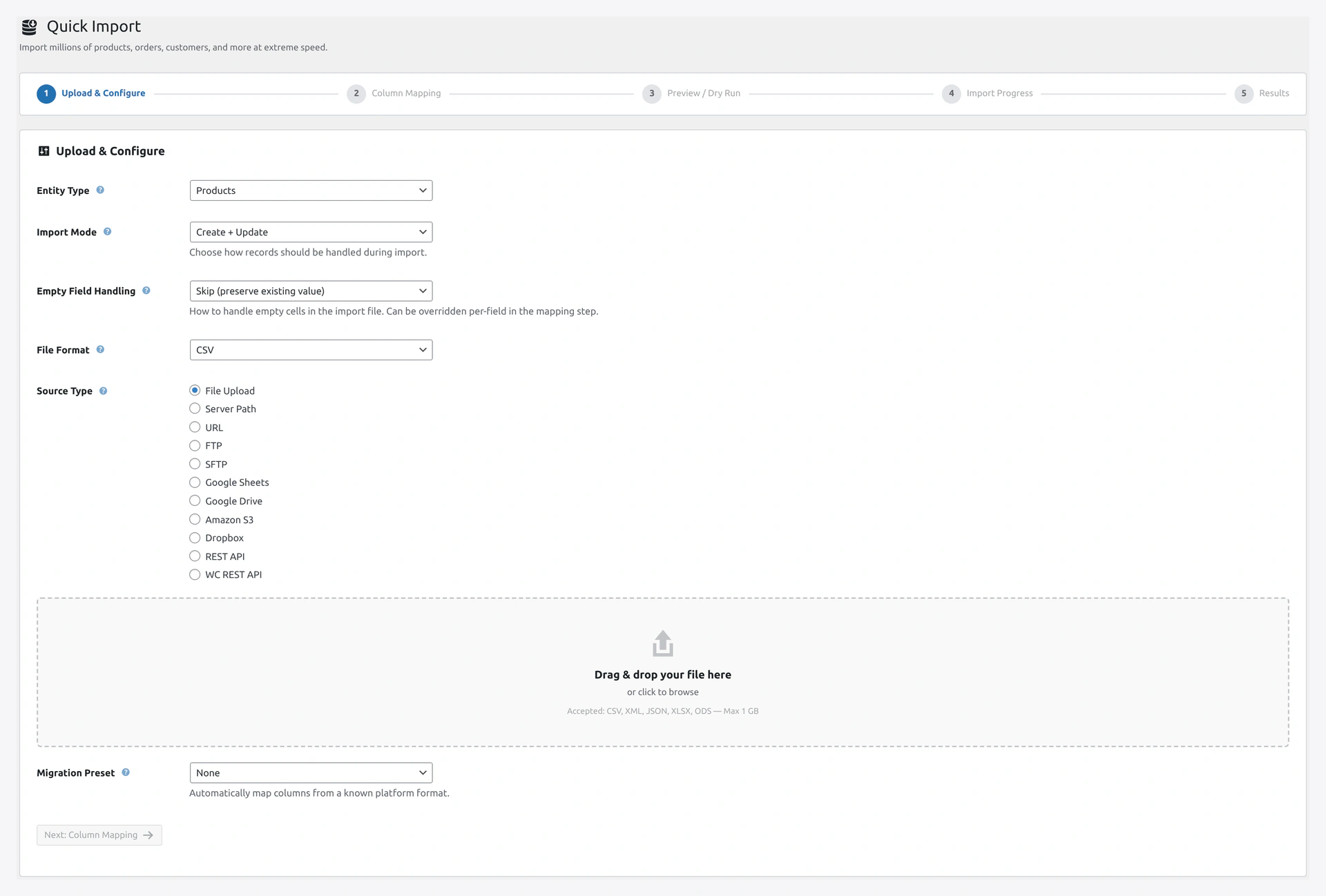
Wizard Step 1Step 1 — pick entity, mode, format, source, and file.

3. Configure Step 1

Fill in:

FieldWhat to Pick
Entity TypeProducts
Import ModeCreate + Update
File FormatAuto-Detect
Source TypeFile Upload

Click Choose File and upload your CSV. The plugin will show the file name and size once loaded.

Click Next to move to Step 2.

4. Map the Columns

Step 2 is the column mapper. On the left you see every column from your file. On the right you see every WooCommerce field.
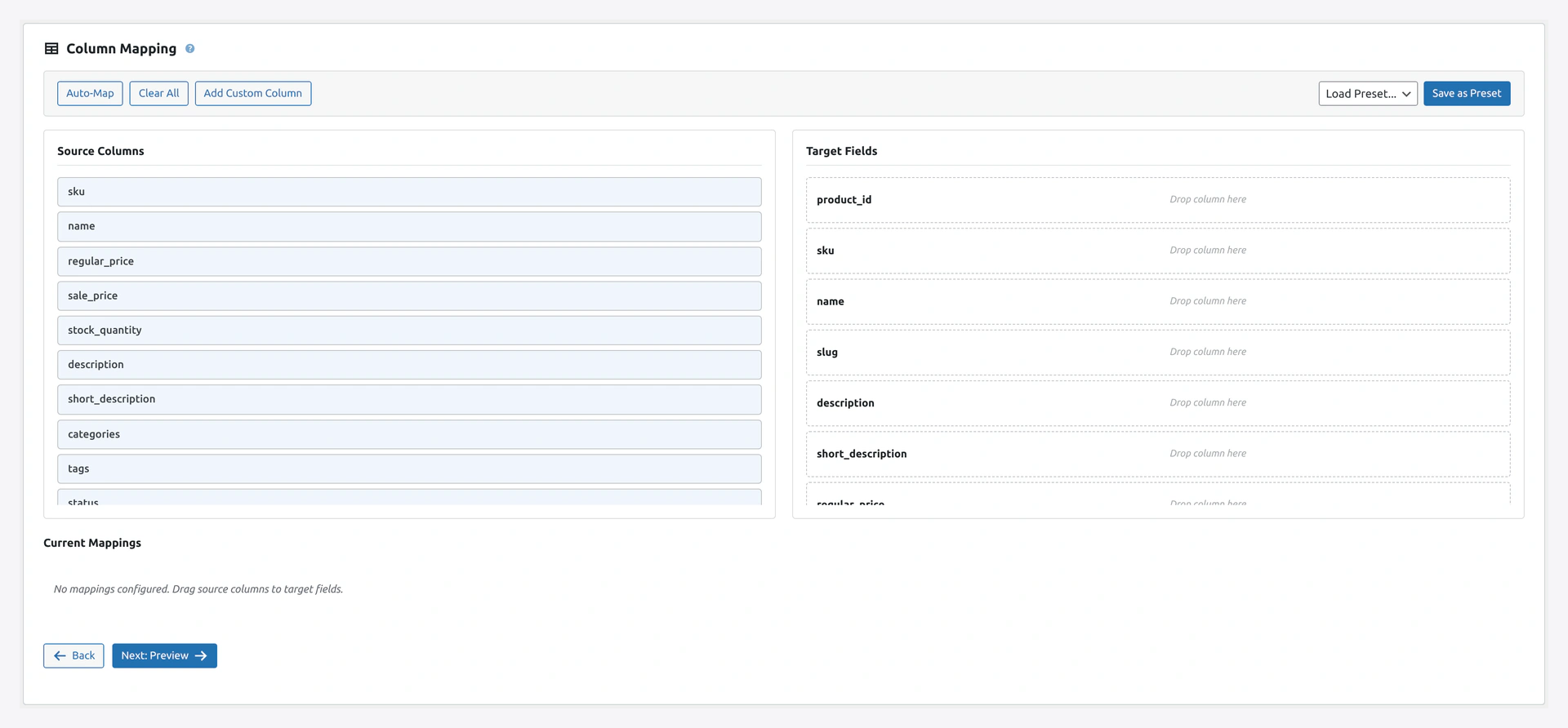
Column MapperStep 2 — drag-and-drop column mapping with auto-match.

For a standard CSV, the plugin will auto-match most columns. So SKU in your file connects to the SKU field in WooCommerce, Name connects to Product Name, and so on.

If anything is not matched, drag the column on the left to the field on the right. Fields with a red star are required.

Click Next when you are happy with the mapping.

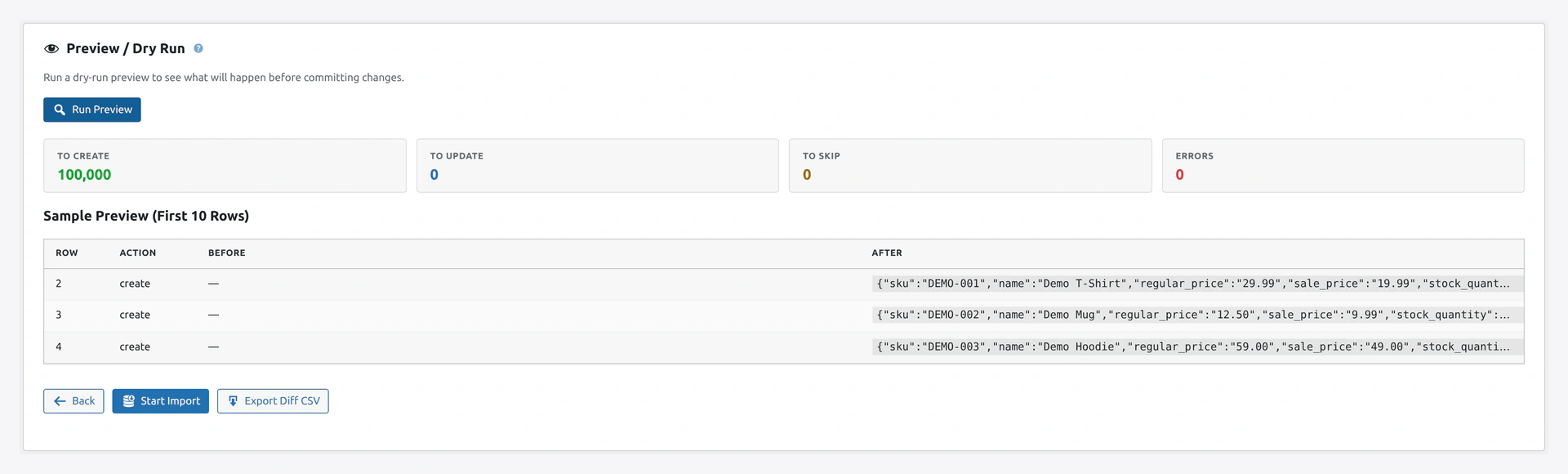
5. Preview (Step 3)

Step 3 runs a dry run. You will see:

  • How many records will be Created
  • How many will be Updated
  • How many will be Skipped
  • Any validation errors

Preview / Dry RunScreenshot: Step 3 — Preview / Dry Run shows create/update/skip counts and any validation errors before you commit.

If everything looks right, click Start Import. If not, click Back to fix Step 2.

6. Watch the Import (Step 4)

Step 4 shows the import as it runs.
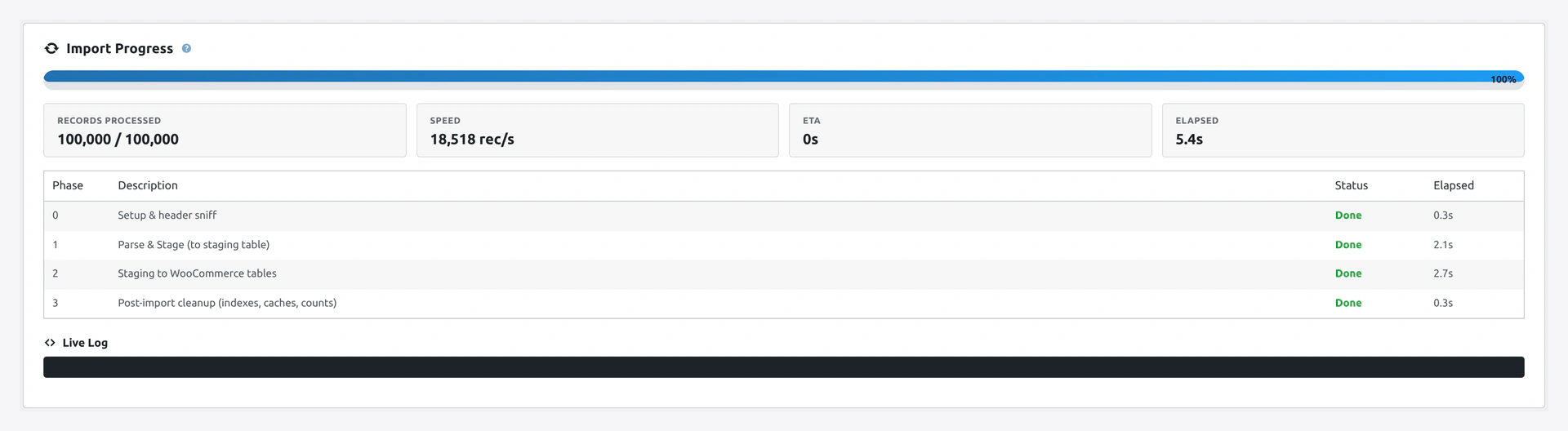
Import in ProgressStep 4 — live progress with phase status and speed.

You will see:

  • A percentage bar
  • Phase names (Phase 0, 1, 2, 3)
  • Records processed counter
  • Speed (records per second)
  • Estimated time left

You can close the tab

The import keeps running in the background. Come back anytime, open the same page, and the progress will pick up from where it left off.

7. See the Result (Step 5)

Step 5 shows the result.
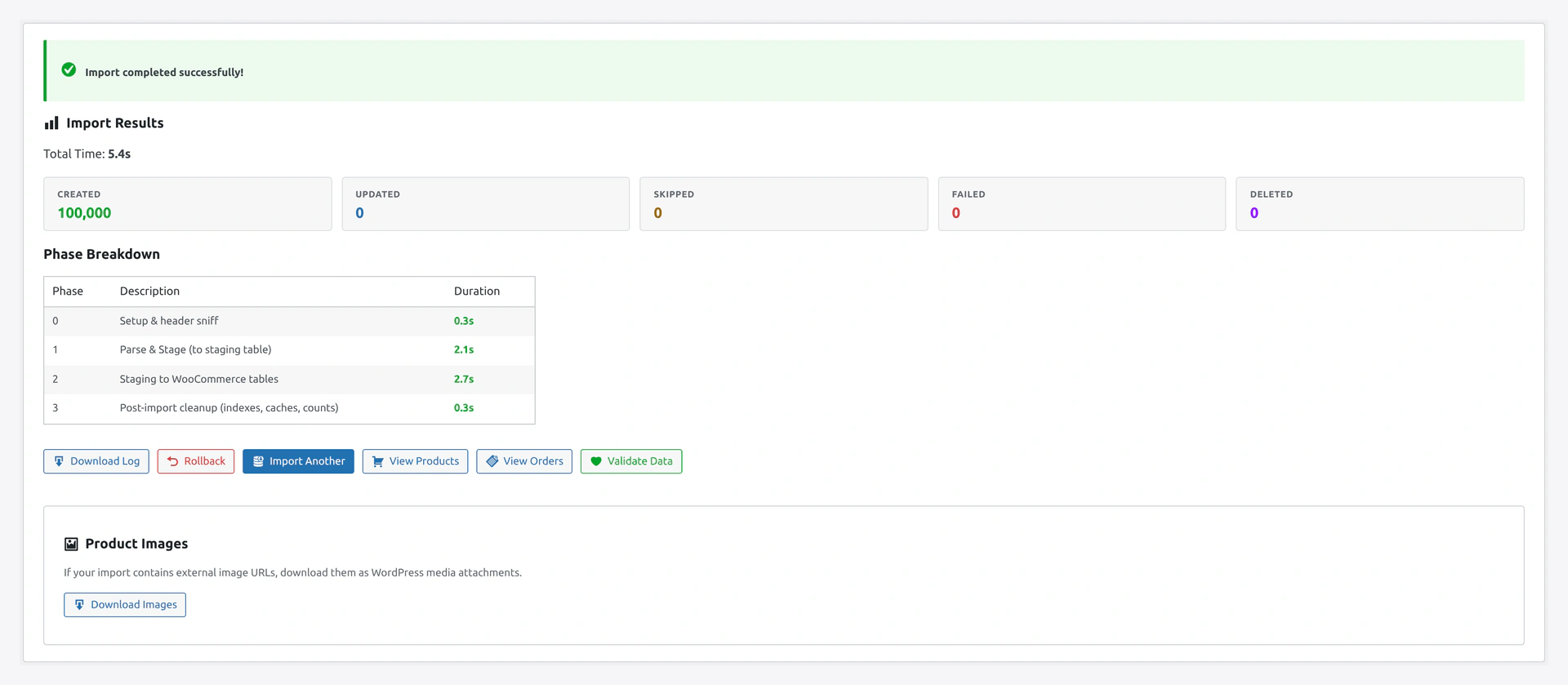
Import ResultStep 5 — final counters, download log, and rollback button.

You will see:

  • Success / Failure banner
  • How many products were created, updated, skipped, failed
  • Total time
  • A Download Log button
  • A Rollback button (if you need to undo)
  • An Import Another button

That is it. You just ran your first import.

What to Do Next

I Want to...Go to
Run imports automatically every nightJobs
Sync products from a Google SheetImport Sources → Google Sheets
Export my products to CSVQuick Export
Move a Shopify store to WooCommerceMigration Presets
Undo an importRollback
See every run I have doneHistory
Set default optionsSettings
Turn on Yoast SEO supportCompatibility

When Something Does Not Work

ProblemFix
Import shows "failed" immediatelyYour file might be empty or the wrong format. Check Troubleshooting
Some products did not importDownload the log from Step 5. Check for error messages
Categories are missingMake sure your CSV has a Categories column
Images did not downloadCheck Settings → Image & Media → Download Images is on
Import is slowLarge files on shared hosting can be slow. See Troubleshooting

Related Pages

  • Full Features — every feature explained
  • Import Modes — Create, Update, Delete, Replace
  • Column Mapping — Save mappings as presets
  • Health Check — Find and fix data issues after import
Prev
Introduction
Next
Features — Full Tour